Skip to content
Trio Travel guide

Employee Attachments

On this page
  1. 1 Choose and save a file
  2. 2 Review the saved attachment
  3. 3 Preview the document
  4. 4 Delete an attachment

Upload, categorize and preview a document from an employee record.

1 Choose and save a file
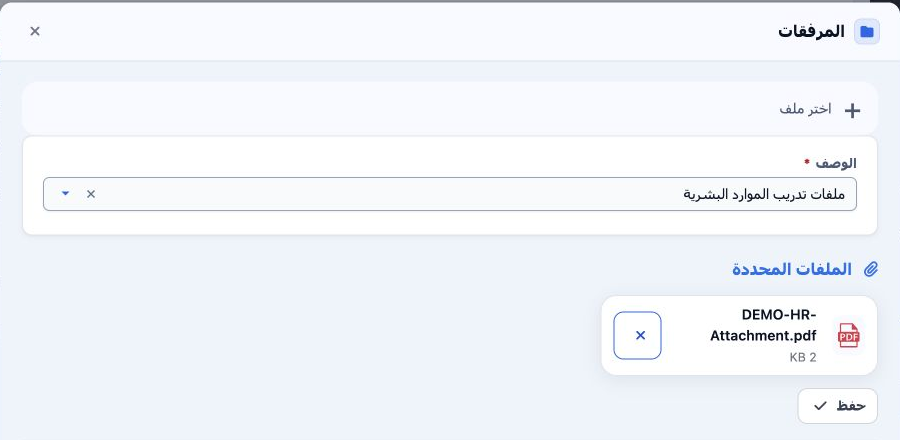
1 Open Employees, the intended employee’s row menu, then Attachments. Select Choose File and pick a document from your computer. Select its ca...
Open Employees, the intended employee’s row menu, then Attachments. Select Choose File and pick a document from your computer. Select its category in Description; configure categories under Settings → اضافة مرفقات. The selected file card shows its name and size. Select Save to upload.

2 Review the saved attachment

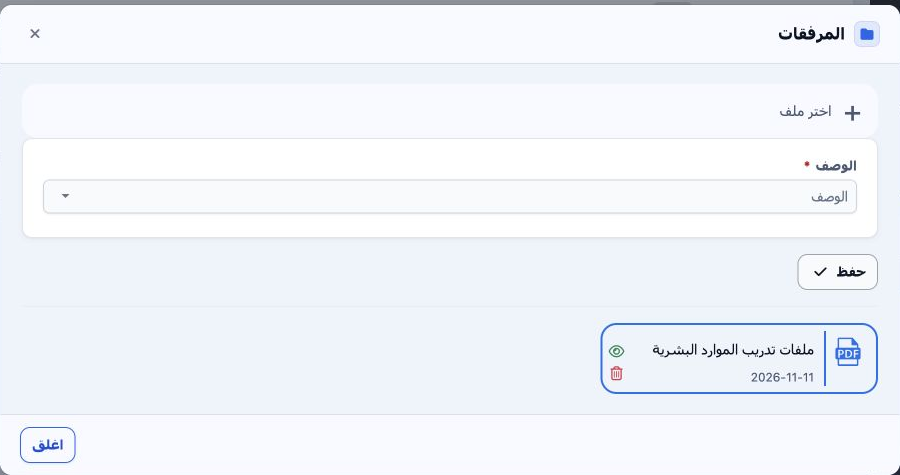
2 After saving, the attachment card shows its category, date, preview icon and delete icon. This example is a training PDF under ملفات تدريب ا...
After saving, the attachment card shows its category, date, preview icon and delete icon. This example is a training PDF under ملفات تدريب الموارد البشرية, dated 11 November 2026.

3 Preview the document

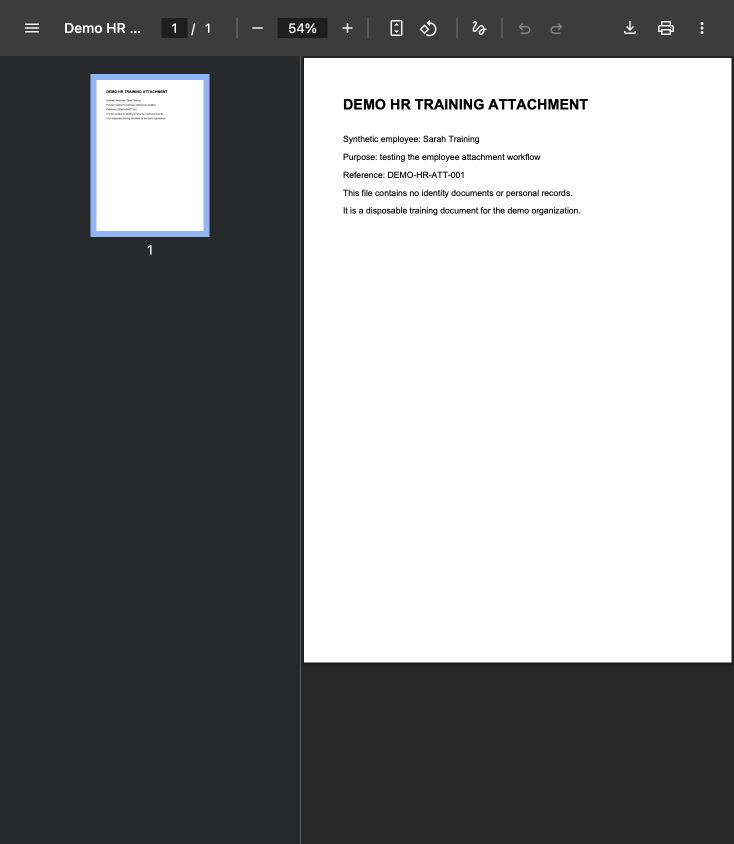
3 Select the eye icon on the attachment card. The PDF opens in another tab. Review the document and close the preview tab to return to the sys...
Select the eye icon on the attachment card. The PDF opens in another tab. Review the document and close the preview tab to return to the system. This sample contains synthetic training information only.

4 Delete an attachment

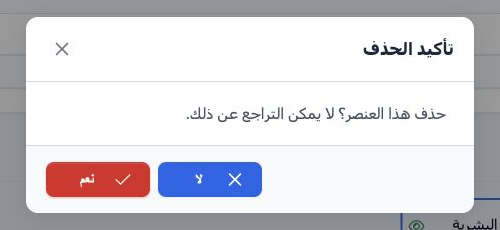
4 Select the trash icon on the intended attachment card. The dialog warns that deletion cannot be undone. Select No to cancel or Yes to confir...
Select the trash icon on the intended attachment card. The dialog warns that deletion cannot be undone. Select No to cancel or Yes to confirm. The synthetic document was deleted during testing, then uploaded again using the earlier steps so the training example remains available.

Sign in to record the lessons you have read. Sign in