Skip to content
Trio Travel guide

Manual Attendance Entry

On this page
  1. 1 Enter a check-in time
  2. 2 Enter a check-out time
  3. 3 Verify the attendance result

Enter an attendance time manually and verify it in the attendance report.

1 Enter a check-in time
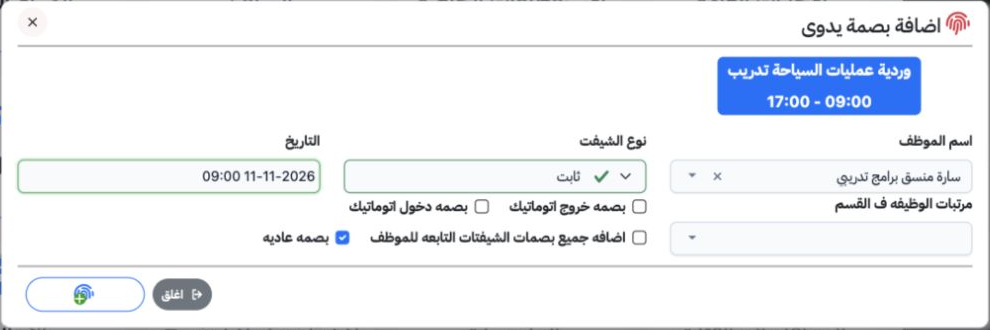
1 Open HR → Operations → Manual Attendance, or select Manual Attendance on the attendance screen. Choose the employee and shift type. Select t...
Open HR → Operations → Manual Attendance, or select Manual Attendance on the attendance screen. Choose the employee and shift type. Select the day, hour and minute in the date picker, then choose Add inside it. Select Normal Punch, review the date and time and use the fingerprint + button to save. The example records Sarah on 11 November 2026 at 09:00.

2 Enter a check-out time

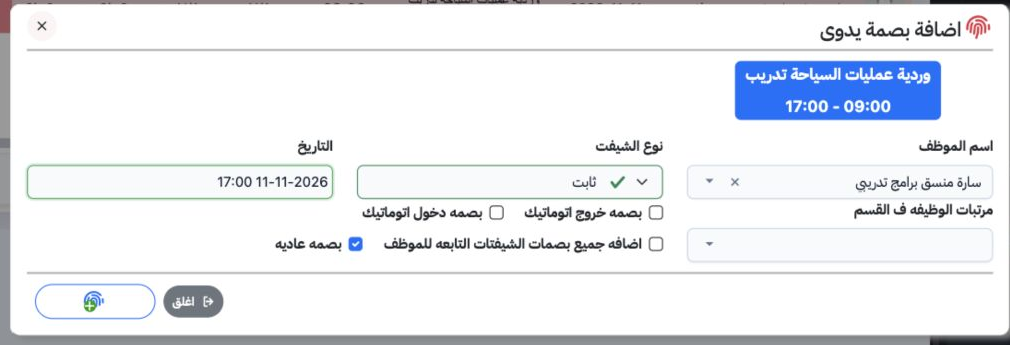
2 Open the form again and select the same employee and day. Set the check-out time, select Normal Punch and save. A second punch was saved for...
Open the form again and select the same employee and day. Set the check-out time, select Normal Punch and save. A second punch was saved for Sarah at 17:00 on the same date. The form also offers automatic check-in, automatic check-out and all employee shift punches; these options were not used in this example.

3 Verify the attendance result

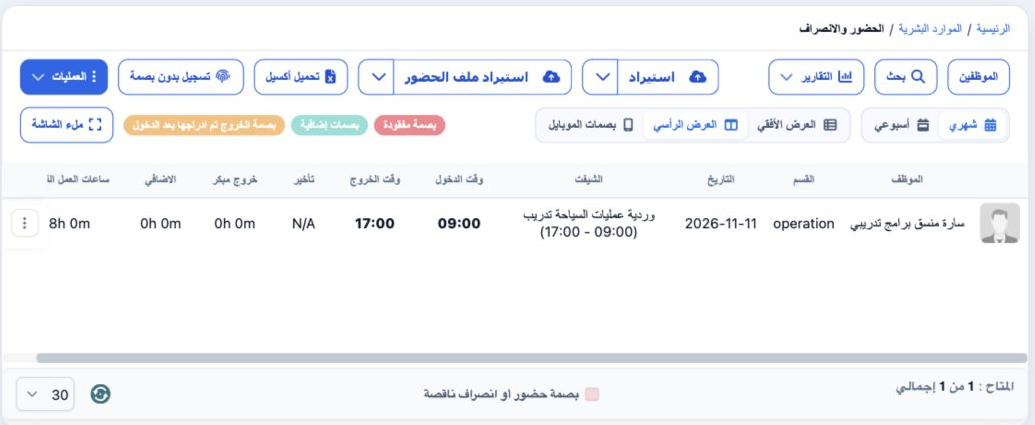
3 Open Attendance and review the employee, date, shift and check-in/out times. After the 09:00 punch alone, check-out showed N/A. After adding...
Open Attendance and review the employee, date, shift and check-in/out times. After the 09:00 punch alone, check-out showed N/A. After adding 17:00 and refreshing, both times appeared with eight actual working hours. To correct a saved time, use Edit Punch Time in the attendance row menu.

Sign in to record the lessons you have read. Sign in