Skip to content
Trio Travel guide

Employee Records

On this page
  1. 1 Create an employee
  2. 2 Open and edit an employee
  3. 3 Salary system and currency
  4. 4 Contact and additional details
  5. 5 Insurance and tax details
  6. 6 Assign an allowance
  7. 7 Assign a deduction
  8. 8 Search and export employees
  9. 9 Review deletion
  10. 10 Assign the employee payroll ledger
  11. 11 Review basic employee details
  12. 12 Variable shifts
  13. 13 Contract and attendance fields
  14. 14 Contact and identity fields
  15. 15 Bank and organizational fields
  16. 16 Alternate shift fields
  17. 17 Insurance and tax fields
  18. 18 Insurance enrollment and premium fields
  19. 19 Annual leave entitlement

Create an employee, assign their job, shift and salary system, then update and find the record.

1 Create an employee
1 Open Human Resources, Employees and select Add. Enter the employee name and qualification, then choose the shift type. For a fixed shift, se...
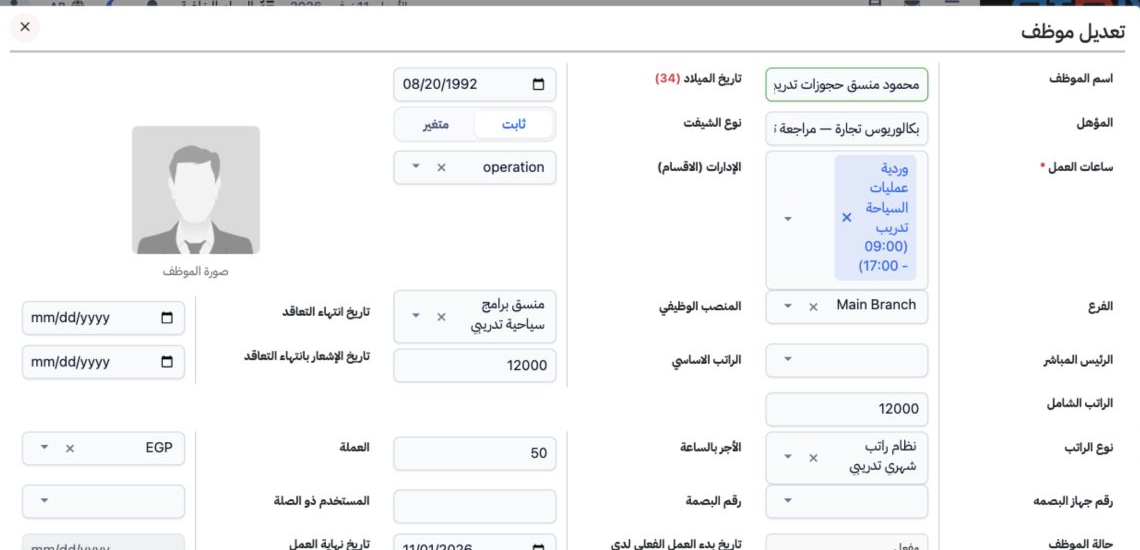
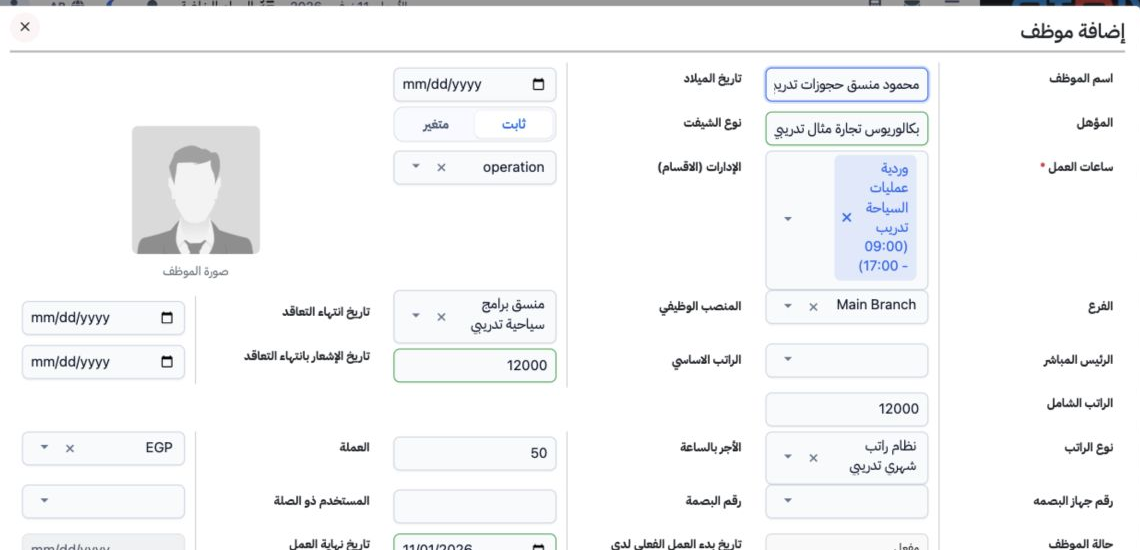
Open Human Resources, Employees and select Add. Enter the employee name and qualification, then choose the shift type. For a fixed shift, select Working Hours, department, branch and job position. The example creates محمود منسق حجوزات تدريبي with a basic salary of EGP 12,000. Define jobs and working hours in HR Settings before selecting them. Complete the remaining details and save.

2 Open and edit an employee

2 Select the employee’s name in the list or choose Edit from their row menu. Review the name, qualification, shift, branch, job and salary. Th...
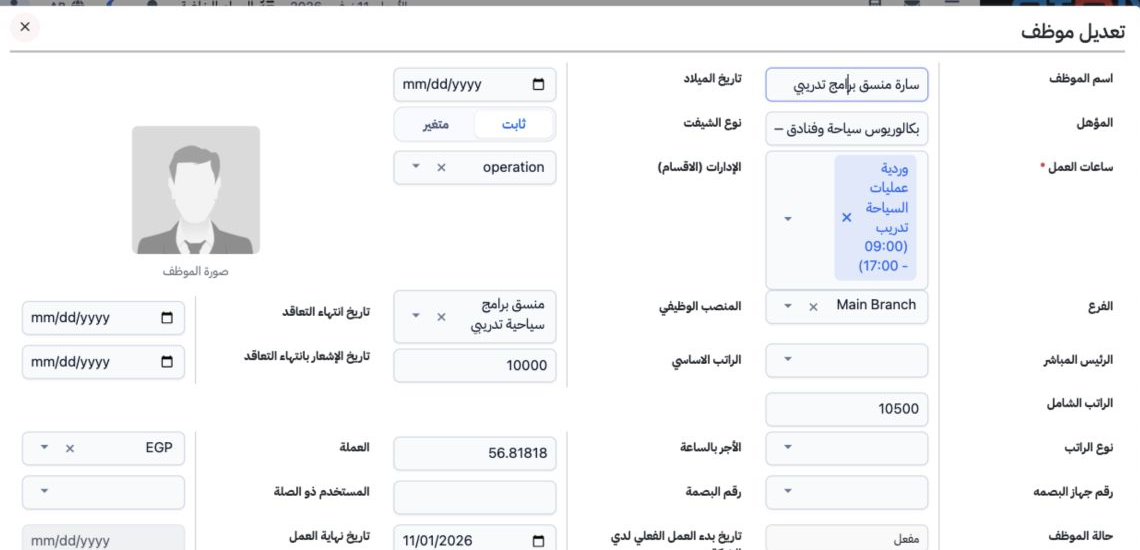
Select the employee’s name in the list or choose Edit from their row menu. Review the name, qualification, shift, branch, job and salary. The screenshot shows the training employee Sarah after updating her qualification and assigning a job and shift. Save applies the changes; Close exits the form.

3 Salary system and currency

3 Enter Basic Salary, select Salary Type and Currency. Define the salary type under HR Settings → Salaries and the shift under Working Hours....
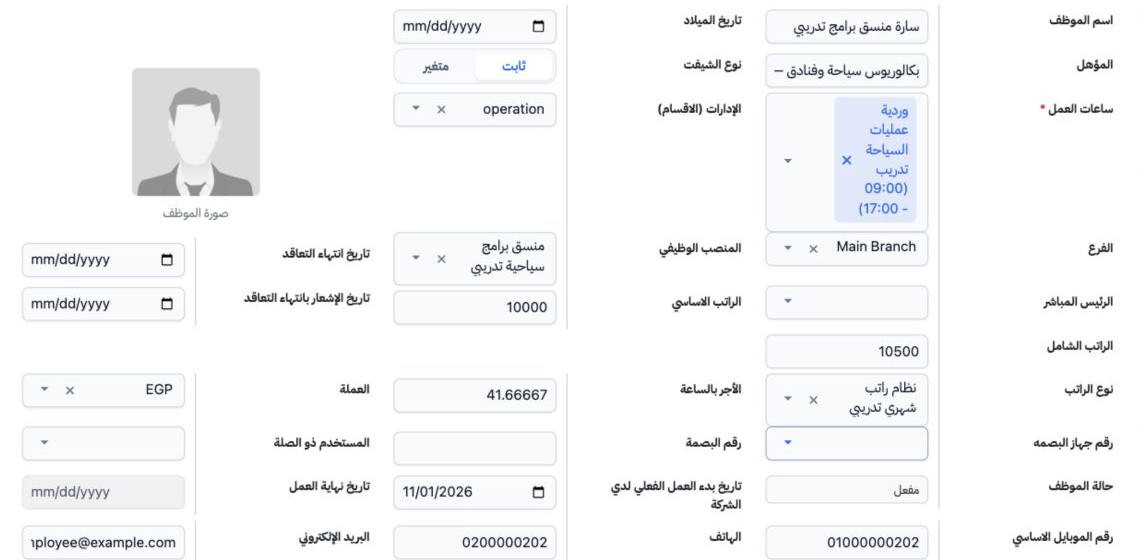
Enter Basic Salary, select Salary Type and Currency. Define the salary type under HR Settings → Salaries and the shift under Working Hours. The example uses نظام راتب شهري تدريبي and EGP. Review Hourly Rate after selecting the system; Sarah shows 41.66667 on a basic salary of 10,000. Save and reopen the record to verify the selection.

4 Contact and additional details

4 Enter the employment start date, primary mobile, telephone, email, address and emergency contact details as needed. Nationality, identity, p...
Enter the employment start date, primary mobile, telephone, email, address and emergency contact details as needed. Nationality, identity, passport, residence and bank account fields are also available. Review employee status, related user and selected responsibilities before saving. Telephone is separate from Primary Mobile.

5 Insurance and tax details

5 Open Insurance and Income Tax. Review Apply Taxes, Apply Insurance, contract and tax treatment, insurance status, dates and insured salary....
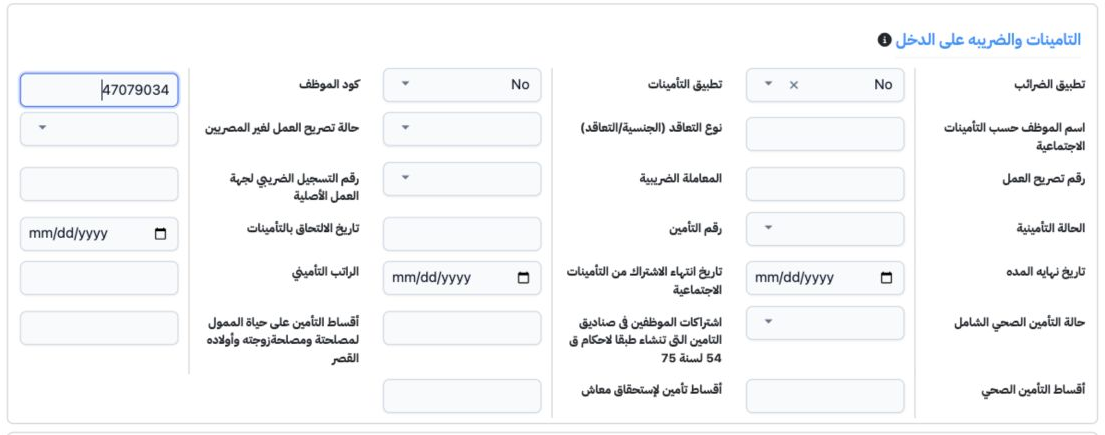
Open Insurance and Income Tax. Review Apply Taxes, Apply Insurance, contract and tax treatment, insurance status, dates and insured salary. Classification options come from Insurance Settings. The screenshot shows No for both tax and insurance in this training record. Enter the employee’s approved details and save.

6 Assign an allowance

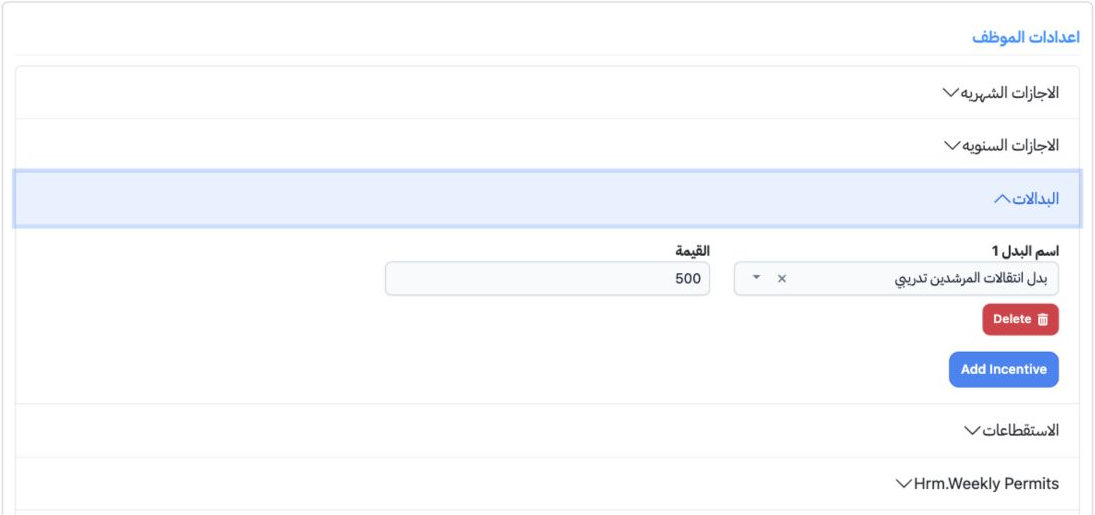
6 Under Employee Settings, expand Allowances and choose Add Incentive. The example selects بدل انتقالات المرشدين تدريبي with a value of 500. S...
Under Employee Settings, expand Allowances and choose Add Incentive. The example selects بدل انتقالات المرشدين تدريبي with a value of 500. Save the employee and reopen to check the item. Define allowance types first under Settings → Allowances. Delete removes the selected item from the form.

7 Assign a deduction

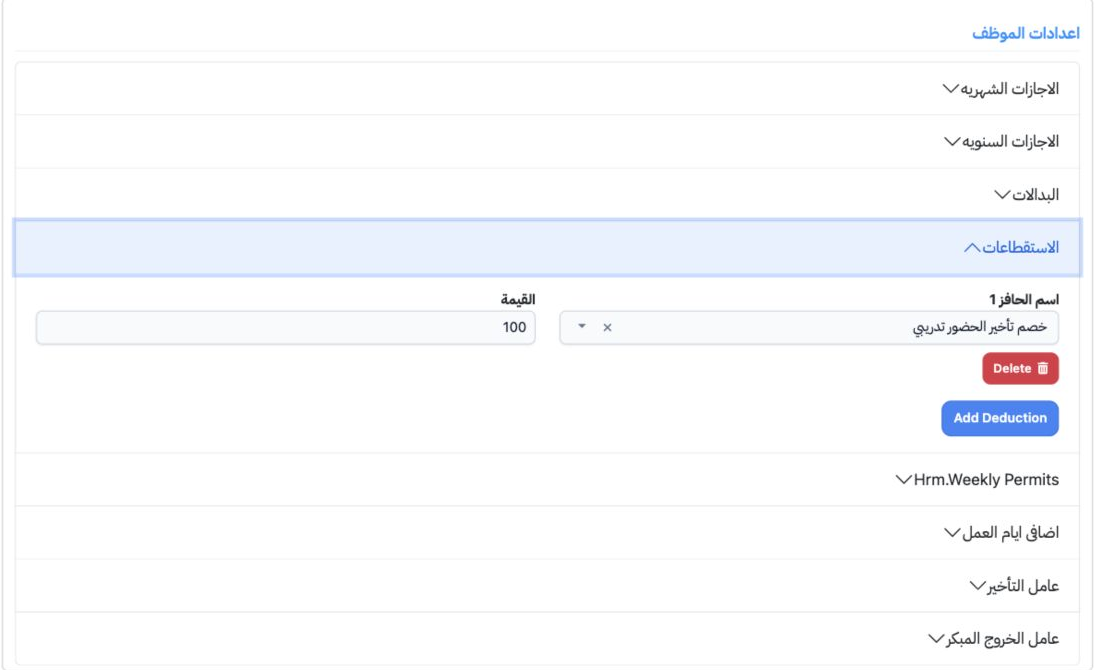
7 Expand Deductions and choose Add Deduction. Select the type in the field labelled اسم الحافز and enter its value. The example uses خصم تأخير...
Expand Deductions and choose Add Deduction. Select the type in the field labelled اسم الحافز and enter its value. The example uses خصم تأخير الحضور تدريبي with a value of 100. Save and reopen the record to verify it. Define types under Settings → Deductions.

8 Search and export employees

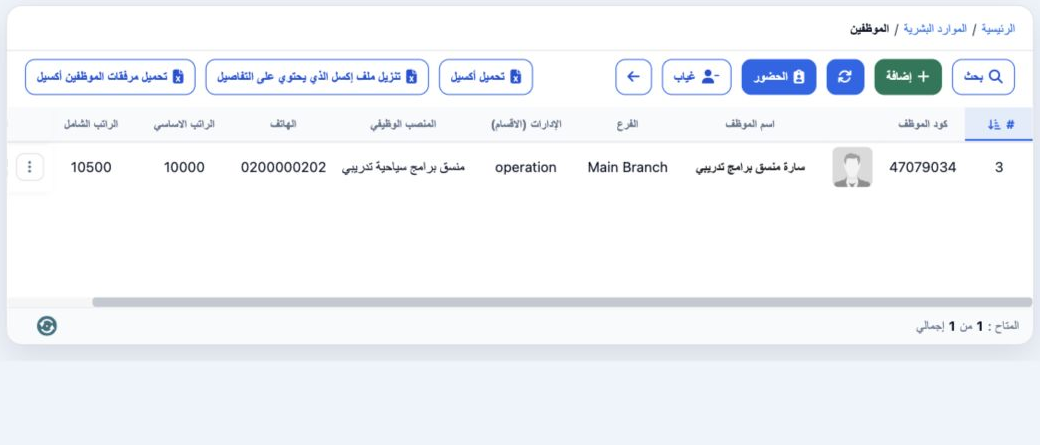
8 Select Search, enter the employee name and choose general.Search inside the dialog. Filters include phone, email, role, department, job, sup...
Select Search, enter the employee name and choose general.Search inside the dialog. Filters include phone, email, role, department, job, supervisor, location, code, fingerprint, salary and shift types. Clear removes the filters. Download Excel exports the list. The screenshot shows Sarah with basic salary 10,000 and total salary 10,500.

9 Review deletion

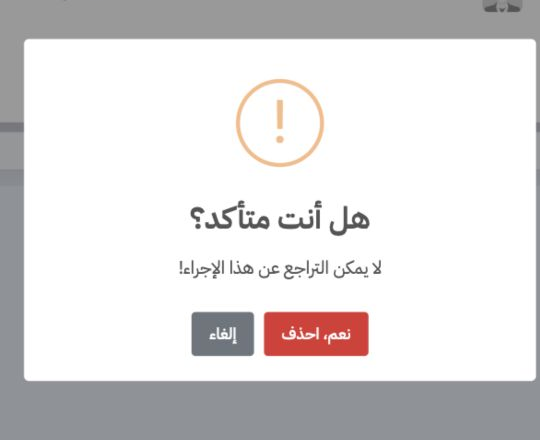
9 Choose Delete from the intended employee’s row menu. Review the warning and selected record before Yes, Delete, or Cancel to retain it. Dele...
Choose Delete from the intended employee’s row menu. Review the warning and selected record before Yes, Delete, or Cancel to retain it. Deletion was cancelled and the training employees remain saved.

10 Assign the employee payroll ledger
10 In Employee Add or Edit, select Ledger (دفتر حساب) according to company policy: an individual employee liability under current liabilities,...
In Employee Add or Edit, select Ledger (دفتر حساب) according to company policy: an individual employee liability under current liabilities, or a shared Salaries Payable account. Save and reopen to verify. The example uses 2120029, رواتب مستحقة تدريبية, for both Sarah and Mahmoud. Employee advances use a separate account, سلفيات موظفين تدريبية.

11 Review basic employee details

11 Review the name, date of birth, qualification, shift and salary. The screenshot shows Mahmoud with a training birth date of 20 August 1992....
Review the name, date of birth, qualification, shift and salary. The screenshot shows Mahmoud with a training birth date of 20 August 1992. Complete contact, identity, emergency and contract fields using approved employee details, then verify them after saving.

12 Variable shifts

12 Select Variable for an employee who will use a rotating schedule. The fixed Working Hours selector becomes disabled. Save, open Operations →...
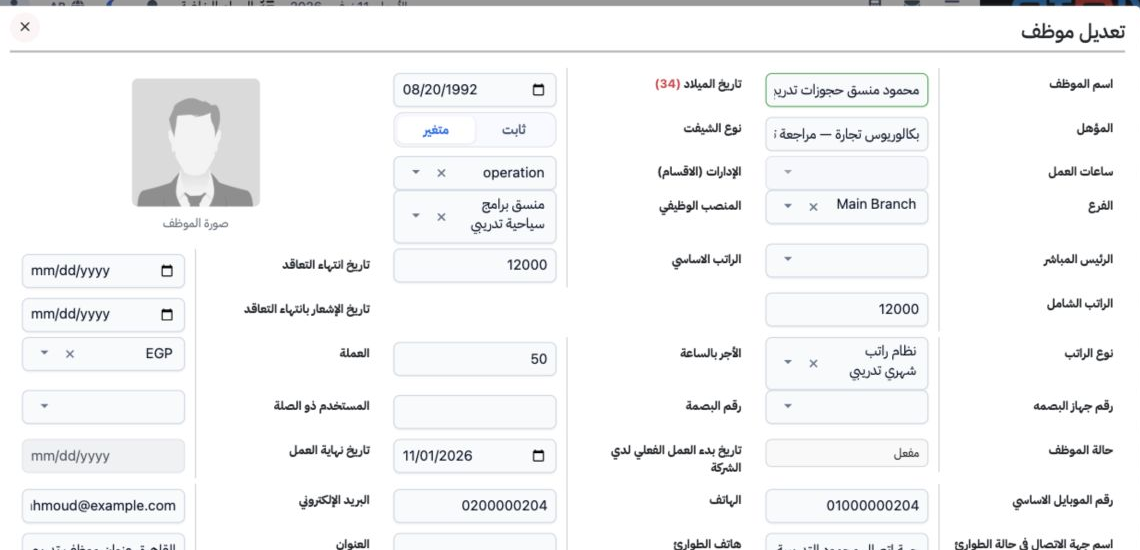
Select Variable for an employee who will use a rotating schedule. The fixed Working Hours selector becomes disabled. Save, open Operations → Rotating Shifts and choose Assign Employees from the schedule menu. Mahmoud appeared after this change and his assignment was saved in the training schedule.

13 Contract and attendance fields

13 Contract End Date records the end of the contract; Contract End Notice Date records the notification date. Fingerprint Device identifies the...
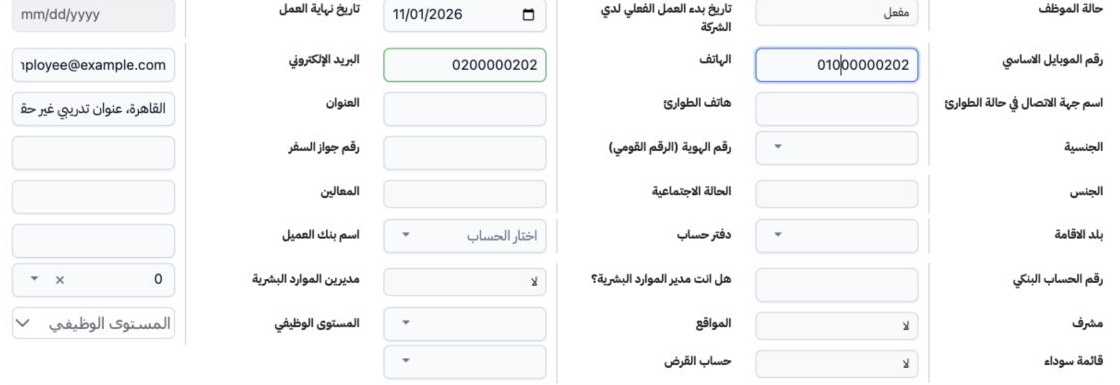
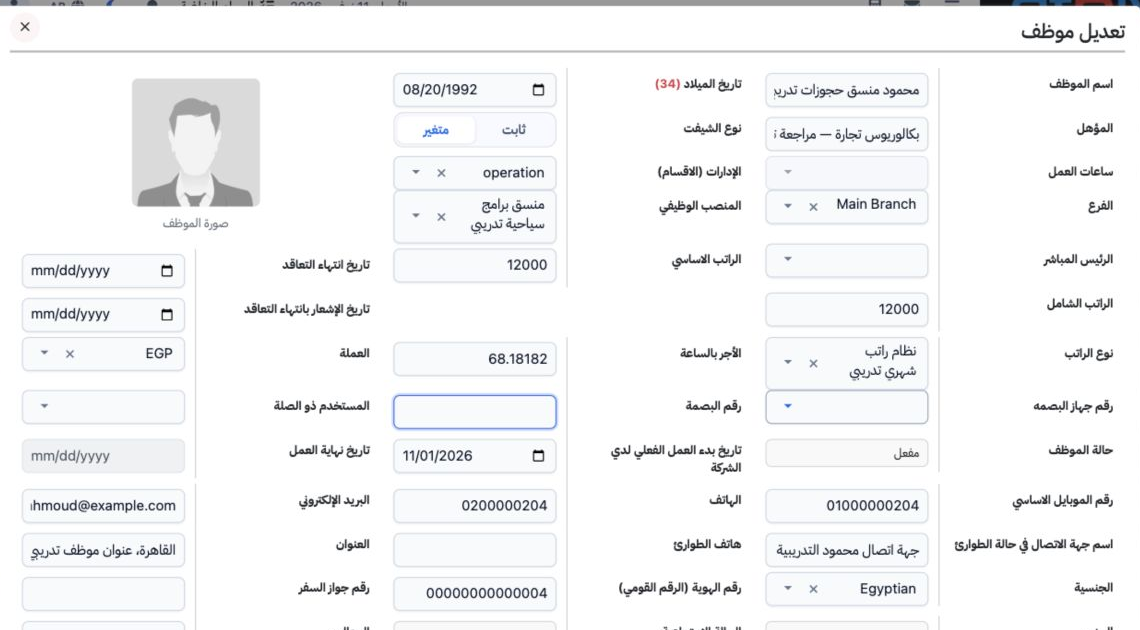
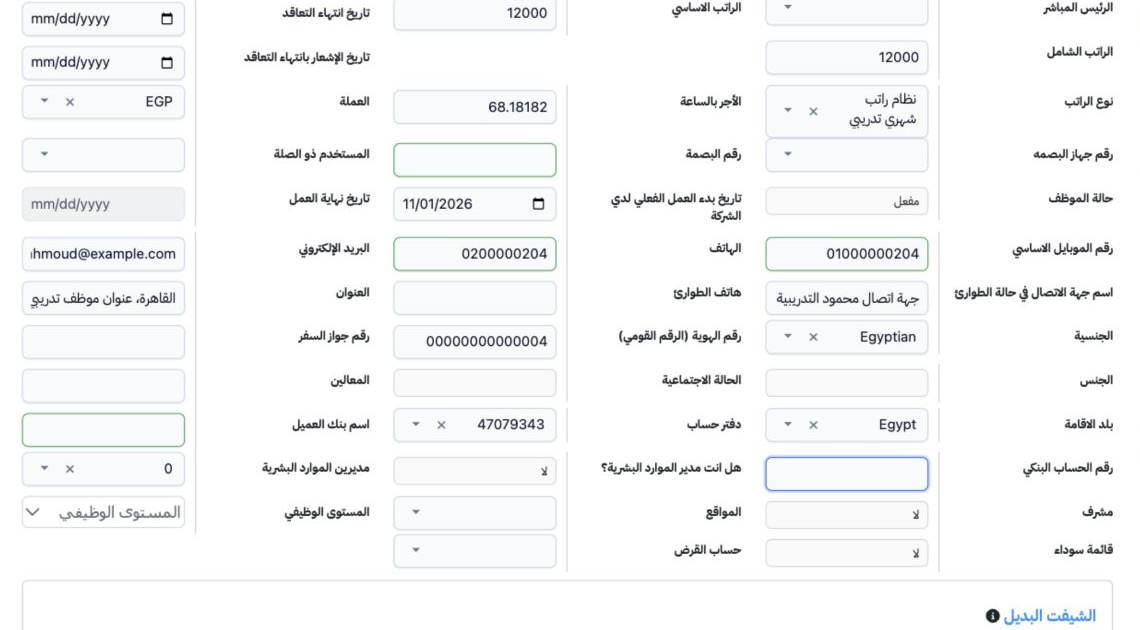
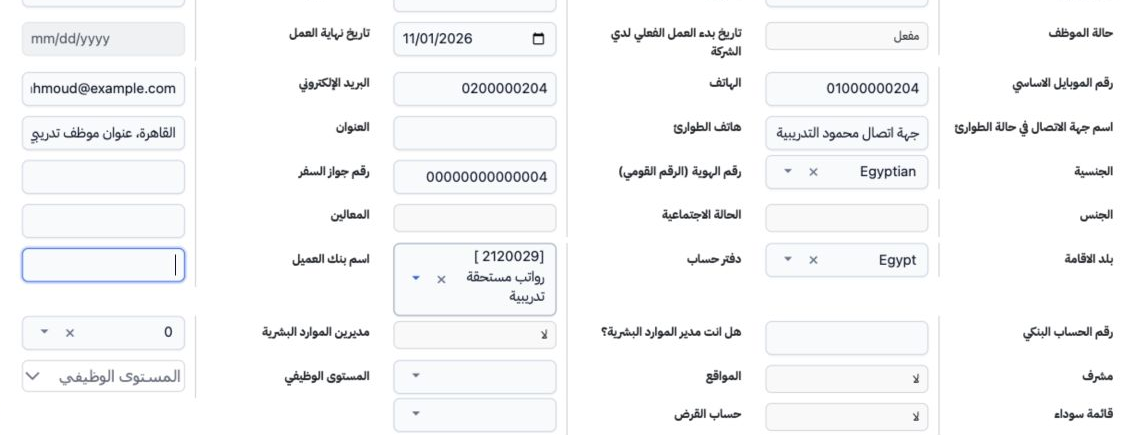
Contract End Date records the end of the contract; Contract End Notice Date records the notification date. Fingerprint Device identifies the device and Fingerprint Number records the employee number on it. Related User selects the user account linked to the employee. Review Employee Status and Actual Work Start Date. Work End Date is disabled while the employee is active. No device or user account was linked in this example.

14 Contact and identity fields

14 Primary Mobile, Phone, Email and Address hold contact details. Emergency Contact Name and Emergency Phone hold emergency contact information...
Primary Mobile, Phone, Email and Address hold contact details. Emergency Contact Name and Emergency Phone hold emergency contact information. Select Nationality and Country of Residence, then enter the identity and passport numbers. The passport tooltip allows English letters and digits. Set Gender, Marital Status and Dependants from the employee record. Values entered in the screenshot are synthetic training data.

15 Bank and organizational fields

15 The field labelled Customer Bank Name records the bank name in the employee form, followed by Bank Account Number. HR Manager, Supervisor an...
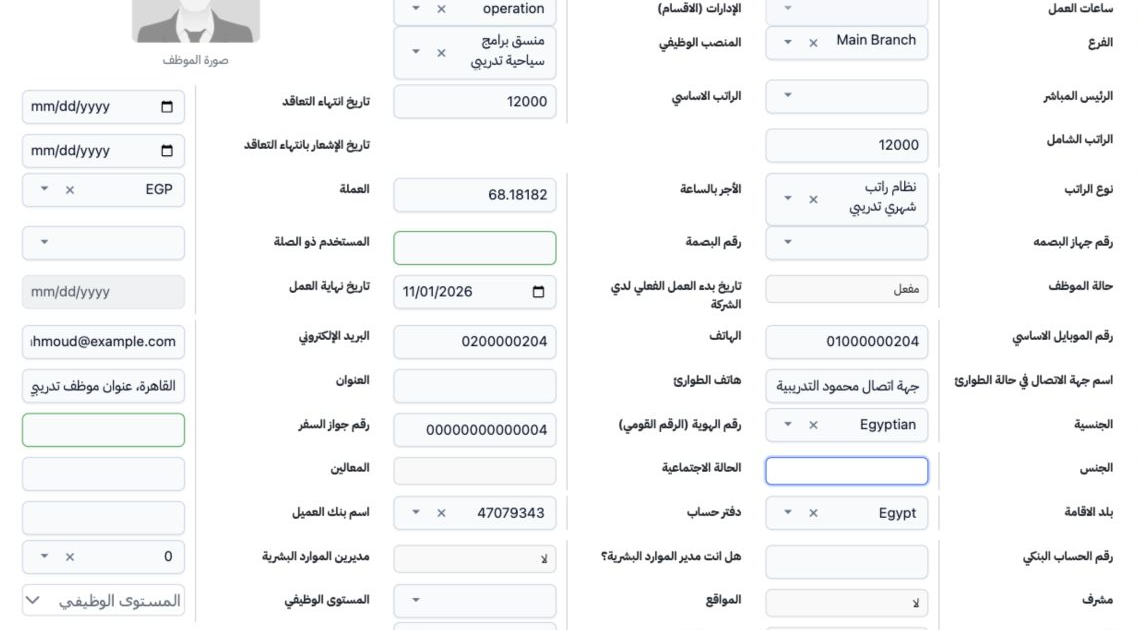
The field labelled Customer Bank Name records the bank name in the employee form, followed by Bank Account Number. HR Manager, Supervisor and Blacklist are Yes/No selections. HR Managers, Sites and Job Level select the available organizational links. Loan Ledger is a separate selector from Ledger. The example uses the shared Salaries Payable account and leaves the responsibility selections at No.

16 Alternate shift fields

16 The Alternate Shift section includes the hourly value, shift selector, Overtime Start Date and Overtime End Date. When this arrangement appl...
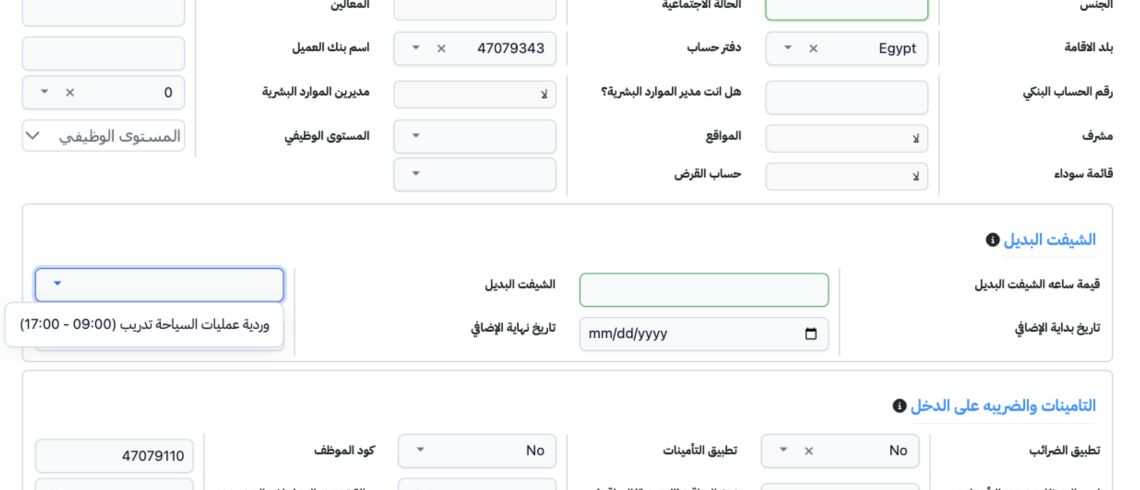
The Alternate Shift section includes the hourly value, shift selector, Overtime Start Date and Overtime End Date. When this arrangement applies to the employee, enter the hourly value, choose the shift and its date range, then save and review the selections. The screenshot locates these fields in the employee record; no alternate shift was assigned.

17 Insurance and tax fields

17 Set Apply Tax and Apply Insurance according to the employee record. Employee Code is displayed in the same section. Enter the Social Insuran...
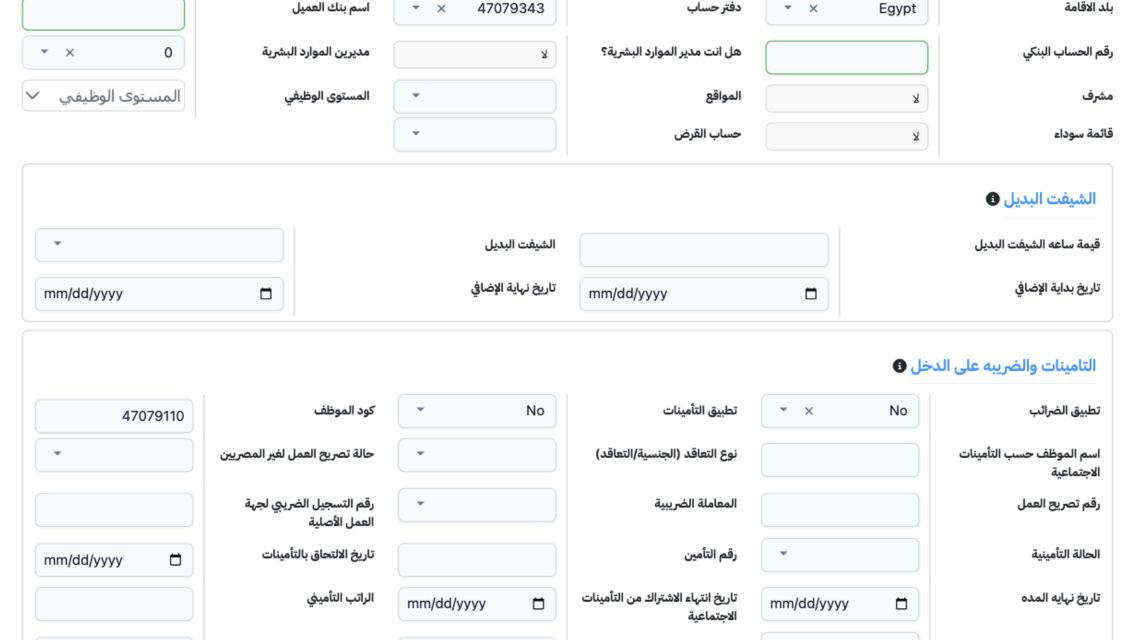
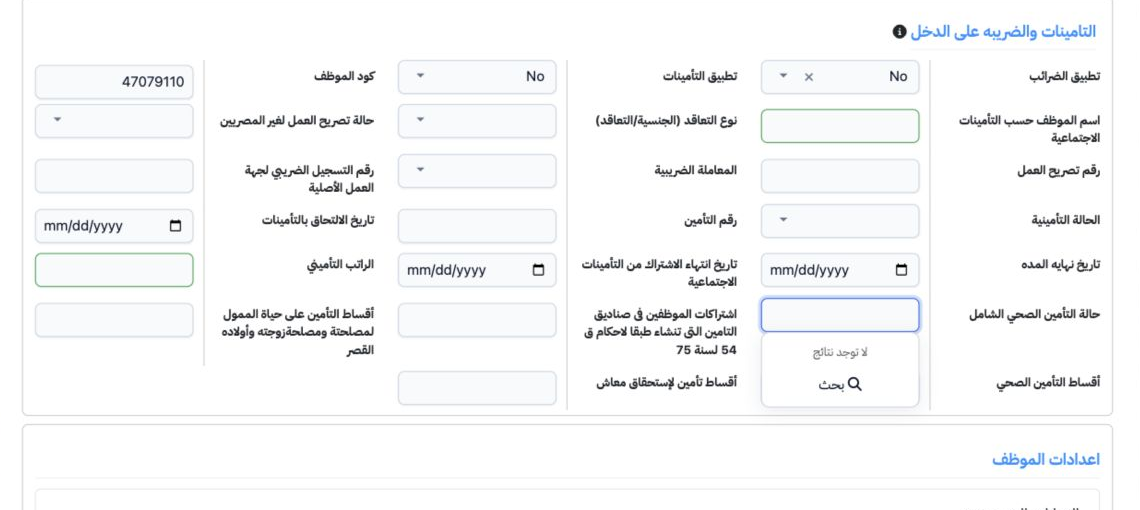
Set Apply Tax and Apply Insurance according to the employee record. Employee Code is displayed in the same section. Enter the Social Insurance Employee Name. Its tooltip requests four Arabic names for an Egyptian employee and permits two Arabic or English names for a foreign employee, without digits or symbols. Select Contract Type and Non-Egyptian Work Permit Status; enter the work permit number when applicable. Tax Treatment and Original Employer Tax Registration Number follow. Apply Tax and Apply Insurance remain No in this example.

18 Insurance enrollment and premium fields
18 Fields include Insurance Status, Insurance Number, Insurance Enrollment Date, Period End Date and Social Insurance Subscription End Date. En...
Fields include Insurance Status, Insurance Number, Insurance Enrollment Date, Period End Date and Social Insurance Subscription End Date. Enter Insurance Salary and select Universal Health Insurance Status using approved employee data. Separate fields record insurance fund contributions, life insurance premiums, health insurance premiums and pension entitlement premiums. Insurance was not enabled in this training example.

19 Annual leave entitlement

19 Under Employee Settings, expand Annual Leave and select Add Vacation. Choose the leave type defined in Settings, set Renewable and Cumulativ...
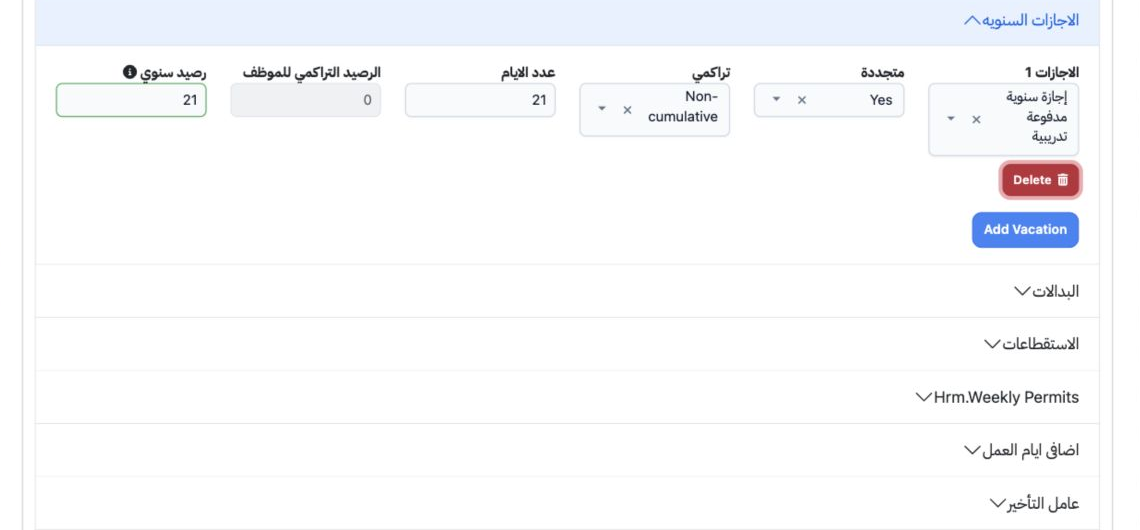
Under Employee Settings, expand Annual Leave and select Add Vacation. Choose the leave type defined in Settings, set Renewable and Cumulative, then enter Days and Annual Balance. Employee Cumulative Balance is disabled for display in this example. Sarah was saved with the training leave type, Renewable Yes, Non-cumulative, 21 days and annual balance 21. These values persisted on reopening.

Sign in to record the lessons you have read. Sign in