Skip to content
Trio Travel guide

Employee Contract Record

On this page
  1. 1 Basic details
  2. 2 Review and edit details
  3. 3 Find a contract
  4. 4 Open the PDF
  5. 5 Deletion confirmation

Enter and review the contract record and open its PDF output.

1 Basic details
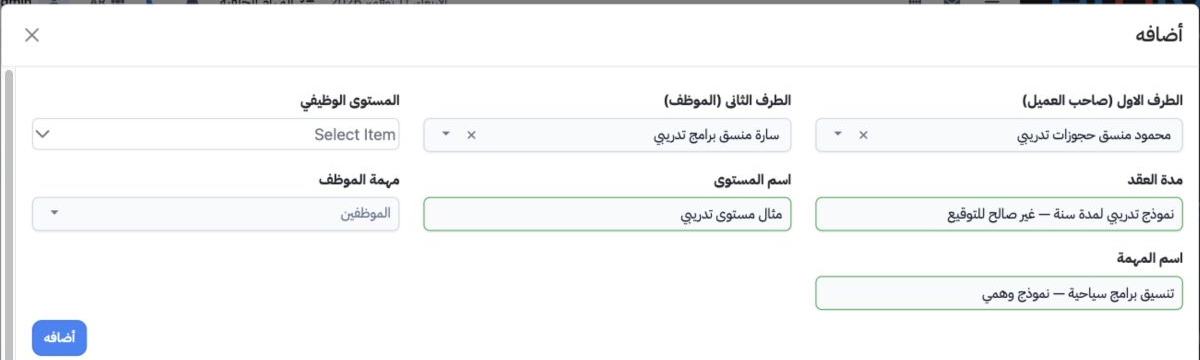
1 Open Human Resources → Operations → Contract and select Add. Select the first and second parties. Enter Contract Duration and review the lev...
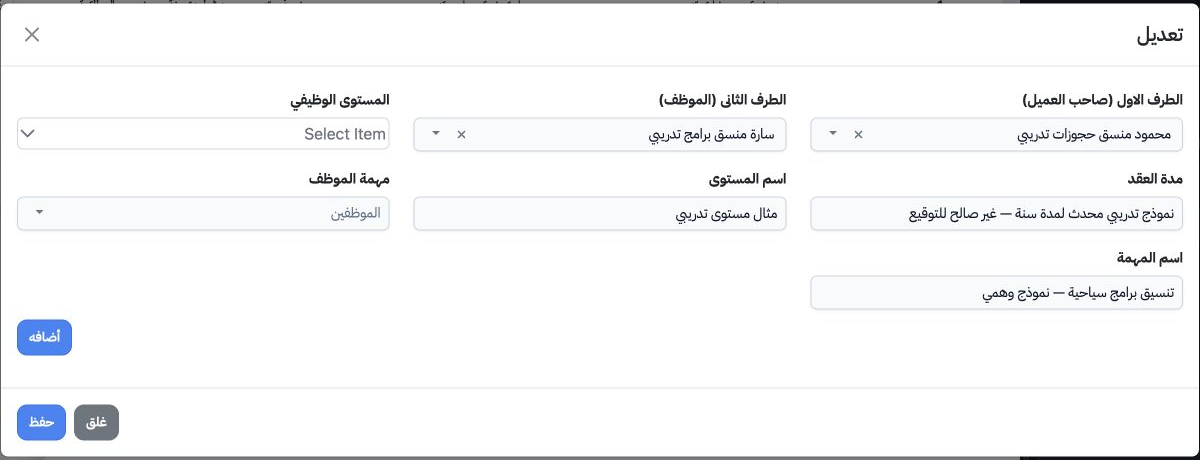
Open Human Resources → Operations → Contract and select Add. Select the first and second parties. Enter Contract Duration and review the level, level description, employee task and task description fields. The example uses fictional Mahmoud and Sarah records and a training duration explicitly marked invalid for signing. Select Save to add the record.

2 Review and edit details

2 Choose Edit from the record menu. Review the parties, duration and descriptions, update the required fields and save. The duration was chang...
Choose Edit from the record menu. Review the parties, duration and descriptions, update the required fields and save. The duration was changed to نموذج تدريبي محدث لمدة سنة — غير صالح للتوقيع and retained on reopening.

3 Find a contract

3 Select Search, choose the first or second party and run the search. Selecting Sarah as the second party returned record 1 with the updated d...
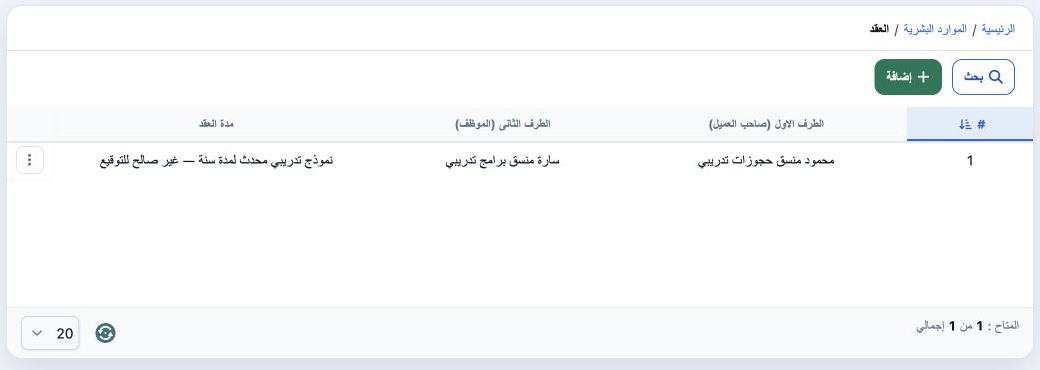
Select Search, choose the first or second party and run the search. Selecting Sarah as the second party returned record 1 with the updated duration. Clear resets the search selections.

4 Open the PDF

4 Choose PDF from the record menu. The preview opens in a new tab. Review the parties, duration, pay and clauses in the output. The PDF viewer...
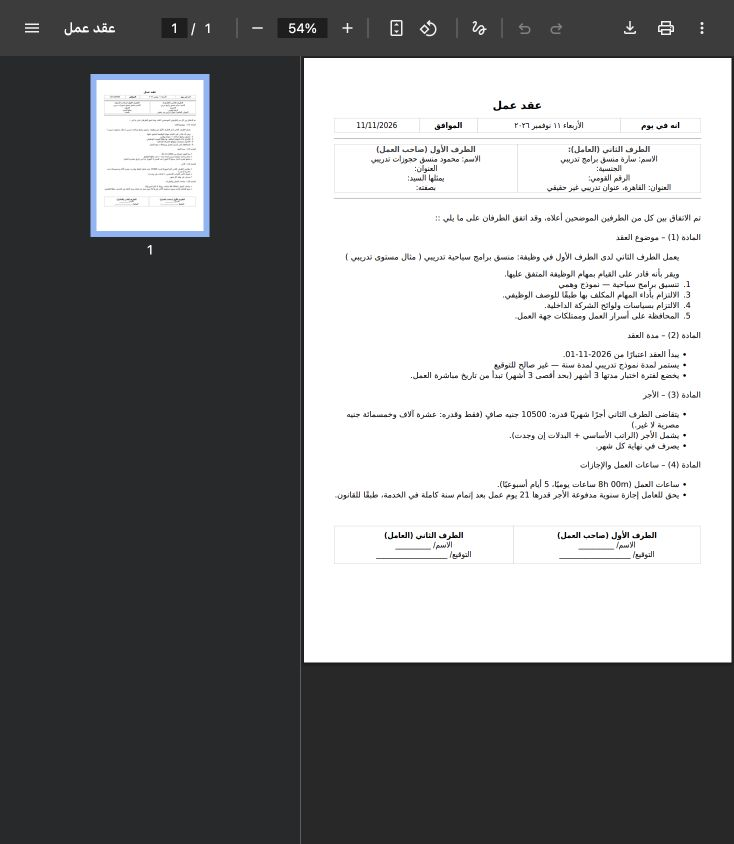
Choose PDF from the record menu. The preview opens in a new tab. Review the parties, duration, pay and clauses in the output. The PDF viewer exposes zoom, download and print controls. Close the preview tab to return to the list.

5 Deletion confirmation

5 Choose Delete from the row menu. Check the intended contract, then Cancel to keep it or Yes, Delete to confirm removal. Deletion was cancell...
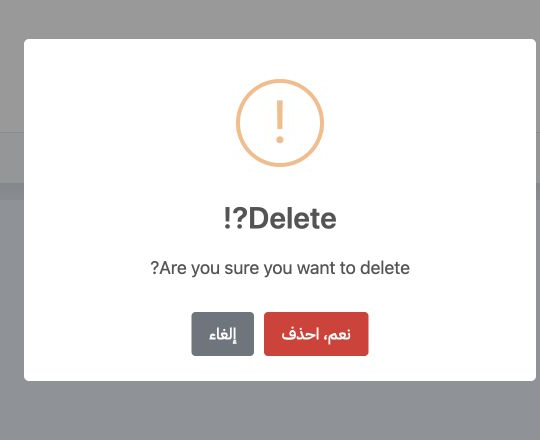
Choose Delete from the row menu. Check the intended contract, then Cancel to keep it or Yes, Delete to confirm removal. Deletion was cancelled and the training record remains saved.

Sign in to record the lessons you have read. Sign in