Skip to content
Trio Travel guide

Absence Report

On this page
  1. 1 Select the employee and period
  2. 2 Read the count and absence dates
  3. 3 Review a specific day and request an export

Review an employee’s absence count and dates for a selected period.

1 Select the employee and period
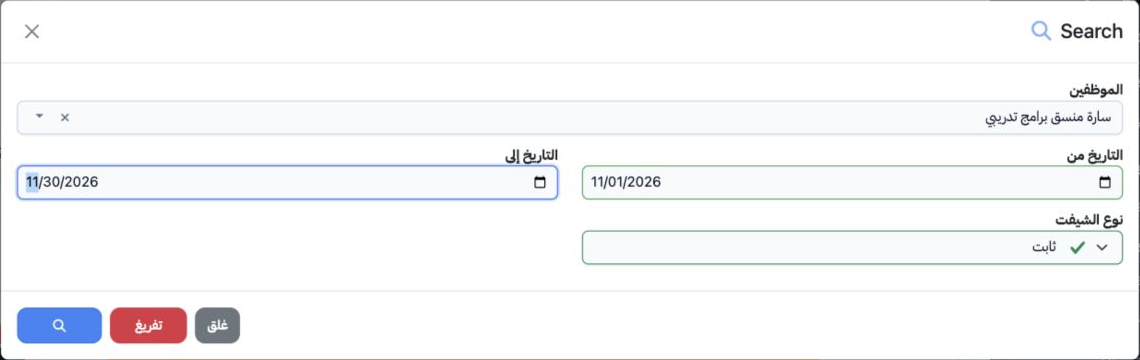
1 Open HR → Overview → Reports → Absence Report. Select Search, choose the employee from the selector results, set From and To dates and Shift...
Open HR → Overview → Reports → Absence Report. Select Search, choose the employee from the selector results, set From and To dates and Shift Type, then use the magnifying-glass button inside the dialog. Clear resets filters and Close dismisses the dialog. The example uses Sarah, 1–30 November 2026 and Fixed shift.

2 Read the count and absence dates

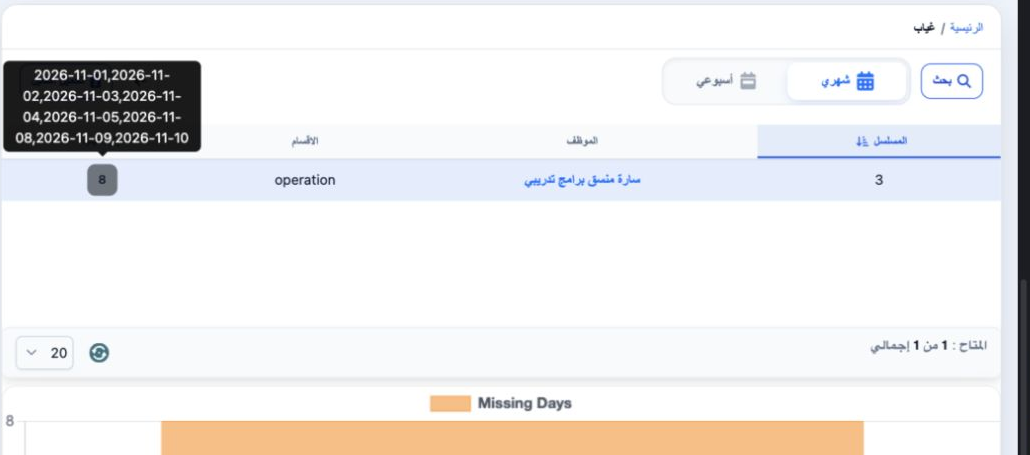
2 The table displays employee serial, name, department and absence days. Select the Absence Days number to show its dates in a tooltip. This e...
The table displays employee serial, name, department and absence days. Select the Absence Days number to show its dates in a tooltip. This example lists eight days: 1, 2, 3, 4, 5, 8, 9 and 10 November 2026. The employee-name link opens the employee record. The selector below the table changes the page size.

3 Review a specific day and request an export
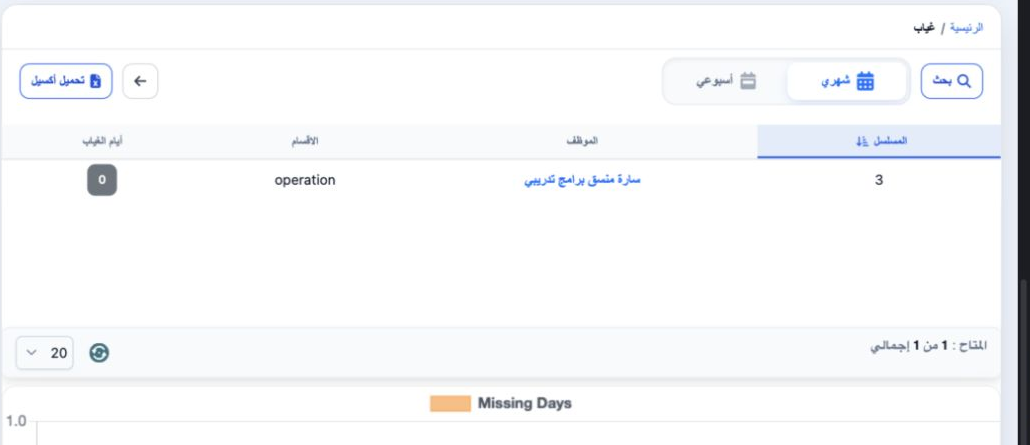
3 To inspect one day, reopen Search and use the same From and To date, then run the search. Sarah showed zero absence on 11 November, which ha...
To inspect one day, reopen Search and use the same From and To date, then run the search. Sarah showed zero absence on 11 November, which has a saved attendance record. Monthly and Weekly choices appear above the table. Select Download Excel to request an export. Review and amend attendance transactions in their dedicated screen.

Sign in to record the lessons you have read. Sign in