Skip to content
Trio Travel guide

Employee Promotions

On this page
  1. 1 Add a promotion
  2. 2 Edit the date and notes
  3. 3 Review the saved promotion
  4. 4 Deletion confirmation

Record promotion details and review the saved record.

1 Add a promotion
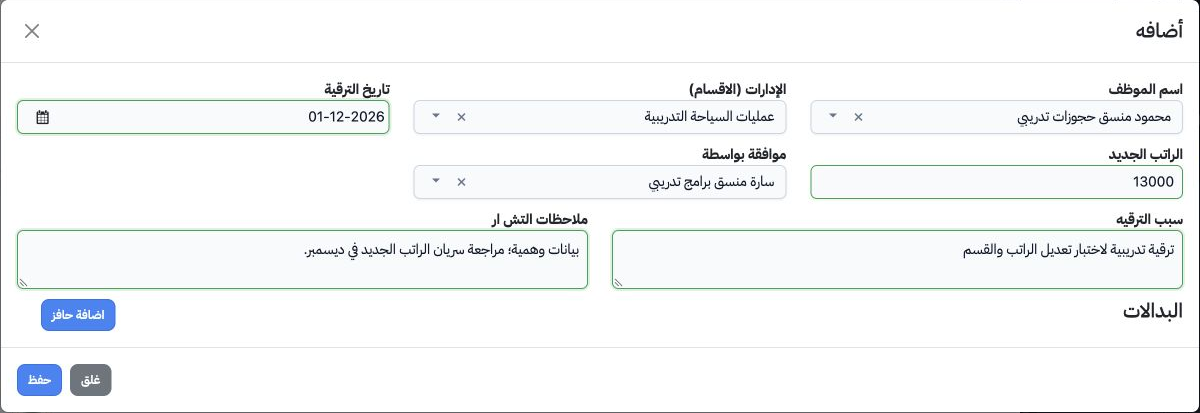
1 Open Human Resources → Operations → Promotion, then Add. Select the employee, department and promotion date. Enter the new salary, select Ap...
Open Human Resources → Operations → Promotion, then Add. Select the employee, department and promotion date. Enter the new salary, select Approved By, add the reason and HR notes, then save. The example uses Mahmoud and a new salary of 13,000.

2 Edit the date and notes

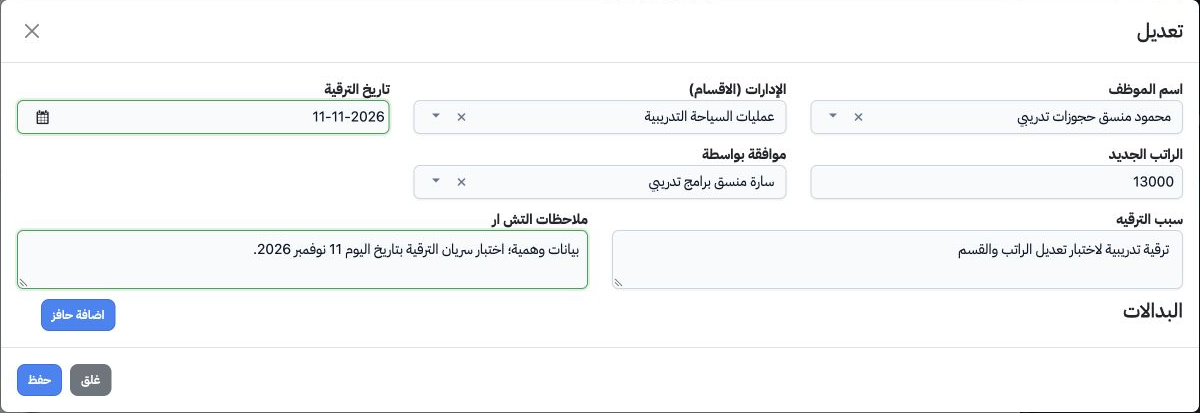
2 Choose Edit from the row menu. Use the calendar to change the date, update the notes and save. The example date was changed from 1 December...
Choose Edit from the row menu. Use the calendar to change the date, update the notes and save. The example date was changed from 1 December to 11 November 2026.

3 Review the saved promotion

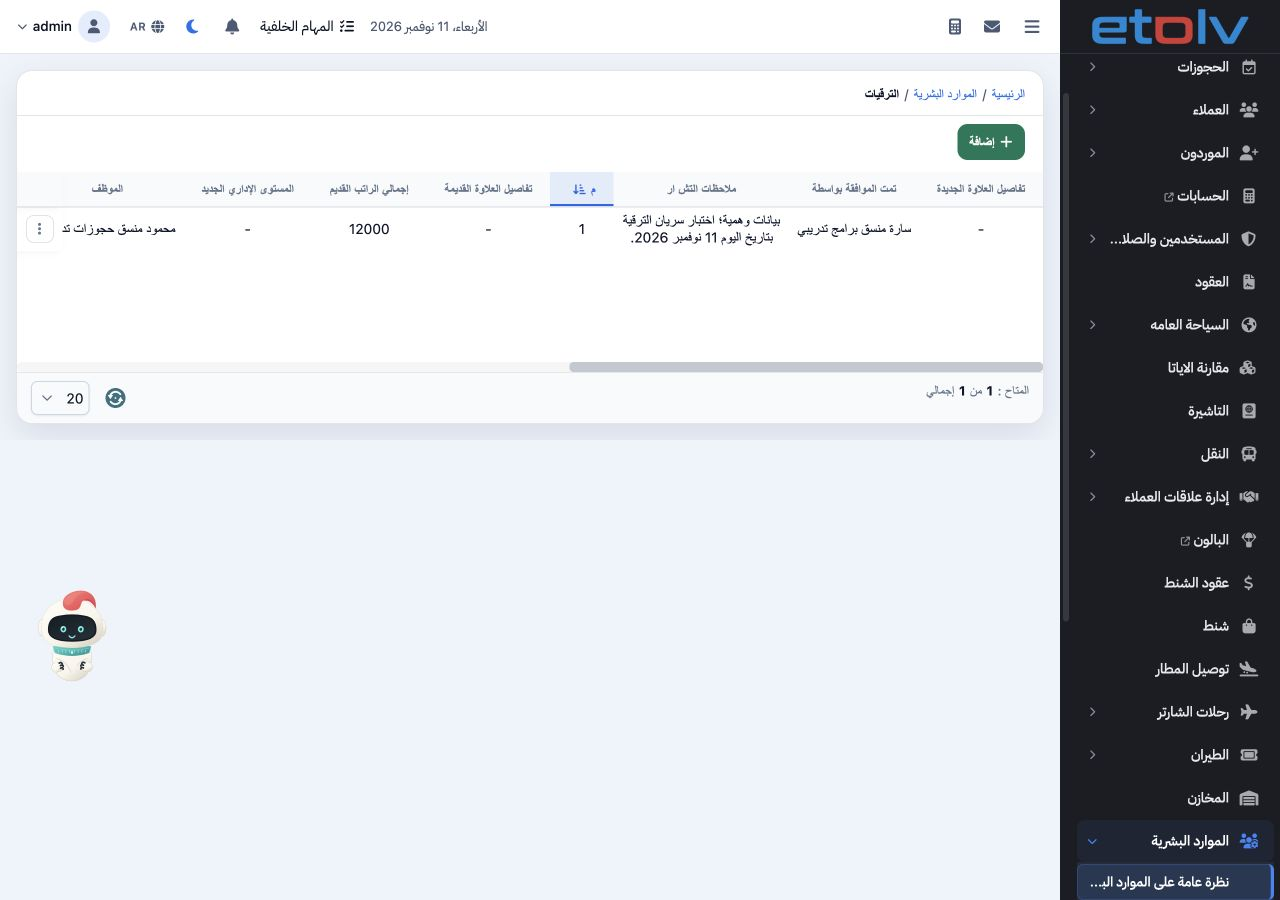
3 Review the employee, promotion date, old salary and new salary in the list. Record 1 shows Mahmoud, an old salary of 12,000 and a new salary...
Review the employee, promotion date, old salary and new salary in the list. Record 1 shows Mahmoud, an old salary of 12,000 and a new salary of 13,000.

4 Deletion confirmation

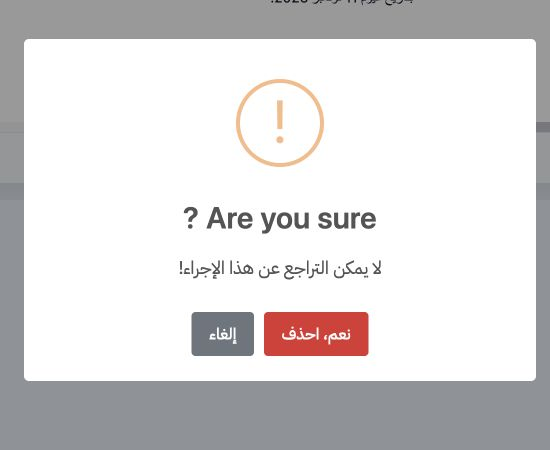
4 Choose Delete from the row menu. Cancel keeps the record; Yes, Delete confirms removal. Deletion was cancelled in this example and the recor...
Choose Delete from the row menu. Cancel keeps the record; Yes, Delete confirms removal. Deletion was cancelled in this example and the record was retained.

Sign in to record the lessons you have read. Sign in