Skip to content
Trio Travel guide

Hours Report

On this page
  1. 1 Prepare the example
  2. 2 Select the employee and period
  3. 3 Read the result and request an export

Filter by employee and period, then review the hours displayed in the report.

1 Prepare the example
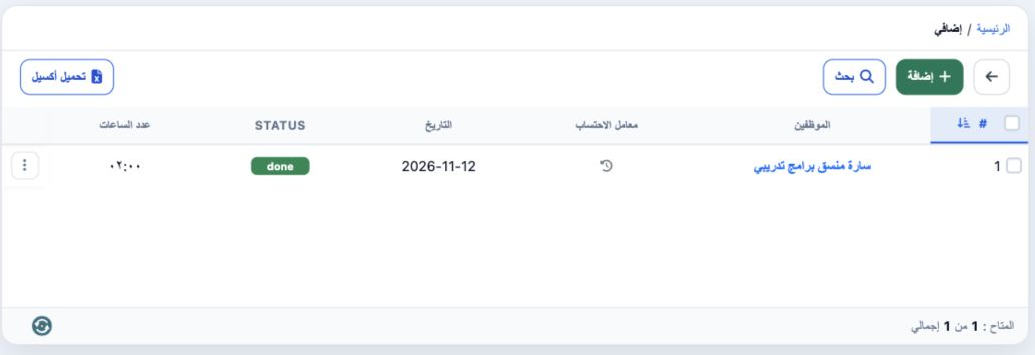
1 Review the employee record and shift, and record transactions in their dedicated Operations screens. The example shows Sarah’s two-hour over...
Review the employee record and shift, and record transactions in their dedicated Operations screens. The example shows Sarah’s two-hour overtime record dated 12 November 2026 with done status. Open HR → Overview → Reports → Hours Report to review the report.

2 Select the employee and period

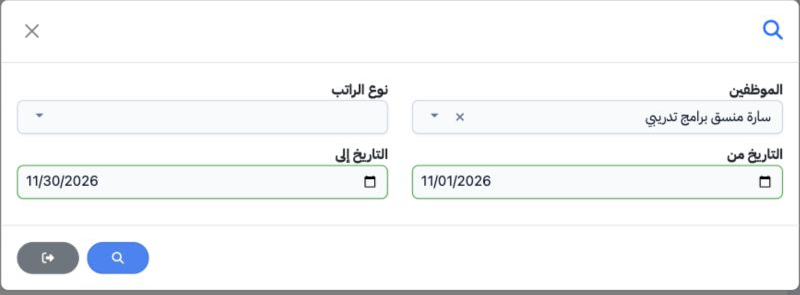
2 Select Search. Choose the employee and optionally Salary Type, then set From Date and To Date. Use the magnifying-glass button inside the di...
Select Search. Choose the employee and optionally Salary Type, then set From Date and To Date. Use the magnifying-glass button inside the dialog to search. The example filters Sarah for 1–30 November 2026.

3 Read the result and request an export
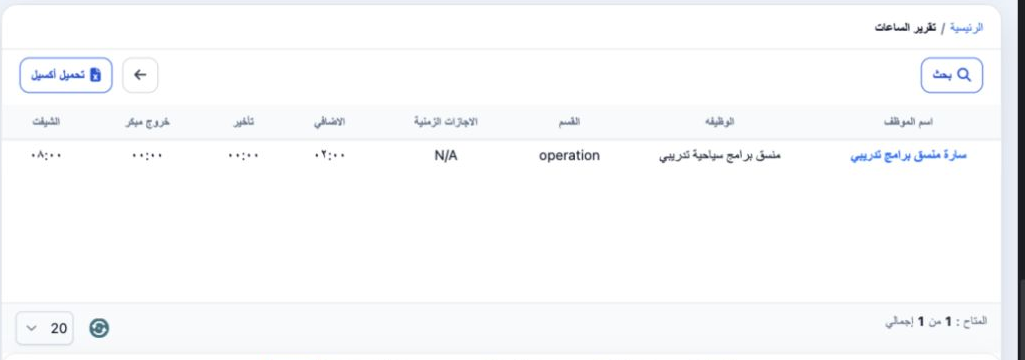
3 The table displays the employee, job and department, followed by Excuse Hours, Overtime, Delay, Early Exit and Shift. In the November range,...
The table displays the employee, job and department, followed by Excuse Hours, Overtime, Delay, Early Exit and Shift. In the November range, Sarah showed 02:00 overtime and the Shift column displayed 08:00. The selector below the table changes the page size. Use Download Excel to request an export and Search again to change the period.

Sign in to record the lessons you have read. Sign in