Skip to content
Trio Travel guide

Working Hours and Shifts

On this page
  1. 1 Add a shift
  2. 2 Edit a shift
  3. 3 Search and check duration
  4. 4 Delete confirmation

Define a shift, check its duration and find it in the list.

1 Add a shift
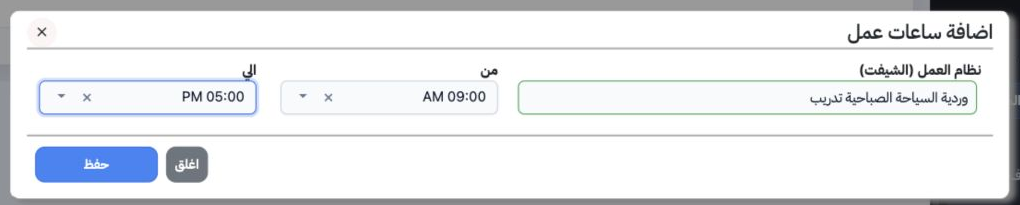
1 Open Human Resources, Settings, then Working Hours. Select Add and enter the shift name. Open From and choose 09:00 AM, then To and choose 0...
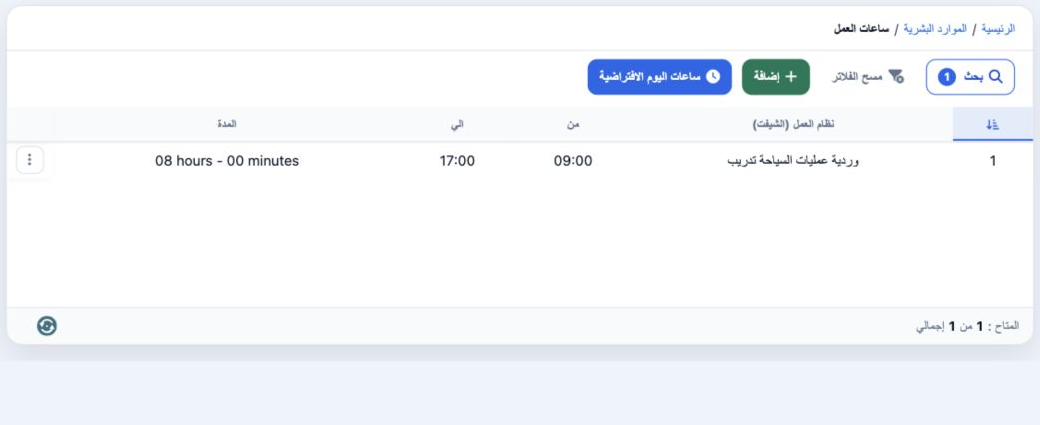
Open Human Resources, Settings, then Working Hours. Select Add and enter the shift name. Open From and choose 09:00 AM, then To and choose 05:00 PM for this example. Save. The list displays 09:00 and 17:00 with a duration of 8 hours.

2 Edit a shift

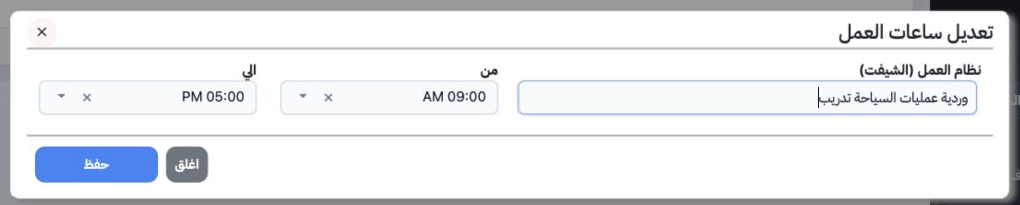
2 Choose Edit from the shift row menu. Review its name, start and end times, then save. The example renamed the shift وردية عمليات السياحة تدر...
Choose Edit from the shift row menu. Review its name, start and end times, then save. The example renamed the shift وردية عمليات السياحة تدريب while keeping the same times.

3 Search and check duration

3 Select Search. The form accepts serial number, name, From Time and To Time. Enter the shift name and select Search inside the dialog. The ex...
Select Search. The form accepts serial number, name, From Time and To Time. Enter the shift name and select Search inside the dialog. The example shows one active filter and one result. Clear Filters restores the list. Review Duration after saving.

4 Delete confirmation

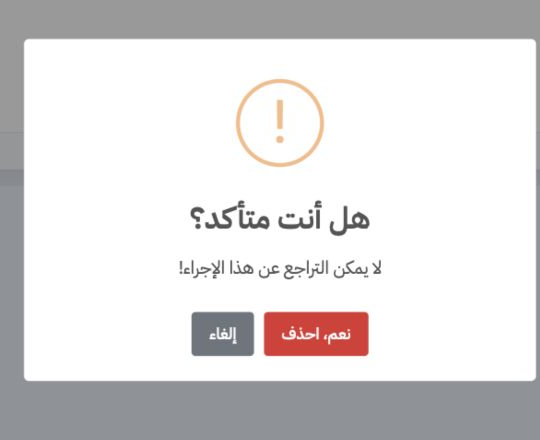
4 Choose Delete from the intended shift’s row menu. The dialog warns that deletion cannot be undone. Cancel retains the record; Yes, Delete co...
Choose Delete from the intended shift’s row menu. The dialog warns that deletion cannot be undone. Cancel retains the record; Yes, Delete confirms the selected shift’s removal. Deletion was cancelled in this example.

Sign in to record the lessons you have read. Sign in