Skip to content
Trio Travel guide

Employee Attachment Categories

On this page
  1. 1 Add a category
  2. 2 Edit the name
  3. 3 Deletion confirmation
  4. 4 Use the category

Define a category for documents attached to an employee.

1 Add a category
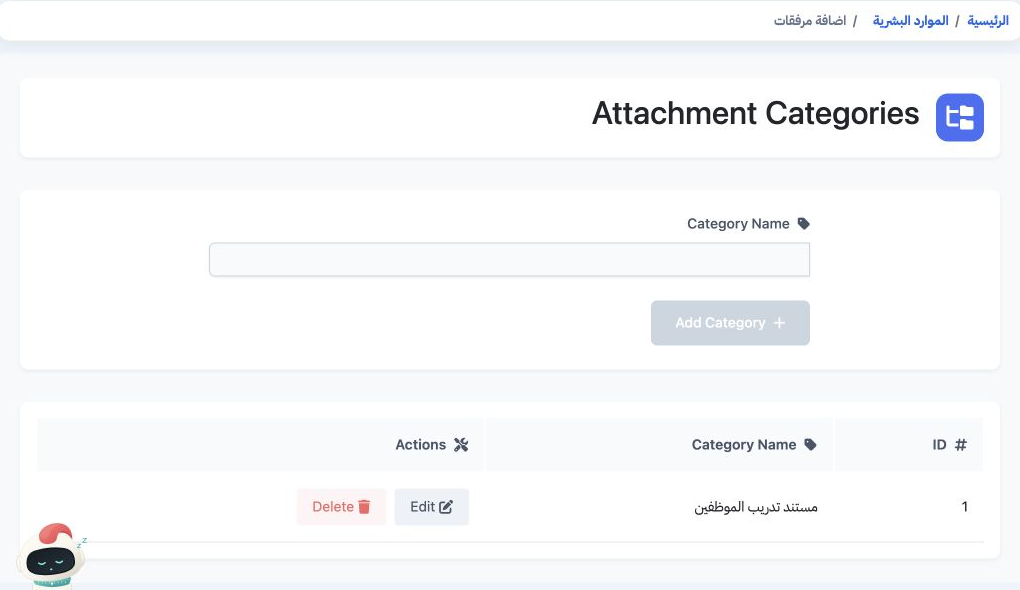
1 Open Human Resources, Settings, then اضافة مرفقات. Enter Category Name and select Add Category. The saved category appears in the table with...
Open Human Resources, Settings, then اضافة مرفقات. Enter Category Name and select Add Category. The saved category appears in the table with its ID and Edit and Delete actions. The training example was initially named مستند تدريب الموظفين.

2 Edit the name

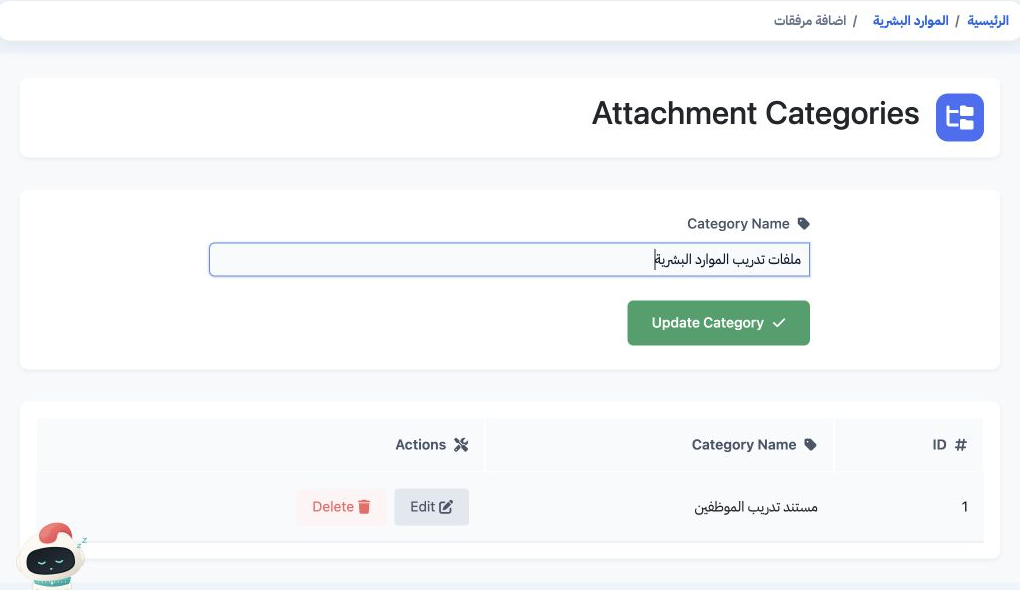
2 Select Edit beside the category. Its name populates the input field. Change the name and select Update Category. The example was renamed ملف...
Select Edit beside the category. Its name populates the input field. Change the name and select Update Category. The example was renamed ملفات تدريب الموارد البشرية.

3 Deletion confirmation

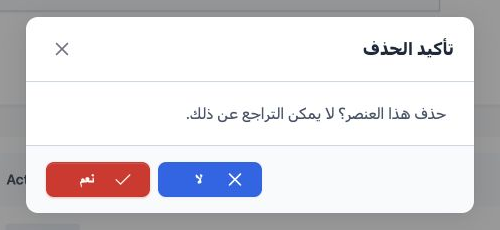
3 Select Delete beside the intended category. Choose No to keep it, or Yes to confirm after checking your selection. Deletion was cancelled in...
Select Delete beside the intended category. Choose No to keep it, or Yes to confirm after checking your selection. Deletion was cancelled in this example and the category remained available.

4 Use the category

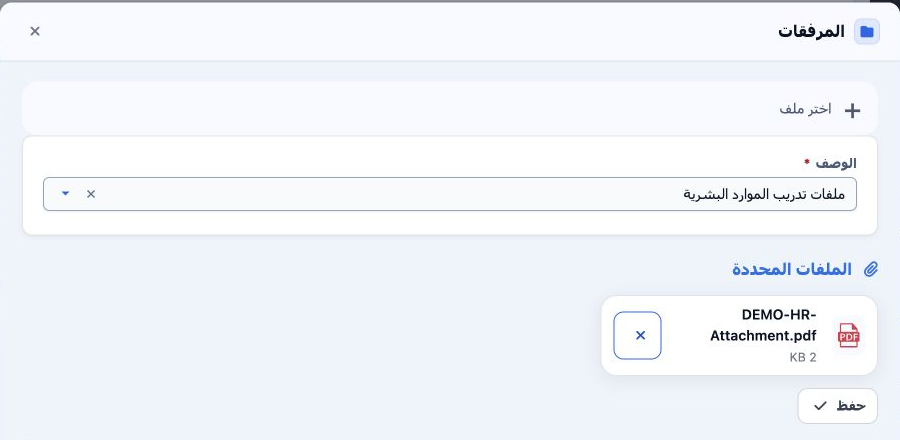
4 Open Employees and choose Attachments from the employee’s row menu. Select the category in Description, choose the file and save. The new ca...
Open Employees and choose Attachments from the employee’s row menu. Select the category in Description, choose the file and save. The new category was selected for Sarah’s training document.

Sign in to record the lessons you have read. Sign in