Skip to content
Trio Travel guide

Timetable

On this page
  1. Find trips in the calendar
  2. Schedule a trip
  3. Use the table and export
  4. Edit a trip directly in the table
  5. Confirm or delete a scheduled trip

Find trips in the calendar

1 Open Transportation → Timetable. Choose Month, Year and Vehicle type as needed, then select Search. Use Previous, Today or Next to move thro...
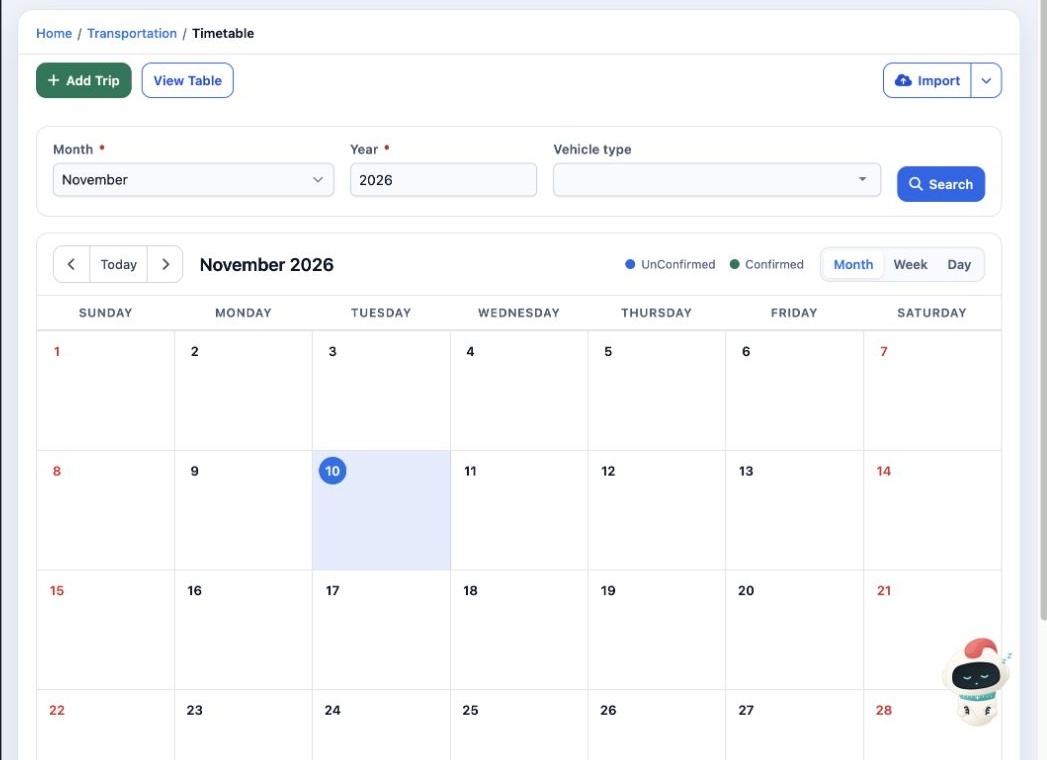
Open Transportation → Timetable. Choose Month, Year and Vehicle type as needed, then select Search. Use Previous, Today or Next to move through the calendar. The legend distinguishes confirmed and unconfirmed trips.

Schedule a trip

2 Select Add Trip. Enter the trip name and date. Fill in the vehicle type, customer, driver, vehicle, toll, origin, destination, odometer read...
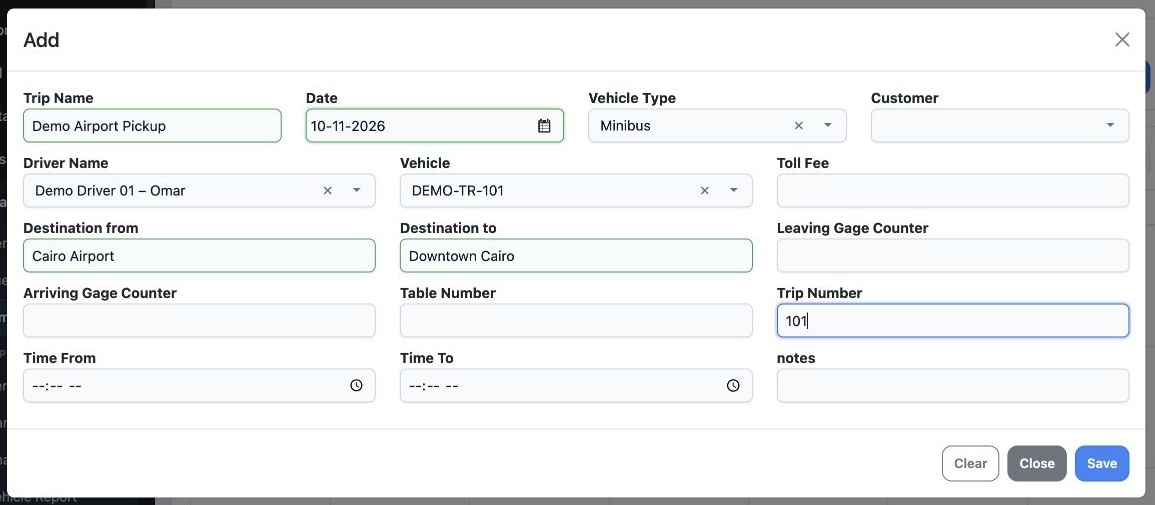
Select Add Trip. Enter the trip name and date. Fill in the vehicle type, customer, driver, vehicle, toll, origin, destination, odometer readings, table and trip numbers, times and notes as applicable. Select Save.

Use the table and export

3 Select View Table to see trips in rows. The table shows trip numbers, dates, routes, times, drivers and status. Use Search to filter this vi...
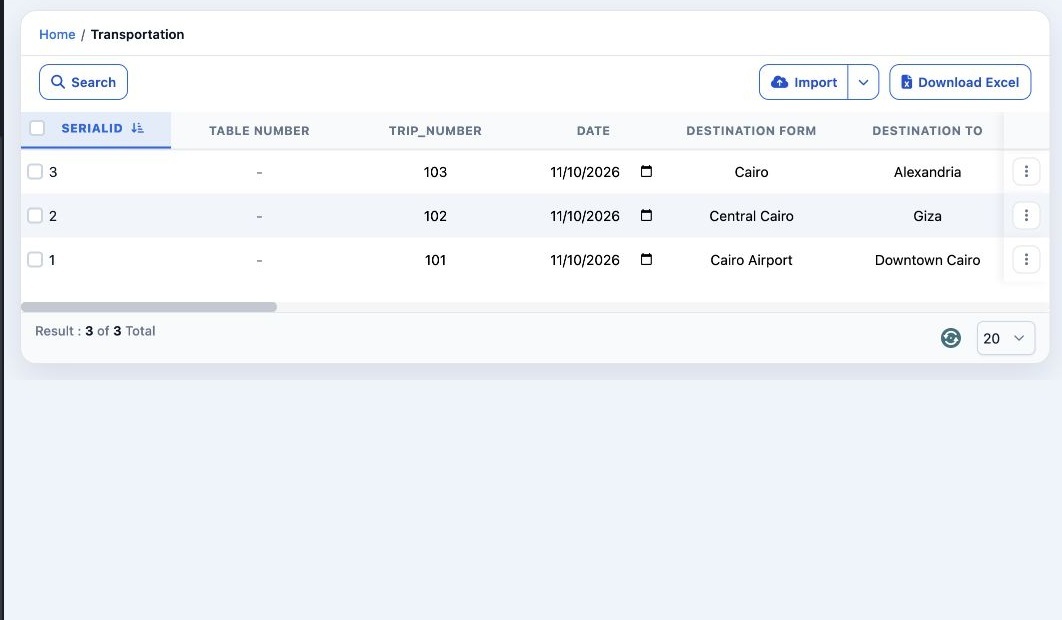
Select View Table to see trips in rows. The table shows trip numbers, dates, routes, times, drivers and status. Use Search to filter this view, Import for spreadsheet import, and Download Excel to export it.

Edit a trip directly in the table

4 In View Table, find the trip row. Scroll horizontally to the field you want to change, for example Trip Name. Change the value and move focu...
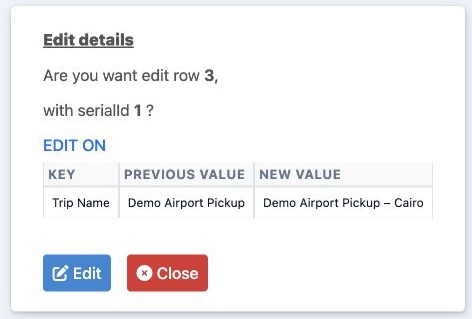
In View Table, find the trip row. Scroll horizontally to the field you want to change, for example Trip Name. Change the value and move focus out of the field. Compare Previous Value and New Value in Edit details, then select Edit to save, or Close to cancel.

Confirm or delete a scheduled trip

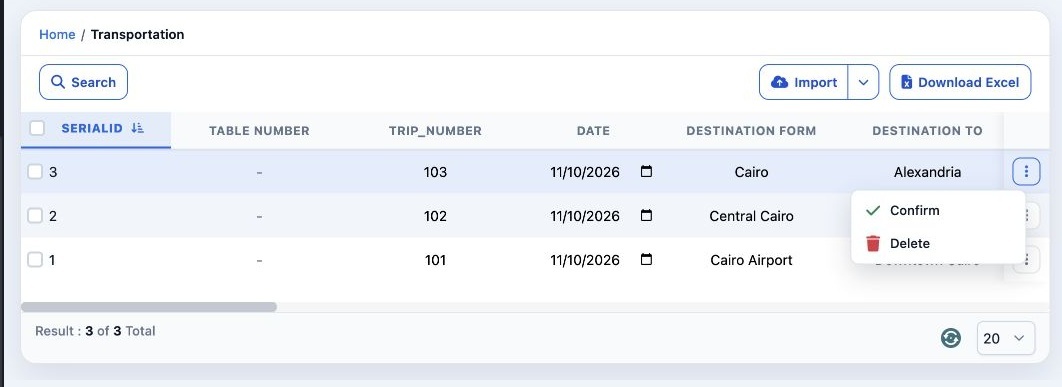
5 In View Table, open the three-dot menu on the trip row. Choose Confirm or Delete as needed. Verify the trip number before selecting Delete.
In View Table, open the three-dot menu on the trip row. Choose Confirm or Delete as needed. Verify the trip number before selecting Delete.

Sign in to record the lessons you have read. Sign in