Skip to content
Trio Travel guide

Trio Travel Fuel Guide

On this page
  1. View and export fuel records
  2. Search and clear filters
  3. Add a fuel record
  4. Open the row actions
  5. Edit a saved record
  6. Review the delete confirmation

View and export fuel records

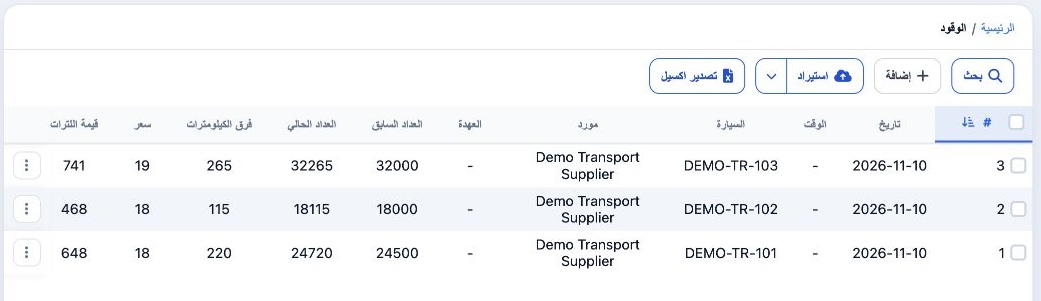
1 Open Transportation → Fuel. Review the date, vehicle, supplier or custody, previous and current odometer readings, distance, price and fuel...
Open Transportation → Fuel. Review the date, vehicle, supplier or custody, previous and current odometer readings, distance, price and fuel value. Scroll horizontally to see liters and other columns. Select Export Excel to export the list. Use Import to open the import controls.

Search and clear filters

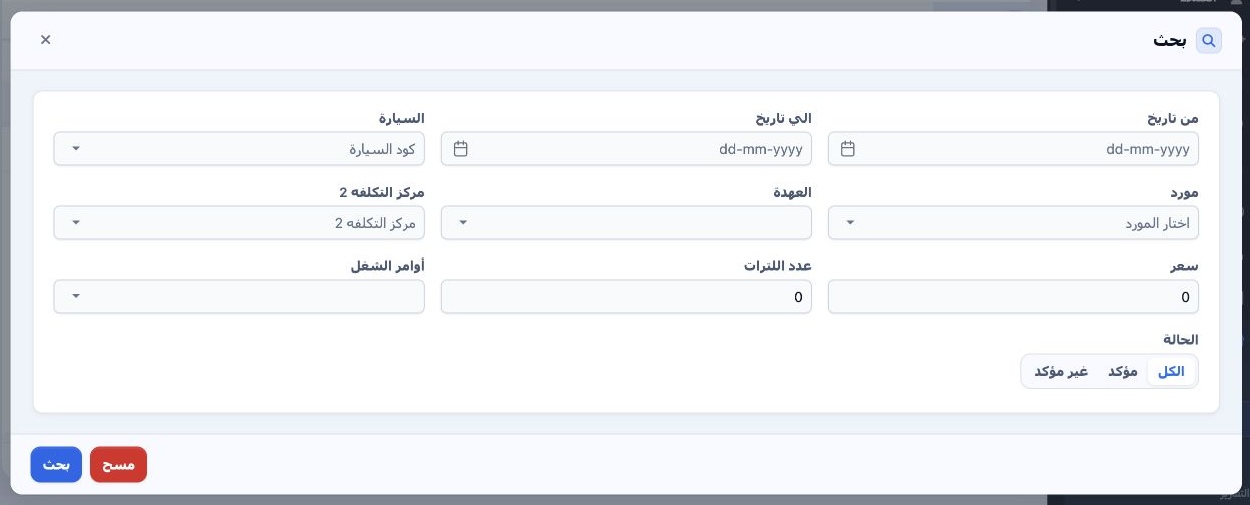
2 Select Search. Filter by date range, car, supplier, custody, Tag2, price, liter count, service order or status. Select Search in the dialog....
Select Search. Filter by date range, car, supplier, custody, Tag2, price, liter count, service order or status. Select Search in the dialog. Use Clear to reset the criteria.

Add a fuel record

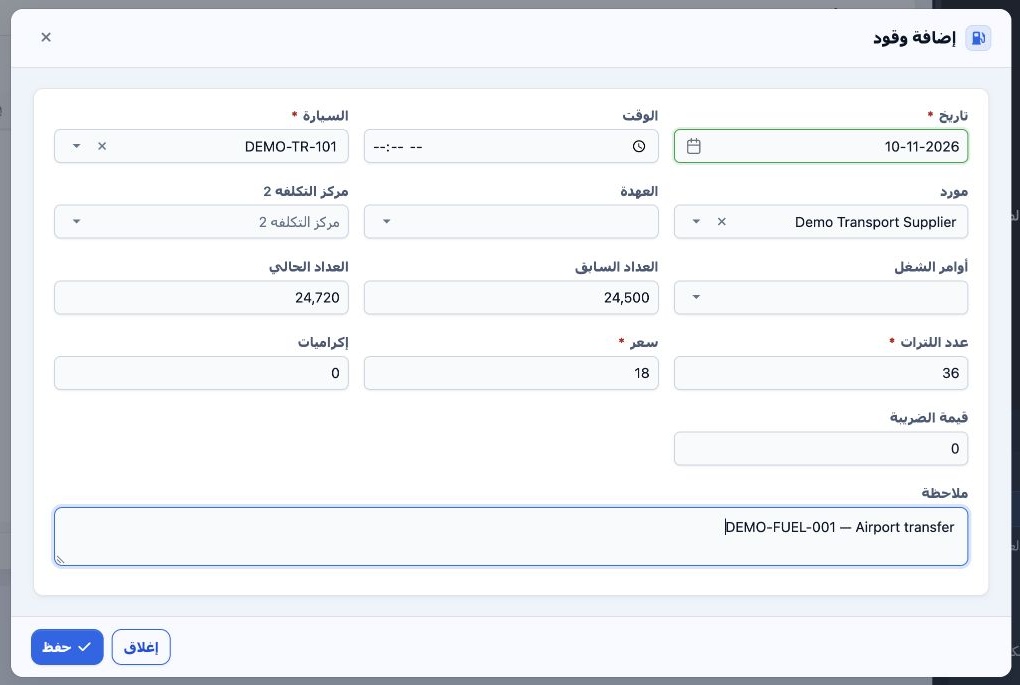
3 Select Add. Set the date, choose a car, and enter Liter Count and Price. Select either Supplier or Custody. This example uses Demo Transport...
Select Add. Set the date, choose a car, and enter Liter Count and Price. Select either Supplier or Custody. This example uses Demo Transport Supplier. Complete the odometer readings, service order, Tag2, time, tips, VAT and note as applicable. Select Save.

Open the row actions

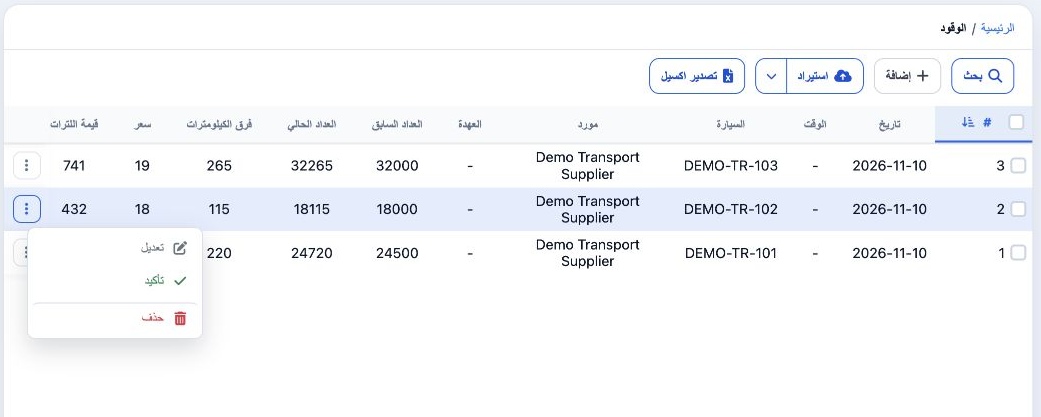
4 Find the record using its row number, date and vehicle. Open the three-dot menu on that row to see Edit, Confirm and Delete.
Find the record using its row number, date and vehicle. Open the three-dot menu on that row to see Edit, Confirm and Delete.

Edit a saved record

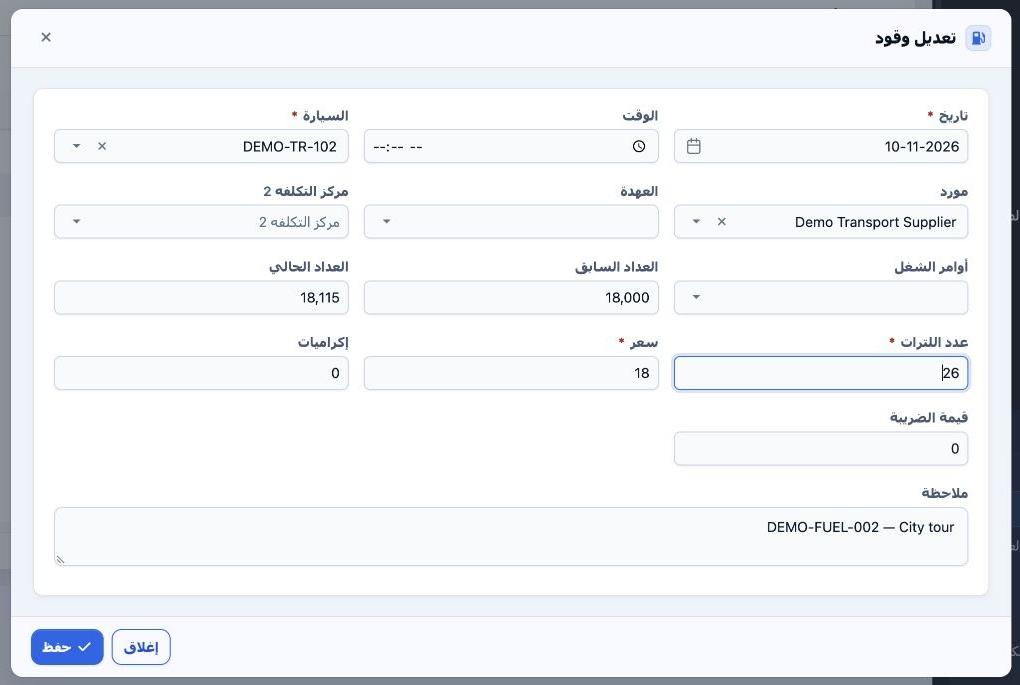
5 Select Edit from the row menu. Change the fields and select Save. In this test, DEMO-TR-102 changed from 24 to 26 liters at 18 per liter. Th...
Select Edit from the row menu. Change the fields and select Save. In this test, DEMO-TR-102 changed from 24 to 26 liters at 18 per liter. The updated fuel value of 468 remained after reloading the list.

Review the delete confirmation

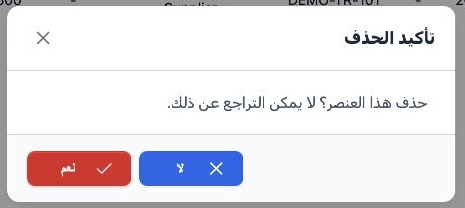
6 Select Delete from the correct row menu. The confirmation says the action cannot be undone. Select Yes to confirm or No to return to the lis...
Select Delete from the correct row menu. The confirmation says the action cannot be undone. Select Yes to confirm or No to return to the list. In the walkthrough, we selected No and verified that all three records remained.

Sign in to record the lessons you have read. Sign in