Skip to content
Trio Travel guide

Maintenance

On this page
  1. Find maintenance records
  2. Add scheduled or emergency maintenance
  3. Set up a maintenance name
  4. Switch to the detailed report

Find maintenance records

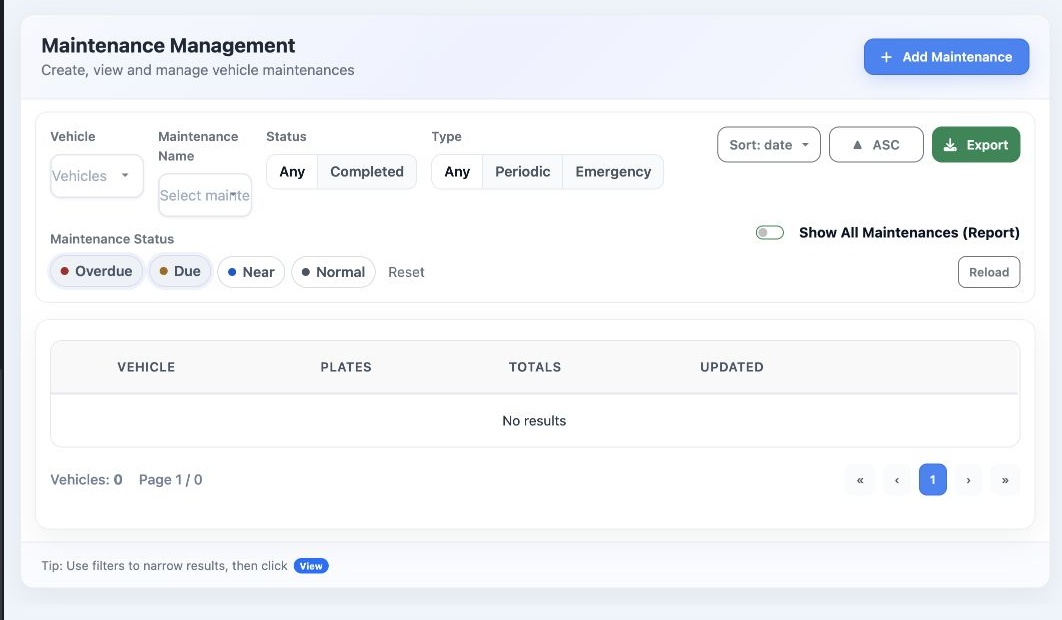
1 Open Transportation → Transport Settings → Maintenance. Filter by Vehicle, Maintenance Name, completion status, type or maintenance status....
Open Transportation → Transport Settings → Maintenance. Filter by Vehicle, Maintenance Name, completion status, type or maintenance status. Use Reset to clear the filters, Sort and ASC to change the order, and Reload to refresh. Use Export to access export.

Add scheduled or emergency maintenance

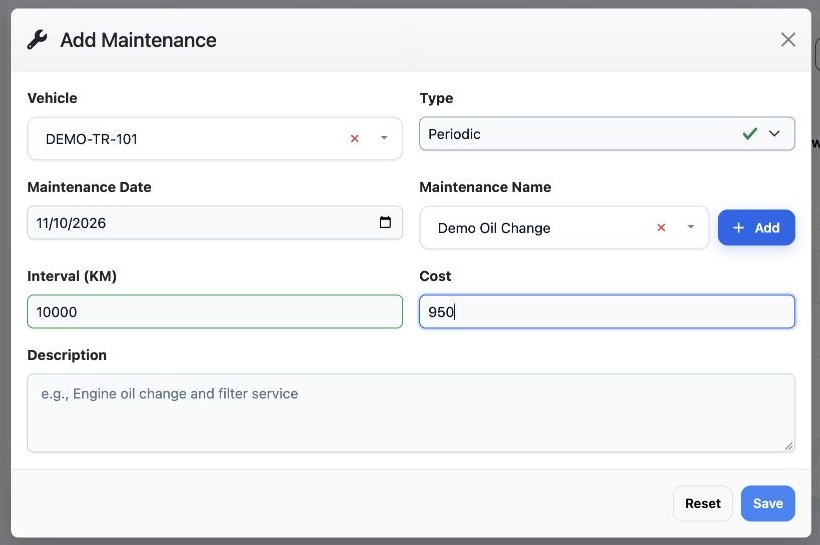
2 Select Add Maintenance. Choose the vehicle, choose Periodic or Emergency under Type, set Maintenance Date, and choose Maintenance Name. For...
Select Add Maintenance. Choose the vehicle, choose Periodic or Emergency under Type, set Maintenance Date, and choose Maintenance Name. For periodic maintenance, enter the interval in kilometers. Enter cost and description as applicable, then select Save.

Set up a maintenance name

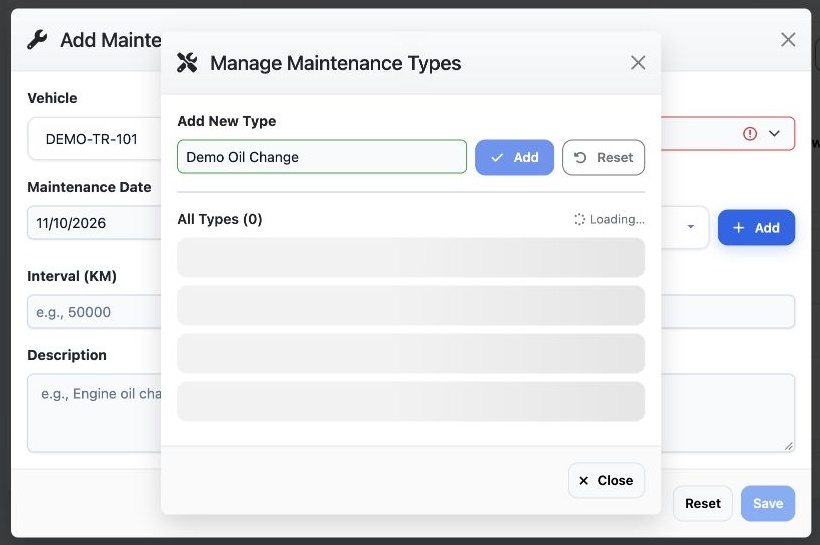
3 Use + Add beside Maintenance Name to open Manage Maintenance Types. Enter a name under Add New Type and select Add. The name becomes availab...
Use + Add beside Maintenance Name to open Manage Maintenance Types. Enter a name under Add New Type and select Add. The name becomes available in the maintenance form.

Switch to the detailed report

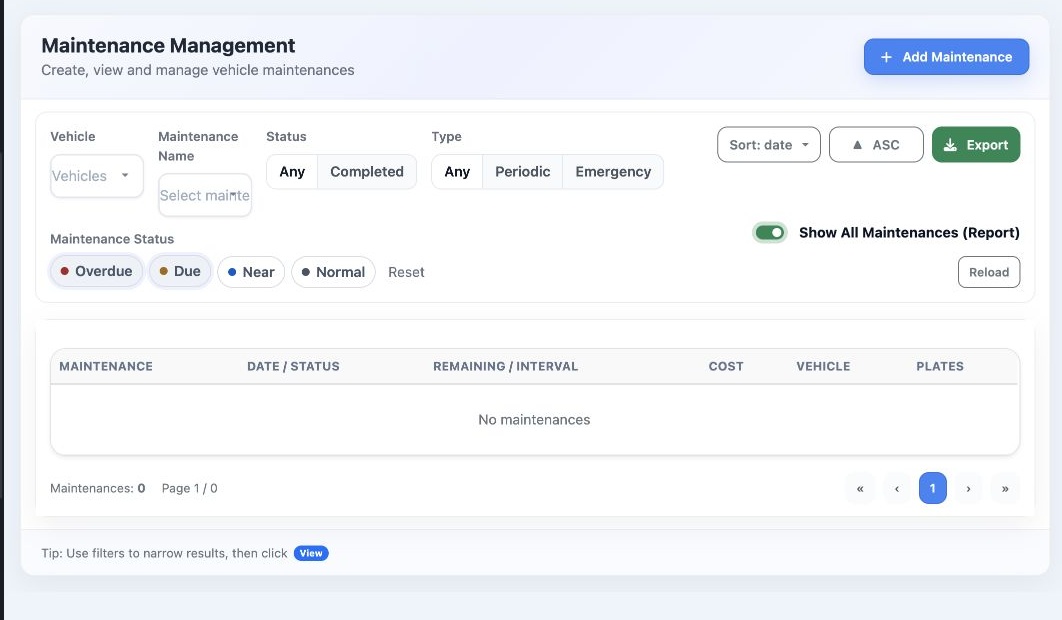
4 Select Show All Maintenances (Report) to switch to the maintenance report. Clear the checkbox to return to the vehicle summary. The summary...
Select Show All Maintenances (Report) to switch to the maintenance report. Clear the checkbox to return to the vehicle summary. The summary indicates that View opens the details for a vehicle.

The system confirmed a sample save. The list and report did not display the saved sample during the walkthrough, so row edit and delete were not verified.

Sign in to record the lessons you have read. Sign in