Skip to content
Trio Travel guide

Transportation Capacity

On this page
  1. Open saved capacities
  2. Add a capacity label
  3. Search by name
  4. Edit or delete a capacity
  5. Find the capacity in a service order

Open saved capacities

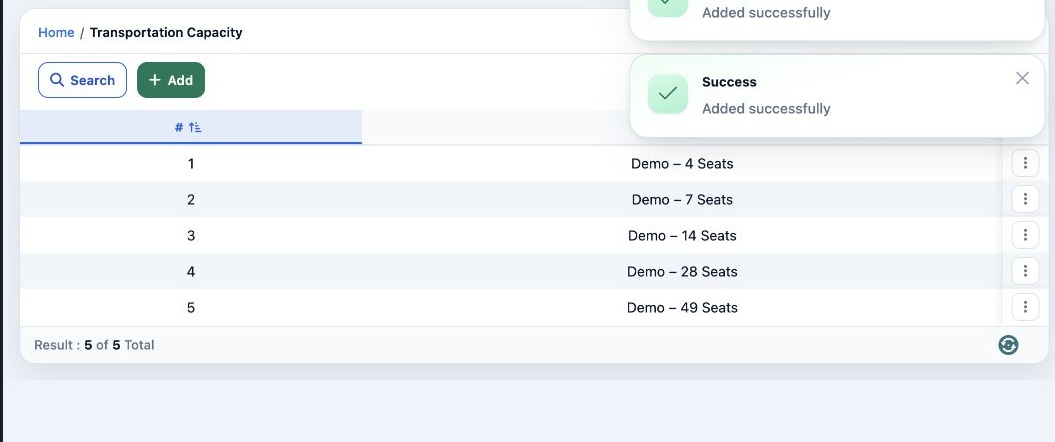
1 In Settings, open Transportation Capacity. The table lists names such as Demo – 14 Seats. Use Download Excel to export the list.
In Settings, open Transportation Capacity. The table lists names such as Demo – 14 Seats. Use Download Excel to export the list.

Add a capacity label

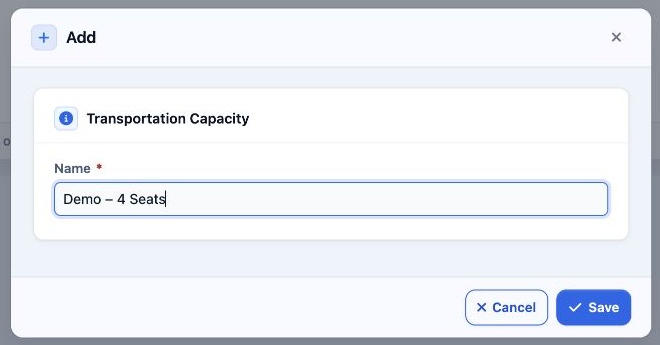
2 Select Add. In Name, enter a label that includes the seat count, for example Demo – 4 Seats, then select Save.
Select Add. In Name, enter a label that includes the seat count, for example Demo – 4 Seats, then select Save.

Search by name

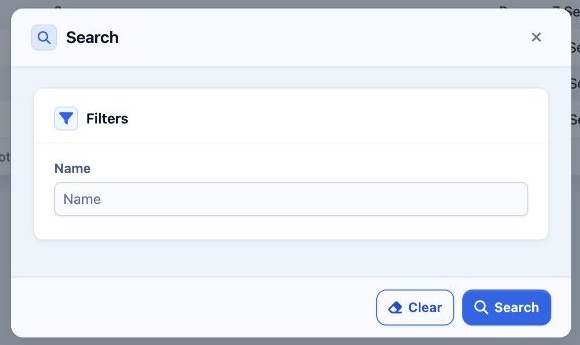
3 Select Search, enter all or part of the capacity name, then select Search in the dialog. Use Clear to reset the field.
Select Search, enter all or part of the capacity name, then select Search in the dialog. Use Clear to reset the field.

Edit or delete a capacity

4 Open the three-dot menu for the correct row. Select Edit to change Name and save. Select Delete from the same menu to start removal of the s...
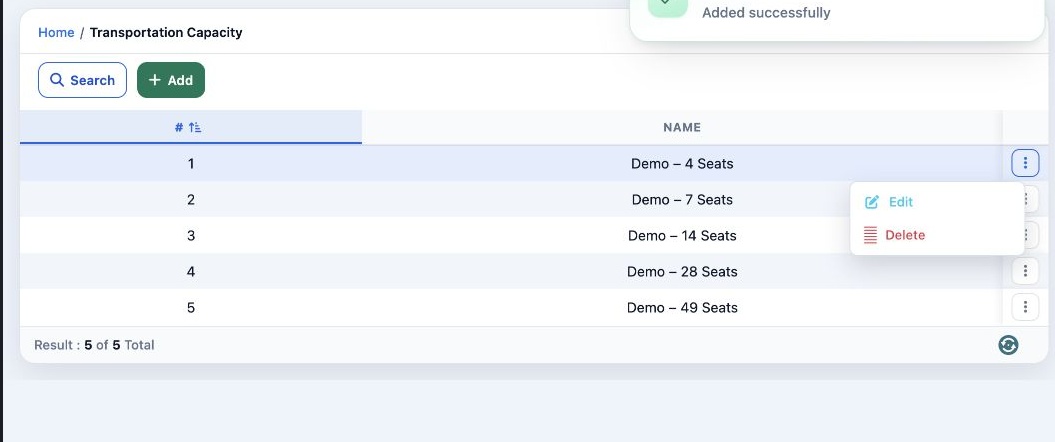
Open the three-dot menu for the correct row. Select Edit to change Name and save. Select Delete from the same menu to start removal of the selected record.

Find the capacity in a service order

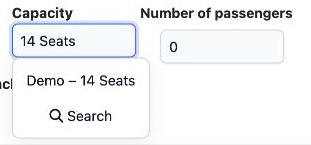
5 In Transportation → Service orders → Add, open Capacity and choose the saved label. The separate Number of passengers field is for the passe...
In Transportation → Service orders → Add, open Capacity and choose the saved label. The separate Number of passengers field is for the passenger count on that order.

Sign in to record the lessons you have read. Sign in