Skip to content
Trio Travel guide

Service orders

On this page
  1. Open the order list
  2. Search and clear filters
  3. Enter the customer and order details
  4. Assign the vehicle and driver
  5. Open the order actions
  6. Manage selected orders

Open the order list

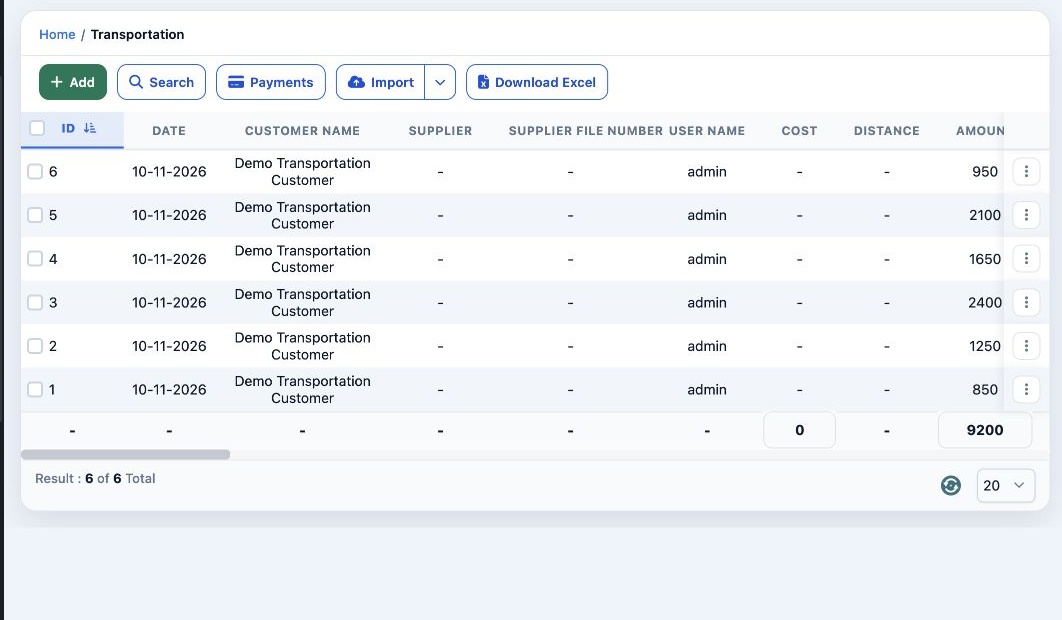
1 Open Transportation → Service orders. The table shows order numbers, customers, dates, costs and confirmation status. Scroll horizontally fo...
Open Transportation → Service orders. The table shows order numbers, customers, dates, costs and confirmation status. Scroll horizontally for vehicle, driver, passenger, trip, invoice and reference columns. Use Download Excel to export the list, or Import to open the import controls.

Search and clear filters

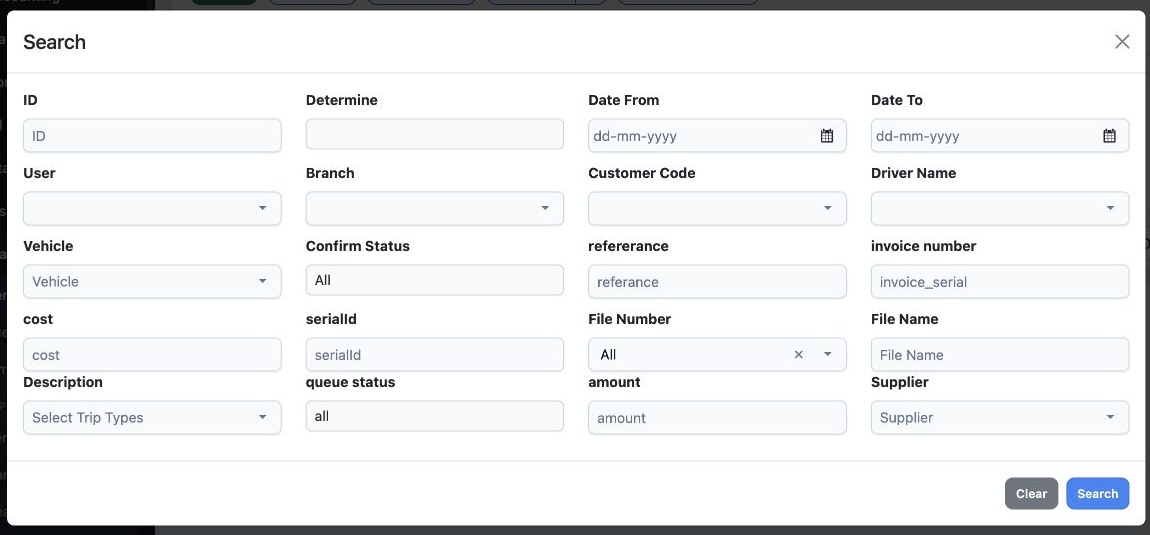
2 Select Search. Narrow the list by date, branch, customer code, driver, vehicle, confirmation status, reference, invoice, file, amount or sup...
Select Search. Narrow the list by date, branch, customer code, driver, vehicle, confirmation status, reference, invoice, file, amount or supplier. Select Search inside the dialog. Use Clear to reset the criteria.

Enter the customer and order details

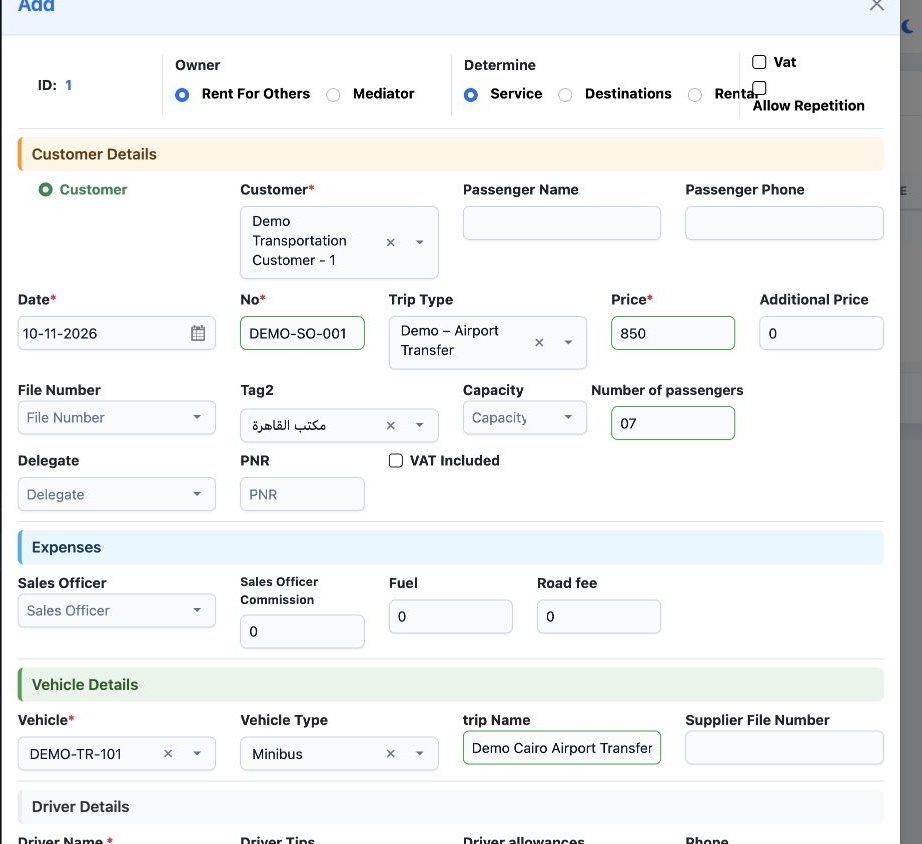
3 Select Add. Choose the customer, set the date, and enter No and Price. Choose Trip Type from the trip types you have configured. Complete pa...
Select Add. Choose the customer, set the date, and enter No and Price. Choose Trip Type from the trip types you have configured. Complete passenger details, file number, Tag2, capacity, passenger count, delegate, PNR and VAT settings as applicable. Set any additional price and expenses.

Assign the vehicle and driver

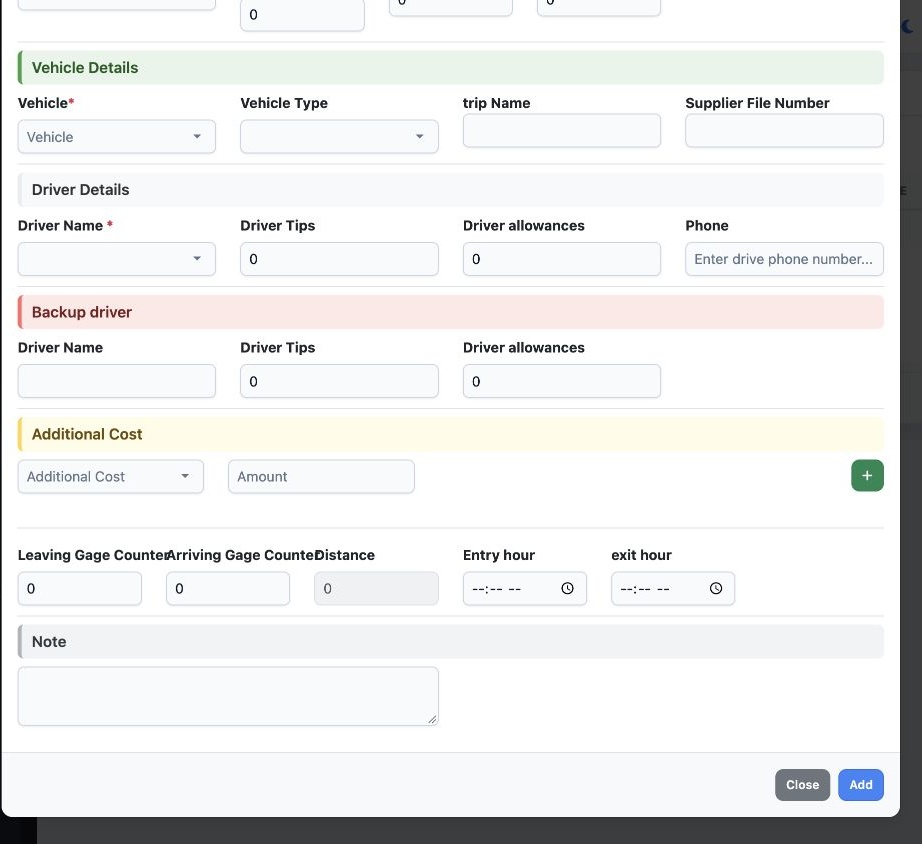
4 In Vehicle Details, choose a saved vehicle, choose its Vehicle Type, and enter the trip name. In Driver Details, choose a saved driver and c...
In Vehicle Details, choose a saved vehicle, choose its Vehicle Type, and enter the trip name. In Driver Details, choose a saved driver and complete tips, allowances, and backup driver if applicable. Add cost items, odometer readings, entry and exit times, and notes as needed. Select Add at the bottom to save.

Open the order actions

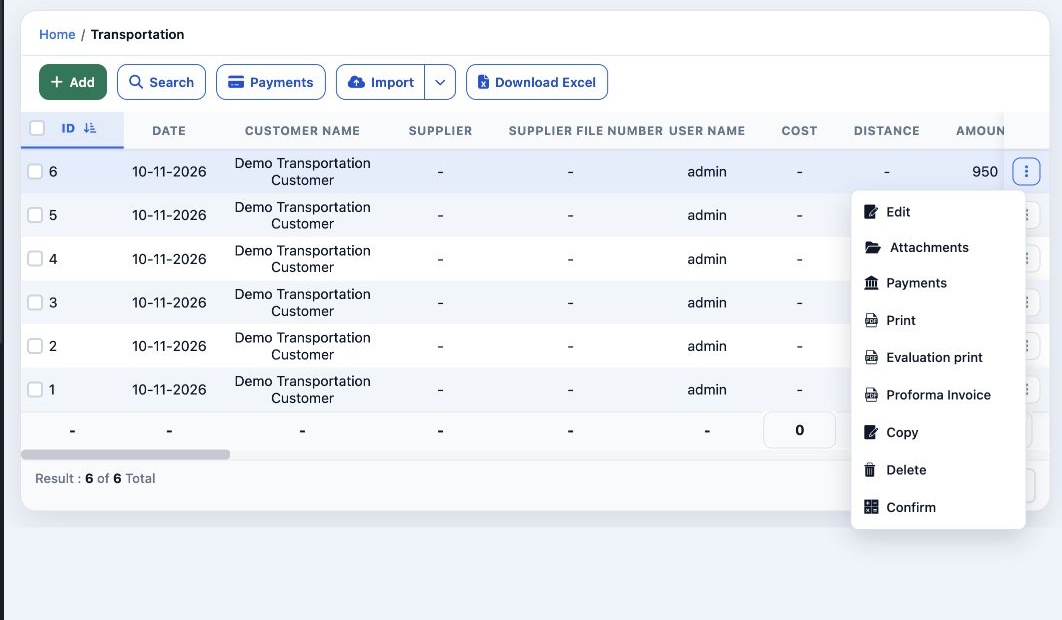
5 Open the three-dot menu on the order row. Choose Edit to reopen the form, change the details and submit using the form action. The same menu...
Open the three-dot menu on the order row. Choose Edit to reopen the form, change the details and submit using the form action. The same menu offers Attachments, Payments, Print, Evaluation print, Proforma Invoice, Copy, Delete and Confirm. Before choosing Delete, verify the order number.

Manage selected orders

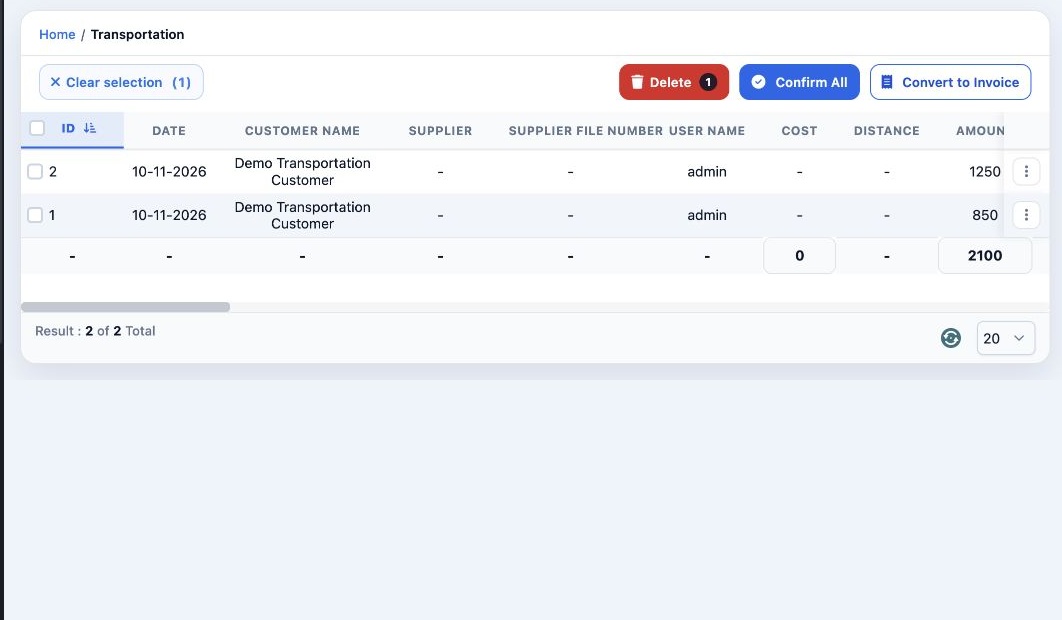
6 Select the checkbox beside an order to show the selection toolbar. It offers Delete, Confirm All and Convert to Invoice for selected orders....
Select the checkbox beside an order to show the selection toolbar. It offers Delete, Confirm All and Convert to Invoice for selected orders. Use Clear selection to return to the regular toolbar.

Sign in to record the lessons you have read. Sign in