Skip to content
Trio Travel guide

Vehicles

On this page
  1. Open the list
  2. Add a record
  3. Search the records
  4. Edit or delete a record

Open the list

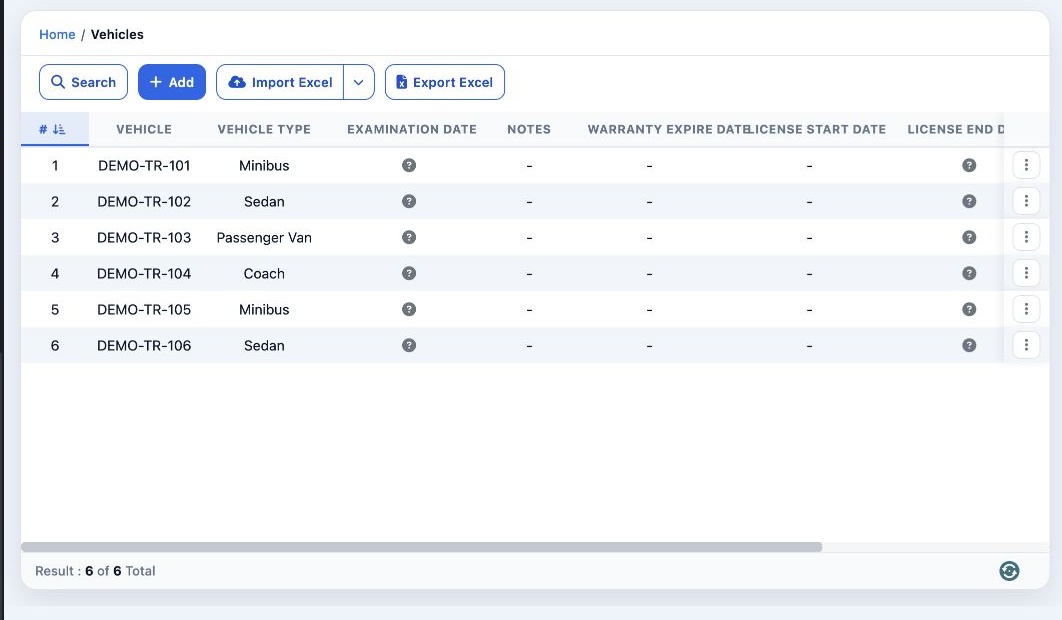
1 Open Transportation → Transport Settings → Vehicles. Review plates, type, dates and status. Use Import Excel or Export Excel. The row menu a...
Open Transportation → Transport Settings → Vehicles. Review plates, type, dates and status. Use Import Excel or Export Excel. The row menu also offers Close for an open vehicle.

Add a record

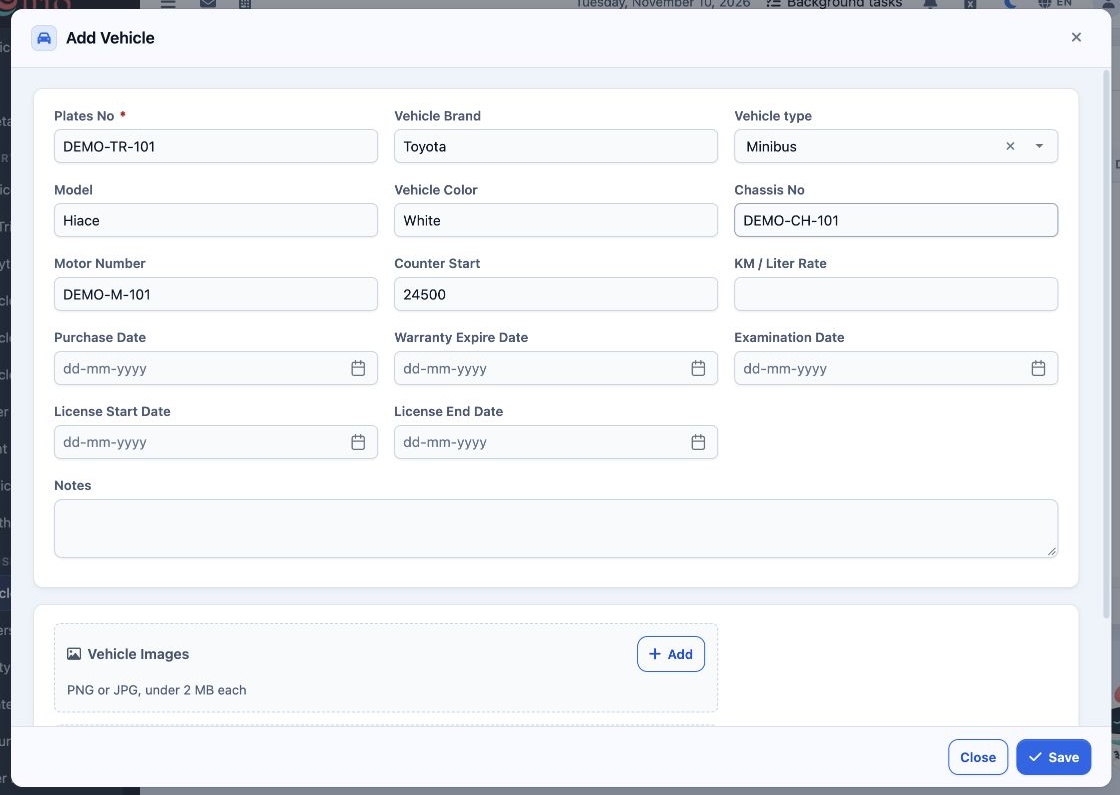
2 Select Add. Enter Plates No. and complete brand, model, color, chassis and motor numbers. Choose Vehicle type from the configured types. Ent...
Select Add. Enter Plates No. and complete brand, model, color, chassis and motor numbers. Choose Vehicle type from the configured types. Enter the initial odometer and KM / Liter Rate, and add purchase, warranty, examination and license dates, notes, images or files as applicable. Select Save.

Search the records

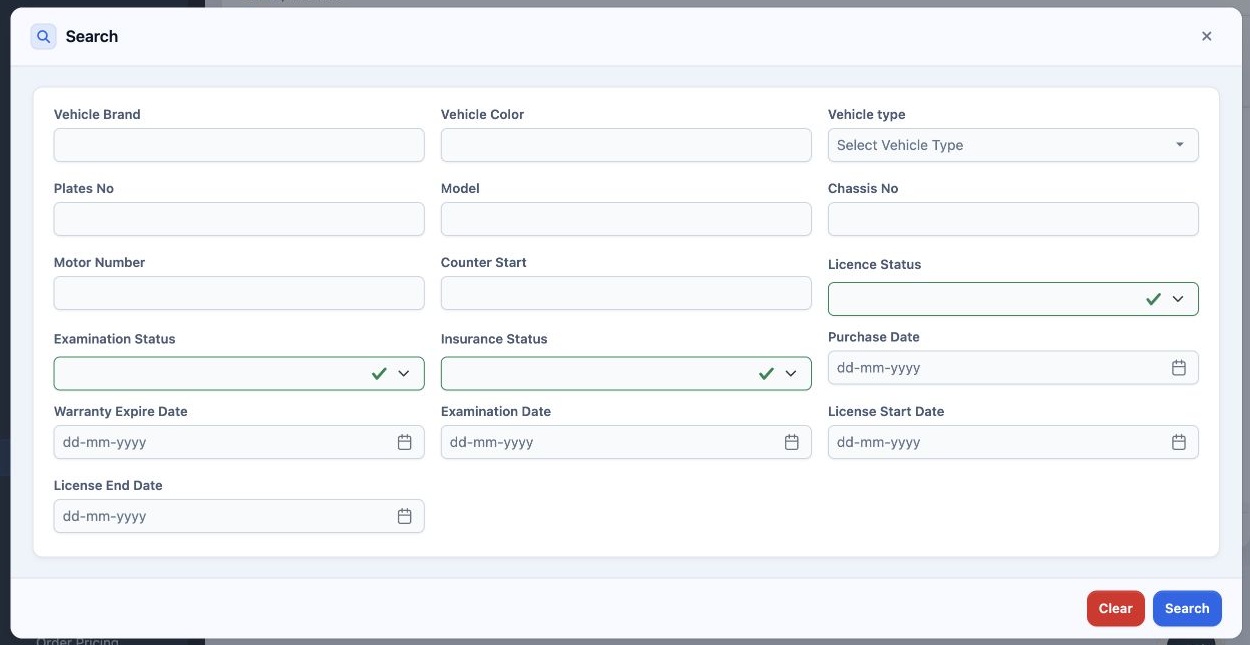
3 Select Search. Find vehicles by plate, type, brand, model, color, chassis or motor number, date range, or license, examination and insurance...
Select Search. Find vehicles by plate, type, brand, model, color, chassis or motor number, date range, or license, examination and insurance status. Use Clear to reset.

Edit or delete a record

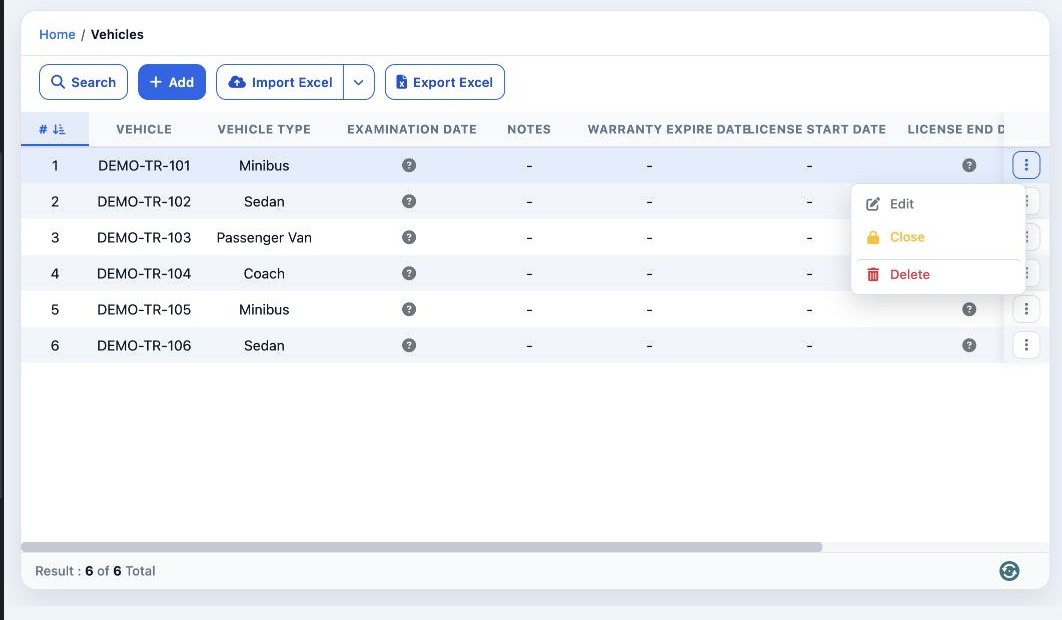
4 Open the three-dot menu for the correct row. Select Edit, change the fields and select Save. The same menu offers Delete for the selected re...
Open the three-dot menu for the correct row. Select Edit, change the fields and select Save. The same menu offers Delete for the selected record.

Sign in to record the lessons you have read. Sign in