Skip to content
Trio Travel guide

Transportation Prices

On this page
  1. Open the pricing list
  2. Add a supplier price and trip items
  3. Search the pricing list
  4. Edit or delete a saved price list

Open the pricing list

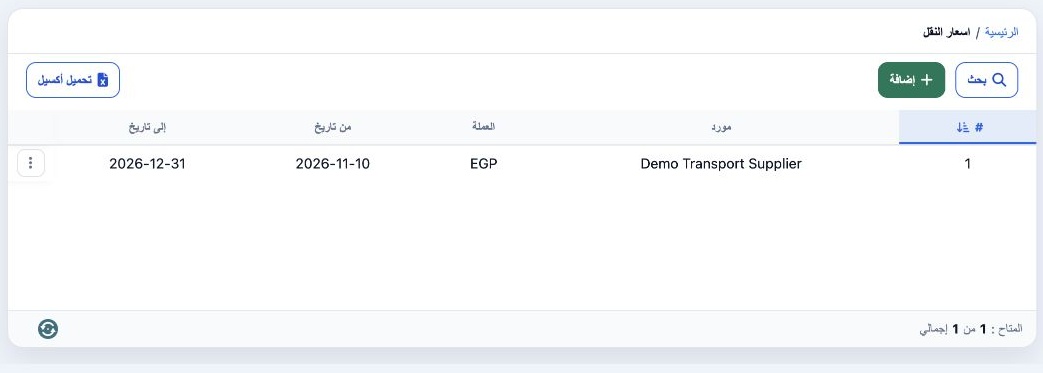
1 In Settings, open Transportation Prices. Saved rows show Supplier, Currency, Date From and Date To. Use Download Excel to export the list.
In Settings, open Transportation Prices. Saved rows show Supplier, Currency, Date From and Date To. Use Download Excel to export the list.

Add a supplier price and trip items

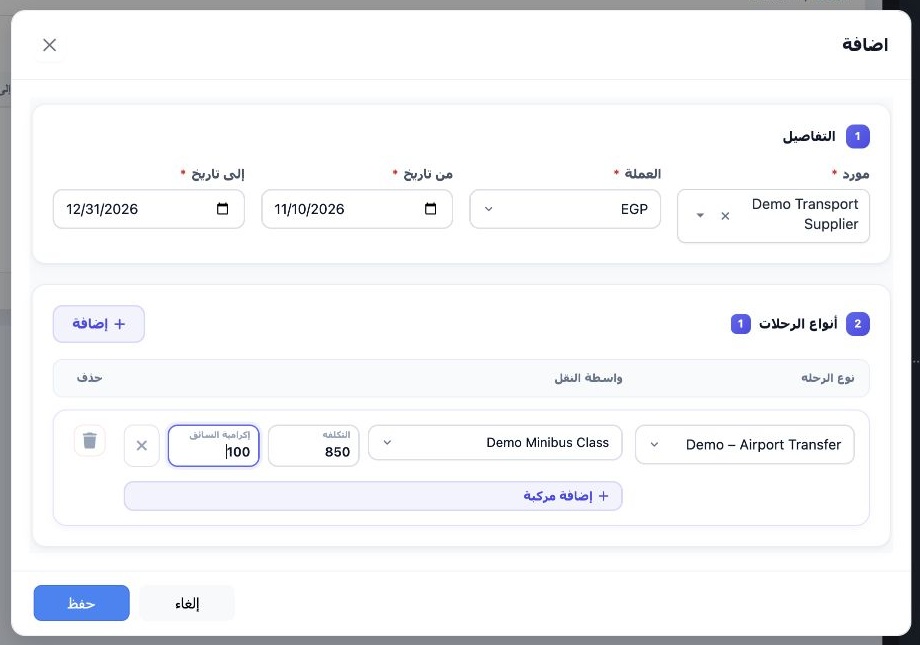
2 Select Add. Choose a Supplier and Currency and set Date From and Date To. Under Trip Types, select Add and choose a trip type. Use Add Vehic...
Select Add. Choose a Supplier and Currency and set Date From and Date To. Under Trip Types, select Add and choose a trip type. Use Add Vehicle to select a class from the Transport Vehicles setup. Enter Cost and Driver Tips. Use the delete icons to remove a vehicle or trip item from the draft. Select Save after completing the required fields. The example shows EGP 850 cost and EGP 100 driver tips for Demo Minibus Class.

Search the pricing list

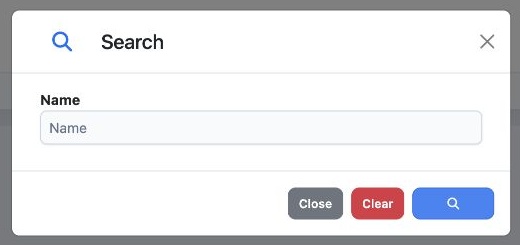
3 Select Search, enter a value in Name, then select the blue search button. Select Clear to reset the field.
Select Search, enter a value in Name, then select the blue search button. Select Clear to reset the field.

Edit or delete a saved price list

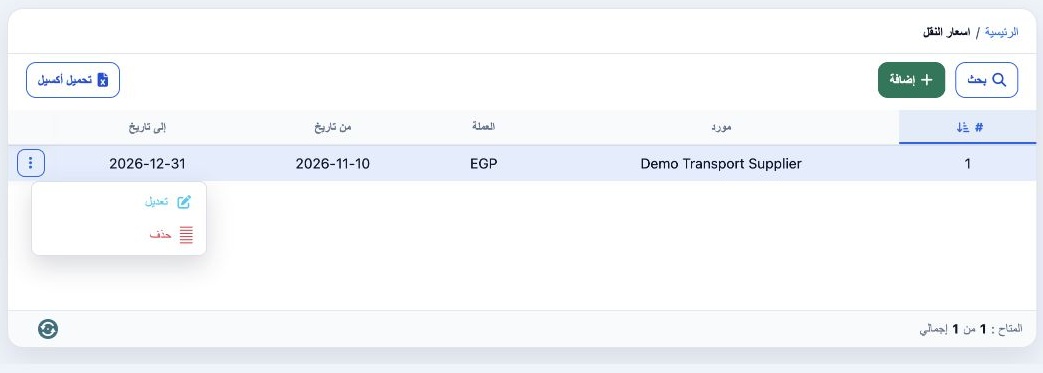
4 Open the three-dot menu for the supplier row. Select Edit to review or change the details and trip items, then select Save. Use Delete from...
Open the three-dot menu for the supplier row. Select Edit to review or change the details and trip items, then select Save. Use Delete from the same menu to start removing the selected list.

Sign in to record the lessons you have read. Sign in