Skip to content
Trio Travel guide

Umrah Trip Profitability Report

On this page
  1. 1 Open the report and filter Umrah
  2. 2 Identify the correct trip
  3. 3 Read revenue expenses and profit
  4. 4 Open the detailed trip statement
  5. 5 Review the journals and export the report

Use File Statement to review the trip revenue, expenses and profit. Open the detailed trip statement to trace the linked journals. The example values are in Egyptian pounds.

1 Open the report and filter Umrah
1 In Accounting, open General Reports and then File Statement (كشف حساب الملفات). Select Search (بحث), choose Umrah (العمره) under Service Typ...
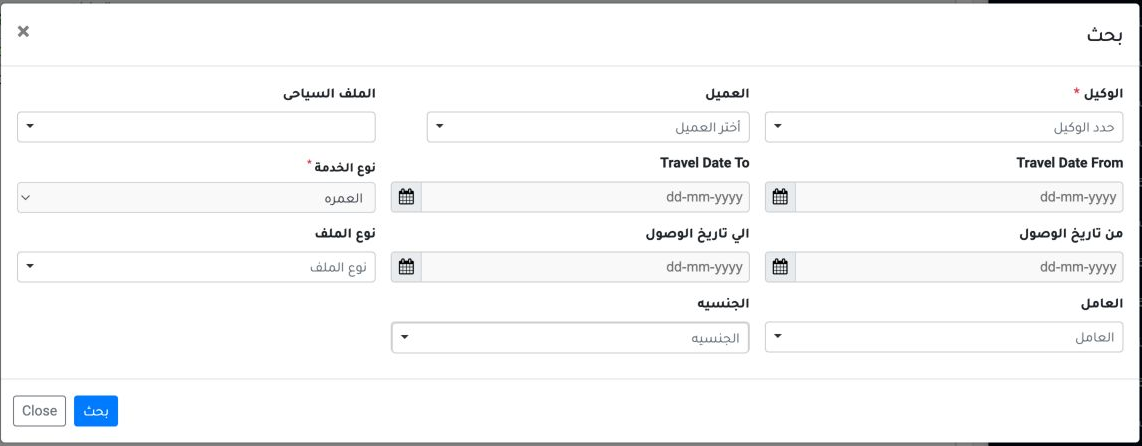
In Accounting, open General Reports and then File Statement (كشف حساب الملفات). Select Search (بحث), choose Umrah (العمره) under Service Type, and select Search inside the dialog. Travel and arrival date filters help narrow the trips displayed.

2 Identify the correct trip

2 Locate the row for the December 2026 training Umrah trip. Verify identifier 47072876, service type umrah and travel date 5 December 2026. Th...
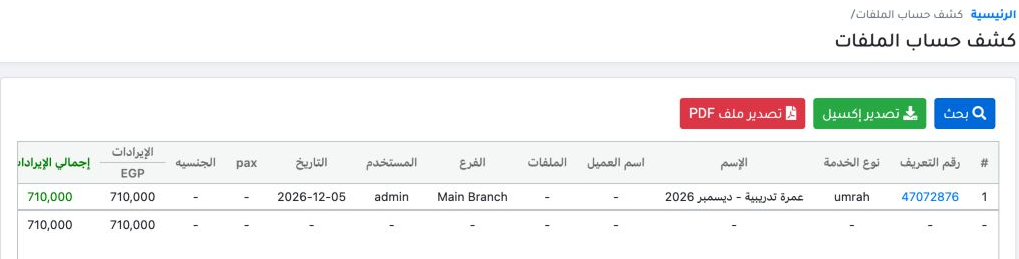
Locate the row for the December 2026 training Umrah trip. Verify identifier 47072876, service type umrah and travel date 5 December 2026. This row consolidates transactions linked to the trip file.

3 Read revenue expenses and profit

3 Move the horizontal scrollbar below the table to reveal Total Revenue, Total Expenses and Profit. The displayed result is EGP 710,000 revenu...
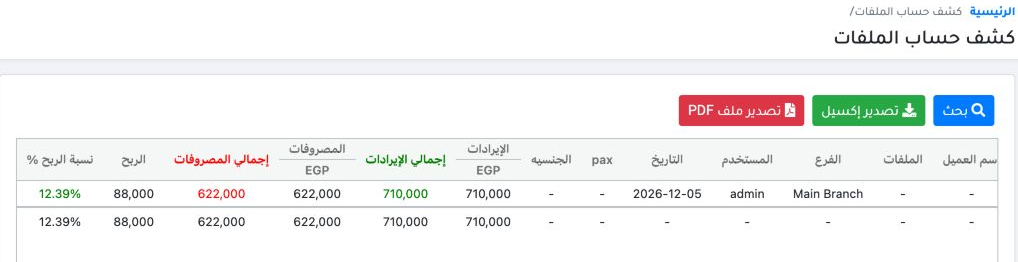
Move the horizontal scrollbar below the table to reveal Total Revenue, Total Expenses and Profit. The displayed result is EGP 710,000 revenue, EGP 622,000 expenses and EGP 88,000 profit. The report shows a profit margin of 12.39% of revenue.

The reconciliation is 710,000 − 622,000 = EGP 88,000. Read the selected trip row and check the footer total against the current search results.

4 Open the detailed trip statement
4 Select identifier 47072876 in the trip row. The system opens the detailed trip statement in another tab. Check the trip name above the state...
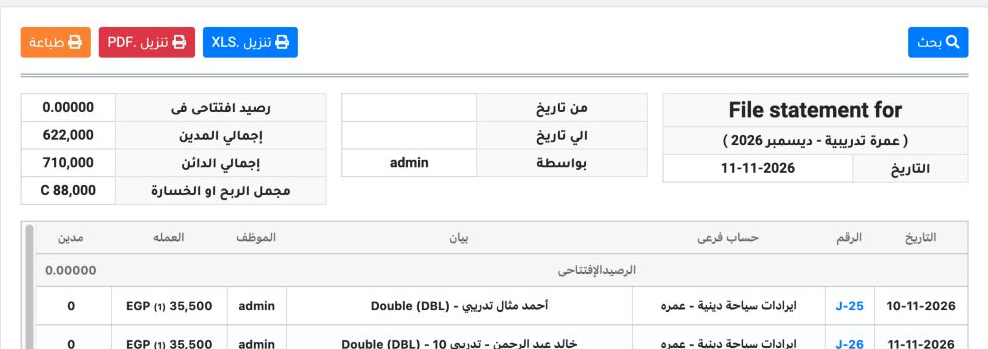
Select identifier 47072876 in the trip row. The system opens the detailed trip statement in another tab. Check the trip name above the statement. Total debits are EGP 622,000, total credits are EGP 710,000 and gross profit is EGP 88,000, matching File Statement.

5 Review the journals and export the report
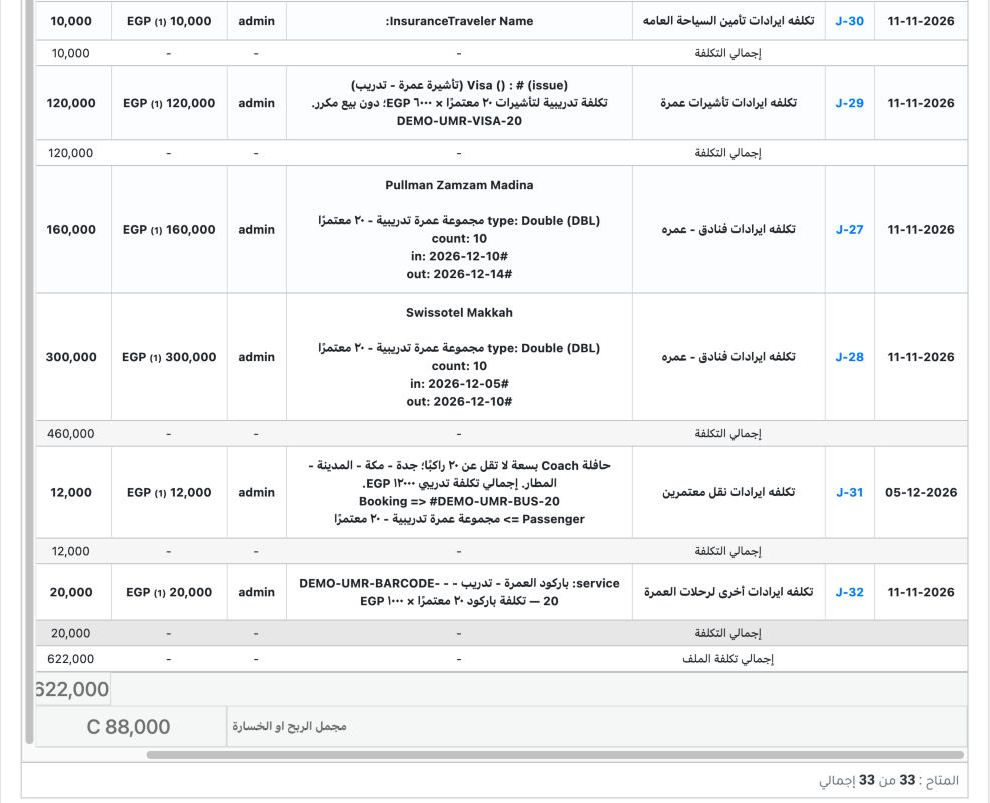
5 Scroll to the final part of the statement to review the expense lines and subtotals. Each line shows its date, journal number, account, desc...
Scroll to the final part of the statement to review the expense lines and subtotals. Each line shows its date, journal number, account, description and amount. Select a journal number to open its record for further review.

When applying a date range to the detailed statement, check the dates of the journals being reconciled. In this example, transport journal J-31 is dated 5 December 2026. The displayed result includes all transactions with no date range applied.

To save the current search result, use Export Excel or Export PDF in File Statement. In the detailed statement, use Download .XLS, Download .PDF or Print.

Sign in to record the lessons you have read. Sign in