Skip to content
Trio Travel guide

Hajj and Umrah Program Creation and Editing

On this page
  1. 1 Open trips and search
  2. 2 Enter the trip details
  3. 3 Child prices and program adjustments
  4. 4 Program rows and room prices
  5. 5 Room quantities and notes
  6. 6 Edit and review the saved change
  7. 7 Deletion confirmation and trip status
1 Open trips and search

1 Open Hajj and Umrah → Trips. Search by trip name, file, status, dates or trip type, then run Search. Reset clears the filters. Select Add Tr...
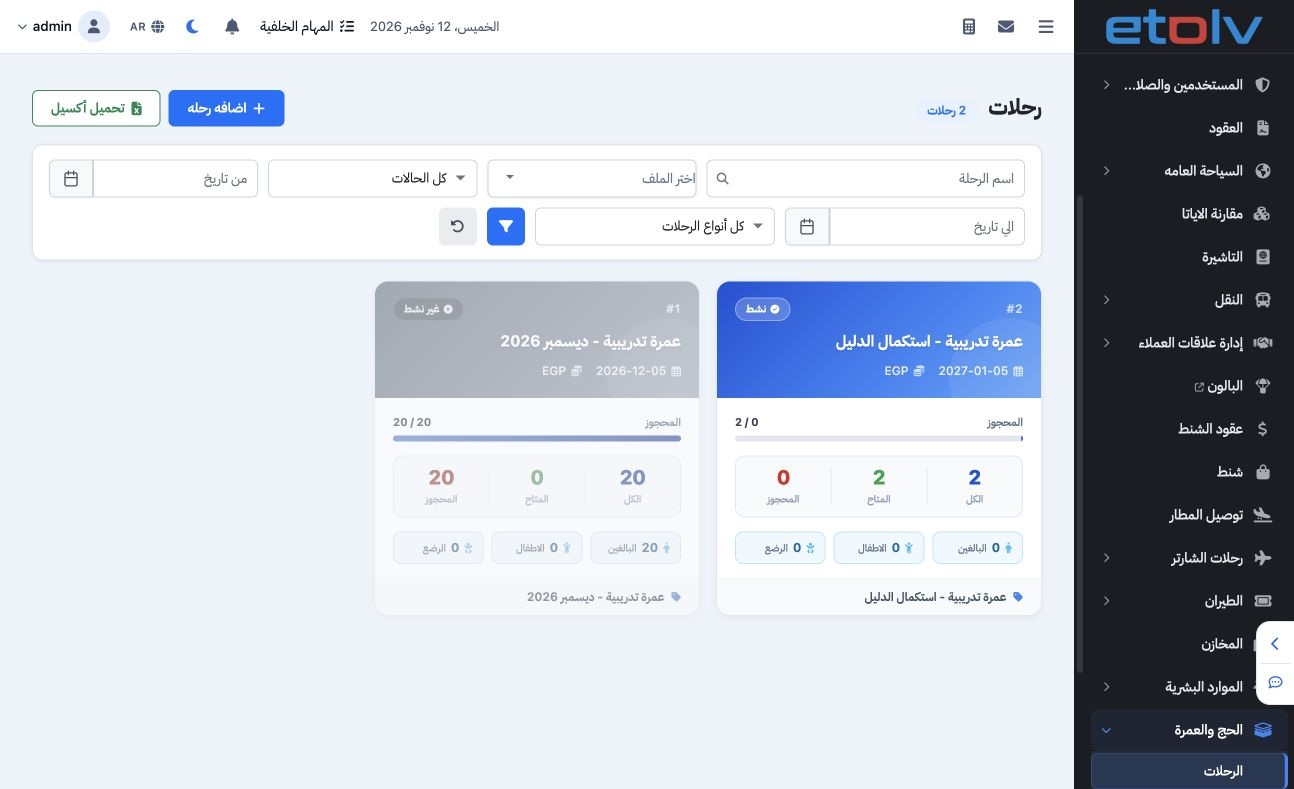
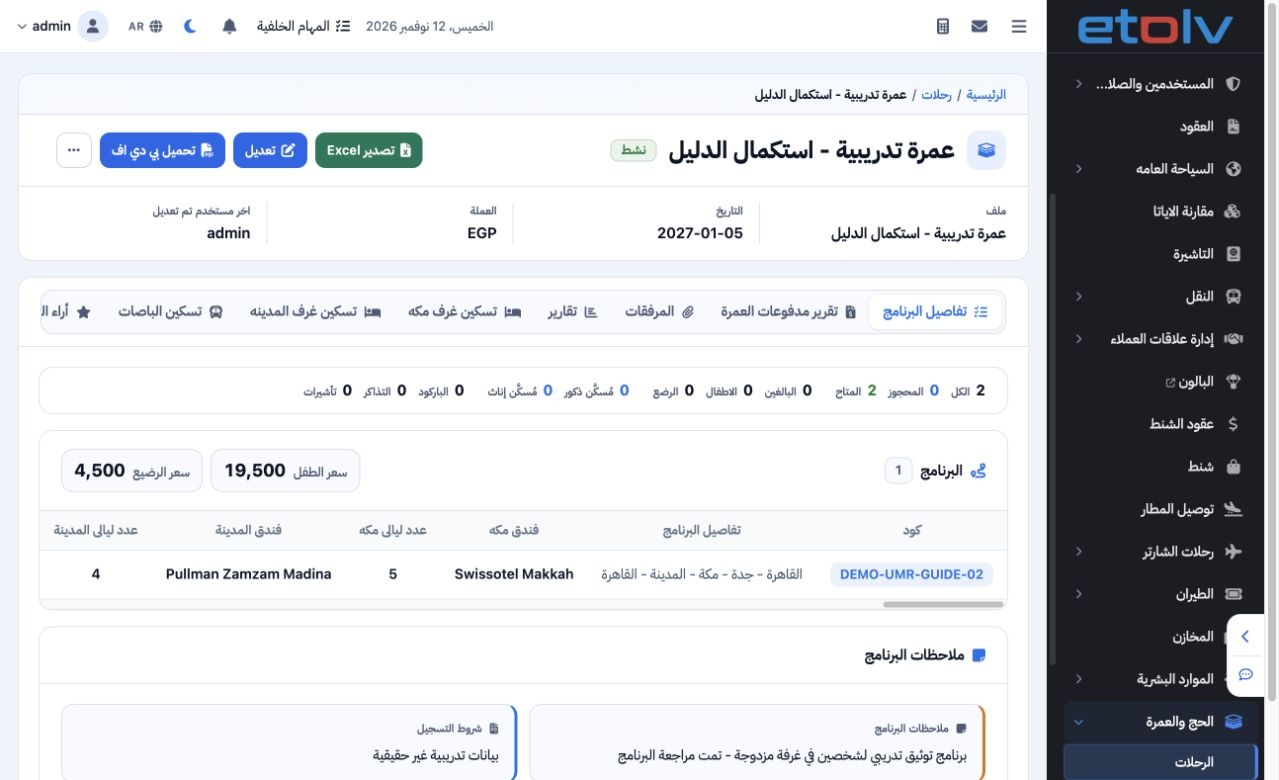
Open Hajj and Umrah → Trips. Search by trip name, file, status, dates or trip type, then run Search. Reset clears the filters. Select Add Trip to create a program. The example shows the completed December trip and a newly saved two-person training trip.

2 Enter the trip details

2 Enter the name, departure and return dates. Select the supplier, status and trip type, Umrah or Hajj. Set currency, exchange rate, passenger...
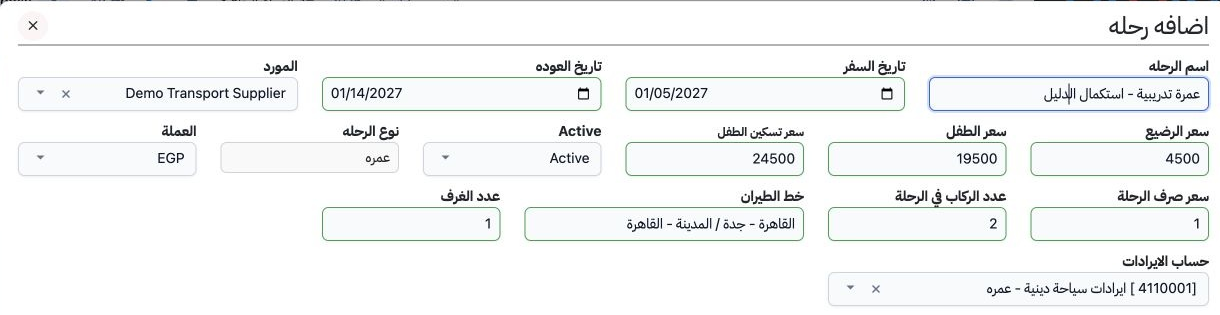
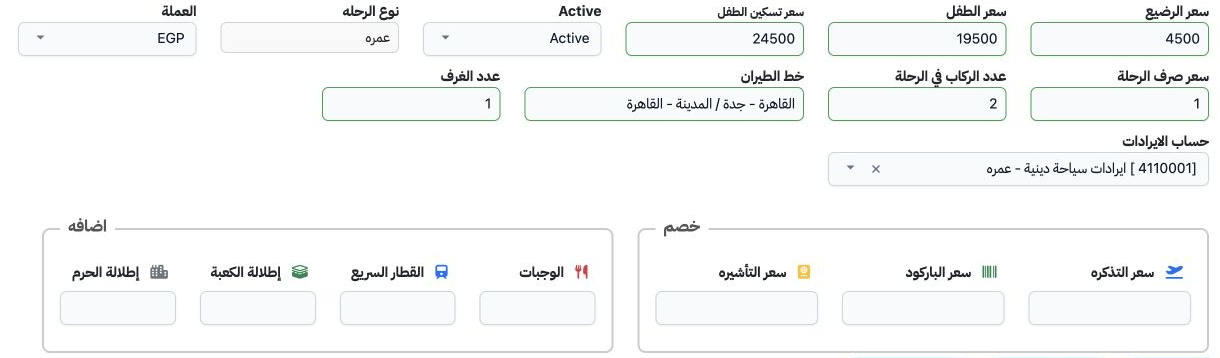
Enter the name, departure and return dates. Select the supplier, status and trip type, Umrah or Hajj. Set currency, exchange rate, passenger and room counts, flight route and revenue account. The saved example is Umrah from 5 to 14 January 2027 for two people and one room, using EGP at rate 1.

3 Child prices and program adjustments

3 Set infant, child and child occupancy prices. This example uses 4500, 19500 and 24500. The form also provides ticket, barcode and visa deduc...
Set infant, child and child occupancy prices. This example uses 4500, 19500 and 24500. The form also provides ticket, barcode and visa deductions, plus meals, high-speed train, Kaaba view and Haram view additions. Enter your approved amounts when using these options. The training program leaves the adjustments at zero.

4 Program rows and room prices

4 Use + for each program row. Enter its code and passenger count, both hotels and night counts, meal plans, transport type and itinerary. Use...
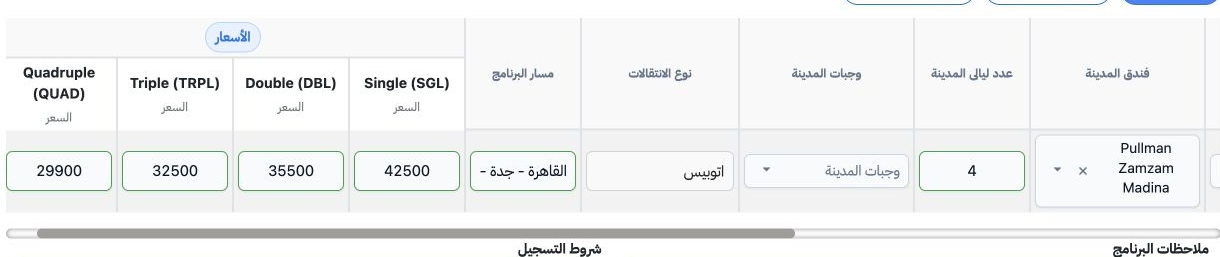
Use + for each program row. Enter its code and passenger count, both hotels and night counts, meal plans, transport type and itinerary. Use Show Price for room prices. The example uses five nights at Swissotel Makkah and four at Pullman Zamzam Madina: Single 42500, Double 35500, Triple 32500 and Quadruple 29900.

5 Room quantities and notes

5 Show Room Counts reveals the room quantities. Show Total Rooms allows one total quantity for the program row. Review the trip-level and row-...
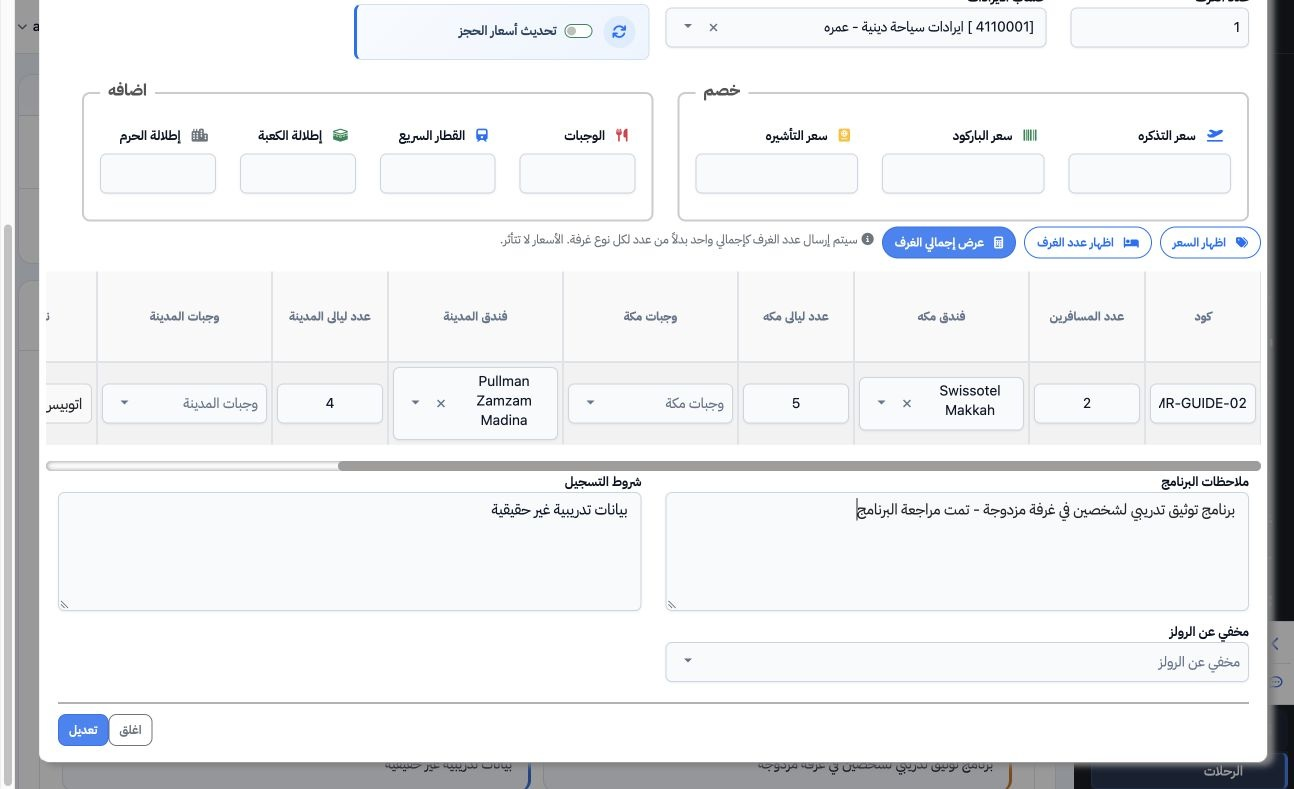
Show Room Counts reveals the room quantities. Show Total Rooms allows one total quantity for the program row. Review the trip-level and row-level counts. Enter program notes and registration terms, then save. The example sets one room in the program row. Room allocation is reviewed separately in the housing screens.

6 Edit and review the saved change

6 Open the trip and select Edit. Change the intended fields, then select Edit inside the form and wait for the detail view. The saved example...
Open the trip and select Edit. Change the intended fields, then select Edit inside the form and wait for the detail view. The saved example includes “تمت مراجعة البرنامج” in its notes. When changing prices, review Update Reservation Prices before saving. The example leaves that switch off.

7 Deletion confirmation and trip status

7 Select Actions → Delete to review the confirmation. Choose No to retain the trip, as in this example. The December trip is marked Inactive i...
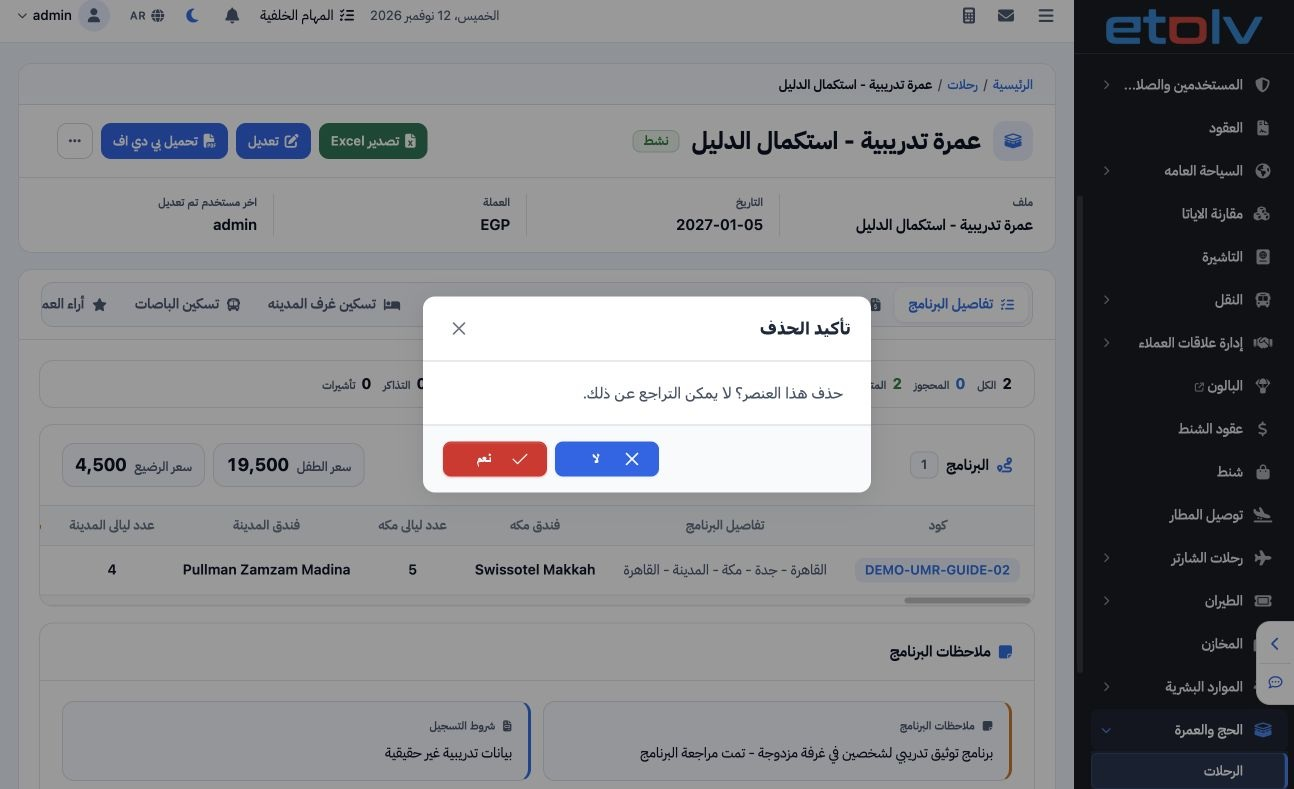
Select Actions → Delete to review the confirmation. Choose No to retain the trip, as in this example. The December trip is marked Inactive in the trip list. This is the trip activation status; reservation confirmation and processing statuses are shown separately in the reservation list.

Sign in to record the lessons you have read. Sign in