Skip to content
Trio Travel guide

Hajj and Umrah Reservations and Traveler Details

On this page
  1. 1 Create the reservation file
  2. 2 Open the Hajj and Umrah service
  3. 3 Traveler details and program price
  4. 4 Passport documents and service options
  5. 5 Edit before posting
  6. 6 Review deletion confirmation
  7. 7 Post and review the total
  8. 8 Review the resulting journal

1 Create the reservation file

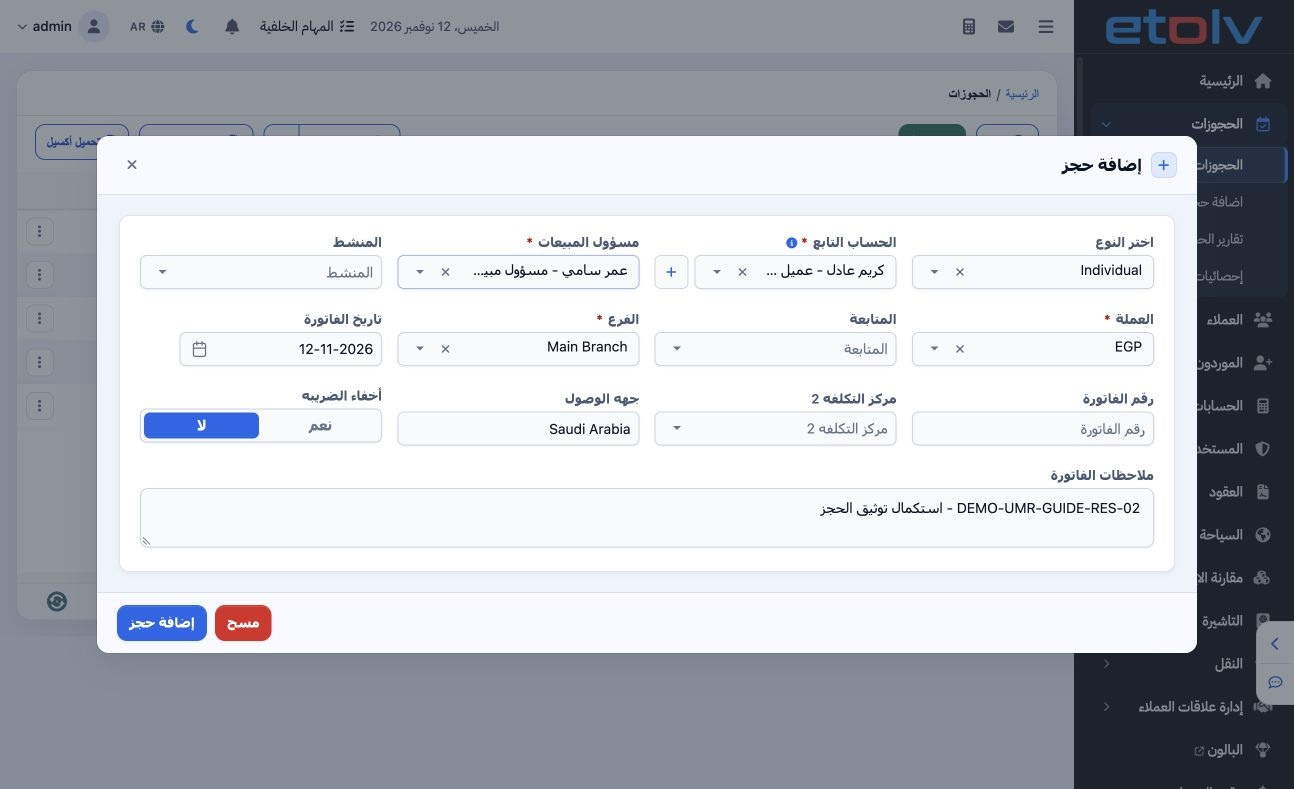
1 Open Reservations → Add. Choose Individual for an individual customer or Corporate for a company. Select the registered customer, sales offi...
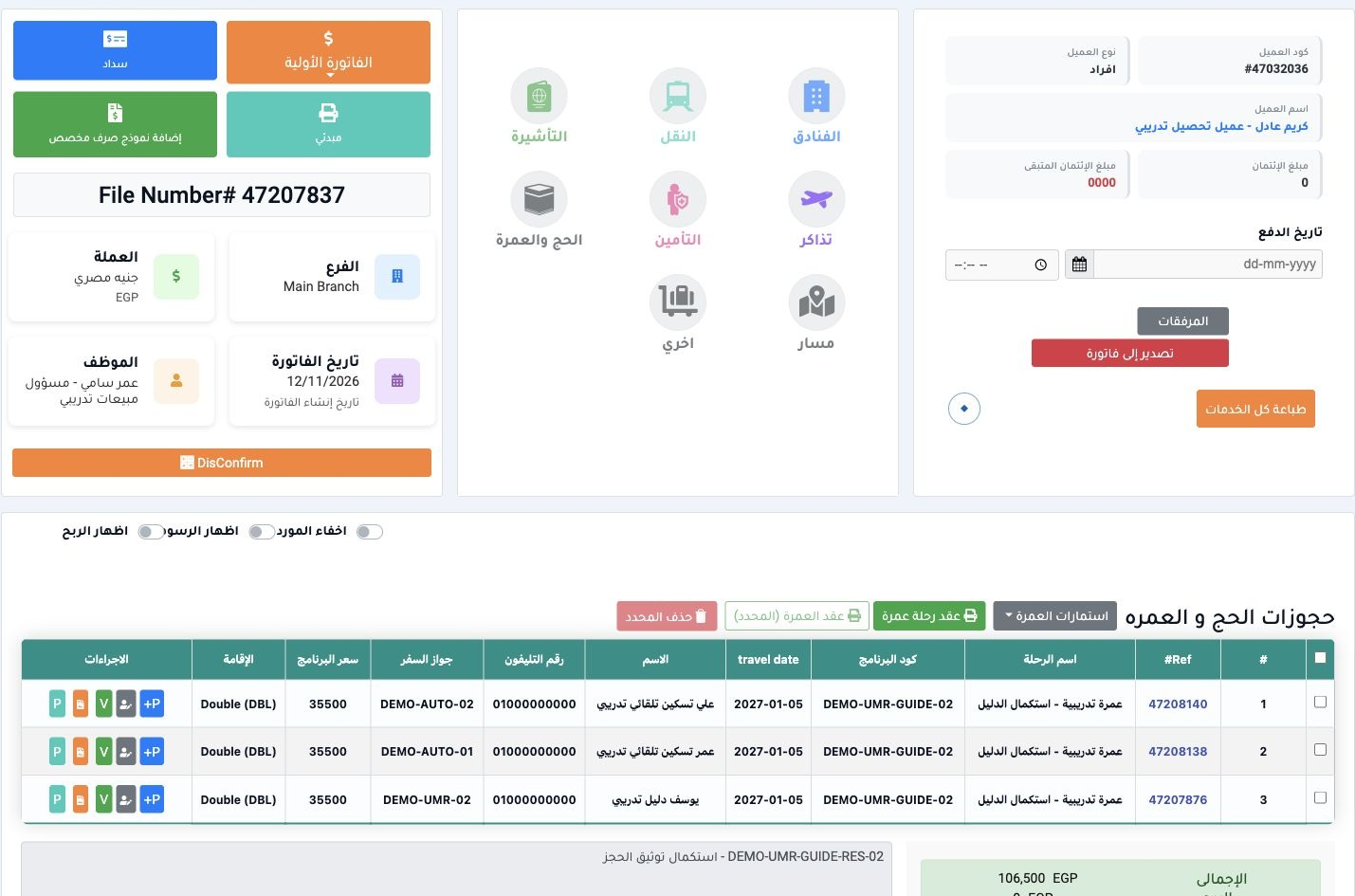
Open Reservations → Add. Choose Individual for an individual customer or Corporate for a company. Select the registered customer, sales officer, currency, branch and invoice date. Add your reference/note, destination and tag where needed, then Add Reservation. This example creates file 47207837 for Karim in EGP.

2 Open the Hajj and Umrah service

2 Inside the file, select the Hajj and Umrah service, then Add New +. Choose the active trip and its program code. The example selects “عمرة ت...
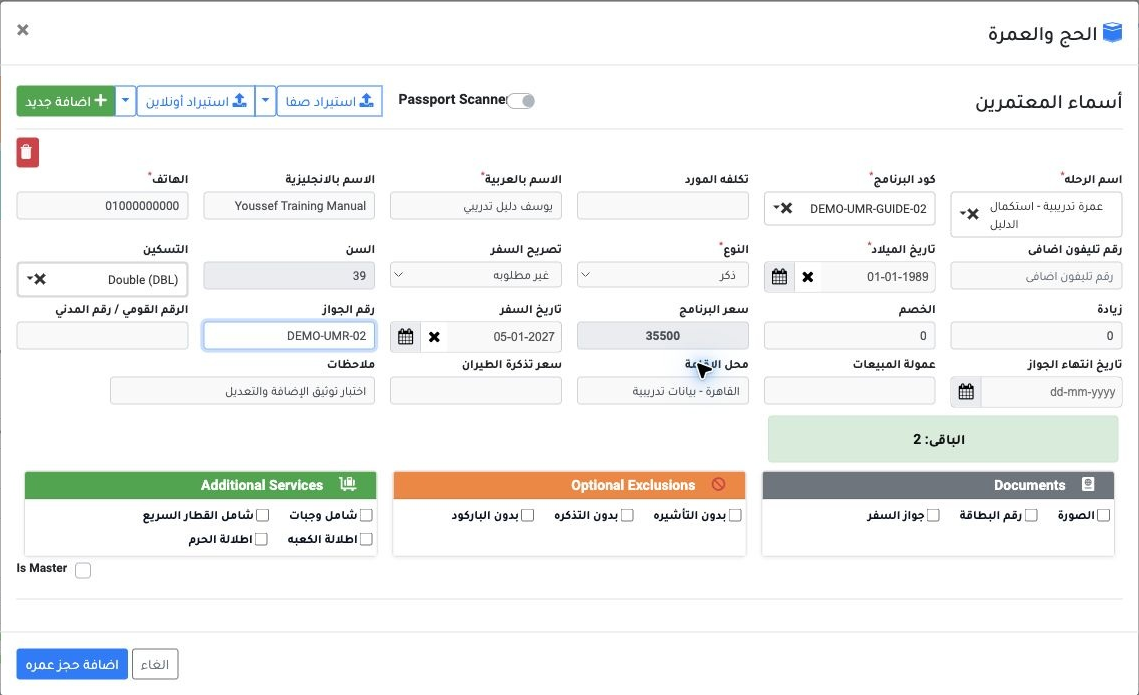
Inside the file, select the Hajj and Umrah service, then Add New +. Choose the active trip and its program code. The example selects “عمرة تدريبية - استكمال الدليل” and DEMO-UMR-GUIDE-02. Safa/online import and Passport Scanner tools appear in the header; this example uses manual entry.

3 Traveler details and program price

3 Enter Arabic/English names and phone, then date of birth, gender and travel authorization when shown. Choose the room type and review the pr...
Enter Arabic/English names and phone, then date of birth, gender and travel authorization when shown. Choose the room type and review the price supplied by the program. Enter an extra charge or discount if applicable. The Double program price in this example is 35500 per person, with departure on 5 January 2027.

4 Passport documents and service options

4 Enter passport number/expiry, national or civil ID and residence when required. The checkboxes track photo, ID and passport documents; exclu...
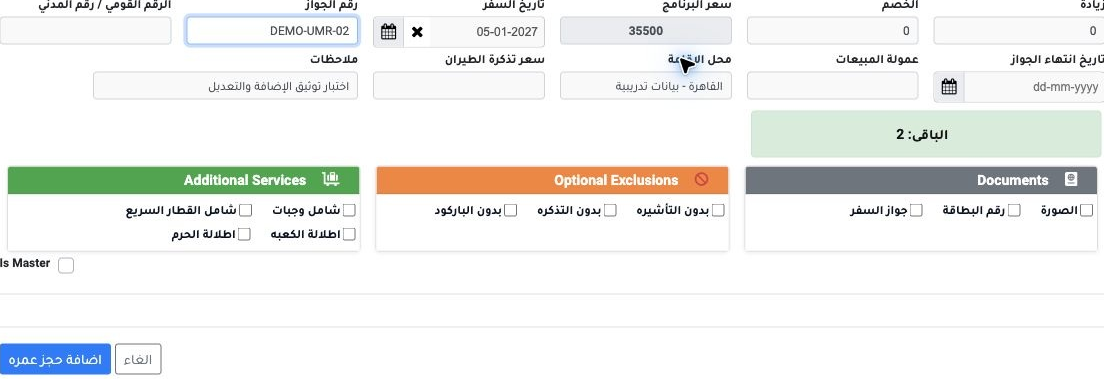
Enter passport number/expiry, national or civil ID and residence when required. The checkboxes track photo, ID and passport documents; exclusions cover visa, ticket and barcode, while additions cover meals, train and views. Review sales commission, ticket price and notes, then Add Umrah Reservation. Use the requirements configured for your company.

5 Edit before posting

5 Use the Edit icon on the pilgrim row. Check the reference, name, trip and room, change the intended field and select Edit Reservation. The e...
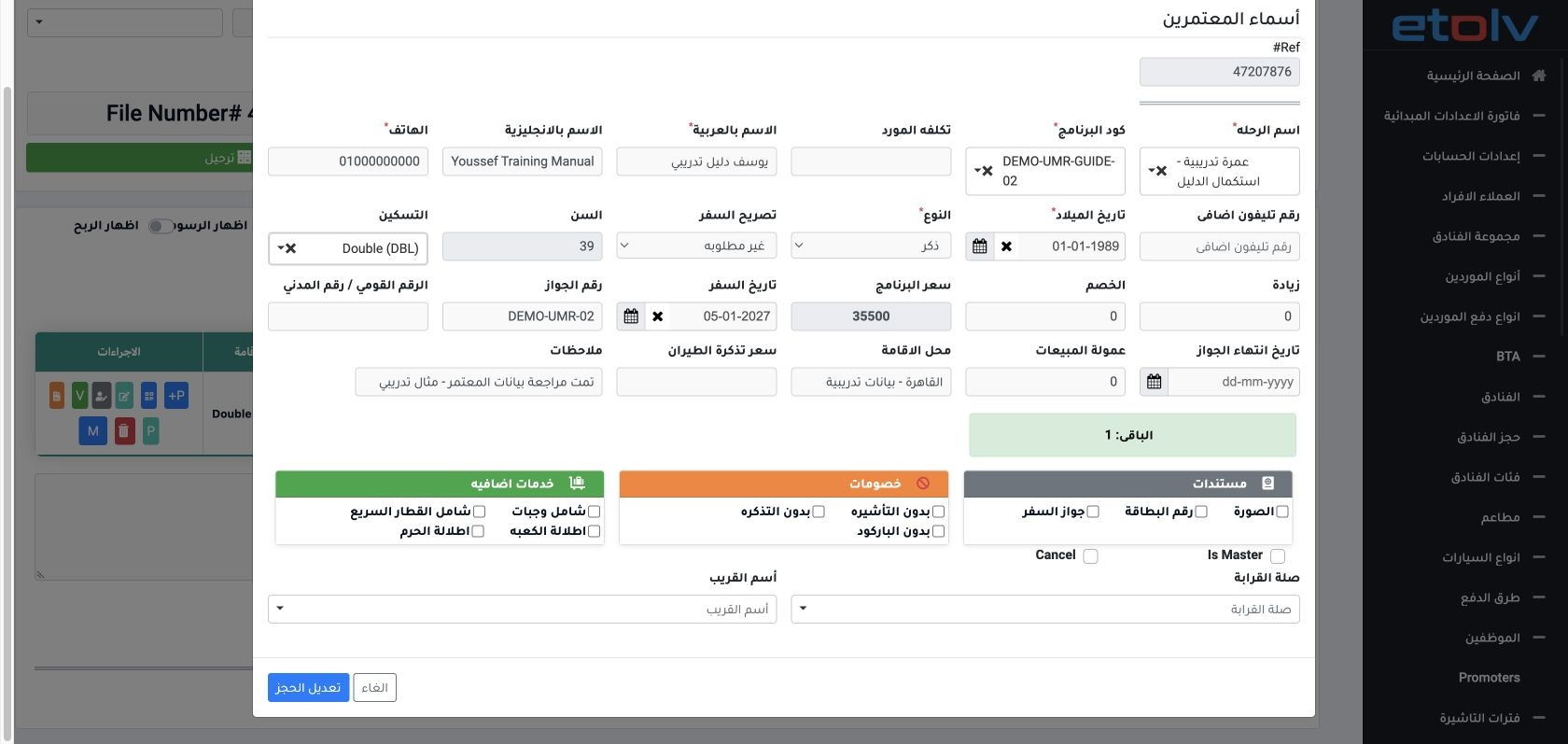
Use the Edit icon on the pilgrim row. Check the reference, name, trip and room, change the intended field and select Edit Reservation. The example saves “تمت مراجعة بيانات المعتمر - مثال تدريبي” as its note. Close the form to leave it unchanged.

6 Review deletion confirmation

6 Choose the pilgrim row’s Delete icon before posting. The confirmation warns that deletion cannot be reversed. Check the reference and travel...
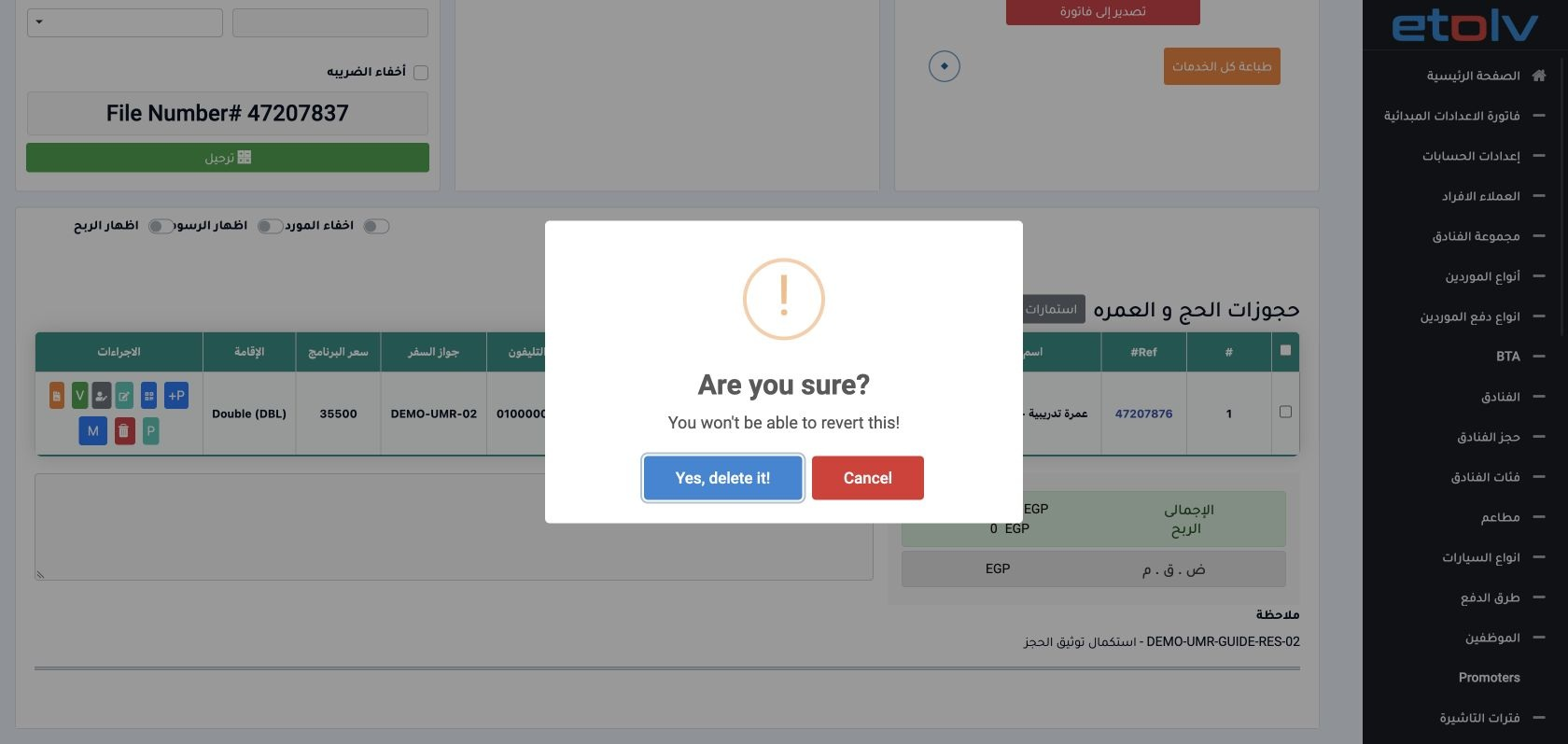
Choose the pilgrim row’s Delete icon before posting. The confirmation warns that deletion cannot be reversed. Check the reference and traveler before confirming. Choose Cancel to retain the pilgrim; the example cancels deletion.

7 Post and review the total

7 After reviewing travelers and prices, select Post once and wait. This example has three pilgrims totaling EGP 106500. After posting, DisConf...
After reviewing travelers and prices, select Post once and wait. This example has three pilgrims totaling EGP 106500. After posting, DisConfirm appears and item edit/delete actions disappear from the confirmed view. Do not submit posting again while processing.

8 Review the resulting journal

8 Open Journal Entries, search reservation reference 47207837 and view J-74. Total debits and credits are 106500. For each pilgrim, the journa...
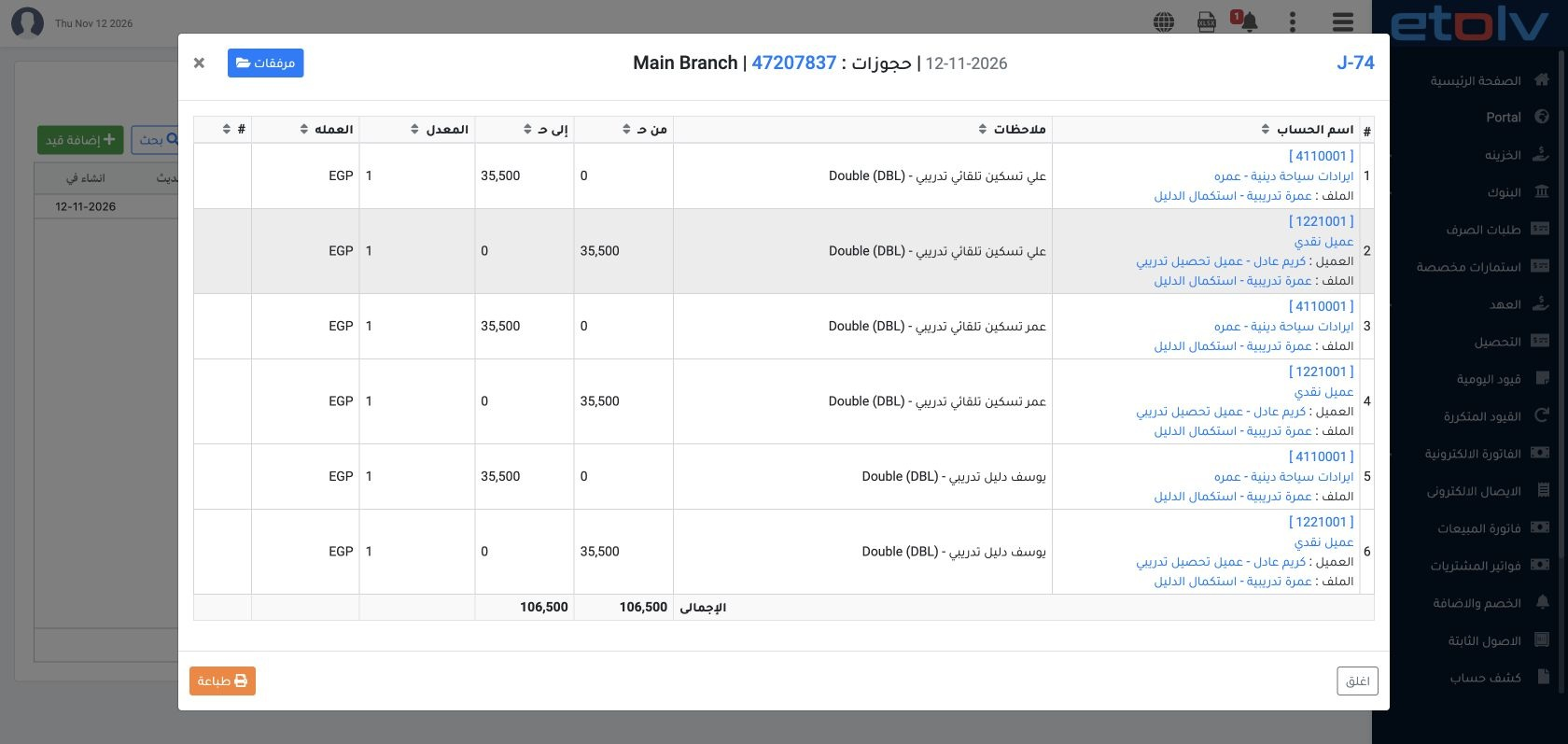
Open Journal Entries, search reservation reference 47207837 and view J-74. Total debits and credits are 106500. For each pilgrim, the journal debits account 1221001 with customer Karim for 35500 and credits Umrah revenue 4110001 for 35500, linked to the trip. Collection is a separate payment step.

Sign in to record the lessons you have read. Sign in