Importing suppliers from Excel
On this page
Downloading the template and catalogue
This guide explains how to import two suppliers from Excel, review their linked accounts and correct a row rejected because its ledger code does not exist.
Open Suppliers and use the arrow beside Import to download the template and catalogue. Enter data in the template; use the catalogue to understand columns and look up branches, countries, cities and ledgers.


Save as xlsx. Retain optional columns even when leaving their values blank. Upload the template rather than the catalogue.
Name contact and location

name is the required supplier display name. Use a clear name and check the list for duplicates. This example uses DEMO-XLS-SUP-20261115-A and DEMO-XLS-SUP-20261115-B.
phone is the optional telephone number and email the optional email address. Store telephone numbers as text to retain leading zeros.
branch is the branch Serial from the Branches sheet, rather than its name or ID. In this catalogue Main Branch has Serial 382. The example leaves branch blank.
country is an existing country name from Countries, city an existing city in that country, and state free text for the state or region. These fields are optional; copy the correct references when using them.
Tax details and commission
tax_number is the supplier tax number and taxpayer_name the taxpayer legal name. Both are optional; use the supplier’s approved details when needed.
mc is the optional supplier MC commission percentage. The catalogue describes its use in SAMO reservation import. This example leaves it blank.
account_name_en and account_name_ar represent the bank account owner’s English and Arabic names. The catalogue states that these values are not currently saved, so do not rely on importing them.
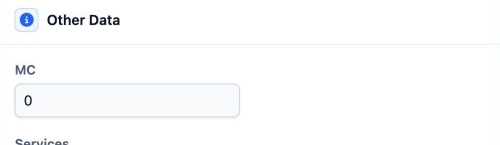
The preceding field meanings follow the catalogue. The example contains no tax number or account-owner name and does not demonstrate commission calculation.
Ledger and discount account references
code is the supplier ledger code. The catalogue describes linking a matching ledger when one exists, or creating a ledger under the selected group. Leaving it blank generates a new code.
ledger_code is an existing supplier ledger account code from Ledgers. Do not substitute a supplier serial or internal ID. A code that does not exist causes the row to be rejected.

discount_and_collection_ledger_id is the internal ID of the discount and collection account. discount_and_collection_ledger_code is its account code. Both are optional; the catalogue states that the code takes precedence when supplied.
This simple new-supplier example leaves all four account-reference fields blank, except for the deliberate bad code in B used to demonstrate correction.
Optional bank details

bank_name is the supplier’s bank name and bank_branch the bank branch. Keep bank_branch distinct from branch, which refers to the company branch.
account_number_usd is the USD bank account number, account_number_eur the EUR account number, and account_number_le the EGP account number. Store account numbers as text and review the corresponding currency definition before using them.
iban is the international bank account number and swift_code the bank’s SWIFT/BIC code. Copy these from the supplier’s approved banking details when needed.
All seven bank columns are optional and blank in this training example. This scenario does not include a bank transfer or supplier payment.
Selecting the group and uploading
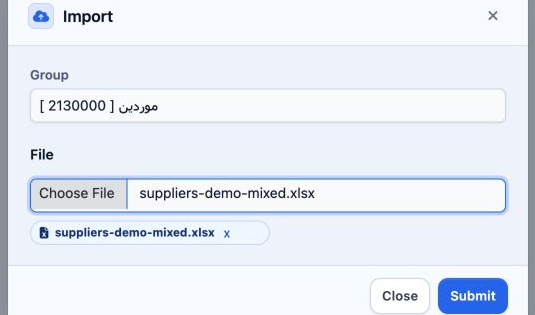
Choose the appropriate supplier account group in Group, then choose the workbook in File. The group is a choice in this window, rather than an extra Excel column.
Check both selections and click Submit once. Open Background tasks and wait for the outcome before retrying.
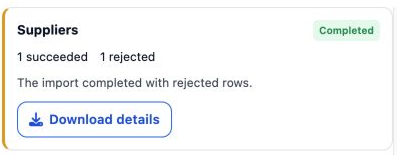
Reading the error and correcting B

The message is No ledger found with code DEMO-NOT-FOUND-LEDGER. Review ledger_code on row 3 of the original workbook.
The list showed A as number 2 and no B. The refreshed ledger catalogue contained A’s account and no account named B. Check both the supplier and its account before retrying a rejected row.
To create a new ledger for B in this example, include only B in a copy of the template and leave ledger_code and code blank. Save as suppliers-demo-corrected.xlsx.
Do not resend the successful A row. If starting from the rejection report, remove its line and error columns before upload. Here the simpler approach is to use the original 23-column template.
Retrying and checking the supplier list
Choose the same group and the corrected B-only workbook, then click Submit once.
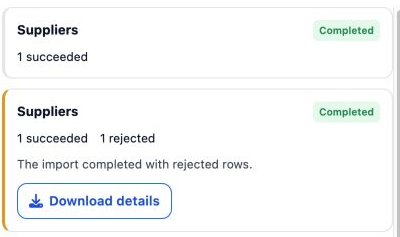
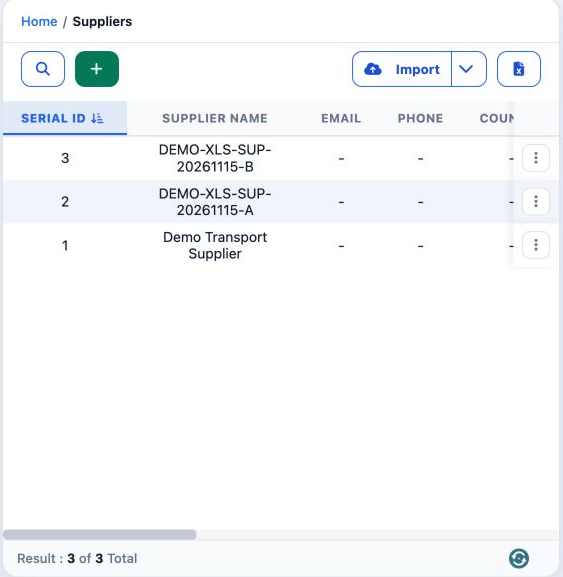
Checking the linked account codes
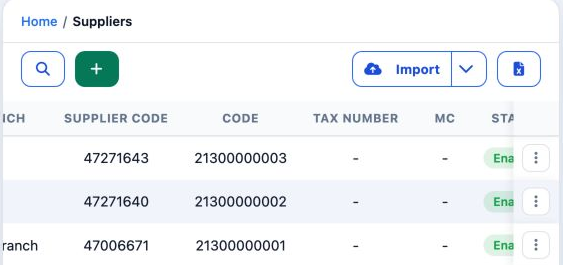
Distinguish Code, which displays the account code, from Supplier Code, which in this list displays the linked ledger identifier. Review the catalogue before using either value in an import field.
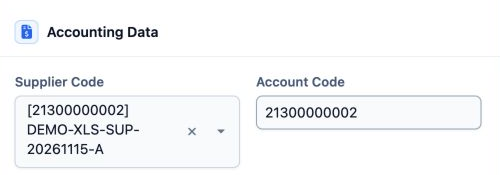
The final catalogue contains one account named after each new supplier, with the same codes. Both suppliers show a blank branch after branch was left blank. Review the details before using a supplier in transactions.
Sign in to record the lessons you have read. Sign in