Skip to content
Trio Travel guide

Importing customers from Excel

On this page
  1. Downloading the template and selecting the group
  2. Name type and contact details
  3. Identification and address fields
  4. References branch and accounting codes
  5. Submitting the file and reading the result
  6. Correcting the rejected customer type
  7. Retrying and reviewing the customers
  8. Checking the accounting codes

Downloading the template and selecting the group

Open Customers and use the Import arrow to download Example and Catalog. This guide imports two corporate customers, corrects a rejected row and checks their resulting accounting codes.
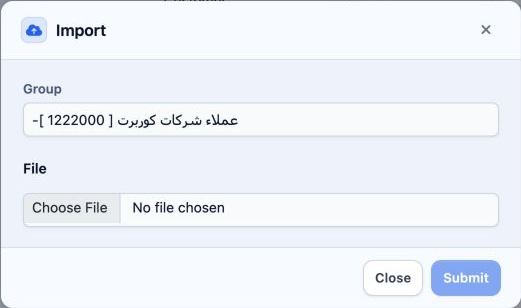
1 Select the group for new corporate customer ledgers. The example uses corporate customer group [1222000]. Group is a separate selection in t...
Select the group for new corporate customer ledgers. The example uses corporate customer group [1222000]. Group is a separate selection in the window; do not add group_id to Excel.

Use the template Import sheet, retain all seventeen headings, enter data from row 2 and save as xlsx. Catalog explains fields and lists Countries, Cities, Branches and Ledgers; it is not the upload file.

Name type and contact details

name is the customer name shown in the list. Use a clear name; the corporate example also uses it for the ledger name.

type selects the customer kind. Use corporate for a corporate customer or individual for an individual. Enter the English value; this example uses corporate.

email is optional customer email. phone is optional customer phone; format its cell as text to preserve a leading zero or international prefix.

ref_note is a reference note to identify the customer. Contact details and the note may be left blank when unavailable.
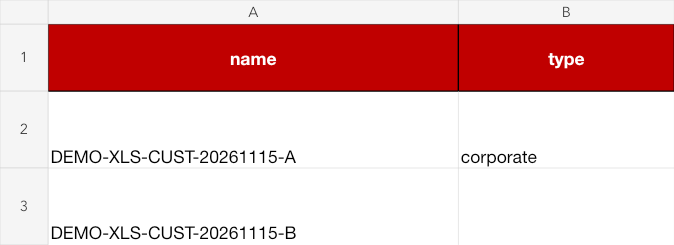
2 A uses corporate, while B has a blank type to demonstrate correction. Each row repeats its name in ref_note.
A uses corporate, while B has a blank type to demonstrate correction. Each row repeats its name in ref_note.

Identification and address fields

national_number is the national ID when needed. passport_number is the passport number. Keep identifiers as text and check them before uploading.

country is the country name from Countries, not its ID or Serial. city is the city name within that country. Check them together because city names may repeat.

region_city is free-text region or district, rather than an identifier from Regions. building_number is a whole building number. address is the street address and its supplementary details.

3 Identification and address fields follow the template order. This example leaves these optional fields blank.
Identification and address fields follow the template order. This example leaves these optional fields blank.

References branch and accounting codes

customer_id is a reference from your existing customer data. It is not the internal record ID generated by the system.

tax_number is the tax number when applicable. Enter accurate numeric text without separators or symbols and check its length. The catalogue specifies a maximum of 14 digits.

branch is a branch name from Branches, such as Main Branch. The catalogue states that a blank value uses the signed-in user branch.

code is the corporate customer accounting ledger code. ledger_code is an existing ledger code when requesting a previous account link; it differs from the Ledgers ID and customer_id. Leave both fields blank in this new-ledger example and select the group in the import window.

4 The image shows the final template columns. Do not replace their headings with translated labels.
The image shows the final template columns. Do not replace their headings with translated labels.

Submitting the file and reading the result
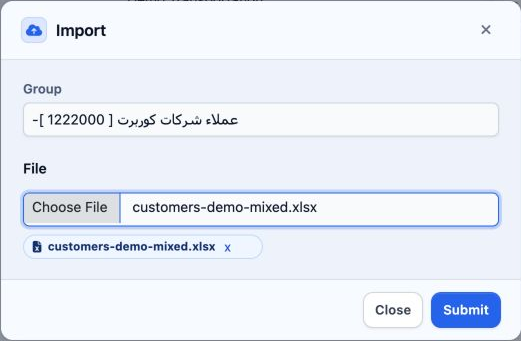
5 In Import, check the group and customers-demo-mixed.xlsx, then click Submit once. Choose Close to return without submitting.
In Import, check the group and customers-demo-mixed.xlsx, then click Submit once. Choose Close to return without submitting.
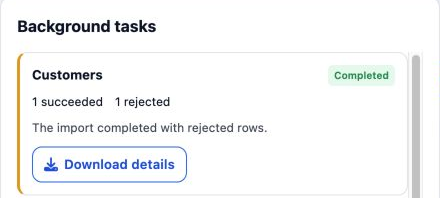
6 Open Background tasks. The operation shows 1 succeeded and 1 rejected with Completed. Click Download details to review the rejected row.
Open Background tasks. The operation shows 1 succeeded and 1 rejected with Completed. Click Download details to review the rejected row.

Correcting the rejected customer type
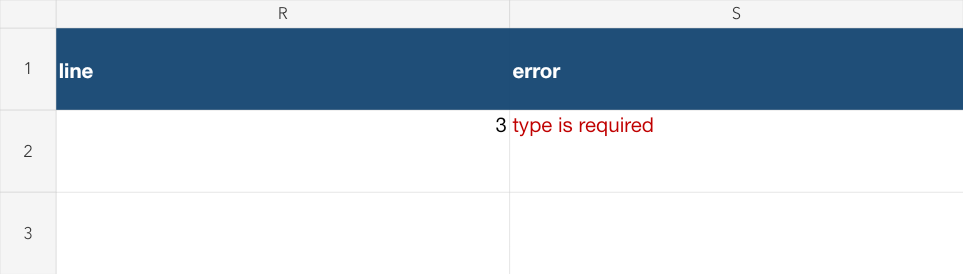
7 The report identifies line 3 and type is required: the customer type is missing in the original third row.
The report identifies line 3 and type is required: the customer type is missing in the original third row.

Before uploading again, search for B in Customers and review the accounts to confirm that it was not created. This example used a fresh catalogue download to review Ledgers.
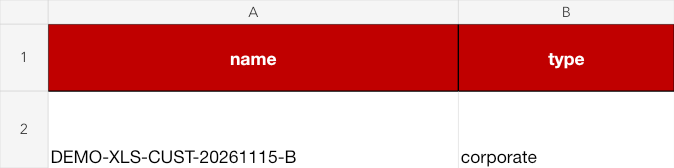
8 Copy only B into the original template and enter corporate in type. Retain all seventeen original headings and exclude the report columns li...
Copy only B into the original template and enter corporate in type. Retain all seventeen original headings and exclude the report columns line and error. Do not resubmit the successful A row.

Retrying and reviewing the customers
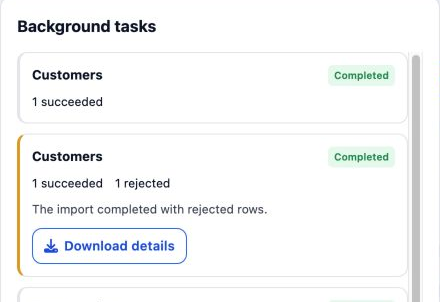
9 Upload customers-demo-corrected.xlsx with the same group and click Submit. The new operation shows 1 succeeded and Completed; the first oper...
Upload customers-demo-corrected.xlsx with the same group and click Submit. The new operation shows 1 succeeded and Completed; the first operation remains separately listed below it.
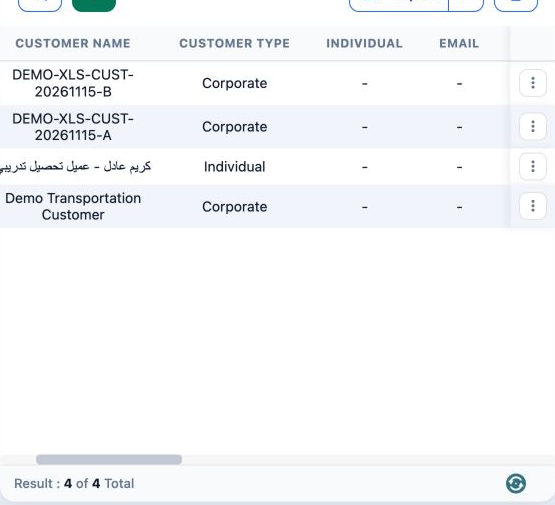
10 The list now contains four customers: the two original records and A and B as Corporate. Check that each imported name appears once.
The list now contains four customers: the two original records and A and B as Corporate. Check that each imported name appears once.

Checking the accounting codes

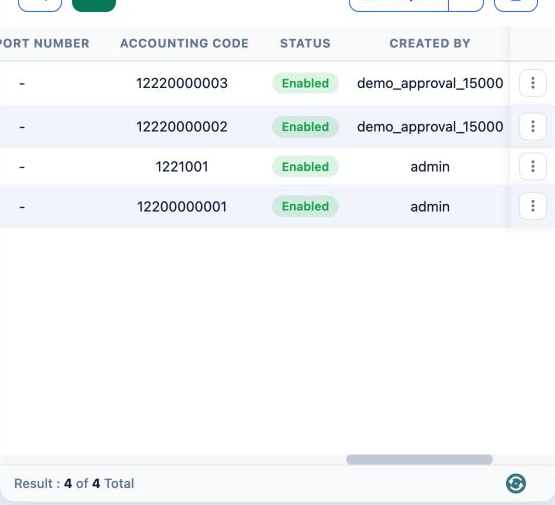
11 Scroll horizontally to Accounting Code. A was saved as serial 3 with account code 12220000002; B as serial 4 with account code 12220000003....
Scroll horizontally to Accounting Code. A was saved as serial 3 with account code 12220000002; B as serial 4 with account code 12220000003. The original two account codes remain visible.

In this example, importing corporate with blank code and ledger_code created two ledgers named after the customers. Check Name and Code in Ledgers after downloading a fresh catalogue. The customer number, internal ledger ID and account code are different identifiers.

Sign in to record the lessons you have read. Sign in