Skip to content
Trio Travel guide

Importing fleet vehicles from Excel

On this page
  1. Opening fleet vehicles and downloading the template
  2. Completing the vehicle details
  3. Choosing the vehicle type serial
  4. Uploading and reviewing a partial success
  5. Correcting the duplicate plate
  6. Reviewing the second vehicle import
  7. Reviewing both saved records

Opening fleet vehicles and downloading the template

This guide explains how to import fleet vehicles from Excel and review and correct a duplicate row. Open Transportation, then Transport Settings, then Vehicles.


1 Use the Import Excel arrow to download the template and catalogue. Review the existing vehicles before uploading new ones.
Use the Import Excel arrow to download the template and catalogue. Review the existing vehicles before uploading new ones.
2 The blank template contains six columns. Keep their headings and order, and enter data from row 2.
The blank template contains six columns. Keep their headings and order, and enter data from row 2.

Read the column guide in the catalogue and the notes attached to header cells. Save the data as xlsx.

Completing the vehicle details

plate_no is the vehicle plate number. Fill it in and check that it is not duplicated. chassis_no is optional chassis text. motor_number is the optional engine number.

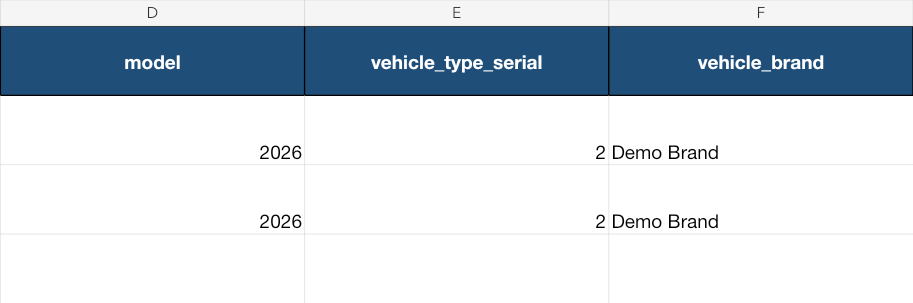
model is an optional model year or model name. vehicle_type_serial is the optional vehicle type serial from the catalogue. vehicle_brand is optional brand text.
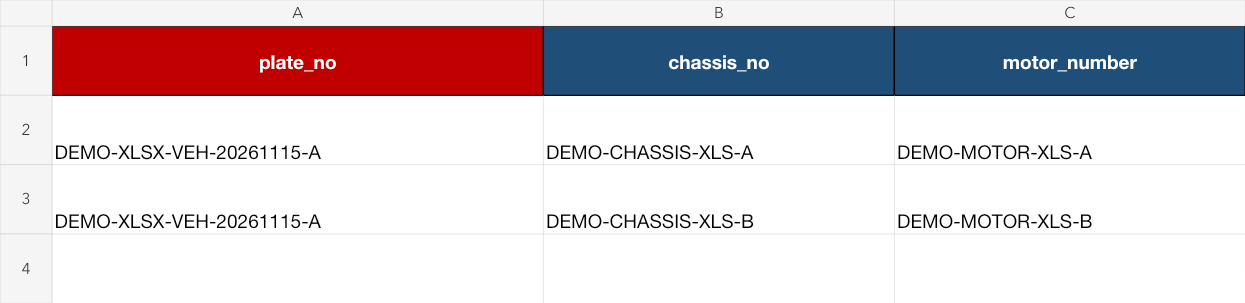
3 In this example, the A plate appears twice. Distinct chassis and engine numbers identify the second row.
In this example, the A plate appears twice. Distinct chassis and engine numbers identify the second row.

Use your company’s actual vehicle details when preparing your data. The identifiers shown here are training examples.

Choosing the vehicle type serial
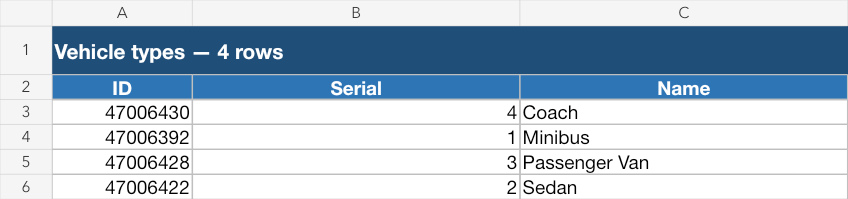
4 The catalogue’s Vehicle types sheet lists ID, Serial and Name. Sedan has serial 2 and internal ID 47006422.
The catalogue’s Vehicle types sheet lists ID, Serial and Name. Sedan has serial 2 and internal ID 47006422.
5 The example uses 2 in vehicle_type_serial, model 2026 and a training brand. Copy Serial from your company’s catalogue; do not substitute ID.
The example uses 2 in vehicle_type_serial, model 2026 and a training brand. Copy Serial from your company’s catalogue; do not substitute ID.

After importing, review the type in the vehicle list and in the vehicle details.

Uploading and reviewing a partial success
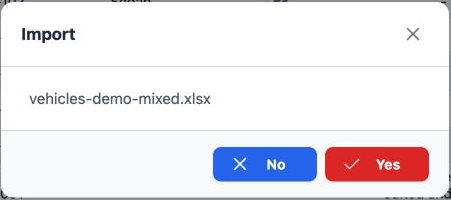
6 Click Import Excel and select vehicles-demo-mixed.xlsx. Check the filename and choose Yes, or choose No to return.
Click Import Excel and select vehicles-demo-mixed.xlsx. Check the filename and choose Yes, or choose No to return.
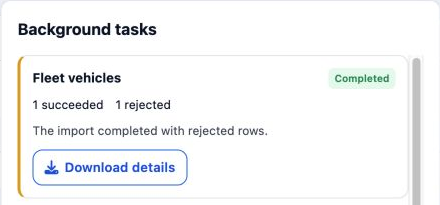
7 Open Background tasks. Fleet vehicles shows one successful and one rejected row, with Download details for the rejection report.
Open Background tasks. Fleet vehicles shows one successful and one rejected row, with Download details for the rejection report.

A was added as serial 8 and the vehicle count became eight. Do not resubmit the successful row.

Correcting the duplicate plate

8 This is a view of the downloaded rejection workbook. The plate is A, but the chassis and engine end in B, identifying the second row.
This is a view of the downloaded rejection workbook. The plate is A, but the chassis and engine end in B, identifying the second row.
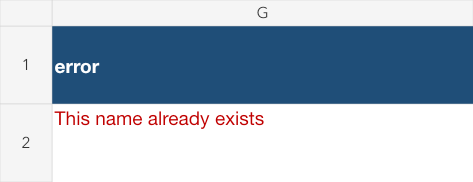
9 The actual message is This name already exists. Review the plate and compare the remaining details to identify the duplicate row.
The actual message is This name already exists. Review the plate and compare the remaining details to identify the duplicate row.
10 Keep only the second row in the original template and change plate_no to DEMO-XLSX-VEH-20261115-B. Its remaining fields stay unchanged.
Keep only the second row in the original template and change plate_no to DEMO-XLSX-VEH-20261115-B. Its remaining fields stay unchanged.

Check that the new plate is absent from the list, then upload the corrected file with the original six columns and no error column.

Reviewing the second vehicle import
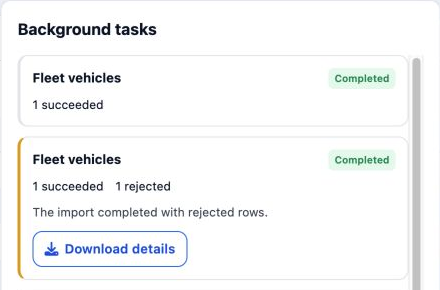
11 The new operation shows 1 succeeded and Completed, while the first attempt remains listed below it.
The new operation shows 1 succeeded and Completed, while the first attempt remains listed below it.
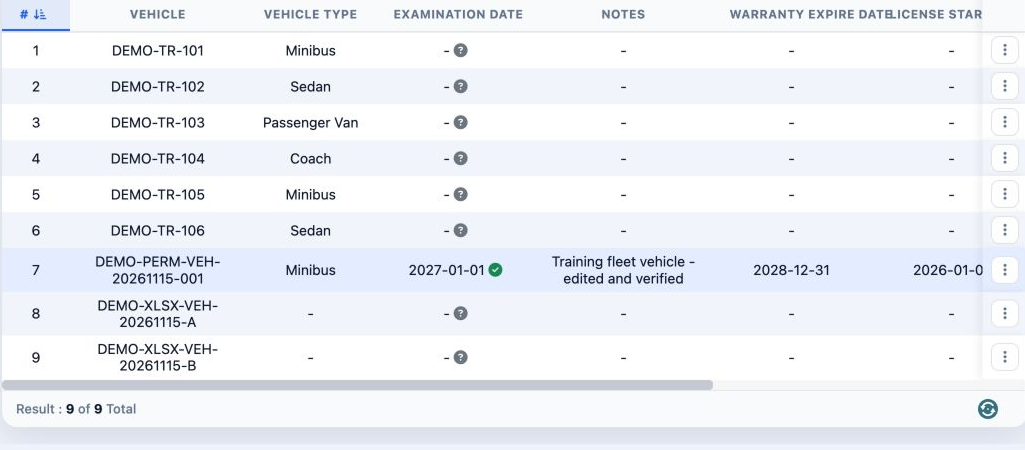
12 The total is now nine vehicles: A is serial 8 and B is serial 9, alongside the seven existing vehicles.
The total is now nine vehicles: A is serial 8 and B is serial 9, alongside the seven existing vehicles.

Open Edit to review the plate, chassis, engine, model, brand and vehicle type before using the record in operations.

Reviewing both saved records
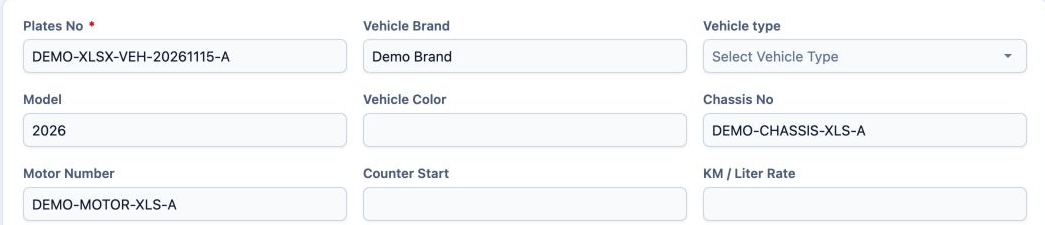
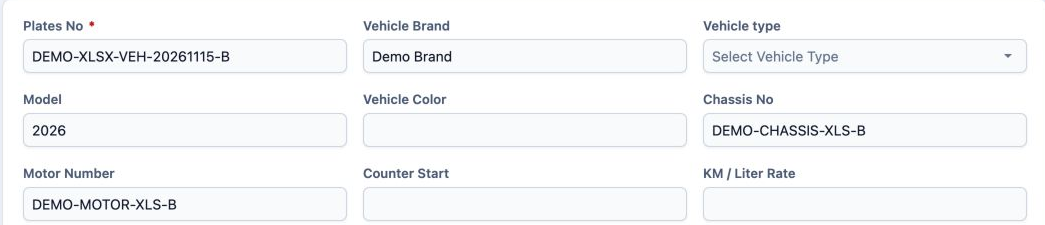
13 Open Edit from A’s row menu to review its plate, model 2026, chassis, engine number and brand.
Open Edit from A’s row menu to review its plate, model 2026, chassis, engine number and brand.
14 Review B in the same way. Its plate ends in B, and its chassis and engine number match the corrected row.
Review B in the same way. Its plate ends in B, and its chassis and engine number match the corrected row.

Compare the fields with your workbook, then choose Close to leave the review without saving changes.

Sign in to record the lessons you have read. Sign in