Importing hotel prices from Excel
On this page
The template and import route
This guide explains how to import hotel prices from Excel, fill all eighteen columns, review the result and correct rejected rows.
Open Hotels in Settings and use Import Hotel Price. Use its adjacent arrow to download Example and Catalogue. This import is for prices; Import Hotels is a separate action for hotel definitions.



Save your working copy as xlsx. The catalogue explains the fields and lists reference values; upload the data template rather than the catalogue.
The six reference columns

hotel_name is the existing hotel name from Hotels; room_type is the name from Room Types; room_view is the name from Room Views. All are required. Copy names as listed, rather than their ID or Serial numbers.

nationality accepts all for every nationality or an existing nationality name from Nationalities. meal uses the meal plan name from Meal Plans. currency uses the currency short code from Currencies, such as EGP.
Check the Hotels, Room types, Room views, Nationalities, Meal plans and Currencies catalogue sheets. Add any missing reference in its own setting first, then download a refreshed catalogue.
This example uses the full name Bed and Breakfast (BB), rather than BB alone. Catalogue examples are illustrative; use values actually defined for your company.
Prices validity and offers

cost is the base cost and price is the base selling price. Both are required. Enter numeric cells without a currency symbol or extra text. Both amounts use the currency specified in currency.
date_from is the start of price validity and date_to is its end. Both are required. Use Excel dates or unambiguous YYYY-MM-DD text, and check that the end is on or after the start.

offer specifies whether the price is an offer. Keep its column heading. Use true or 1 to enable it, or false, 0 or blank to disable it. yes/no and on/off are also accepted.
promotion is an optional promotion label. market_group is an existing market group name; check the Market groups sheet. Leave it blank if no group is needed.
Weekdays and gala dinners

days specifies English weekday names separated by commas or semicolons. Accepted names are saturday, sunday, monday, tuesday, wednesday, thursday and friday. Blank means every day.
new_year_gala_dinner_is_required specifies whether New Year gala dinner is mandatory. new_year_gala_dinner_price is its price. Both fields are optional; defaults are false and 0.
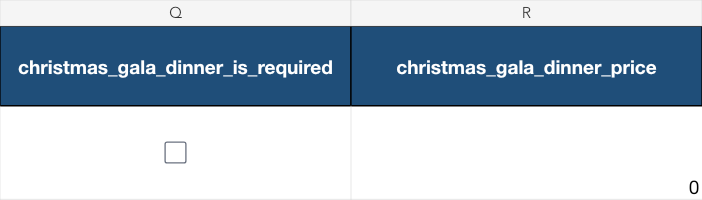
christmas_gala_dinner_is_required specifies whether Christmas gala dinner is mandatory; christmas_gala_dinner_price is its price. Use true/false or 1/0 for the option and a number for the price. yes/no and on/off are also accepted; blanks default to false and 0.
Each row represents a price rule for one hotel and room type, with one meal plan and room view. Use this template for the base price; review child pricing or additional supplements in the prices screen when needed.
Uploading the training example
The file hotel-prices-demo-mixed.xlsx contains two rows. The first uses view A, while the second intentionally names a nonexistent view to demonstrate correction. Cost is 1800 and selling price 2200 EGP, valid from 1 to 31 December 2026.
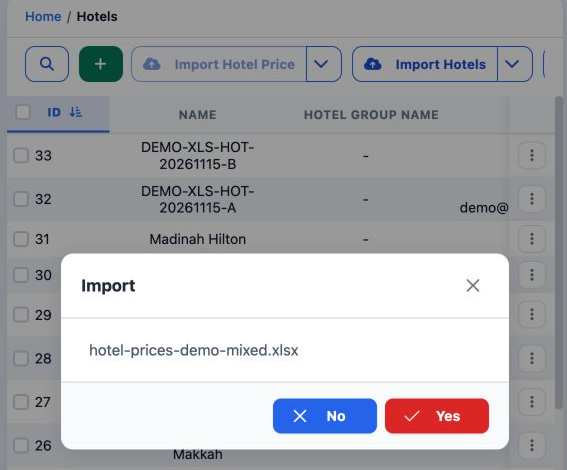
Confirm once, then open Background tasks to follow the operation. Wait for its result before uploading again.
The result and rejection report
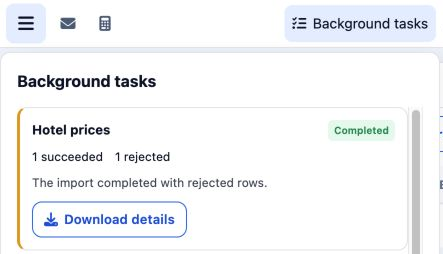
In the error report, room_view contains DEMO-MISSING-VIEW-20261115 and error shows room view not found.
Correct only the rejected row in a copy of the original eighteen-column template. Replace the view with DEMO-XLS-VIEW-20261115-B and leave the error column out of the upload file.
Check dates and optional values against the original file when preparing the correction. Retain false and 0 as in the example, and keep only one data row in the corrected file.
Uploading the corrected row
Save as hotel-prices-demo-corrected.xlsx. Upload through Import Hotel Price, check the filename and confirm Yes once.
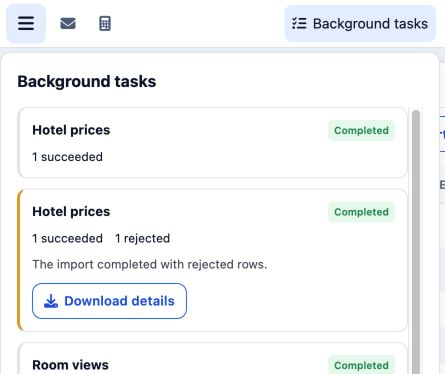
Exclude the previously successful row from the retry. Review the price list once the operation has finished.
Checking the saved prices
Return to Hotels, open the training hotel’s row menu and select Hotels Prices.
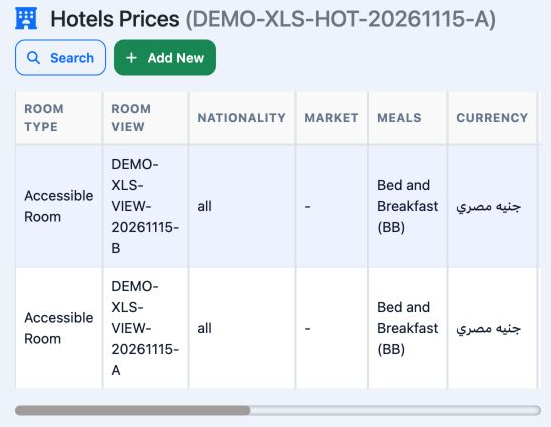
Both rows were checked in the screen: cost 1800, selling price 2200, valid from 2026-12-01 to 2026-12-31. Scroll the table horizontally to check the remaining columns.
The first row and the corrected second row are now saved. Check the hotel, room type, view, currency, dates, cost and selling price before using these prices in a booking.
Matching the amounts and dates
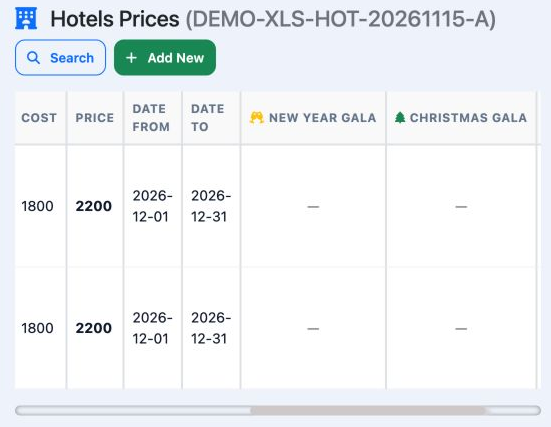
Match these values to the prepared file, then keep the operation result and corrected file for reference.
Sign in to record the lessons you have read. Sign in