Skip to content
Trio Travel guide

Importing room views from Excel

On this page
  1. Accessing the import and downloading the template
  2. Preparing the name column
  3. Uploading the file and reading the result
  4. Correcting the duplicate and preparing a retry
  5. Checking the corrected import

Accessing the import and downloading the template

This guide explains how to import room views from Excel, review the result and correct a rejected row. The steps use the previous Settings interface.

After signing in, open https://portal.etolv.net/portal/settings/default/forms/room_view
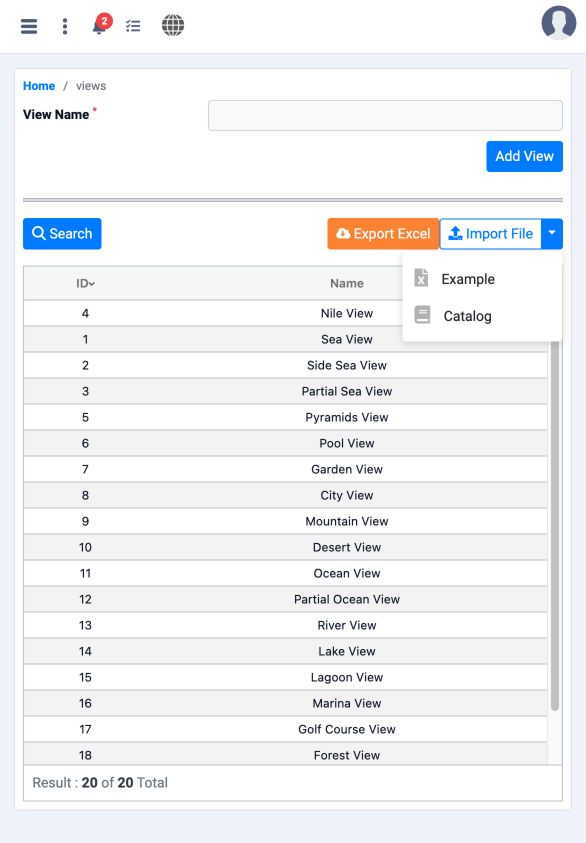
1 On the views screen, open the Import File arrow. Choose Example for the template or Catalog for the column guide.
On the views screen, open the Import File arrow. Choose Example for the template or Catalog for the column guide.

The template is the data-entry file. The catalogue is a reference guide containing a Catalog sheet.

Preparing the name column
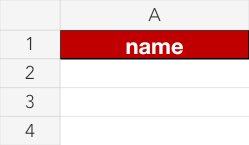
2 The template contains one column headed name. Keep the heading unchanged and enter data from row 2.
The template contains one column headed name. Keep the heading unchanged and enter data from row 2.

Enter a clear room-view name in each row, such as Sea View or Garden View. name is required; avoid duplicating an existing name.
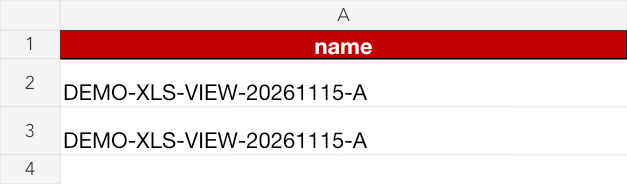
3 Duplicate example: both rows contain DEMO-XLS-VIEW-20261115-A. Their result is reviewed after upload.
Duplicate example: both rows contain DEMO-XLS-VIEW-20261115-A. Their result is reviewed after upload.

Save the file as xlsx, keeping name in the first row.

Uploading the file and reading the result
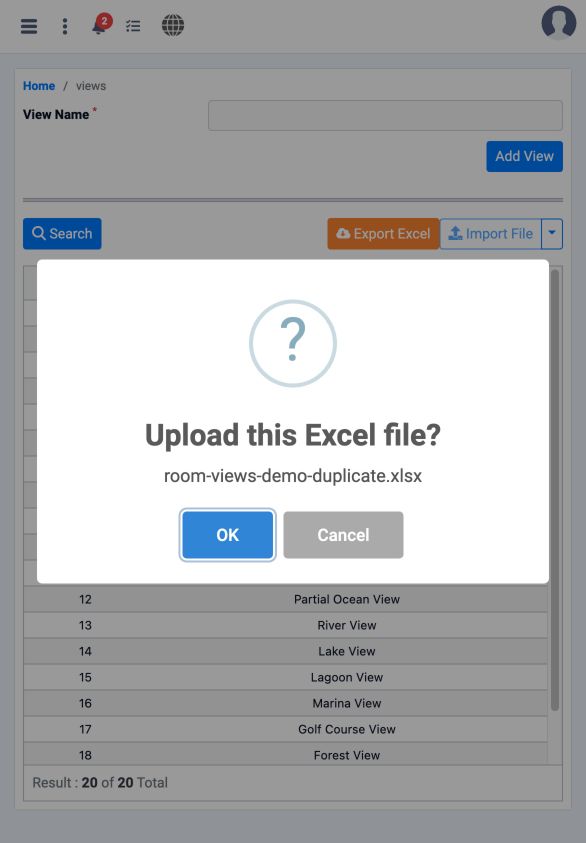
4 Click Import File and select the file, then check its filename in the confirmation window and choose OK.
Click Import File and select the file, then check its filename in the confirmation window and choose OK.
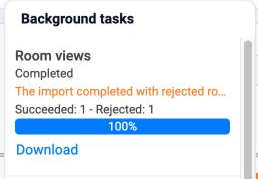
5 Open Background tasks and check the Room views operation: it shows Succeeded: 1 and Rejected: 1. Click Download for the rejection report.
Open Background tasks and check the Room views operation: it shows Succeeded: 1 and Rejected: 1. Click Download for the rejection report.

A was added as number 21, increasing the count from 20 to 21. If a website update appears, check the operation after returning before uploading again.

Correcting the duplicate and preparing a retry

6 The error column says This name already exists. The rejected row carries the same A name.
The error column says This name already exists. The rejected row carries the same A name.

Review the rejected row: remove it if it is an unintended duplicate. If it represents another room view, enter its distinct name.
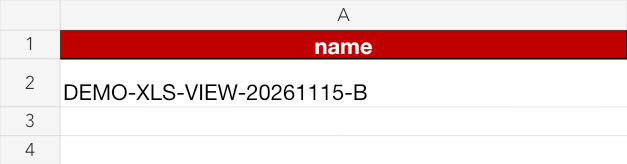
7 The corrected file contains only B, DEMO-XLS-VIEW-20261115-B, under the original name heading without error.
The corrected file contains only B, DEMO-XLS-VIEW-20261115-B, under the original name heading without error.

Exclude the previously successful A row. Save the corrected row in a new file, then upload it and confirm OK once.

Checking the corrected import
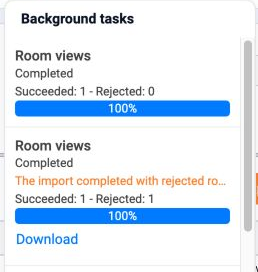
8 The new operation shows Succeeded: 1 and Rejected: 0. The first operation remains separately listed below.
The new operation shows Succeeded: 1 and Rejected: 0. The first operation remains separately listed below.
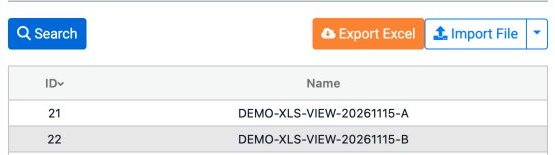
9 Search for DEMO-XLS-VIEW-20261115- to check both names: A is number 21 and B is number 22. The search returns two records.
Search for DEMO-XLS-VIEW-20261115- to check both names: A is number 21 and B is number 22. The search returns two records.

The total is now 22 after adding B.

Sign in to record the lessons you have read. Sign in