Skip to content
Trio Travel guide

Importing restaurant meals from Excel

On this page
  1. Downloading the meal template
  2. Completing the four columns
  3. Uploading and following the result
  4. Correcting the rejected meal price
  5. Reviewing the corrected import
  6. Checking the saved meals and prices

Downloading the meal template

This guide explains how to import restaurant meals and prices from Excel, review the result and correct a rejected row. Open Settings, then Restaurants.
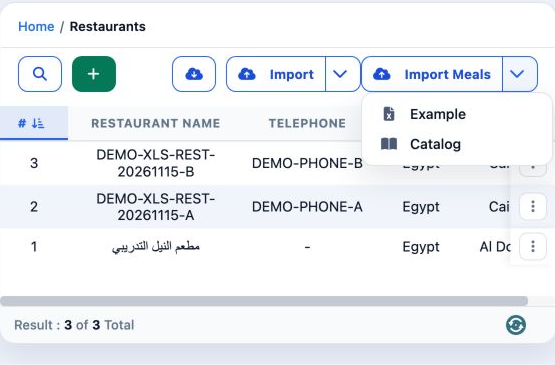

1 Open the Import Meals arrow, then select Example for the template or Catalog for the column guide and references.
Open the Import Meals arrow, then select Example for the template or Catalog for the column guide and references.
2 The original blank template contains four columns. Keep the headings unchanged and enter data from row 2.
The original blank template contains four columns. Keep the headings unchanged and enter data from row 2.

Use Import Meals for meals and their prices. The adjacent Import action is for restaurant definitions.

Completing the four columns

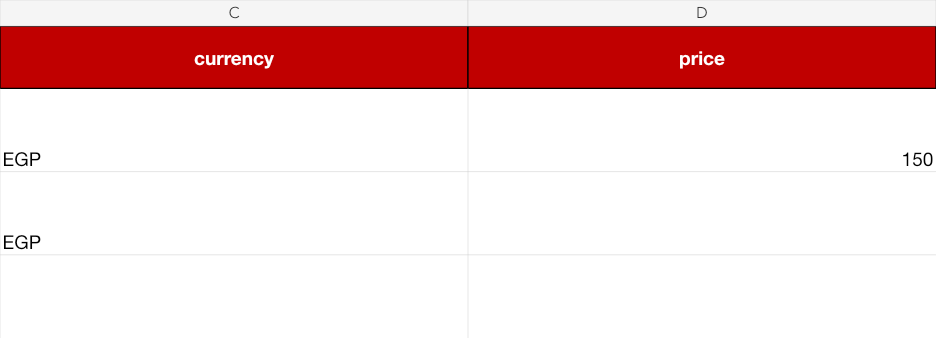
restaurant_name is an existing restaurant name; copy it from the catalogue’s Restaurants sheet. meal_name is the meal name. currency is a code from Currencies, such as EGP. price is the meal price in that currency. All four fields are required.
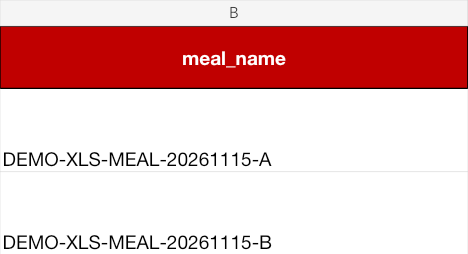
3 The example uses مطعم النيل التدريبي for meals A and B, with distinct training names.
The example uses مطعم النيل التدريبي for meals A and B, with distinct training names.
4 The currency is EGP. A is priced at 150; B has a blank price in this correction example.
The currency is EGP. A is priced at 150; B has a blank price in this correction example.

Save the file as xlsx. Use your company’s restaurant names and approved prices when preparing your own data.

Uploading and following the result
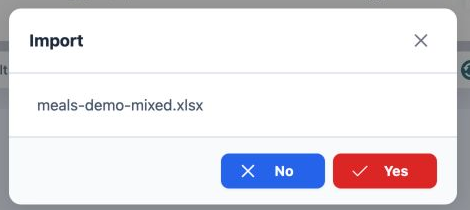
5 Click Import Meals and select the file. Check meals-demo-mixed.xlsx in the Import window, then choose Yes to submit or No to return.
Click Import Meals and select the file. Check meals-demo-mixed.xlsx in the Import window, then choose Yes to submit or No to return.
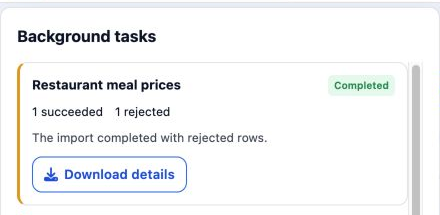
6 Open Background tasks. The Restaurant meal prices operation shows one successful and one rejected row, with Download details for the rejecti...
Open Background tasks. The Restaurant meal prices operation shows one successful and one rejected row, with Download details for the rejection report.

Meal A was added at 150, while B was absent from the list. After a partial success, correct only the rejected row rather than resubmitting the whole file.

Correcting the rejected meal price
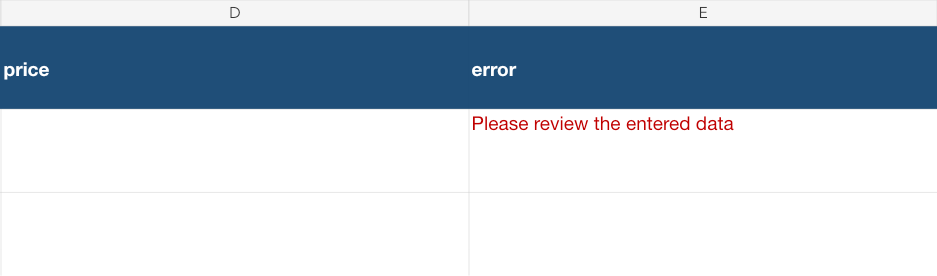
7 The report says Please review the entered data. The rejected row is B, whose price was blank.
The report says Please review the entered data. The rejected row is B, whose price was blank.

Copy only B into a copy of the original template. Enter 175 in price, retaining its restaurant, meal name and currency.
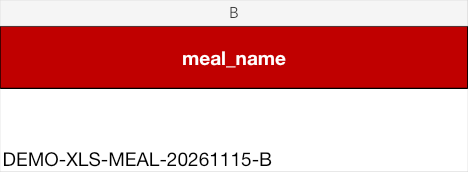
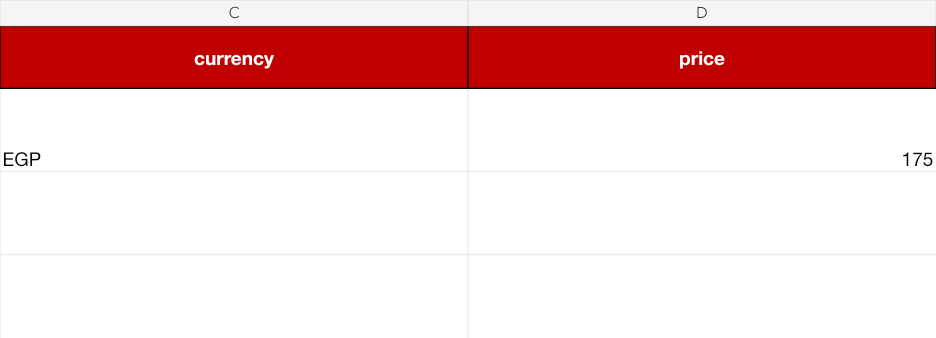
8 The corrected file contains only B at 175, using the original four headings without error and without the successful A row.
The corrected file contains only B at 175, using the original four headings without error and without the successful A row.
9 The same corrected row uses EGP and a price of 175.
The same corrected row uses EGP and a price of 175.

Save the corrected copy, upload it through Import Meals and confirm Yes once.

Reviewing the corrected import
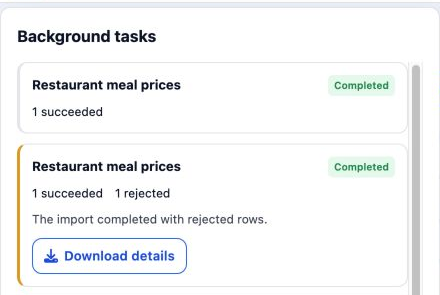
10 The new operation shows 1 succeeded and Completed. The first operation remains separately listed below it.
The new operation shows 1 succeeded and Completed. The first operation remains separately listed below it.
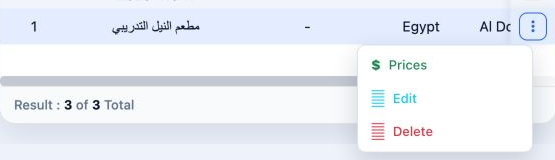
11 In the restaurant list, open the restaurant’s three-dot menu and select Prices to check its meals and prices.
In the restaurant list, open the restaurant’s three-dot menu and select Prices to check its meals and prices.

Checking the saved meals and prices

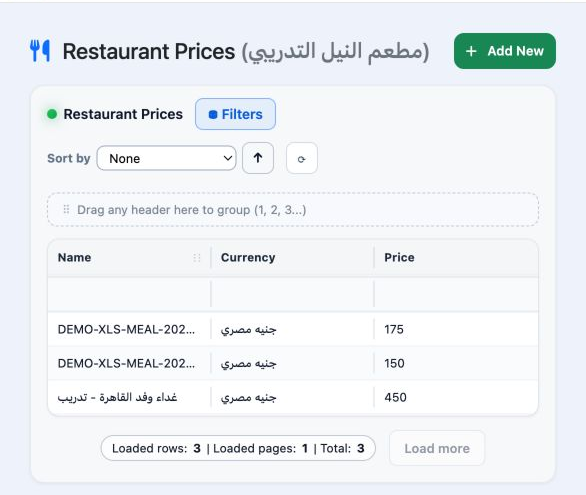
12 The restaurant price list shows the new meals B at 175 and A at 150, alongside the existing meal at 450.
The restaurant price list shows the new meals B at 175 and A at 150, alongside the existing meal at 450.

The total is now three meals, in Egyptian pounds. Compare the restaurant, meal, currency and price with the file you uploaded.

Sign in to record the lessons you have read. Sign in