Import Restaurants from Excel
On this page
Open Restaurants and download the template
Open Restaurants in Settings. Use Import for restaurant records. Import Meals is a separate action for meals and their prices.
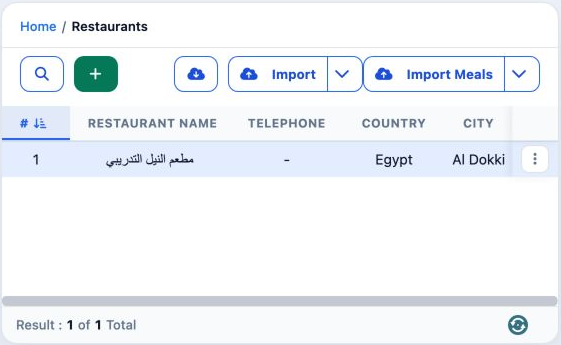
Open the Import arrow and download Example for the upload template and Catalog for column guidance and references. The catalog contains Catalog, Countries and Cities sheets. Use references appropriate to your company.

Fill the four columns

restaurant_name: enter a clear restaurant name. DEMO-XLS-REST-20261115-A and DEMO-XLS-REST-20261115-B identify this example.
phone: enter the telephone value. Keep it as text when a leading zero must be preserved. DEMO-PHONE-A and DEMO-PHONE-B are training values.
country: use a valid country reference; the example uses Egypt. Read the column catalog before using numeric reference values.
city: enter the appropriate city, such as Cairo. If reference names repeat, verify both city and country on the saved record.
Read the header comments or Catalog sheet for meanings and rules. Keep a copy of the input workbook before uploading.
Upload the file and follow the task
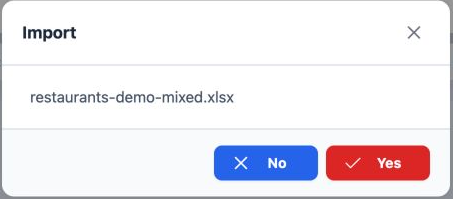
Choose Import and select the prepared Excel workbook. Check its filename in the confirmation, then choose Yes once.
Open Background tasks to follow the result. If the page is slow, check the existing task before uploading the file again.
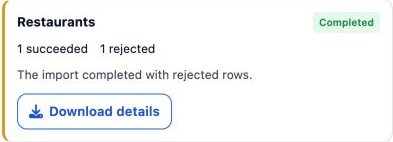
Check saved records before retrying
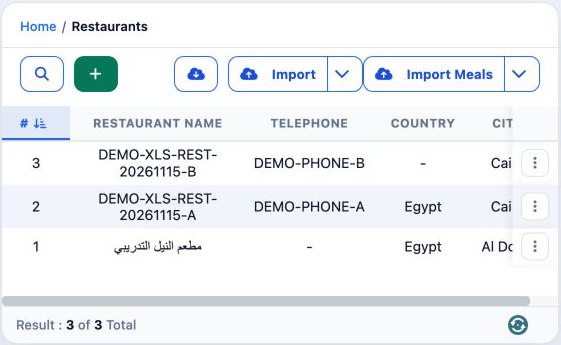
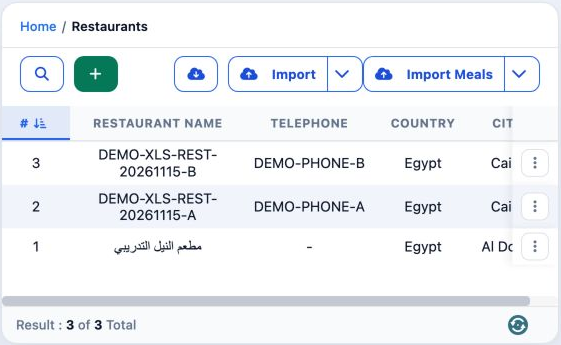
Check the names, serials, telephone, country and city. B already exists in this example, so do not resend it as a new record.
A row in the rejection report must be checked against the saved list before a retry. Correct an existing record in place. If no record exists, review the reason and correct only the affected rows before another upload.
Read the rejection report
Choose Download details on the task and open the report. Compare it with your original input workbook.


restaurant_name identifies the restaurant; phone, country and city describe its details; error contains the reported reason. Do not add error to the original input template.
The report changes the city from Cairo to a number. Refer to the original workbook and the saved record; do not assume the report is ready to upload unchanged.
Correct the existing record
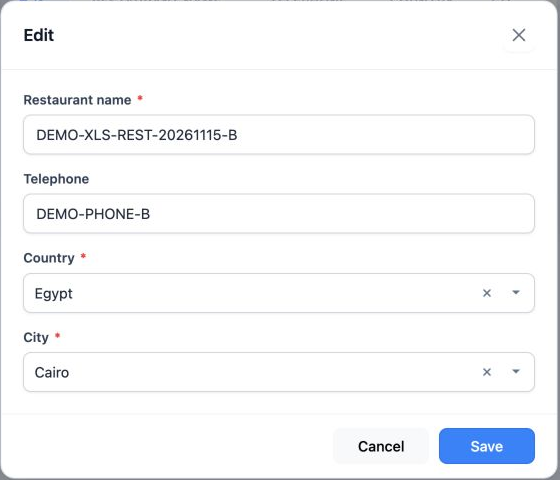
Open the menu for B, serial 3, and choose Edit. Select Egypt in Country, then select Cairo again in City. Changing the country cleared the city in this example, so review it before saving.
Sign in to record the lessons you have read. Sign in