Skip to content
Trio Travel guide

Import contacts and leads from Excel

On this page
  1. Download the template and catalogue
  2. Columns 1 to 5
  3. Owner and classifications
  4. Source description and contact channels
  5. Status date and interest category
  6. Upload the completed file
  7. Review the result and accepted row
  8. Correct only the rejected row
  9. Verify the correction and final list

Download the template and catalogue

Open CRM, then Contacts, to import contacts and leads from Excel.
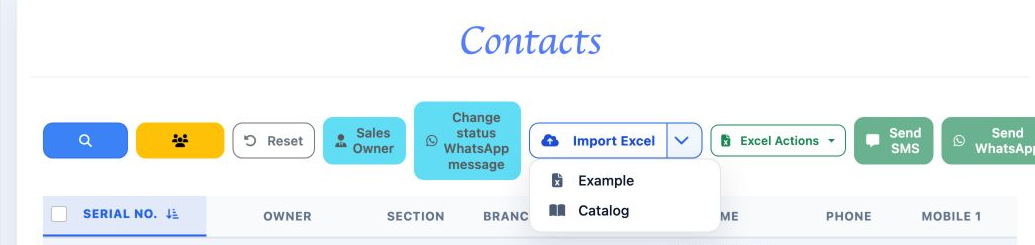
1 Open the arrow beside Import Excel. Select Example for the template or Catalog for the column guide and reference lists.
Open the arrow beside Import Excel. Select Example for the template or Catalog for the column guide and reference lists.
2 The template contains an Import sheet. Row 1 holds instructions and row 2 holds the 20 headings. Start data on row 3.
The template contains an Import sheet. Row 1 holds instructions and row 2 holds the 20 headings. Start data on row 3.

Keep the instruction row, headings and column order unchanged. Upload the completed template; use the catalogue to read guidance and copy reference names.

Columns 1 to 5

f_name — First name: Enter the contact first name. Do not leave it blank.

l_name — Last name: Enter the last name if available, or leave it blank.

mobile_1 — Primary mobile: Enter the primary mobile as text to retain its leading zero. Use a number not already assigned to another lead in the organization.

mobile_2 — Additional mobile: Enter an additional number when needed, as text. Supplied numbers are checked for duplicates.

web_site — Website: Enter the contact website if available, or leave this field blank.
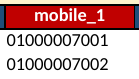
3 Set mobile and phone columns to text before entering values. This workbook preview shows 01000007001 and 01000007002 with their leading zero...
Set mobile and phone columns to text before entering values. This workbook preview shows 01000007001 and 01000007002 with their leading zeros.

The template requires f_name, mobile_1 and source. Other fields are optional. When using a reference field, copy an available catalogue name.

Owner and classifications

owner — Contact owner: Copy a name from Lead owners, not a user number. The name must identify one clear choice.

title — Title: Enter the contact title when needed.

section — Section: Copy a name from Lead sections when needed. Do not invent a section if the reference list is empty.

phone — Phone: Enter the phone as text to retain its leading zero. Supplied numbers are checked for duplicates.

rating — Rating: Copy the appropriate name from Lead ratings.

4 The example uses the saved training rating and source. Copy the values available in your own organization catalogue.
The example uses the saved training rating and source. Copy the values available in your own organization catalogue.

Source description and contact channels

source — Source: Required. Copy the source name from the organization reference sheet Lead sources.

description — Description: Enter follow-up details or the contact requirement.

facebook — Facebook: Enter Facebook details if needed, or leave this field blank.

whatsapp — WhatsApp: Enter WhatsApp details when needed, or leave this field blank.

email — Email: Enter a valid email address if available, or leave it blank.

Status date and interest category

status — Status: Copy the contact status name from Lead statuses.

twitter — X account: Enter the X or Twitter account when needed, or leave this field blank.

date — Date: Enter a valid date such as 2026-11-15. The catalogue states that an empty date uses today.

industry — Industry or interest category: Copy the appropriate category from Lead industries exactly as listed.

region — Region: Enter a region name from an approved reference when needed. This optional field may be left blank.

5 The example uses the saved training status and interest category, with date 2026-11-15. Region is blank.
The example uses the saved training status and interest category, with date 2026-11-15. Region is blank.

Upload the completed file

Save as XLSX, reopen the file, and check names, mobile numbers and references. Select Import Excel and choose the completed file.
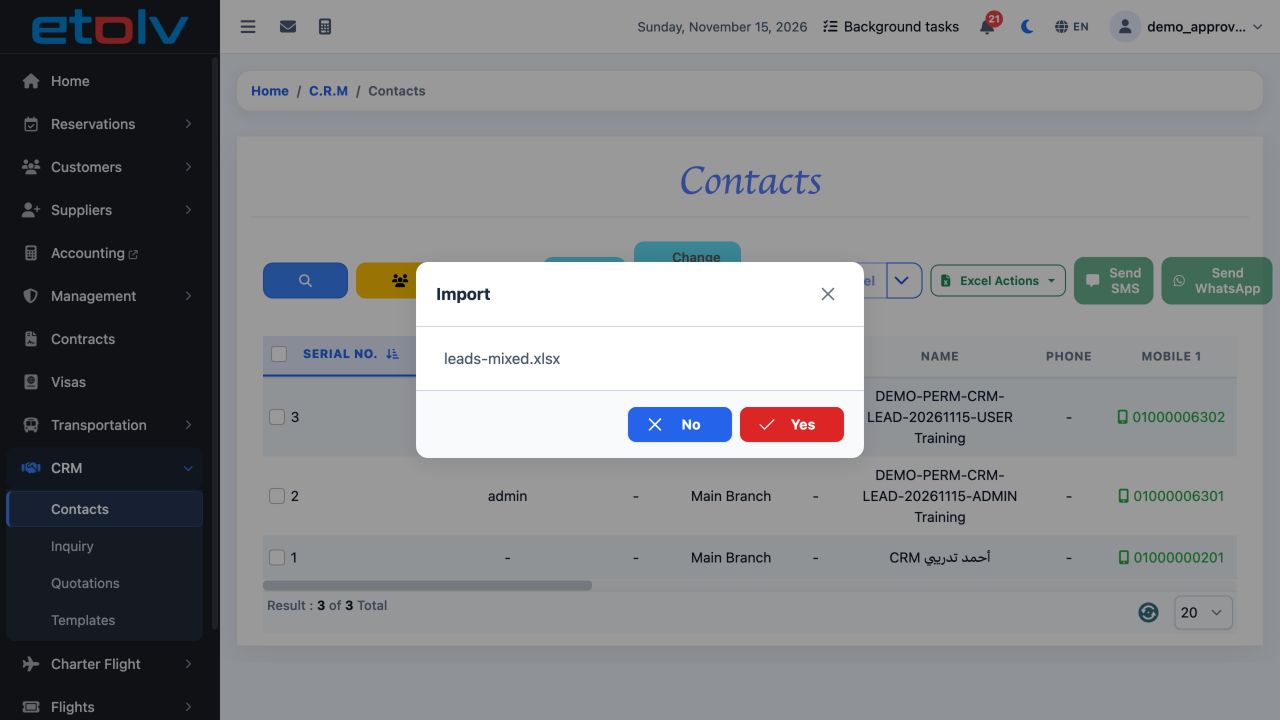
6 Review the import confirmation, then select Yes to start processing.
Review the import confirmation, then select Yes to start processing.

After confirmation, open Background tasks to follow the CRM leads operation and row results.

Review the result and accepted row
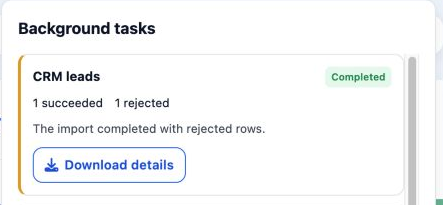
7 The operation shows 1 succeeded and 1 rejected, with Completed and an explicit message about rejected rows. Select Download details for the...
The operation shows 1 succeeded and 1 rejected, with Completed and an explicit message about rejected rows. Select Download details for the report.
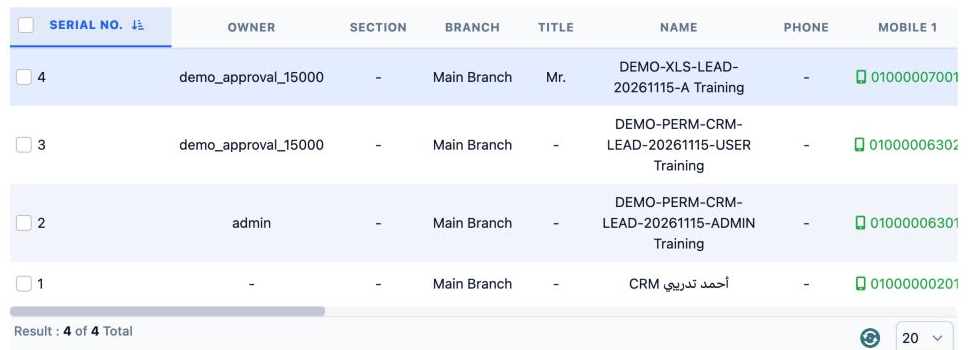
8 Row A appears as serial 4 with mobile 01000007001; the contact total is now 4. Check the list and confirm the rejected row was not saved bef...
Row A appears as serial 4 with mobile 01000007001; the contact total is now 4. Check the list and confirm the rejected row was not saved before retrying it.

Correct only the rejected row

9 Preview of the downloaded rejection report: line is 4 and the error is The lead first name is required.
Preview of the downloaded rejection report: line is 4 and the error is The lead first name is required.

Open the original template and prepare only the rejected row. Fill f_name with DEMO-XLS-LEAD-20261115-B, retaining mobile 01000007002 and the valid reference values.
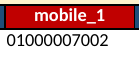
10 The correction contains B only. Place its data on row 3 under the original 20 headings; omit line and error, and do not upload the already s...
The correction contains B only. Place its data on row 3 under the original 20 headings; omit line and error, and do not upload the already saved A again.

Save the correction as XLSX, upload it through Import Excel, and confirm the operation.

Verify the correction and final list
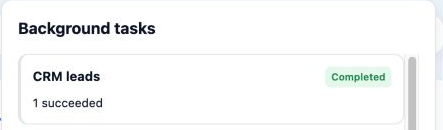
11 The correction operation shows 1 succeeded and Completed.
The correction operation shows 1 succeeded and Completed.
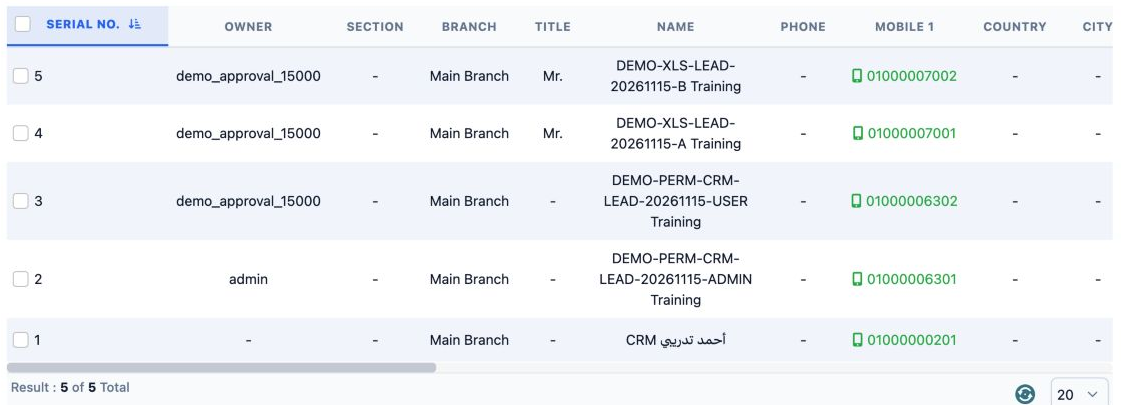
12 B is serial 5 with mobile 01000007002, while A remains serial 4 with mobile 01000007001. The total is 5 contacts and each example row appear...
B is serial 5 with mobile 01000007002, while A remains serial 4 with mobile 01000007001. The total is 5 contacts and each example row appears once.

After import, review each row name, owner and mobile number. Retain the correction file and rejection report for reference.

Sign in to record the lessons you have read. Sign in