Importing extra services from Excel
On this page
Downloading the template and preparing references
This guide explains how to import extra service definitions from Excel, correct a rejected row with an unknown currency code and check the saved values.
Open Settings, then Extra Services. Use the arrow beside Import to download the template and catalogue. The template is for data entry; the catalogue explains the columns and lists currencies and ledger accounts.

name is the required service name. currency is an existing currency code, such as EGP. Copy it from the catalogue’s Currencies sheet, rather than using the currency name or ID.
cost_ledger is the cost account code and revenue_ledger the revenue account code. Both are optional. If used, copy the correct code from the Ledgers sheet rather than guessing a number. The example leaves both blank.
Save the working copy as xlsx. Upload the template, rather than the catalogue.
The four amount columns

cost is the adult cost, set to 100. child_transfer is the child transfer amount, set to 10. child_cost is the child cost, set to 50. adult_transfer is the adult transfer amount, set to 20.
Enter numeric Excel cells without a currency symbol or extra text. The amounts use the currency specified in currency. These training values demonstrate the fields.
The catalogue marks the amounts optional, but keep all four amount column headings in the file. The example fills all four so they can be checked after import.

The example name is DEMO-XLS-EXTRA-20261115-B. For your own data, use the actual service name and review the list to avoid duplication.
Uploading a two row file
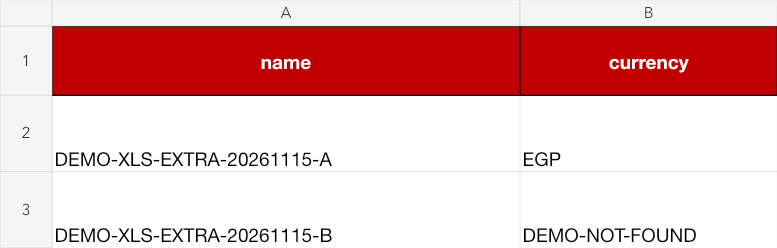
Open Extra Services, click Import and select extra-services-demo-mixed.xlsx.
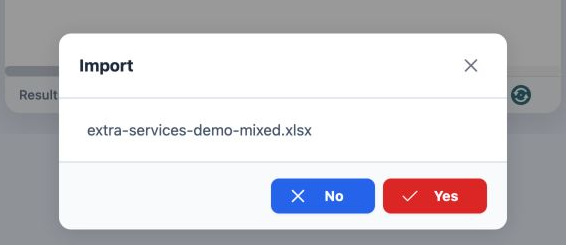
Confirm once, then open Background tasks and wait for the result before uploading again.
Reviewing the rejection and correcting currency
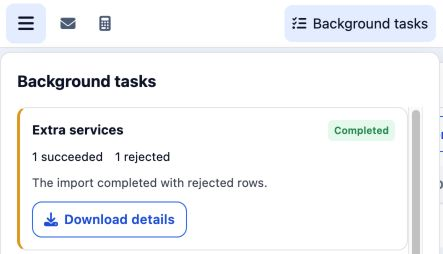
The error column in the rejection report says Currency with code 'DEMO-NOT-FOUND' not found.
After the first attempt, A appeared as number 3, B was absent and the total increased from 2 to 3. Check the row’s result in the list before retrying.
In a copy of the original template, include only row B and replace its currency with EGP. Retain amounts 100, 10, 50 and 20, with both ledgers blank. Save as extra-services-demo-corrected.xlsx.
Leave the error column out of the upload file and exclude the previously successful A row.
Retrying and checking both services
Upload the corrected file through Import, check its filename and confirm Yes once.
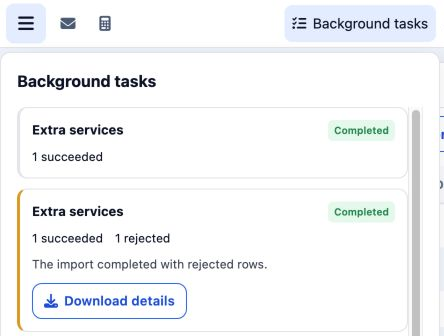
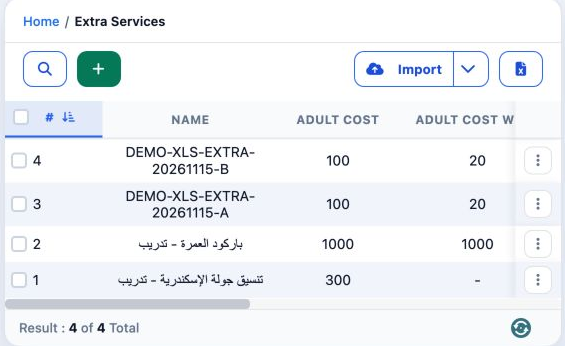
Matching the remaining values
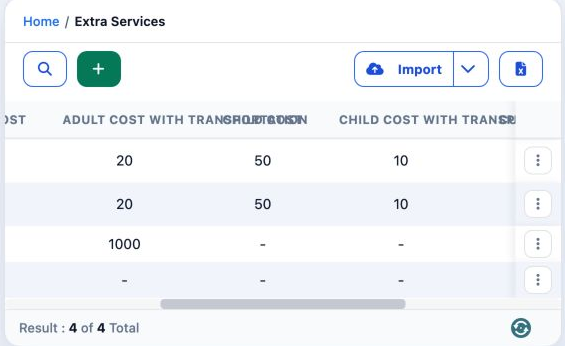
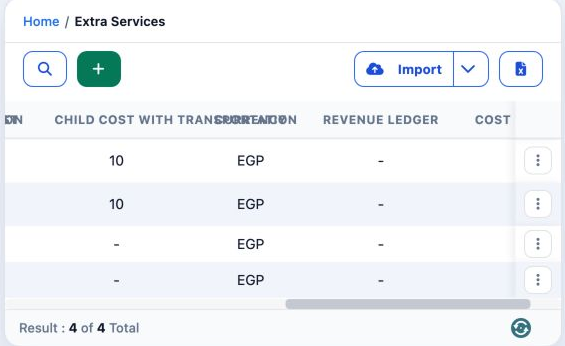
Check the name, currency, all four amounts and both ledgers before using the definition in services. Keep the corrected file and operation result for reference.
Sign in to record the lessons you have read. Sign in