Skip to content
Trio Travel guide

Flight Contracts

On this page
  1. 1 Define a flight contract
  2. 2 Add departure dates
  3. 3 Open the contract actions
  4. 4 Edit capacity and find the contract
  5. 5 Review departures and remaining seats
  6. 6 Review deletion confirmation

1 Define a flight contract

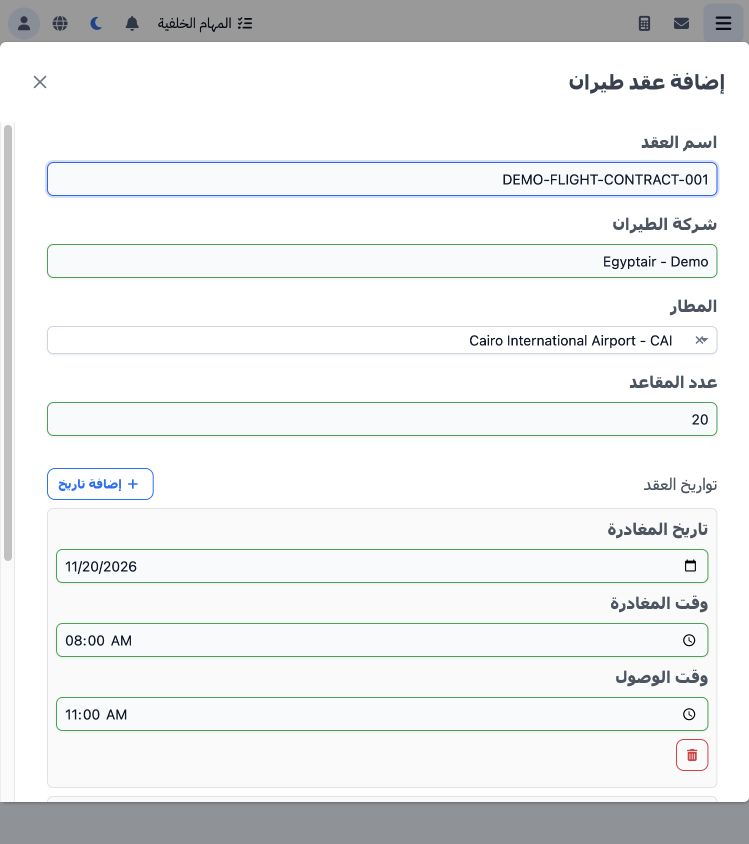
1 Open Airlines → Flight Contracts and choose +. Enter the contract name and airline name, select the airport and enter the seat count. The ex...
Open Airlines → Flight Contracts and choose +. Enter the contract name and airline name, select the airport and enter the seat count. The example is DEMO-FLIGHT-CONTRACT-001, Egyptair - Demo, Cairo airport CAI and an initial capacity of 20 seats.

2 Add departure dates

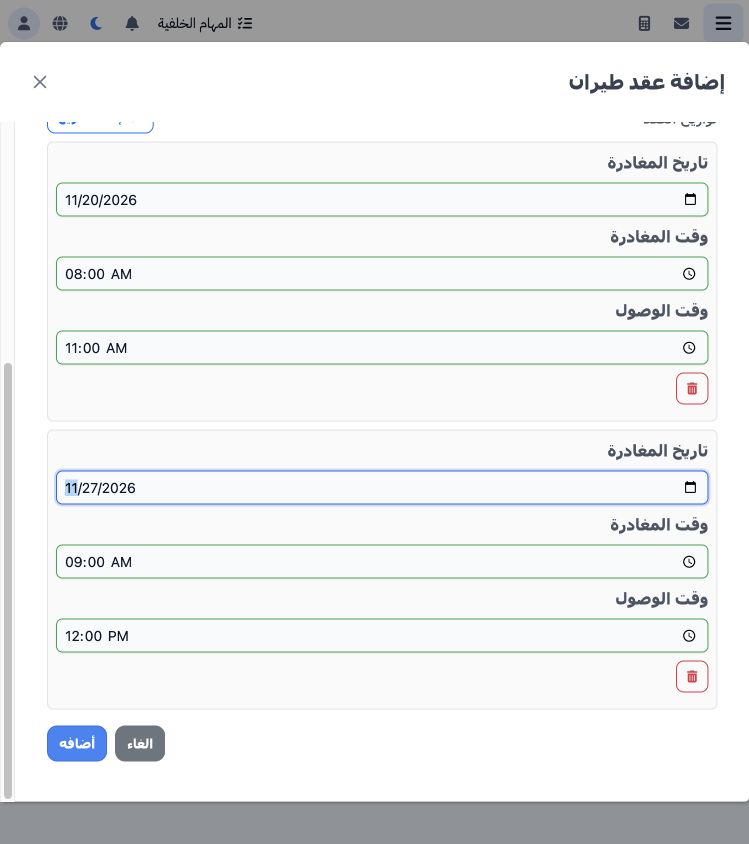
2 Enter the departure date and departure and arrival times. Use Add Date for another departure. The example contains 20 November 2026, 08:00–1...
Enter the departure date and departure and arrival times. Use Add Date for another departure. The example contains 20 November 2026, 08:00–11:00, and 27 November, 09:00–12:00. Choose Add to save the contract and verify it appears in the list.

3 Open the contract actions

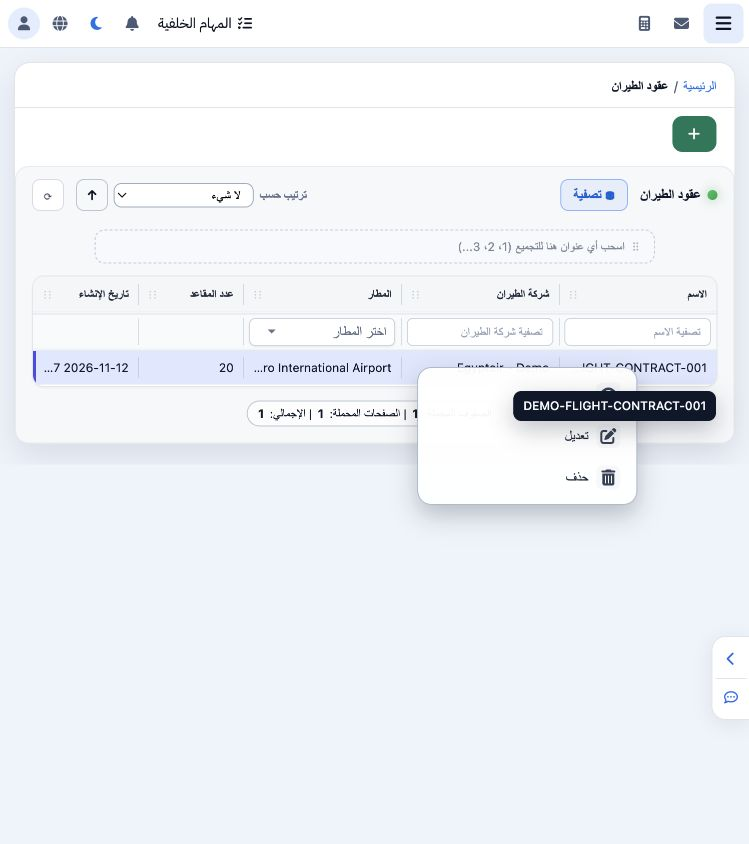
3 Right-click the contract name to access View, Edit and Delete. View opens the details page for departure dates, capacity and bookings associ...
Right-click the contract name to access View, Edit and Delete. View opens the details page for departure dates, capacity and bookings associated with the selected date.

4 Edit capacity and find the contract

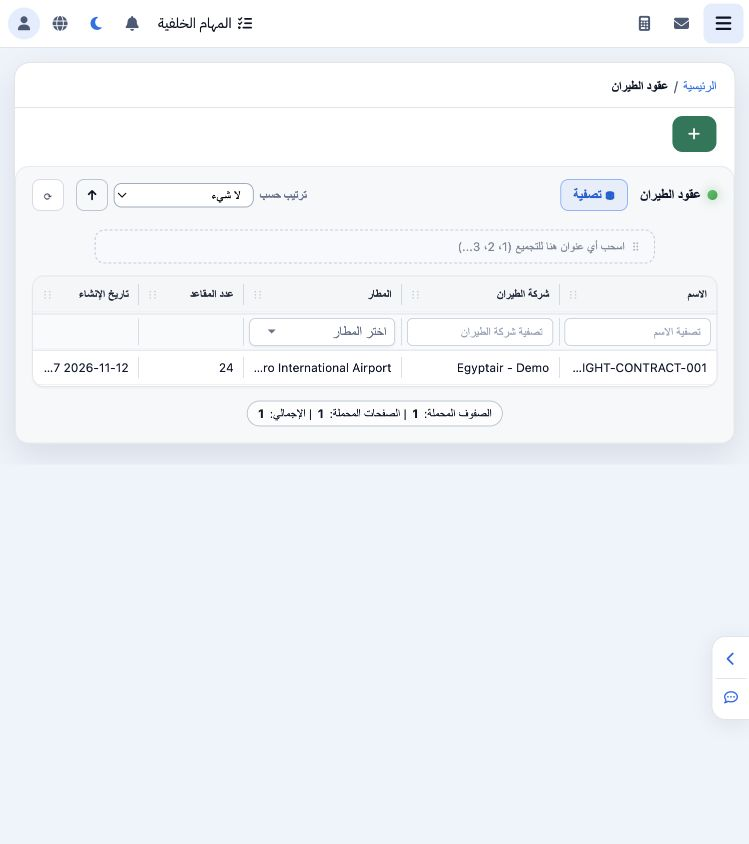
4 Choose Edit, review the information and dates, change capacity and Save. The example saves 24 seats instead of 20. Use the name filter or ai...
Choose Edit, review the information and dates, change capacity and Save. The example saves 24 seats instead of 20. Use the name filter or airline and airport filters to find a contract, and Sort By to choose a sorting column.

5 Review departures and remaining seats

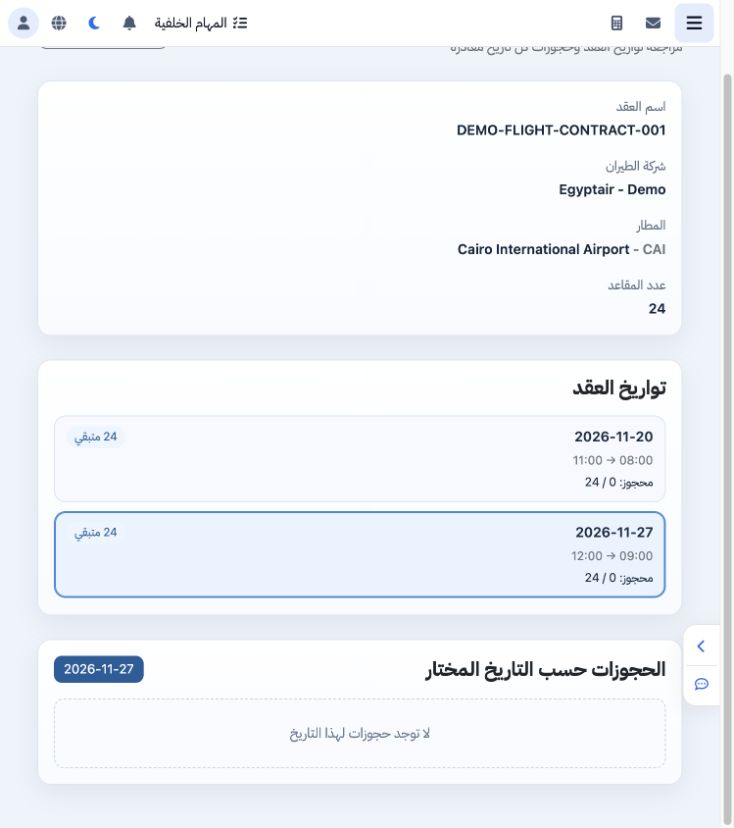
5 Open View and select the required departure card. The date in the bookings section below changes to the selected departure. After the edit,...
Open View and select the required departure card. The date in the bookings section below changes to the selected departure. After the edit, each card shows 24 remaining seats and 0 booked out of 24. Choose Back to Contracts to return to the list.

6 Review deletion confirmation

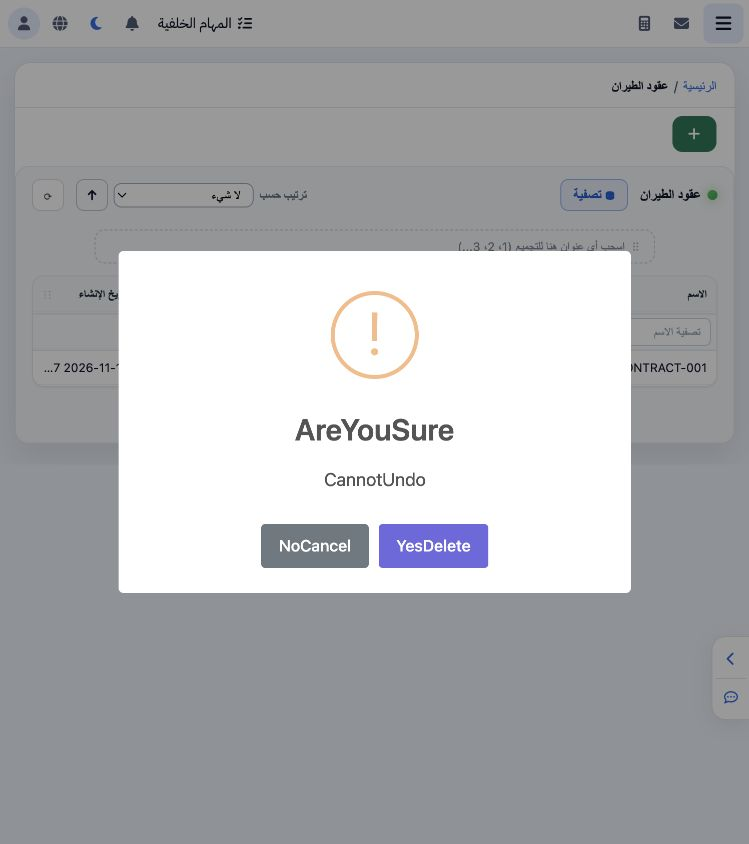
6 Choose Delete from the contract menu to display confirmation. Select NoCancel to retain the contract, as in this example. The training contr...
Choose Delete from the contract menu to display confirmation. Select NoCancel to retain the contract, as in this example. The training contract was not deleted.

Sign in to record the lessons you have read. Sign in