Skip to content
Trio Travel guide

Sales Report and Follow-ups

On this page
  1. 1 Open the report and set dates
  2. 2 Read sales and refunds
  3. 3 Add a follow-up
  4. 4 Addition effect and actions
  5. 5 Edit the value
  6. 6 Deletion confirmation and scope
  7. 7 Export the final result to Excel

1 Open the report and set dates

1 Open Airlines → Sales Report, then Search. Set start and end dates and optionally a branch. The example uses 1–30 November 2026 without rest...
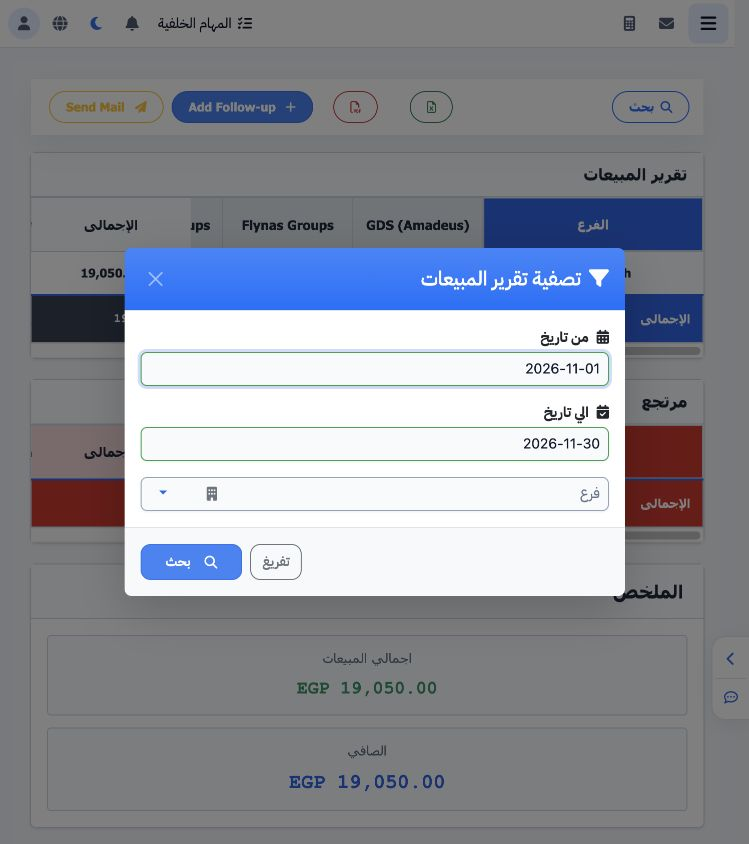
Open Airlines → Sales Report, then Search. Set start and end dates and optionally a branch. The example uses 1–30 November 2026 without restricting the branch, then Search. Clear resets the filters.

2 Read sales and refunds

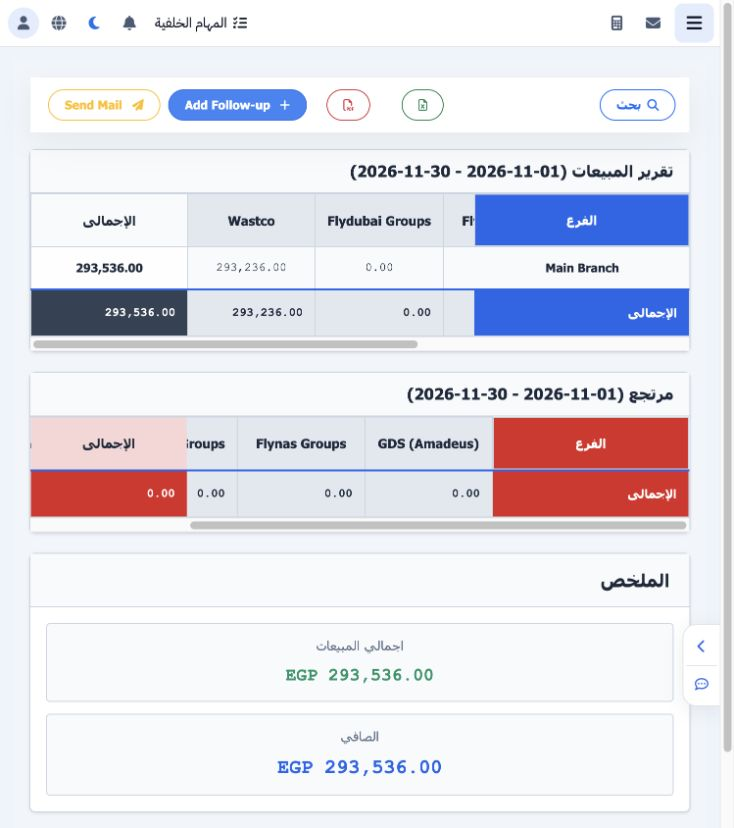
2 The report shows a row per branch and source columns, followed by refunds and sales/net summaries. Before the follow-up, Main Branch showed...
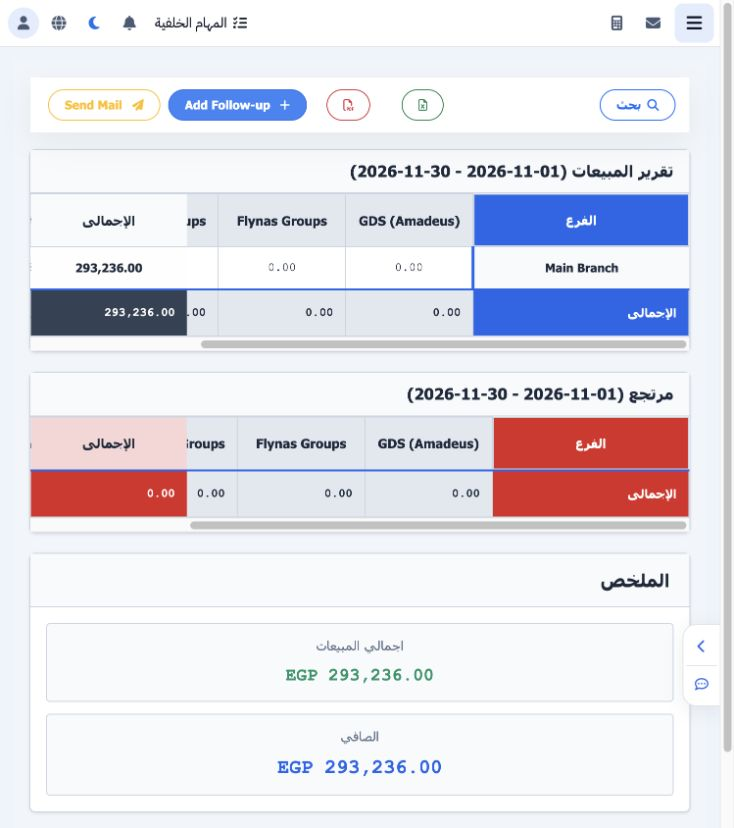
The report shows a row per branch and source columns, followed by refunds and sales/net summaries. Before the follow-up, Main Branch showed 293236 under Wastco, refund zero and net EGP 293236. Scroll horizontally to see additional columns.

3 Add a follow-up

3 Choose Add Follow-up. Enter its name, date, branch and value. The example is DEMO-SALES-FOLLOWUP-001 on 12 November 2026, Main Branch, EGP 2...
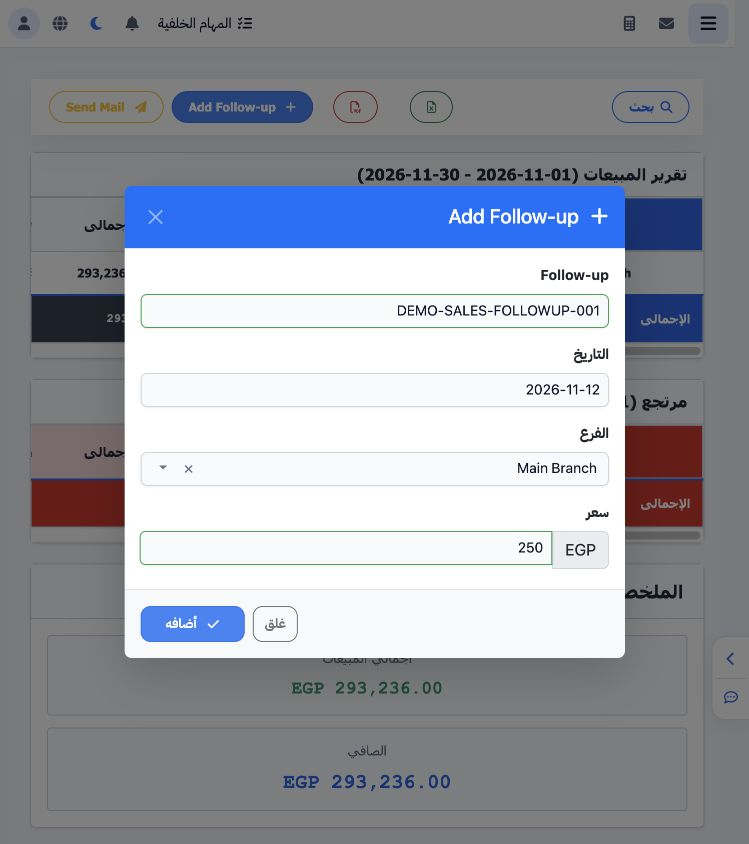
Choose Add Follow-up. Enter its name, date, branch and value. The example is DEMO-SALES-FOLLOWUP-001 on 12 November 2026, Main Branch, EGP 250. Review the value because it contributes to the displayed total, then Add.

4 Addition effect and actions

4 A new column appears with the follow-up name and value 250. Total and net become EGP 293486. To edit or delete the follow-up, right-click it...
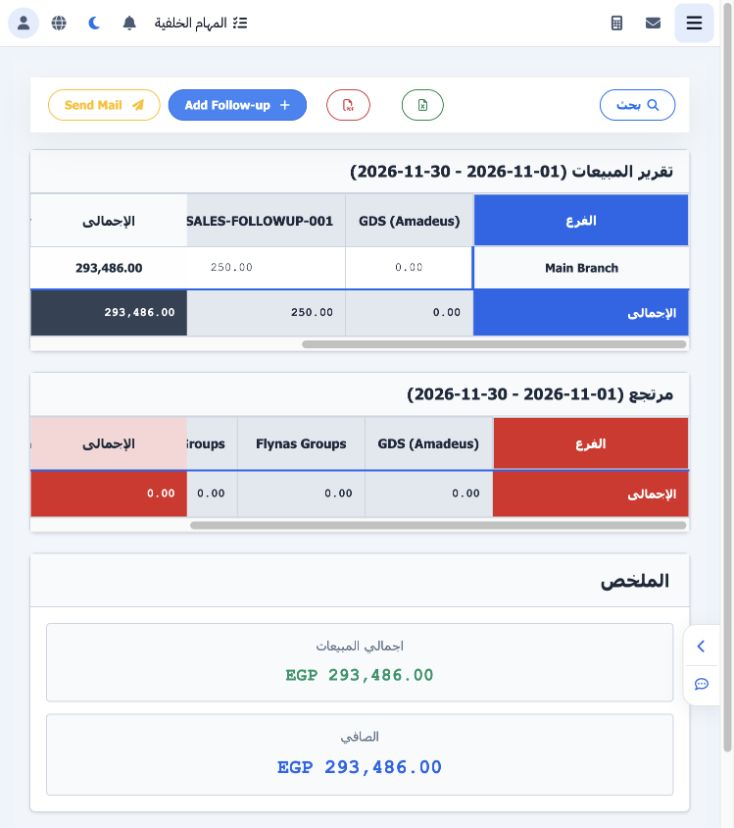
A new column appears with the follow-up name and value 250. Total and net become EGP 293486. To edit or delete the follow-up, right-click its value in the branch row and choose the required action.

5 Edit the value

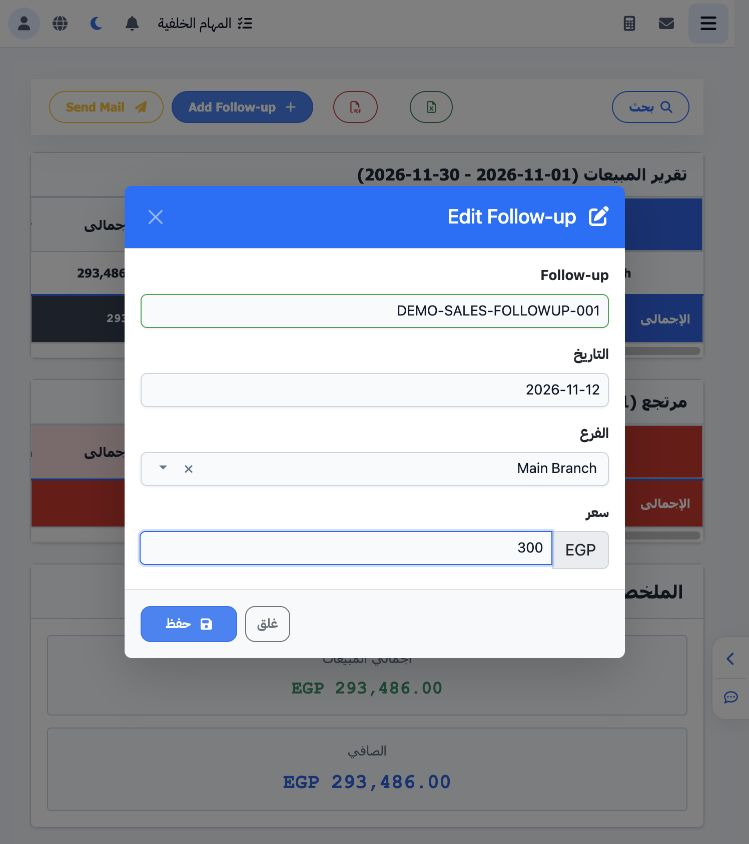
5 Choose Edit from the follow-up cell menu. Review name, date and branch, change the value and Save. Editing the same follow-up from 250 to 30...
Choose Edit from the follow-up cell menu. Review name, date and branch, change the value and Save. Editing the same follow-up from 250 to 300 changes report total and net to EGP 293536 without creating another follow-up.

6 Deletion confirmation and scope

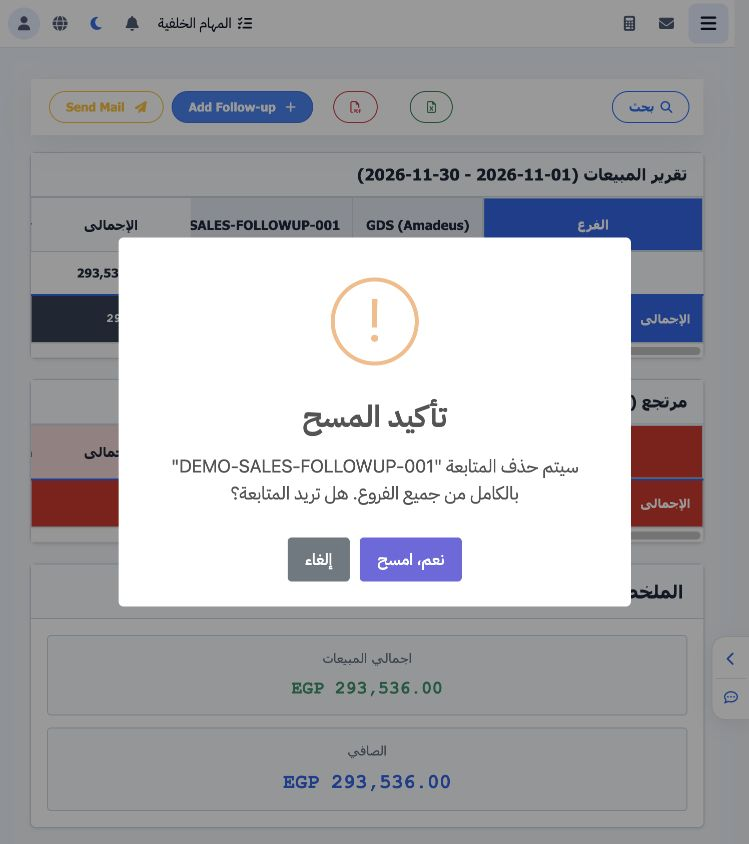
6 Choose Delete from the cell menu to display confirmation. The message states that the entire follow-up will be deleted from all branches. Se...
Choose Delete from the cell menu to display confirmation. The message states that the entire follow-up will be deleted from all branches. Select Cancel to keep it, as in this example, retaining the value 300.

7 Export the final result to Excel

7 Choose Excel after reviewing the period and results. The actual workbook contains the follow-up column at 300, Wastco at 293236 and Total Ma...
Choose Excel after reviewing the period and results. The actual workbook contains the follow-up column at 300, Wastco at 293236 and Total Main at 293536. Review columns and totals before using or sharing the file.

Sign in to record the lessons you have read. Sign in