Skip to content
Trio Travel guide

Direct Flight Booking

On this page
  1. 1 Flight details
  2. 2 Customer, supplier and currencies
  3. 3 Employee, source and booking references
  4. 4 Ticket number and financial values
  5. 5 Passenger details and saving changes
  6. 6 Deletion confirmation
  7. 7 Search and export Excel
  8. 8 Confirm and monitor status

1 Flight details

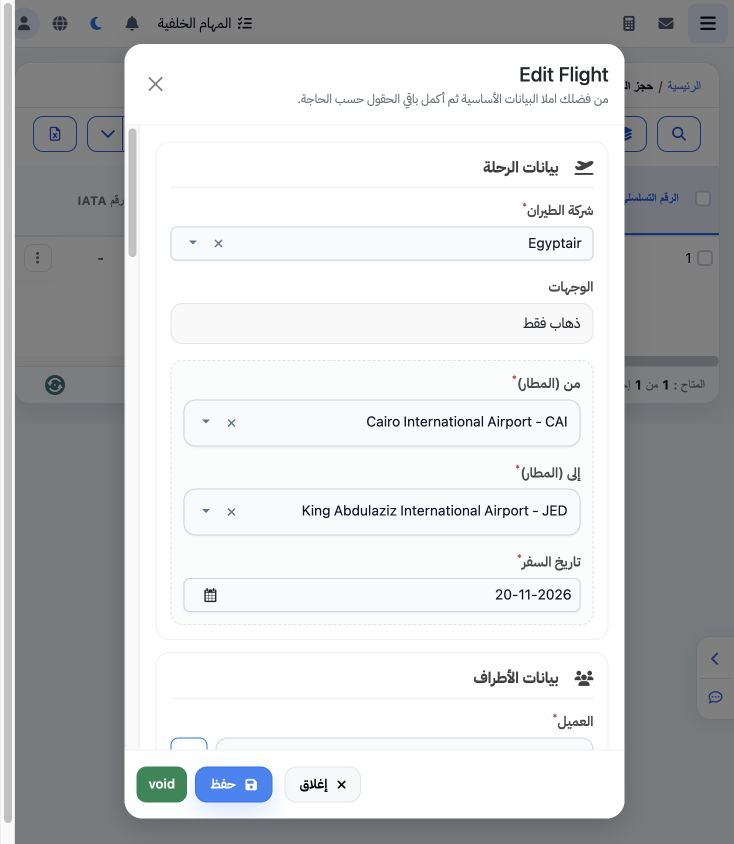
1 Open Airlines → Flight Booking. Use + to add a ticket or Edit from a saved record’s menu. Choose airline, one-way/return, departure and arri...
Open Airlines → Flight Booking. Use + to add a ticket or Edit from a saved record’s menu. Choose airline, one-way/return, departure and arrival airports and travel date. The image shows the saved example reopened for editing: Egyptair, CAI to JED, one-way on 20 November 2026.

2 Customer, supplier and currencies

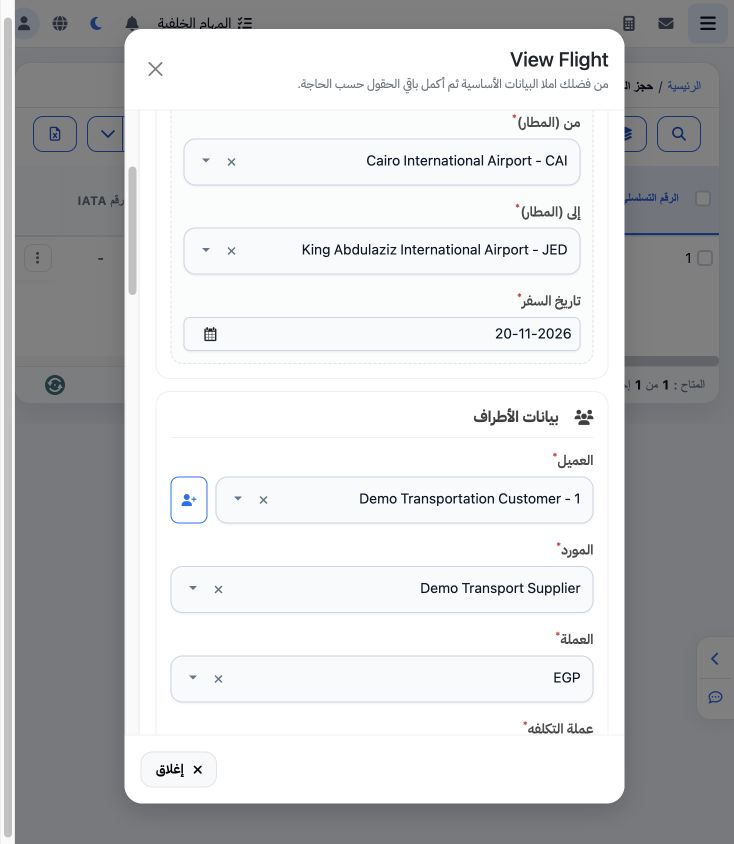
2 Select customer, supplier, selling currency, cost currency and branch. This example uses Demo Transportation Customer, Demo Transport Suppli...
Select customer, supplier, selling currency, cost currency and branch. This example uses Demo Transportation Customer, Demo Transport Supplier, EGP for both currencies and Main Branch. Select the actual result from each picker; typing a search phrase alone does not select a record.

3 Employee, source and booking references

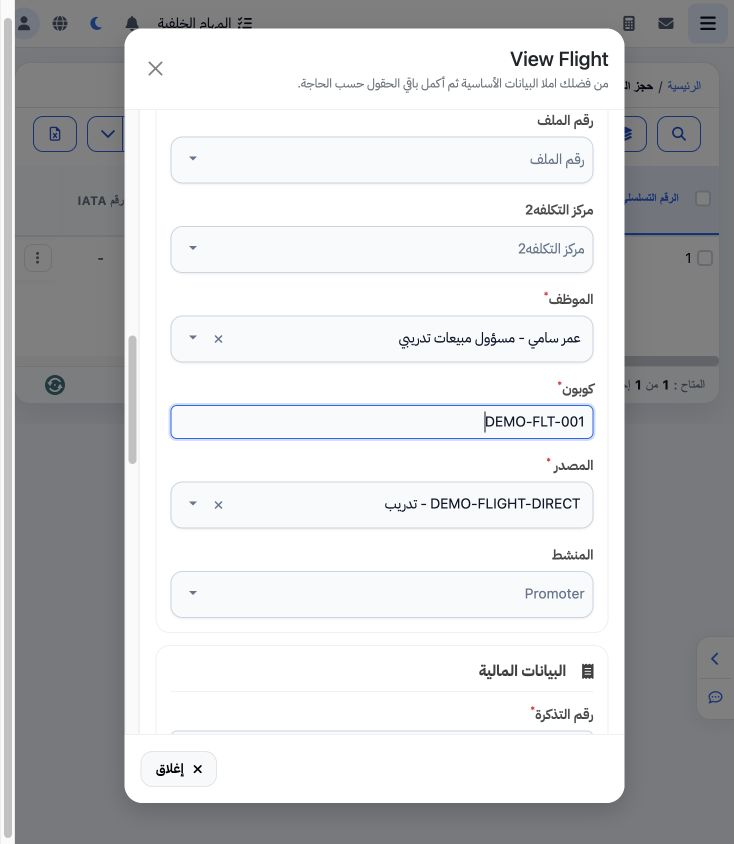
3 Choose the employee, enter the voucher reference and select a source defined in Flight Booking Settings. This example uses Omar Sami, DEMO-F...
Choose the employee, enter the voucher reference and select a source defined in Flight Booking Settings. This example uses Omar Sami, DEMO-FLT-001 and DEMO-FLIGHT-DIRECT - Training. File number, cost centre 2 and promoter fields are available when applicable; they are blank in this standalone example.

4 Ticket number and financial values

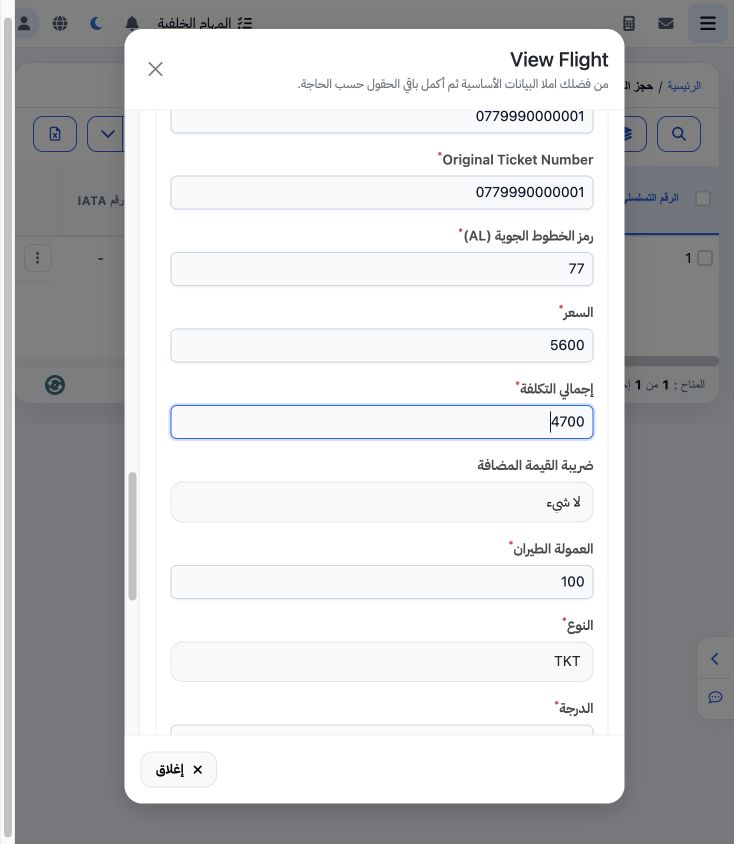
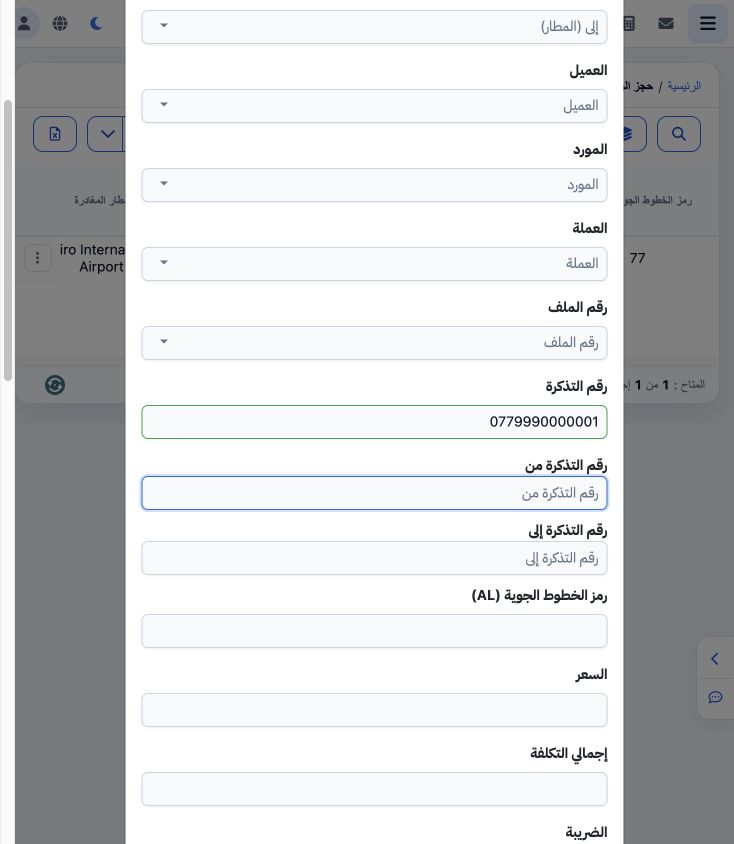
4 Enter ticket number, original ticket reference where applicable, AL code, price, total cost, commission and type. The example uses fictional...
Enter ticket number, original ticket reference where applicable, AL code, price, total cost, commission and type. The example uses fictional ticket 0779990000001, AL 77 and TKT. After editing, price is 5600, cost 4700 and commission 100. VAT selectors are available for both sides; this example selects None.

5 Passenger details and saving changes

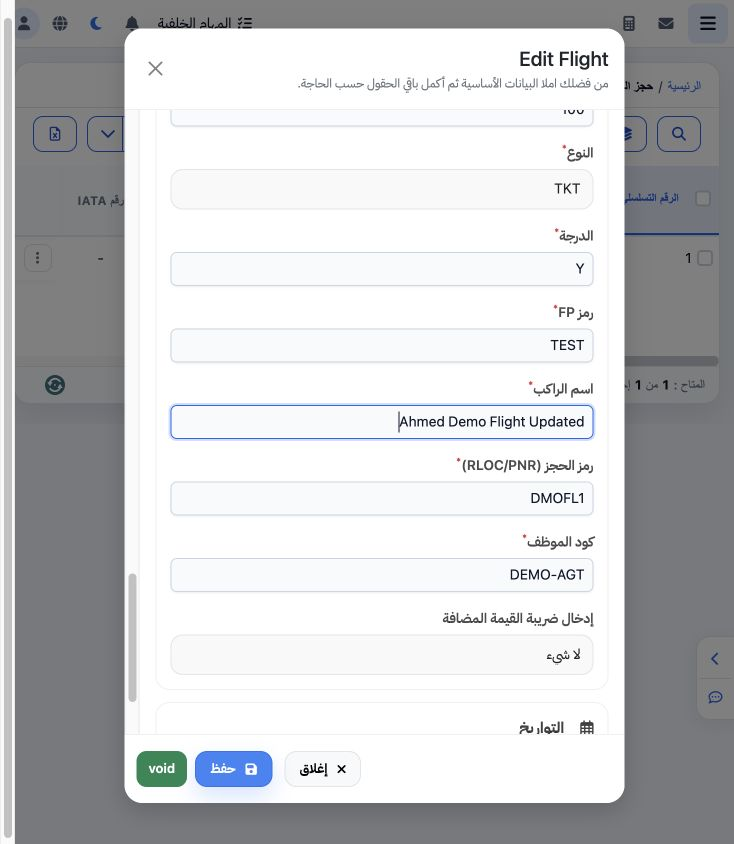
5 Complete class, FP code, passenger name, RLOC/PNR, agent code and booking date. This example uses Y, FP TEST, DMOFL1, DEMO-AGT and 12 Novemb...
Complete class, FP code, passenger name, RLOC/PNR, agent code and booking date. This example uses Y, FP TEST, DMOFL1, DEMO-AGT and 12 November 2026. Editing changed the name to Ahmed Demo Flight Updated and price from 5500 to 5600; both changes were saved and verified.

6 Deletion confirmation

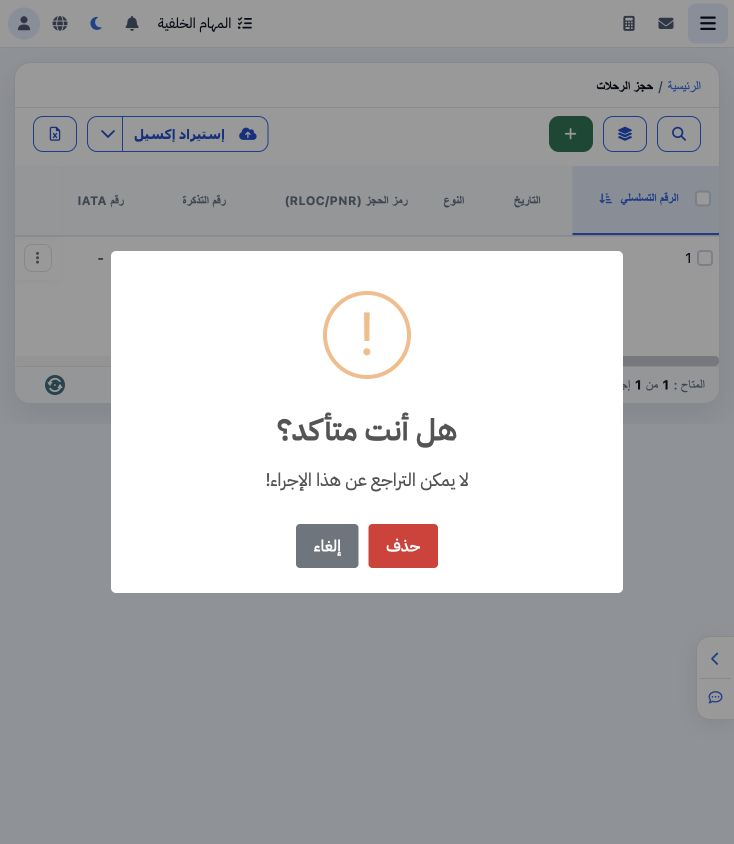
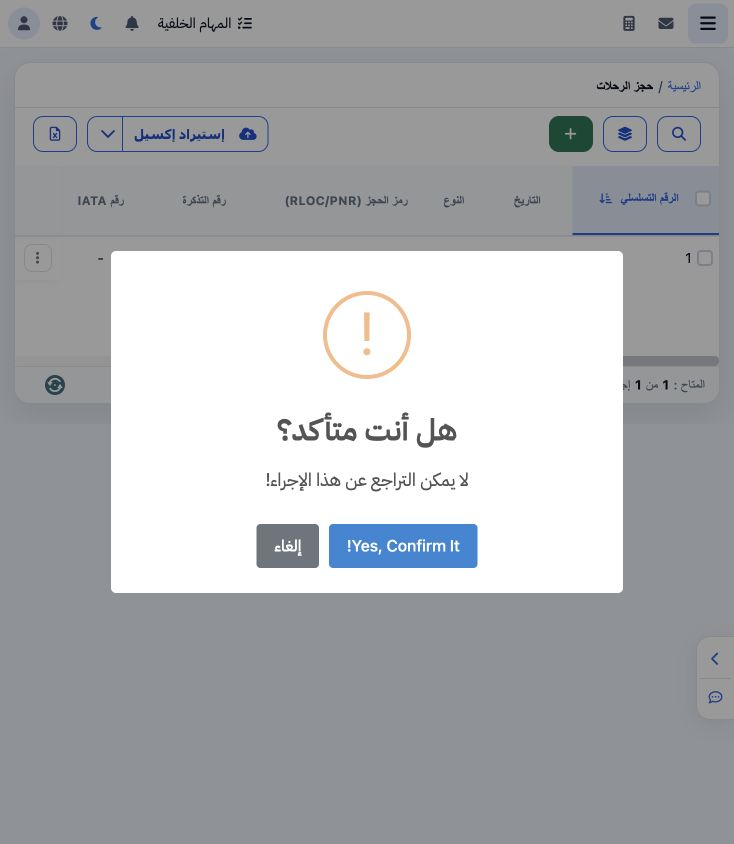
6 Choose Delete from the ticket menu to show confirmation. The warning says that the action cannot be undone. Select Cancel to keep the ticket...
Choose Delete from the ticket menu to show confirmation. The warning says that the action cannot be undone. Select Cancel to keep the ticket; the example does not delete it.

7 Search and export Excel

7 Open Search, enter ticket number, PNR or other criteria and choose Search. Ticket 0779990000001 returned one record. Use the Excel control i...
Open Search, enter ticket number, PNR or other criteria and choose Search. Ticket 0779990000001 returned one record. Use the Excel control in the list to export. The actual workbook contains 43 columns and the ticket row, matching the saved passenger name, price, cost and commission.

8 Confirm and monitor status

8 Choose Post from the ticket menu and review the warning before confirming. Afterwards, monitor the Status and Entry columns. An error status...
Choose Post from the ticket menu and review the warning before confirming. Afterwards, monitor the Status and Entry columns. An error status or missing entry number does not establish successful posting. Check the outcome before attempting again.

Sign in to record the lessons you have read. Sign in