Skip to content
Trio Travel guide

Galileo Tickets

On this page
  1. 1 The Galileo ticket list
  2. 2 Search and distinguish statuses
  3. 3 View passengers and prices
  4. 4 Taxes and flight routes
  5. 5 View related journals
  6. 6 List tools and supporting files

1 The Galileo ticket list

1 Open Aviation → Galileo. The list shows ticket type, date, posting status and confirmation status. Review airline, customer and ticket colum...
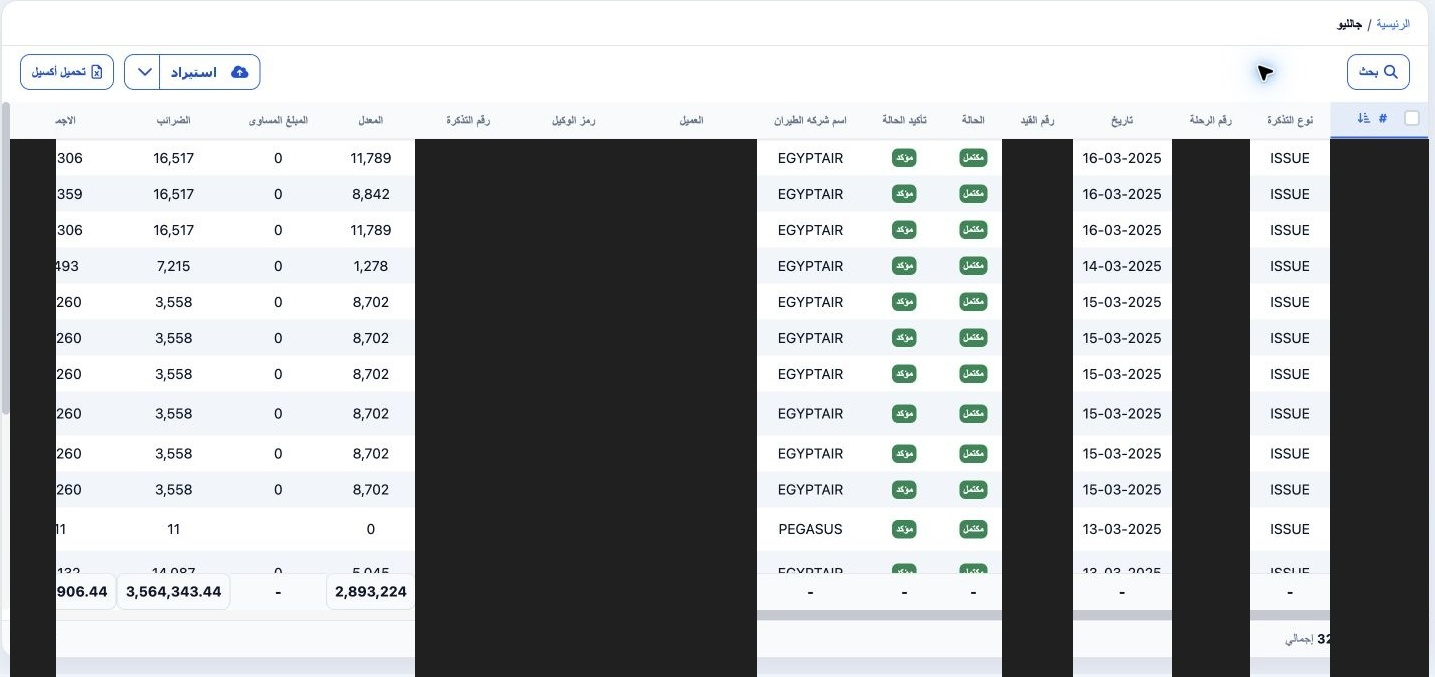
Open Aviation → Galileo. The list shows ticket type, date, posting status and confirmation status. Review airline, customer and ticket columns, then use horizontal scrolling to see prices, commissions, BSP, refunds, passengers, file and payment method. Confirmed and Complete appear in separate confirmation and posting columns. Private information is covered in the screenshots.

2 Search and distinguish statuses

2 Choose Search. Filter by customer, file, serial, price, ticket number or range, passenger name or Galileo code. With Commission is also avai...
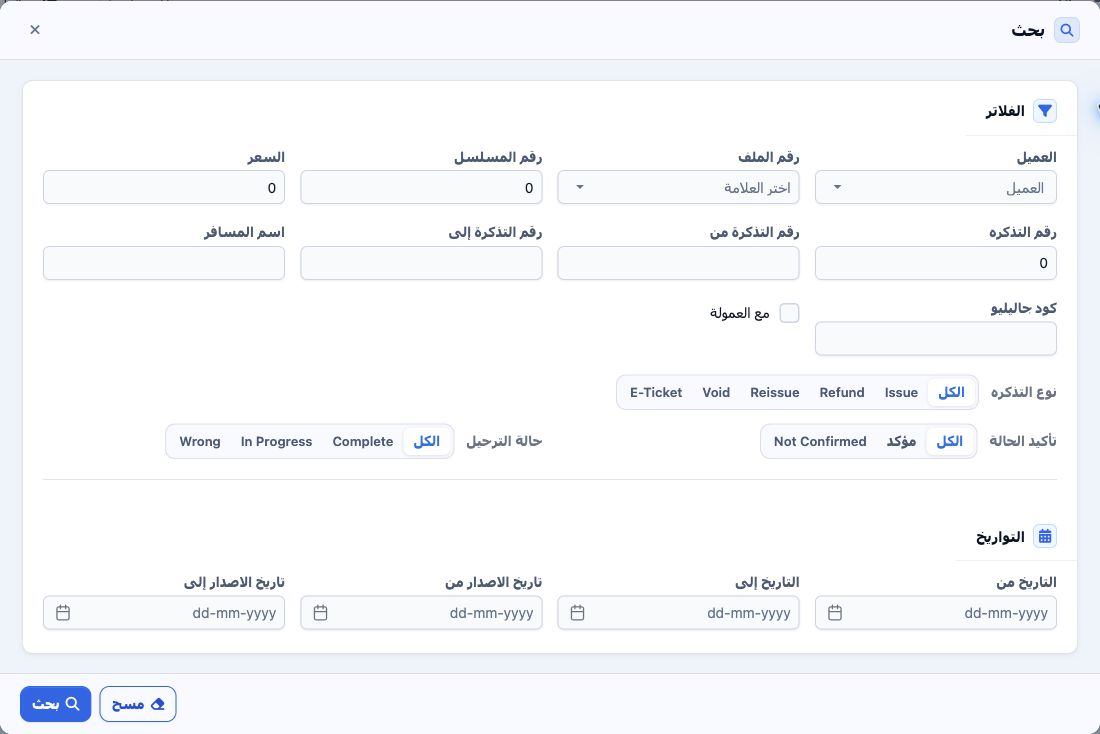
Choose Search. Filter by customer, file, serial, price, ticket number or range, passenger name or Galileo code. With Commission is also available. Choose Issue, Refund, Reissue, Void or E-Ticket, followed by confirmation and posting status: Complete, In Progress or Wrong. Set Date and Issue Date ranges where needed and run Search. These are filters; selecting a status here does not change a ticket. Use All or Clear Filters to broaden the search.

3 View passengers and prices

3 Open a row’s three-dot menu and choose View. The header shows customer, file name, total, Fair and issue date. Review the Passengers grid, i...
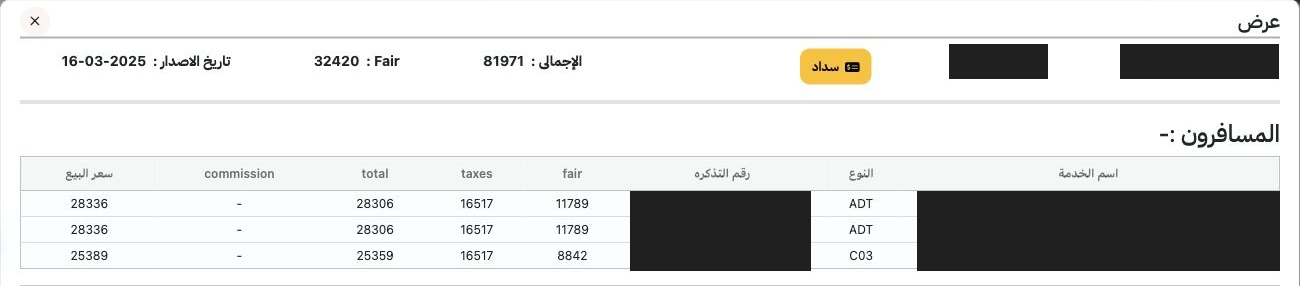
Open a row’s three-dot menu and choose View. The header shows customer, file name, total, Fair and issue date. Review the Passengers grid, including passenger name and type, ticket number, fair, taxes, total, commission and selling price. One detail view may contain several passengers, so review every row and reconcile the header totals.

4 Taxes and flight routes

4 Below the passenger grid are Taxes and Flight Routes. Review arrival and departure locations, airline code and name, flight number and date...
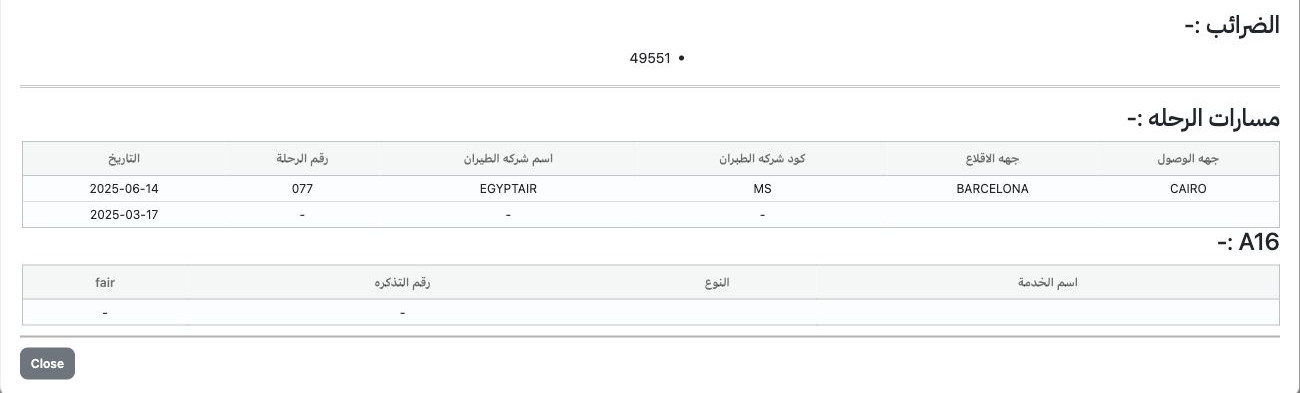
Below the passenger grid are Taxes and Flight Routes. Review arrival and departure locations, airline code and name, flight number and date for each segment. A16 follows with service name, type, ticket number and fair columns; review any populated data there. Choose Close to exit the detail view.

5 View related journals

5 Click the journal number in the Galileo list to open journals for that reference. More than one journal may appear. This example returned th...
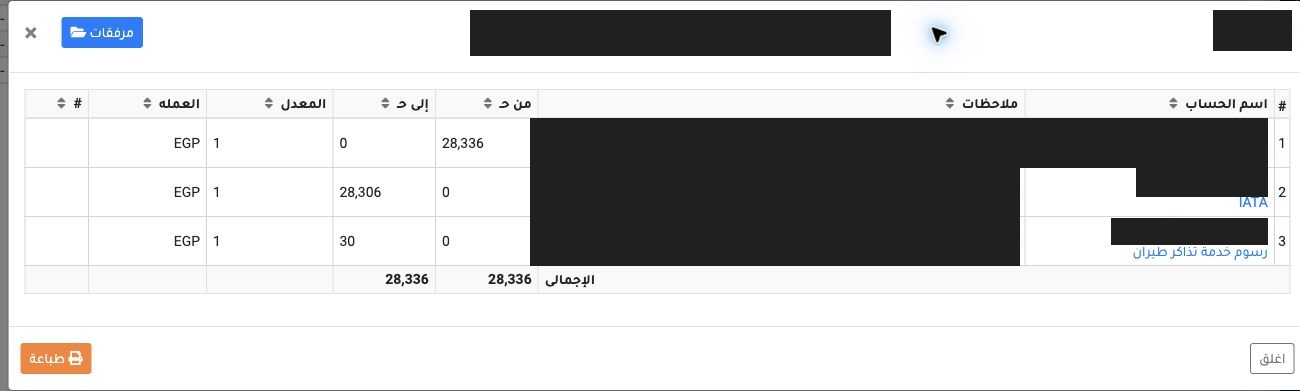
Click the journal number in the Galileo list to open journals for that reference. More than one journal may appear. This example returned three existing journals; one was opened by right-clicking and choosing View. It debits the customer and credits IATA and flight ticket service fees. Reconcile total debits and credits, currency, rate and each line’s description. This is a saved journal example and does not require creating a new entry.

6 List tools and supporting files

6 The toolbar includes Download Excel for list output. The arrow beside Import opens Example and Catalog options. Open this dropdown to locate...
The toolbar includes Download Excel for list output. The arrow beside Import opens Example and Catalog options. Open this dropdown to locate the available supporting files. This section identifies the tools; file download and import are separate actions from viewing tickets.

Sign in to record the lessons you have read. Sign in