Skip to content
Trio Travel guide

Amadeus Tickets

On this page
  1. 1 The ticket list
  2. 2 Open and search
  3. 3 View ticket details
  4. 4 Edit a note
  5. 5 Post and open the journal
  6. 6 Review debit and credit
  7. 7 Unconfirm a posting
  8. 8 Review a refund
  9. 9 The payment form
  10. 10 The Update RM window
  11. 11 Select records and review batch actions

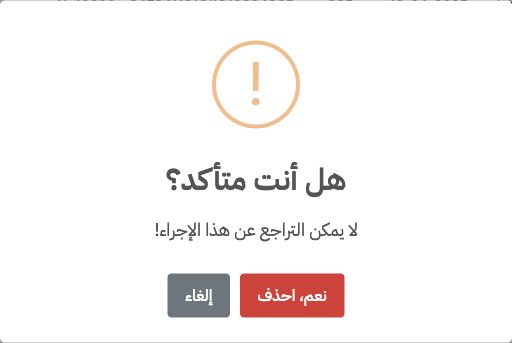
  12. 12 Review deletion confirmation

1 The ticket list

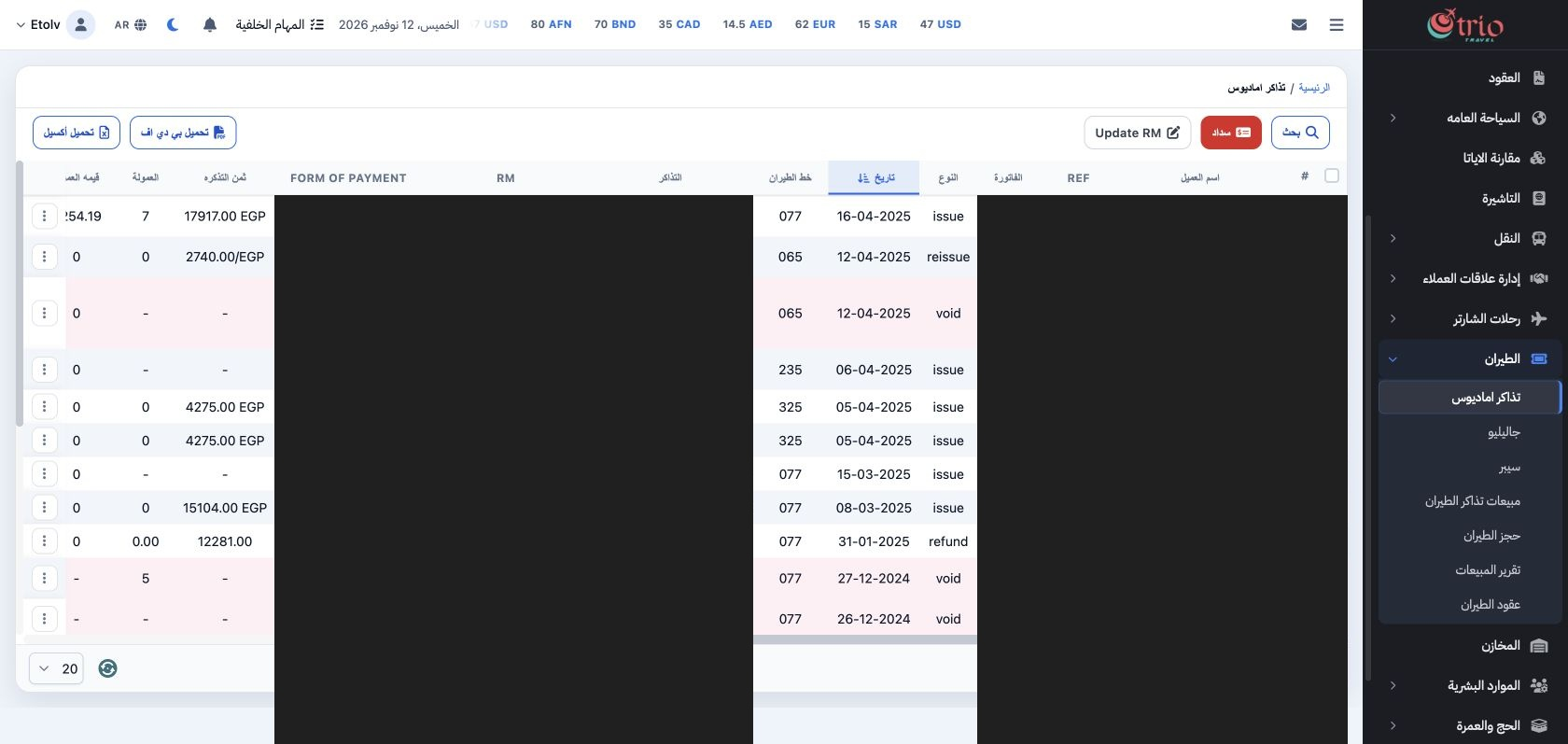
1 Amadeus Tickets lists imported records as issue, reissue, refund or void. Review date, airline, fare, commission and the remaining columns u...
Amadeus Tickets lists imported records as issue, reissue, refund or void. Review date, airline, fare, commission and the remaining columns using horizontal scrolling. Open the three-dot menu for one record, or select checkboxes for batch actions. Private values are covered in this screenshot.

2 Open and search

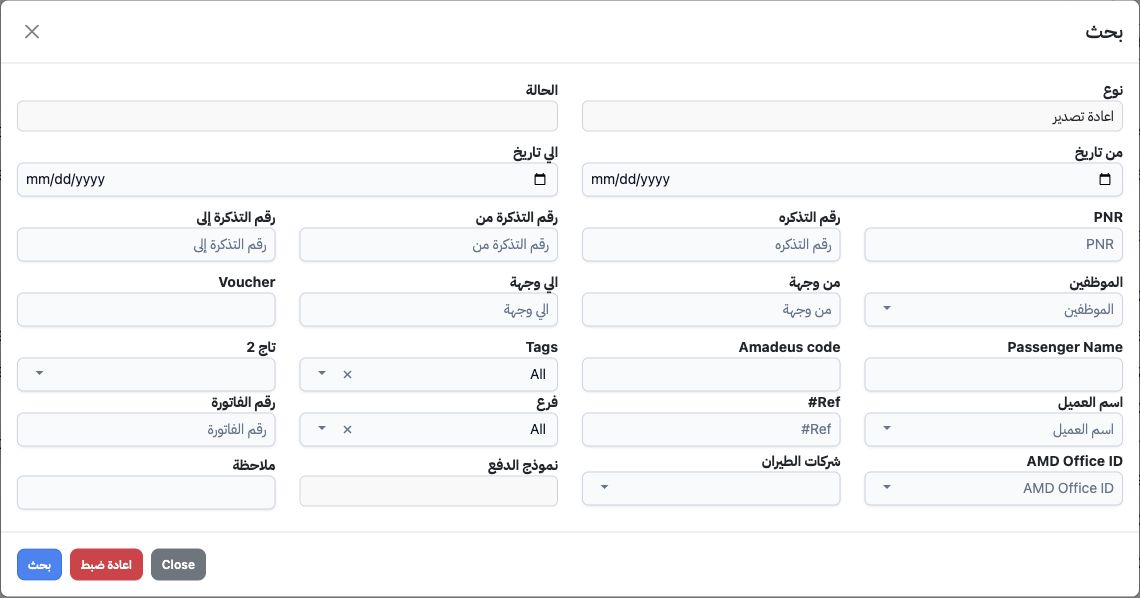
2 Open Aviation → Amadeus Tickets, then Search. Tickets arrive through the Amadeus integration; this list does not require retyping imported t...
Open Aviation → Amadeus Tickets, then Search. Tickets arrive through the Amadeus integration; this list does not require retyping imported tickets. Select type, status and dates, or search by ticket number, PNR, customer or Ref. The example selects Reissue and runs Search, returning reissue records. Other filters include branch, employee, Tag2, invoice, Amadeus office and payment method.

3 View ticket details

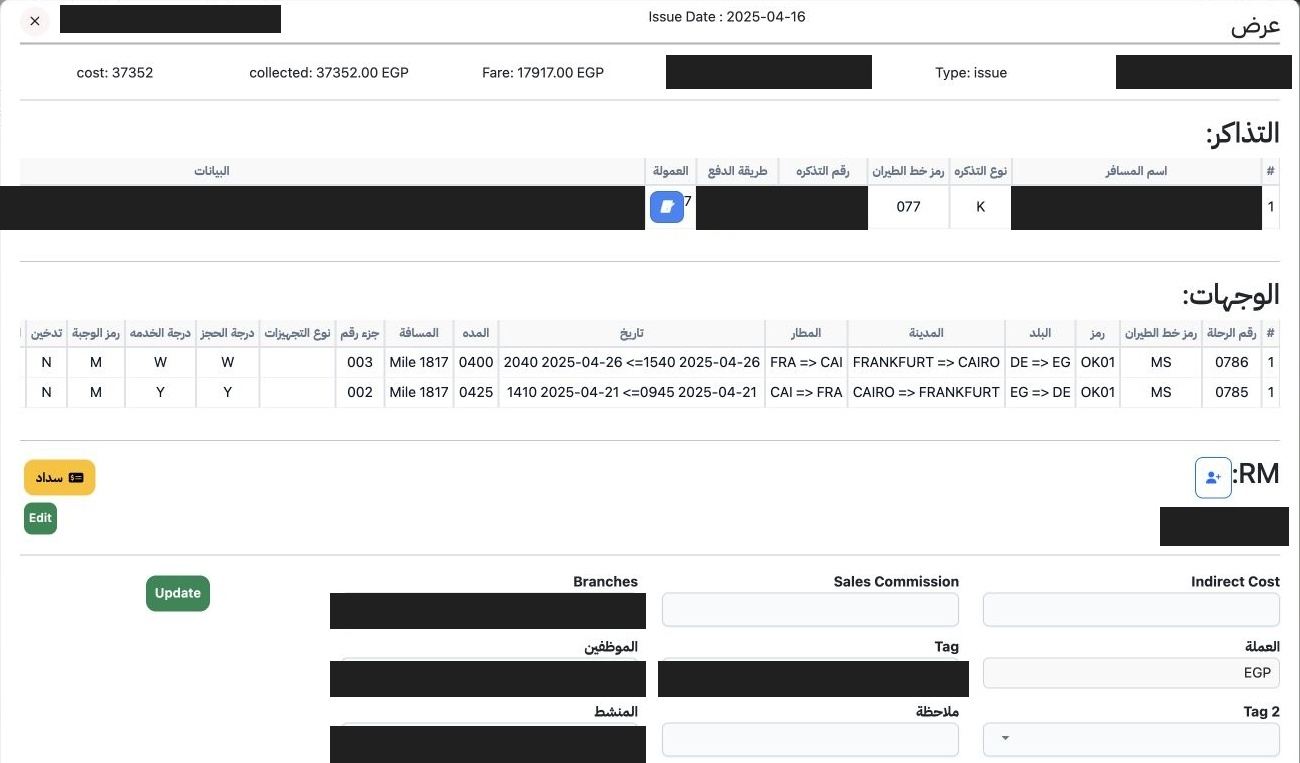
3 Open a ticket’s three-dot menu and select View. Review the record header and ticket grid: passenger, ticket type and number, airline, paymen...
Open a ticket’s three-dot menu and select View. Review the record header and ticket grid: passenger, ticket type and number, airline, payment method, commission and tags. An issue record also shows destinations and flight segments, including airports, dates, classes and baggage, followed by RM and taxes. The image shows the issue detail view with private values covered. Check the intended record before taking an action.

4 Edit a note

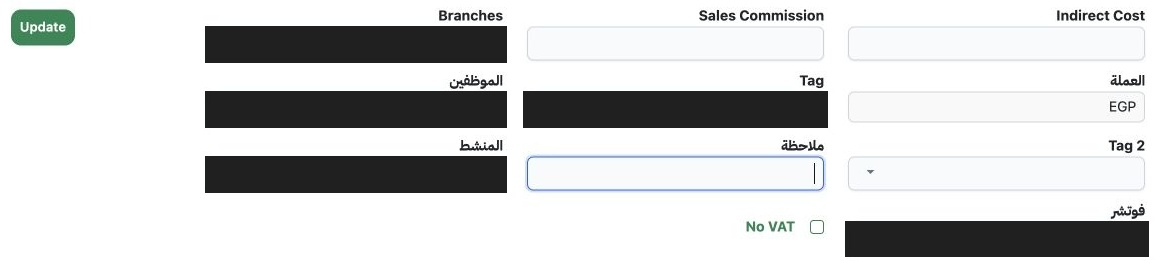
4 In View, locate Note, enter the text and select Update. Close and reopen the record to check persistence. The image shows the Note field and...
In View, locate Note, enter the text and select Update. Close and reopen the record to check persistence. The image shows the Note field and Update button. To revise or clear it, change the field and select Update again. The same section contains currency, branch, employee, tags, indirect cost and sales commission.

5 Post and open the journal

5 After reviewing the ticket and accounting mappings, choose Post from the row menu or detail view. Wait for completion, then open the Ref lin...
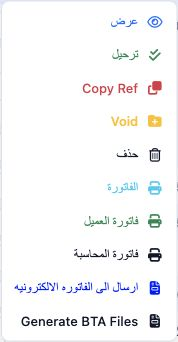
After reviewing the ticket and accounting mappings, choose Post from the row menu or detail view. Wait for completion, then open the Ref link to inspect the related journal. Unconfirm became available after posting in the test. Review customer, cost, revenue, tax, currency and date in the journal.

6 Review debit and credit

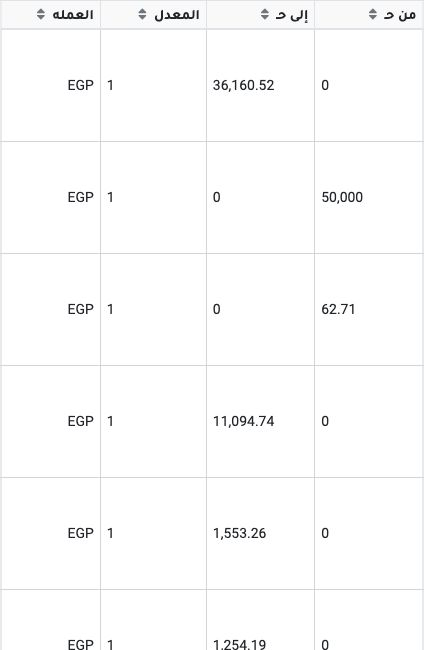
6 The image shows part of the amount columns in training journal J-2224154. Each side totals EGP 50062.71 at rate 1. Debits: cash customer 500...
The image shows part of the amount columns in training journal J-2224154. Each side totals EGP 50062.71 at rate 1. Debits: cash customer 50000 and prior-year profit/loss 62.71. Credits: IATA subscription 36160.52 and 1254.19, flight ticket service fees 11094.74 and the account named Debit VAT 1553.26. These are the demo company’s resulting mappings; review their suitability with the responsible accountant.

7 Unconfirm a posting

7 When unconfirmation is required, open the row menu and select Unconfirm. Reload the list and search the journal by the record reference. In...
When unconfirmation is required, open the row menu and select Unconfirm. Reload the list and search the journal by the record reference. In the test, the related journal was no longer visible in that search, and Post returned to the ticket menu as shown. Check this result before posting again.

8 Review a refund

8 Search for Refunded tickets and open the intended record in View. Its refund request table includes request number and date, paid and refund...
Search for Refunded tickets and open the intended record in View. Its refund request table includes request number and date, paid and refunded amounts, refunded taxes, used amount, cancellation amount, total refund and data source. Reconcile these values to the refund document before posting. The image includes only the monetary columns.

9 The payment form

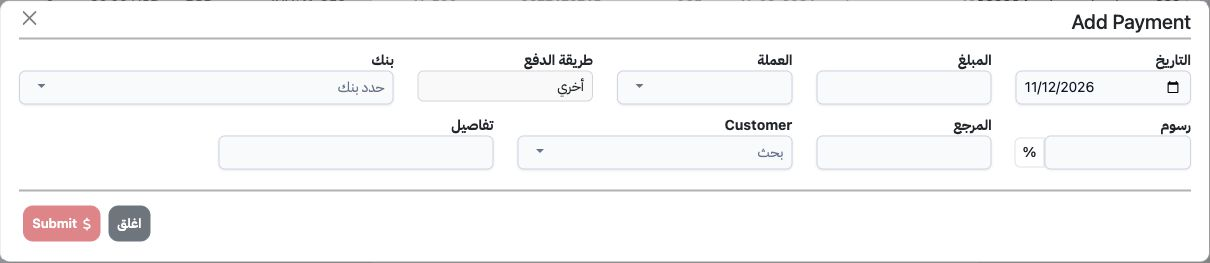
9 Choose Payment to open Add Payment. Enter the date, amount, currency, payment method and customer, and review bank, fees, reference and deta...
Choose Payment to open Add Payment. Enter the date, amount, currency, payment method and customer, and review bank, fees, reference and details where applicable. Submit is disabled until required data are complete. Choose Close to exit without submitting. Opening the form alone does not record a payment.

10 The Update RM window

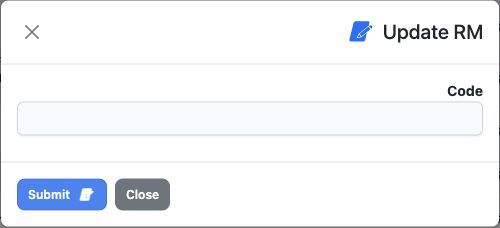
10 Update RM opens a window with Code and Submit. Use the code approved for your company when using this action. Close exits without a change....
Update RM opens a window with Code and Submit. Use the code approved for your company when using this action. Close exits without a change. This example opens and closes the window without executing an RM update.

11 Select records and review batch actions

11 Select a ticket row’s checkbox. The toolbar changes to show the selection count and batch confirm, send, export to invoice and print actions...
Select a ticket row’s checkbox. The toolbar changes to show the selection count and batch confirm, send, export to invoice and print actions. Check the count and intended records before proceeding. Cancel Selection restores the normal toolbar, which includes PDF and Excel downloads.

12 Review deletion confirmation

12 For a record that offers Delete, choose it from the row menu. The confirmation warns that the action cannot be undone. Cancel keeps the reco...
For a record that offers Delete, choose it from the row menu. The confirmation warns that the action cannot be undone. Cancel keeps the record; that is the option used in this example. Record deletion, Void and unconfirmation are separate actions.

Sign in to record the lessons you have read. Sign in