Skip to content
Trio Travel guide

Warehouse Definitions

On this page
  1. 1 Warehouse definitions
  2. 2 Add a warehouse
  3. 3 Edit warehouse location and description
  4. 4 Review and cancel deletion

1 Warehouse definitions

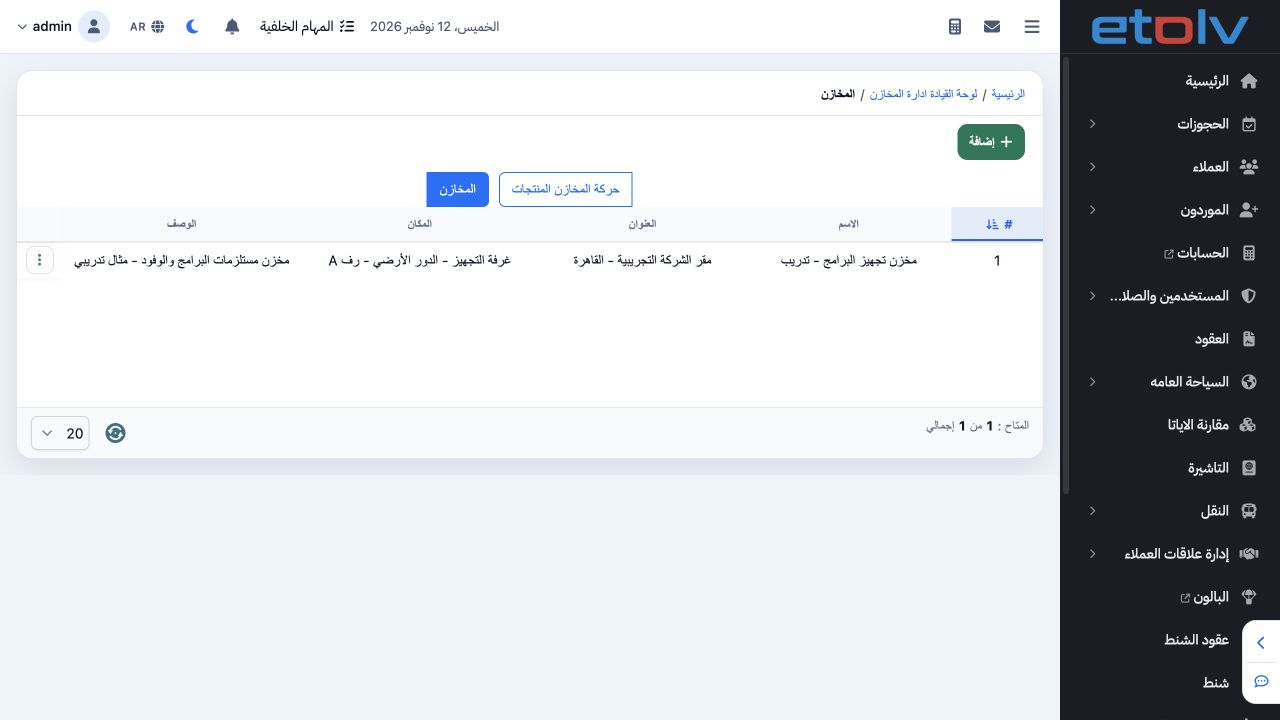
1 Open Warehouses from the Inventory dashboard, then select the Warehouses tab. The example shows Programs Preparation Warehouse – Training wi...
Open Warehouses from the Inventory dashboard, then select the Warehouses tab. The example shows Programs Preparation Warehouse – Training with its address, location and description.

2 Add a warehouse

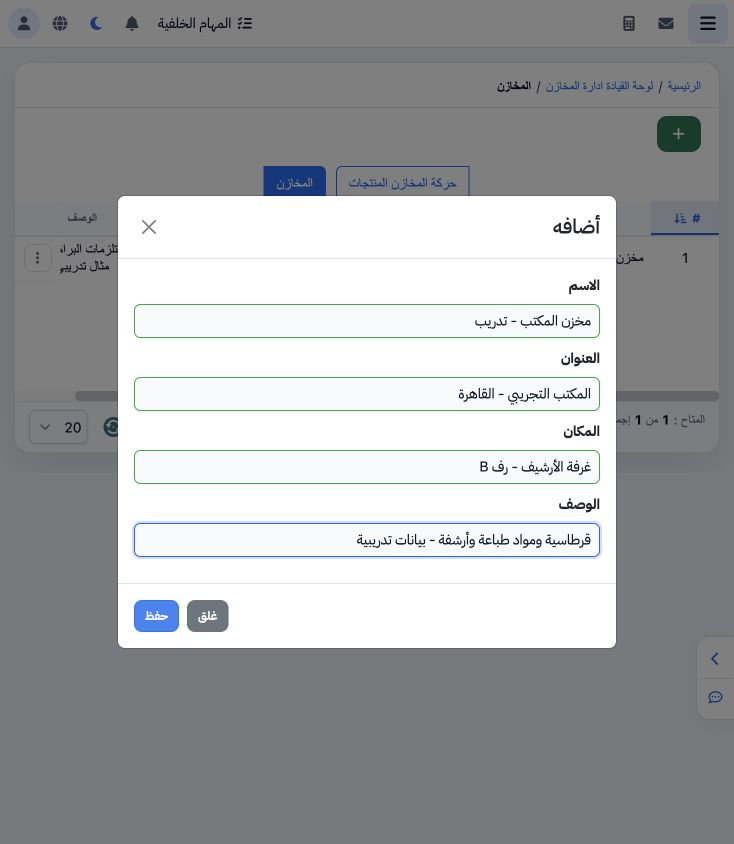
2 Choose Add, enter the warehouse name, address, location and description, then Save. This example adds Office Warehouse – Training at the dem...
Choose Add, enter the warehouse name, address, location and description, then Save. This example adds Office Warehouse – Training at the demo Cairo office, with Archive Room, Shelf B as its location. Close dismisses an unsaved draft.

3 Edit warehouse location and description

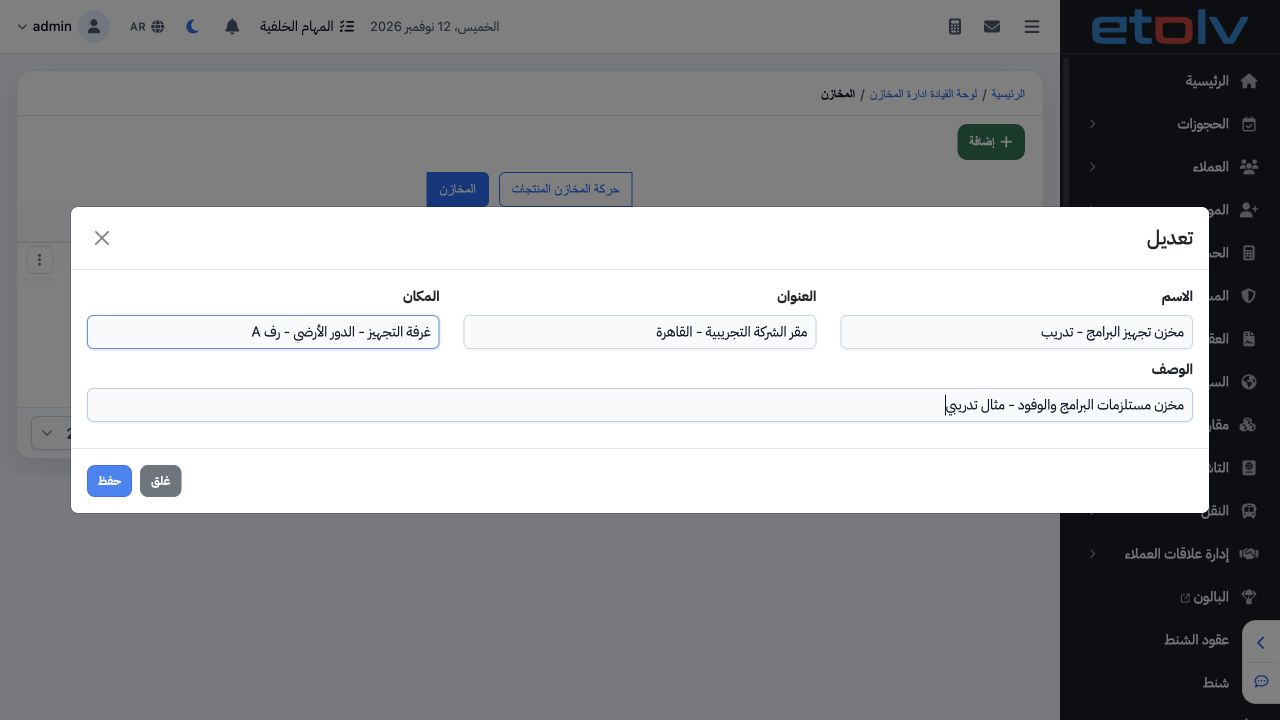
3 Choose Edit from the warehouse row menu. Review the saved data, add the shelf detail to its location, enter the description and save. The up...
Choose Edit from the warehouse row menu. Review the saved data, add the shelf detail to its location, enter the description and save. The updated location and description appeared in the list after saving.

4 Review and cancel deletion

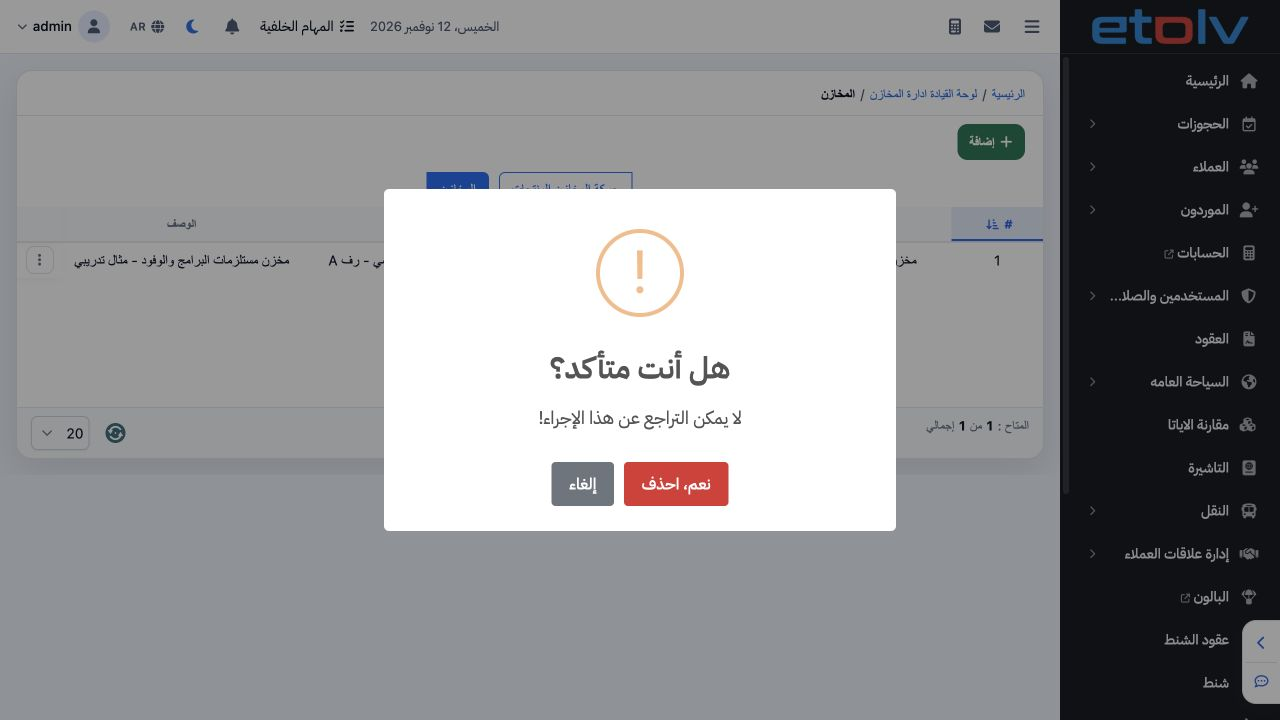
4 Choose Delete to display confirmation. The message warns that deletion cannot be undone. Choose Cancel to retain the warehouse; this example...
Choose Delete to display confirmation. The message warns that deletion cannot be undone. Choose Cancel to retain the warehouse; this example did not delete the training warehouse.

Sign in to record the lessons you have read. Sign in