Skip to content
Trio Travel guide

Inventory Products

On this page
  1. 1 Product list
  2. 2 Add a product and its accounts
  3. 3 Edit name and description
  4. 4 Verify the saved edit
  5. 5 Review product deletion
  6. 6 Open the product movement report

1 Product list

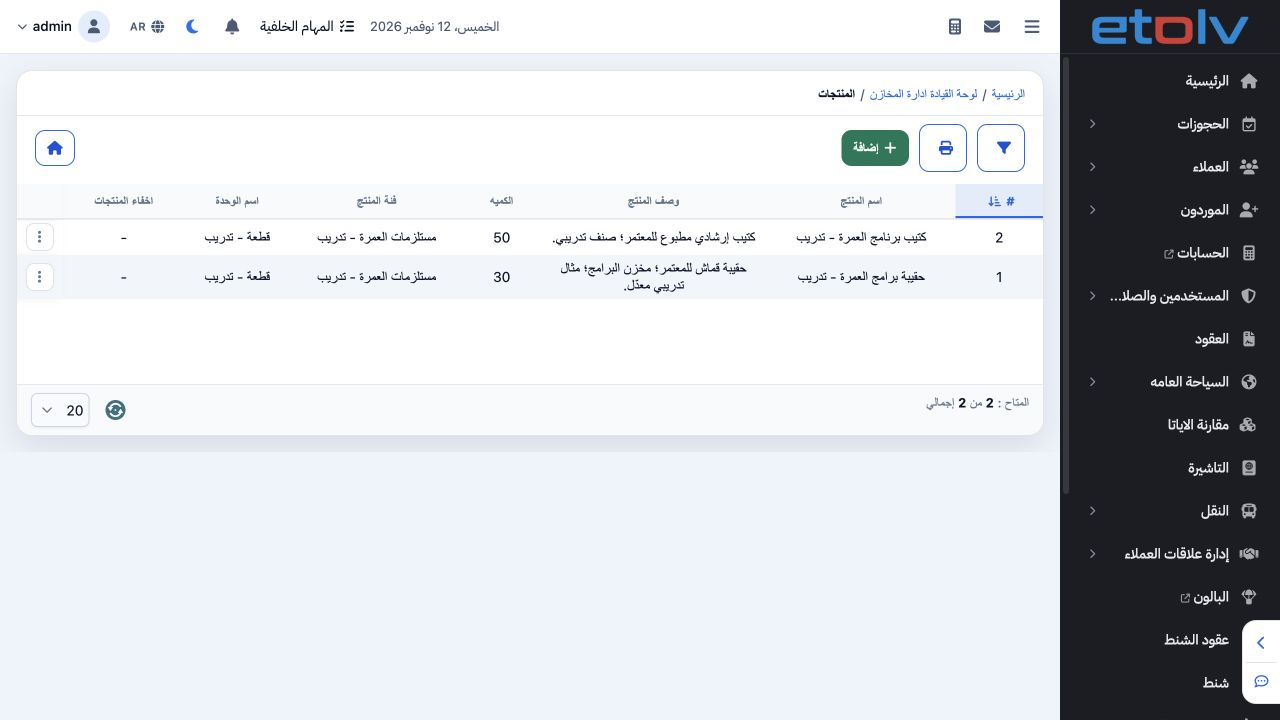
1 Open Product Management from the Inventory dashboard. The list shows name, description, quantity, category and unit. The example contains an...
Open Product Management from the Inventory dashboard. The list shows name, description, quantity, category and unit. The example contains an Umrah programs bag and program booklet; their quantities appeared after a stock receipt was saved.

2 Add a product and its accounts

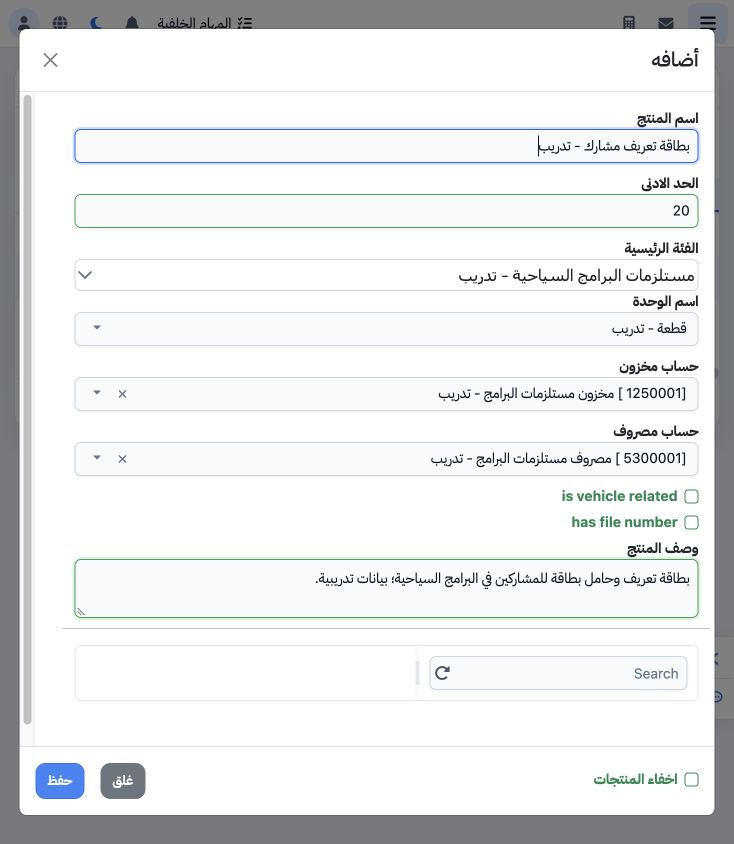
2 Choose Add and enter a product name and description. Select its category from the tree and its counting unit. Participant ID Card – Training...
Choose Add and enter a product name and description. Select its category from the tree and its counting unit. Participant ID Card – Training was saved under Tourism Program Supplies – Training with Piece – Training, inventory account 1250001 and expense account 5300001. Save, then verify the product in the list.

3 Edit name and description

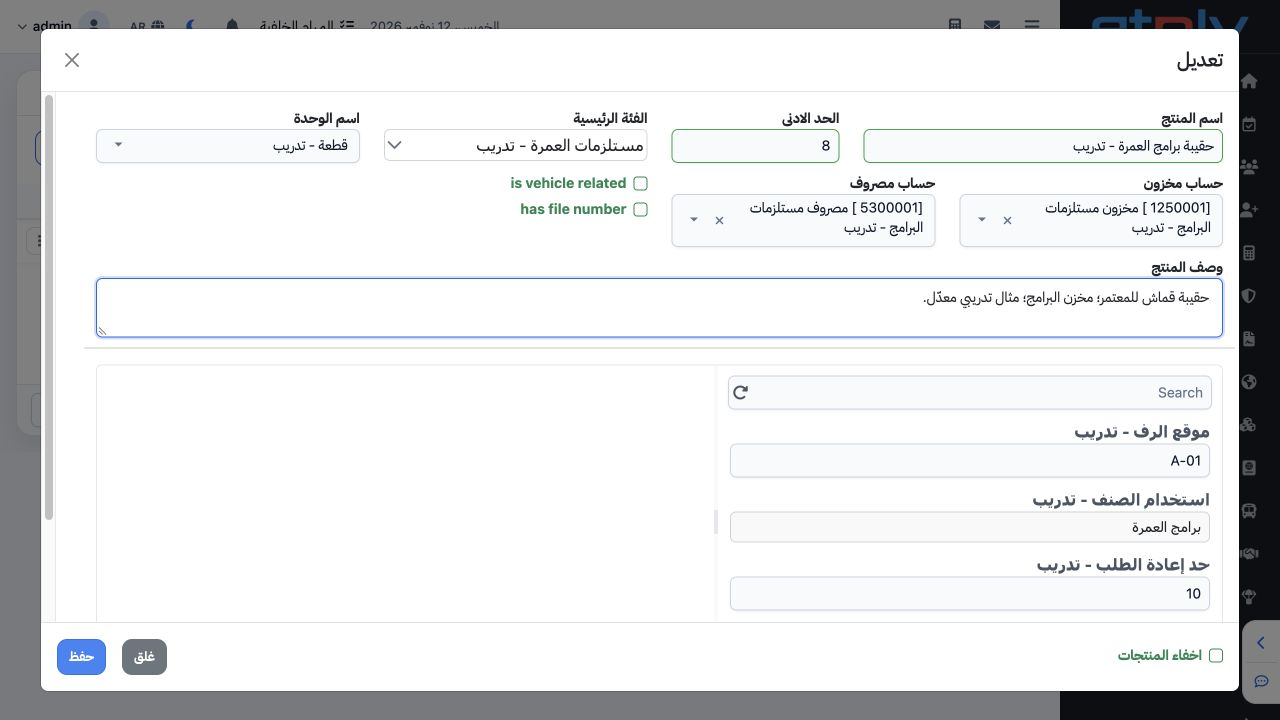
3 Choose Edit from the action menu. Review category, unit and both accounts, then update name and description and save. The bag was renamed Um...
Choose Edit from the action menu. Review category, unit and both accounts, then update name and description and save. The bag was renamed Umrah Programs Bag – Training and its training description was updated.

4 Verify the saved edit

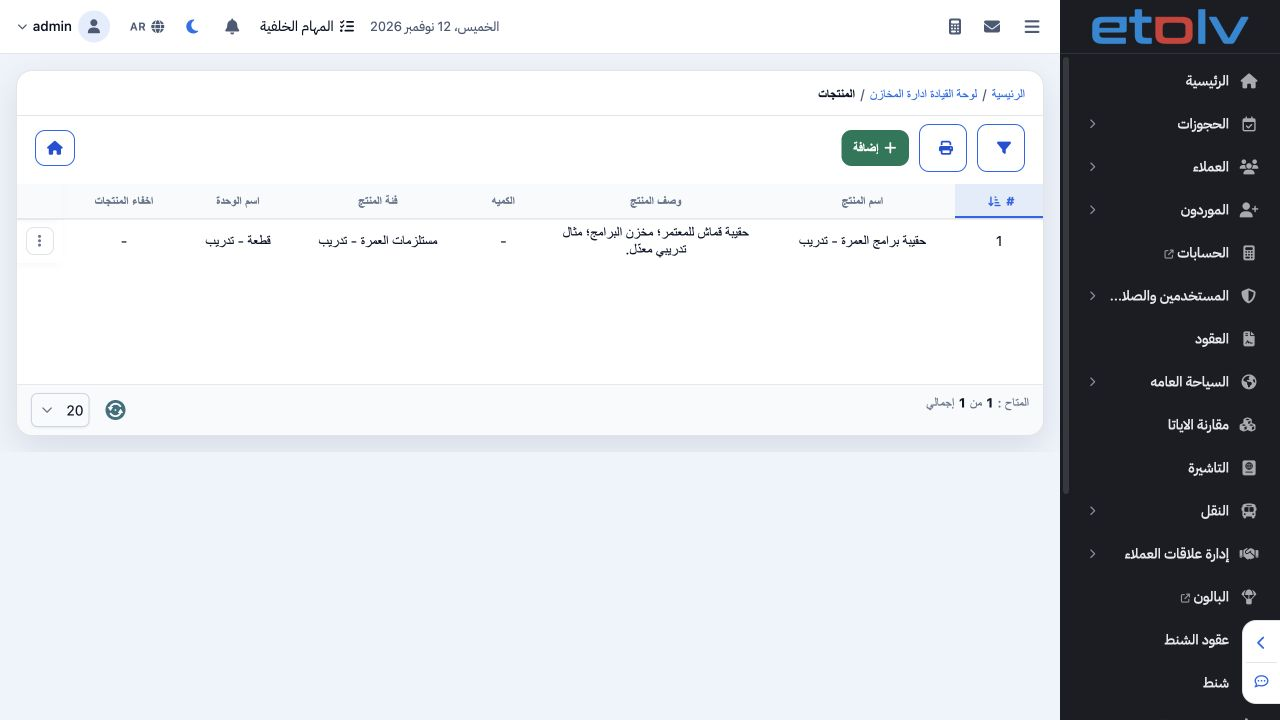
4 The new name and updated description appear in the list. Reopen Edit to verify the saved category, unit and accounting assignments.
The new name and updated description appear in the list. Reopen Edit to verify the saved category, unit and accounting assignments.

5 Review product deletion

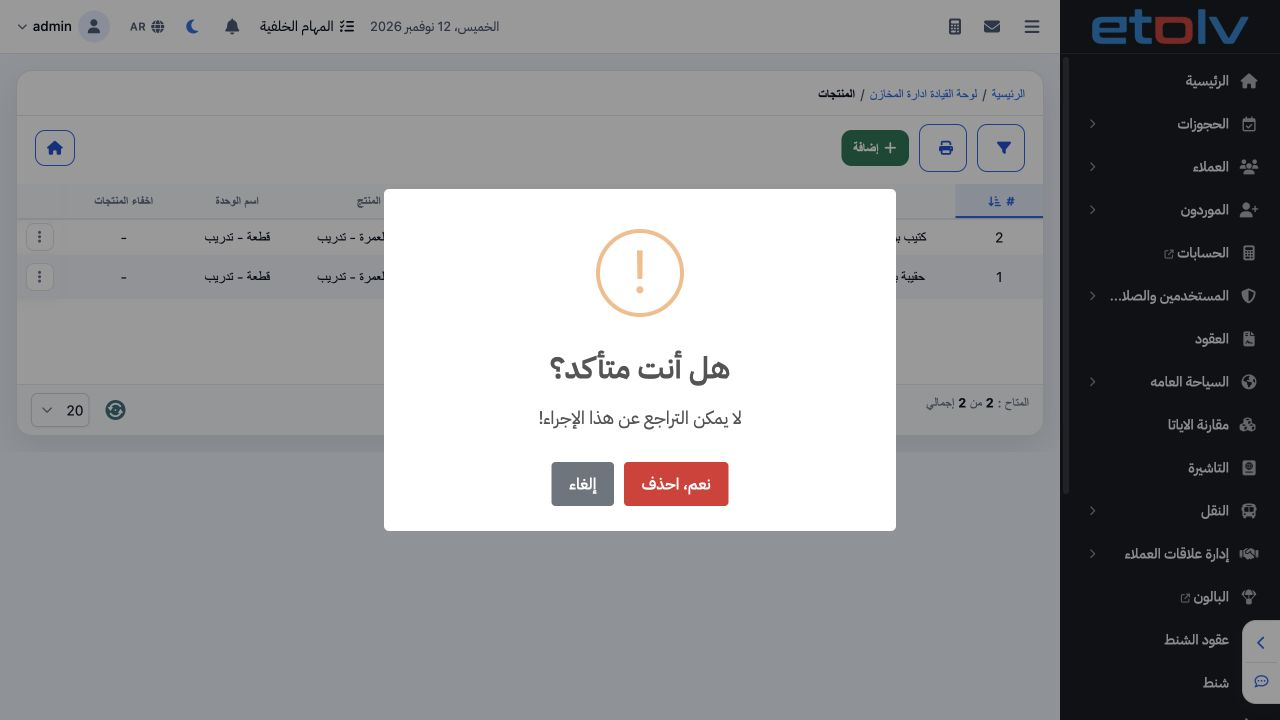
5 Choose Delete from the product menu to display confirmation. The message warns that the action cannot be undone. Cancel retains the product....
Choose Delete from the product menu to display confirmation. The message warns that the action cannot be undone. Cancel retains the product. This example did not delete it.

6 Open the product movement report

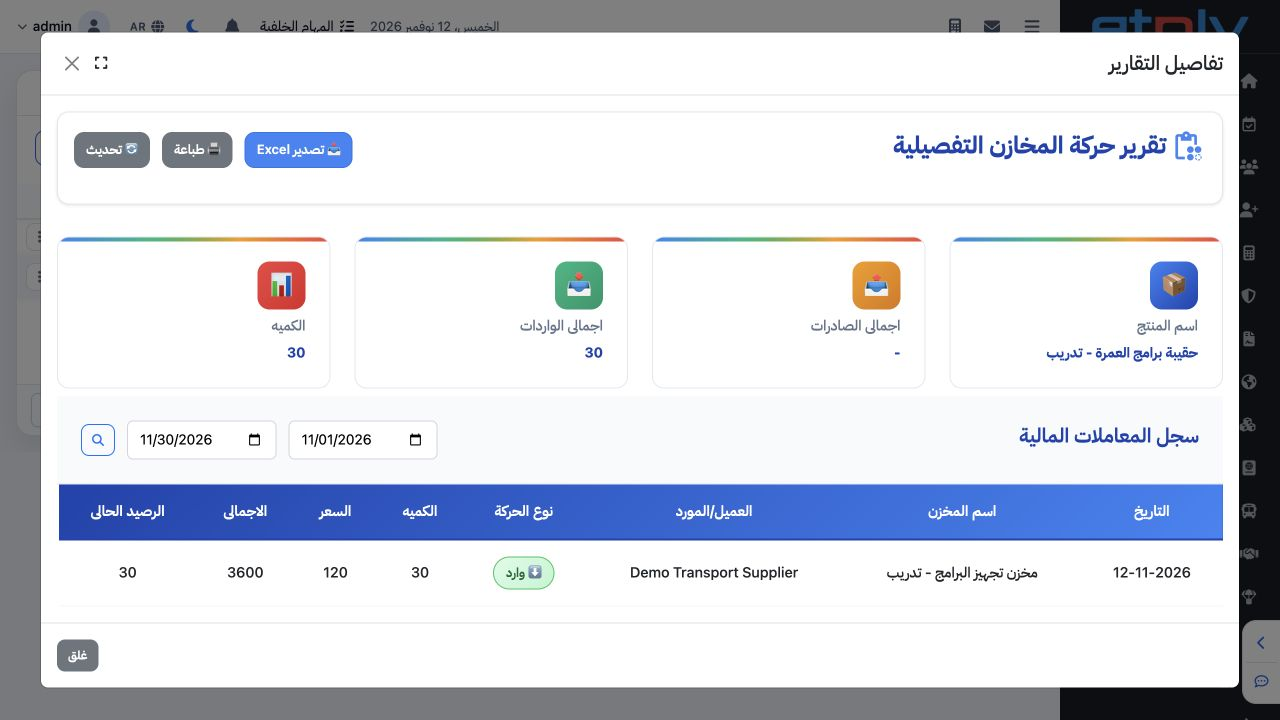
6 Choose Report Details from the product menu. It shows product name, receipts, deliveries and balance, with date, warehouse, party, quantity,...
Choose Report Details from the product menu. It shows product name, receipts, deliveries and balance, with date, warehouse, party, quantity, price and value. This view shows receipt of 30 bags at 120, value 3,600, before the delivery was recorded.

Sign in to record the lessons you have read. Sign in