Skip to content
Trio Travel guide

Inventory Categories

On this page
  1. 1 Inventory category tree
  2. 2 Add a root category
  3. 3 Add a child category
  4. 4 Edit name and description
  5. 5 Review and cancel deletion
  6. 6 Collapse and expand the tree

1 Inventory category tree

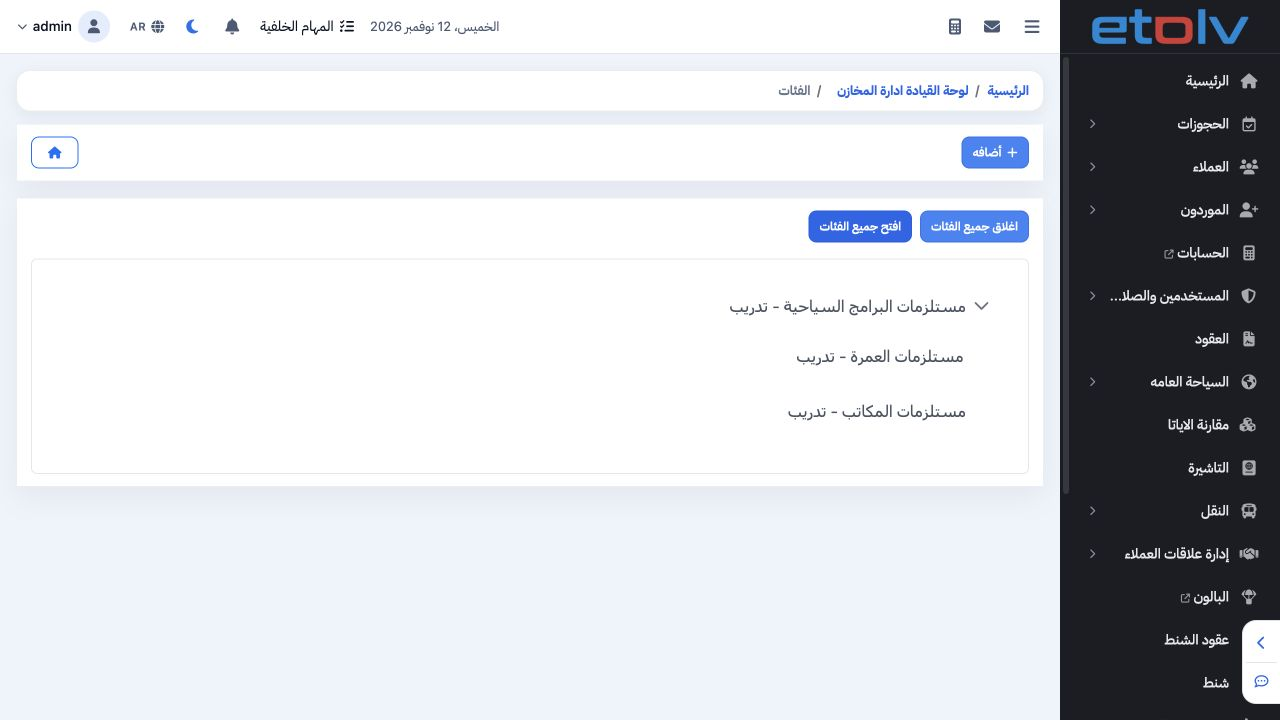
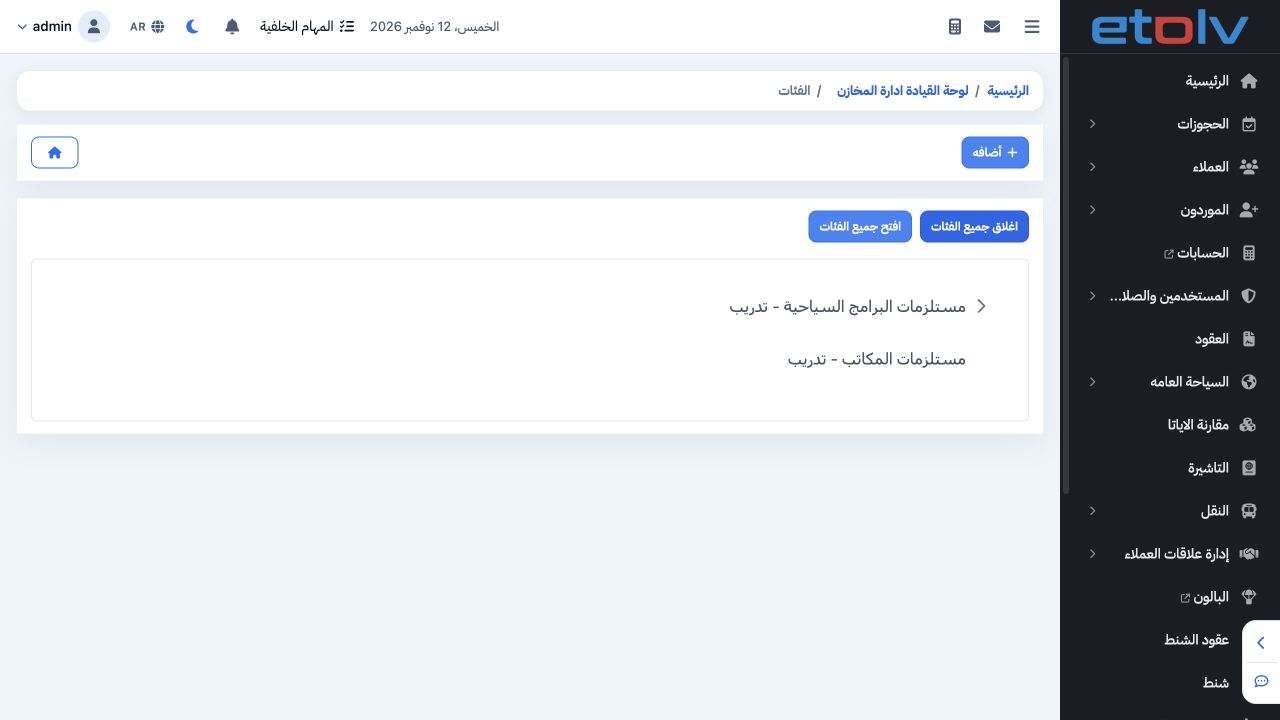
1 Open Category Management from the Inventory dashboard. The example places Umrah Supplies – Training under Tourism Program Supplies – Trainin...
Open Category Management from the Inventory dashboard. The example places Umrah Supplies – Training under Tourism Program Supplies – Training, with Office Supplies – Training as a separate root category. Categories classify products.

2 Add a root category

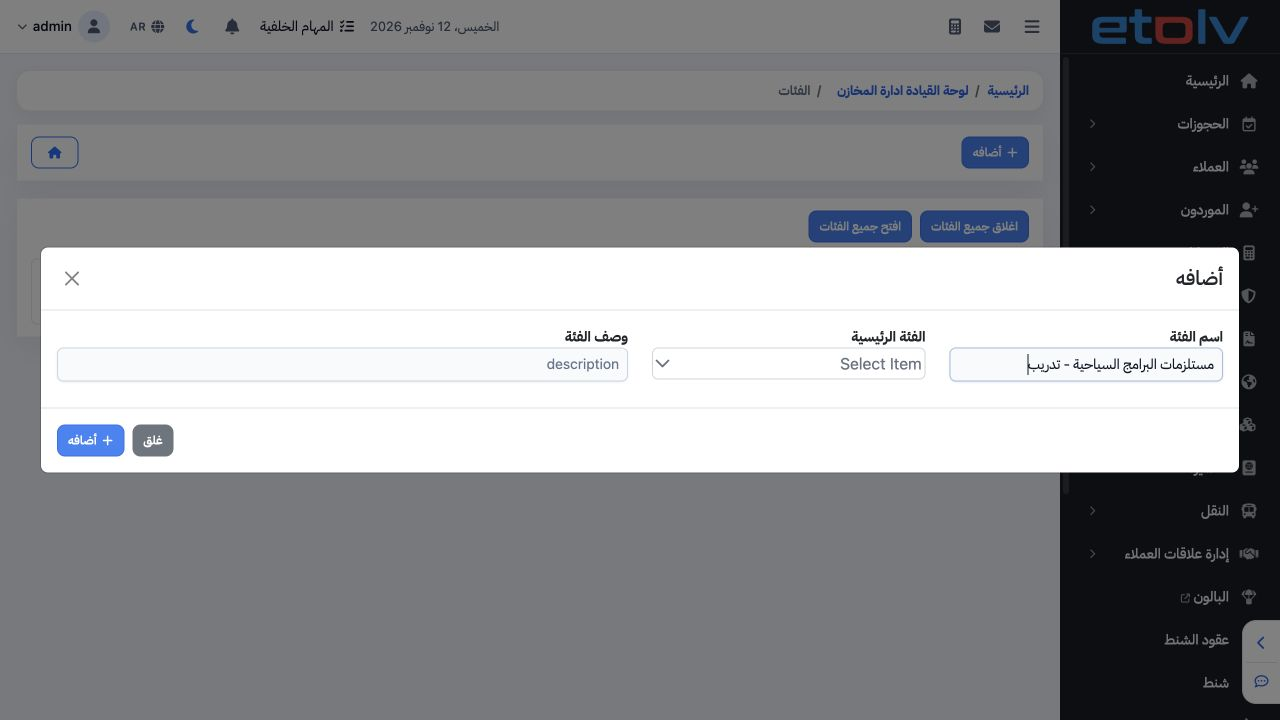
2 Choose Add and enter category name and description. Leave Parent Category unselected for a root category. The example saves Tourism Program...
Choose Add and enter category name and description. Leave Parent Category unselected for a root category. The example saves Tourism Program Supplies – Training with a description covering trips, delegations and religious programs. Choose Add to save or Close to discard the draft.

3 Add a child category

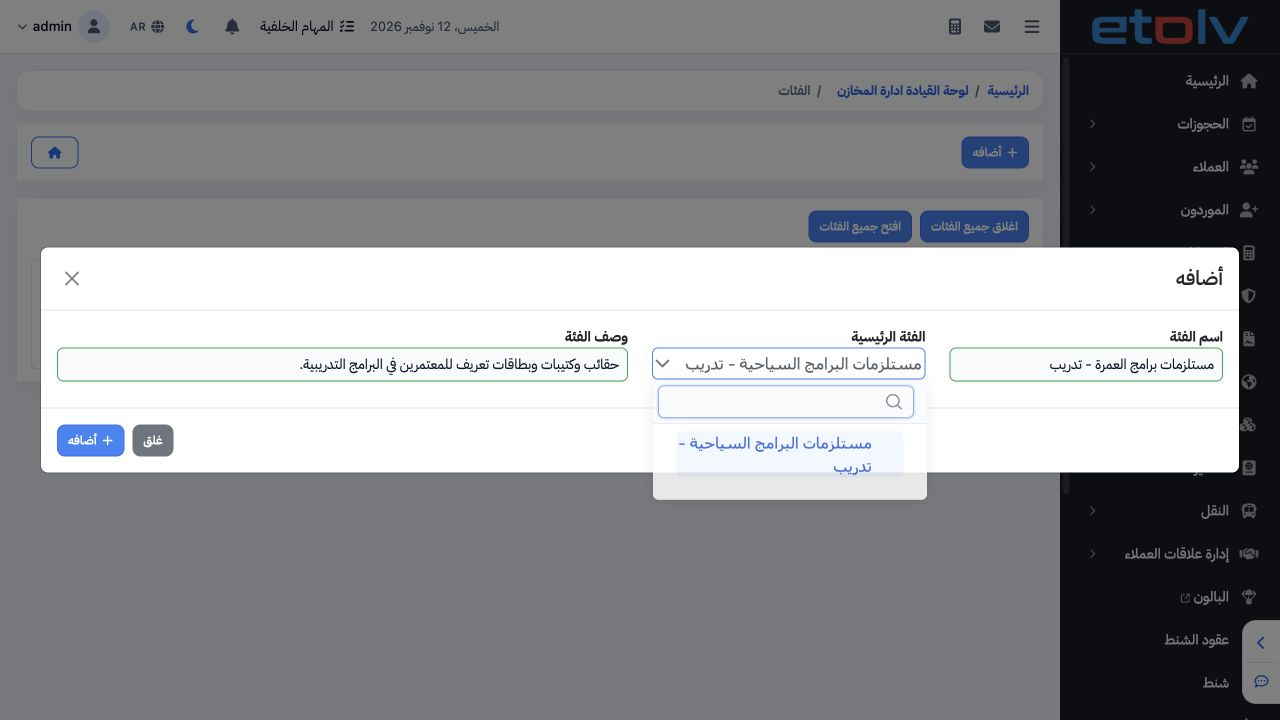
3 Enter the child category name and description, open Parent Category and select its parent from the tree. Umrah Program Supplies was added un...
Enter the child category name and description, open Parent Category and select its parent from the tree. Umrah Program Supplies was added under Tourism Program Supplies. After saving, expand the parent to verify the second level.

4 Edit name and description

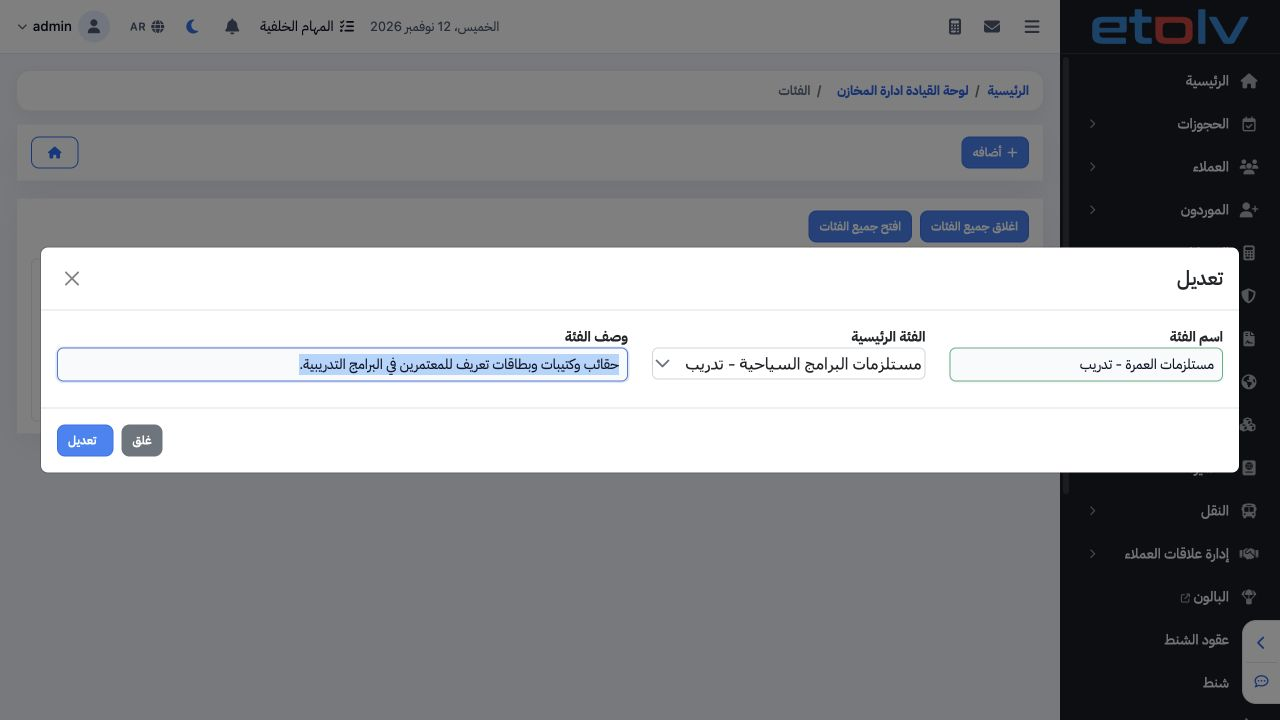
4 Right-click a category and choose Edit. Review name, parent and description. The example shortens its name to Umrah Supplies – Training and...
Right-click a category and choose Edit. Review name, parent and description. The example shortens its name to Umrah Supplies – Training and updates the description to bags, booklets and ID cards for a 20-pilgrim training program. Save Edit, then verify the name in the tree.

5 Review and cancel deletion

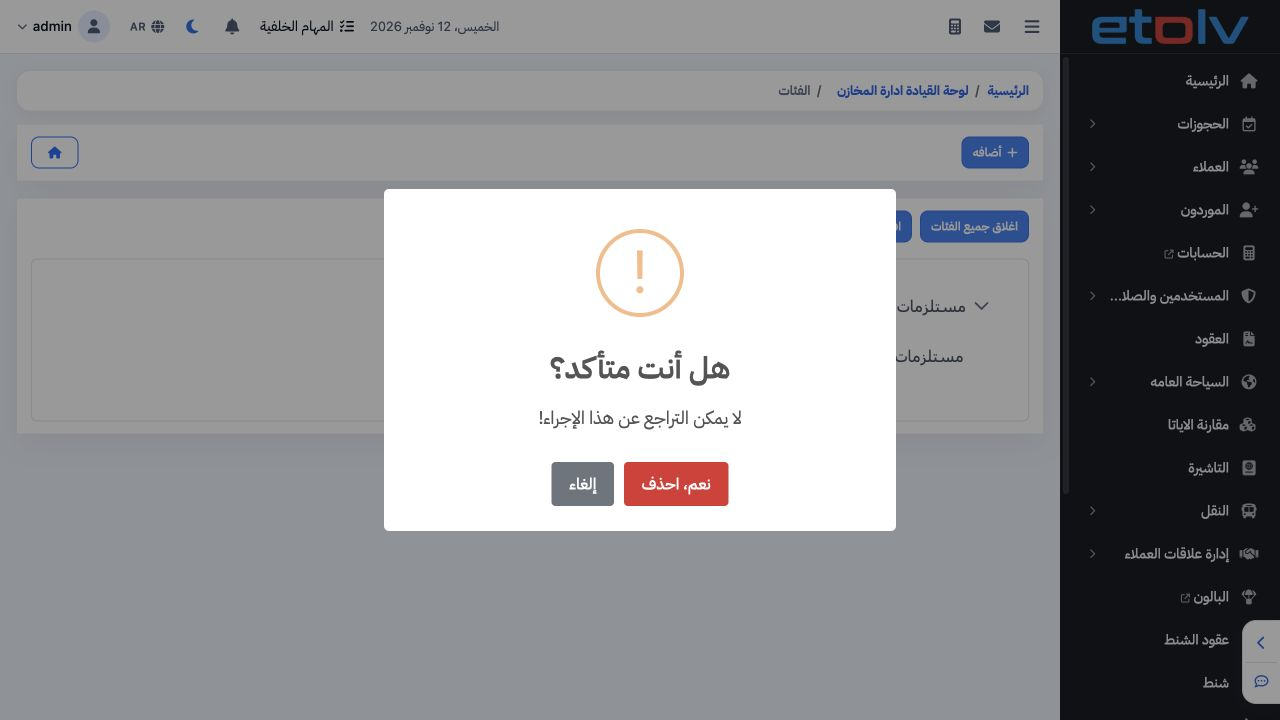
5 Choose Delete from the category menu to display confirmation. The message warns that deletion cannot be undone. Cancel keeps the category. D...
Choose Delete from the category menu to display confirmation. The message warns that deletion cannot be undone. Cancel keeps the category. Deletion was cancelled in this example so the category remains available to classify products.

6 Collapse and expand the tree

6 Collapse All hides child levels and keeps root categories visible. Expand All shows the branches again; each category arrow also toggles its...
Collapse All hides child levels and keeps root categories visible. Expand All shows the branches again; each category arrow also toggles its own branch. Use the breadcrumb to return to the Inventory dashboard.

Sign in to record the lessons you have read. Sign in