Skip to content
Trio Travel guide

Inventory Custom Fields

On this page
  1. 1 Custom fields
  2. 2 Add a text field
  3. 3 Add a selection list
  4. 4 Define a number field
  5. 5 Add a checkbox field
  6. 6 Edit the placeholder
  7. 7 Review field deletion

1 Custom fields

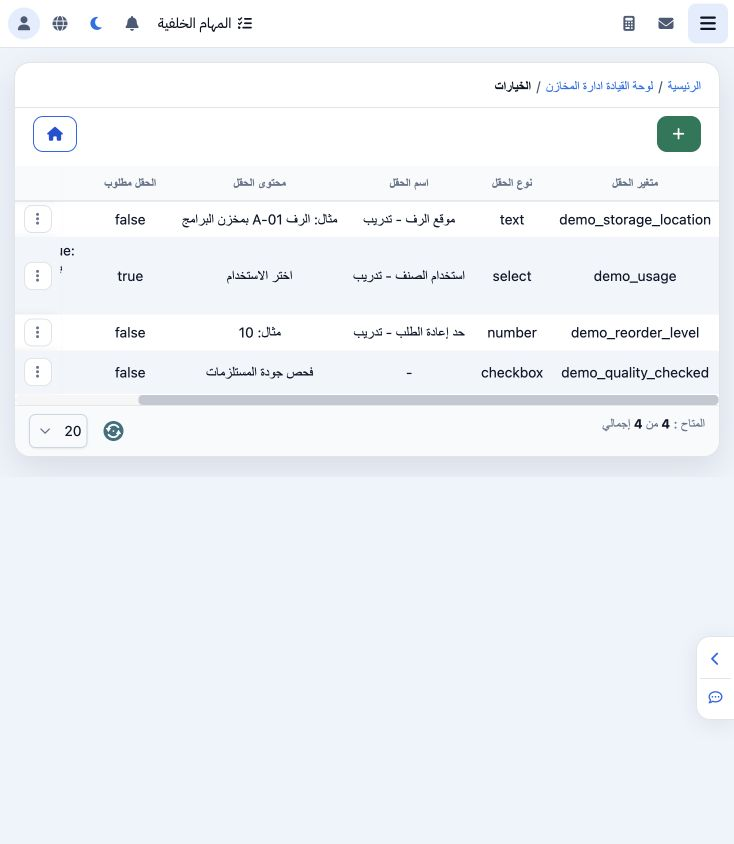
1 Open Dynamic Fields from the Inventory dashboard. The list shows each field’s key, type, name, placeholder, required setting and options. Th...
Open Dynamic Fields from the Inventory dashboard. The list shows each field’s key, type, name, placeholder, required setting and options. This example contains four saved fields.

2 Add a text field

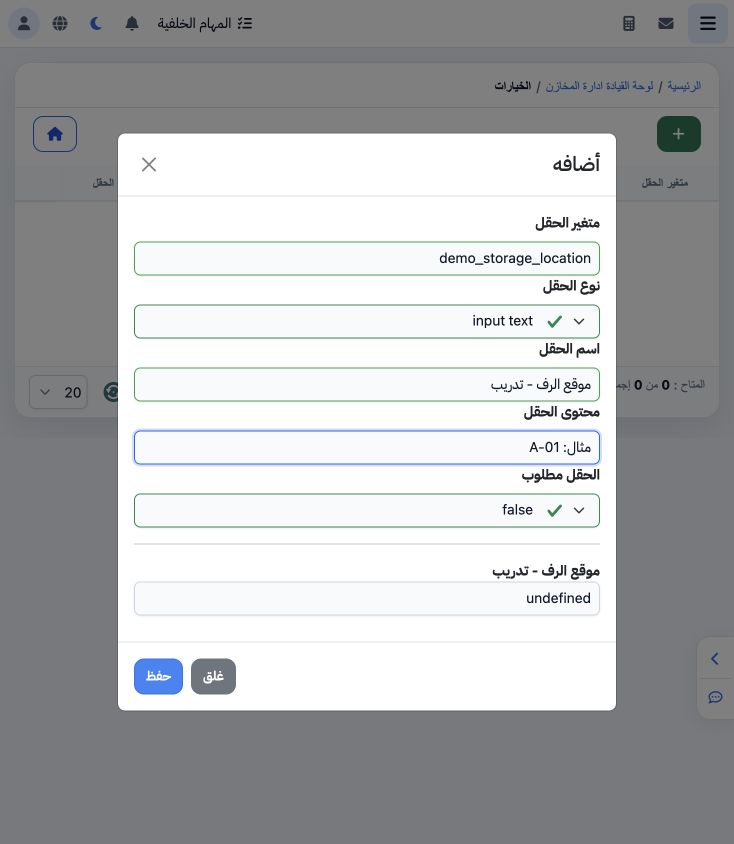
2 Choose +. Enter a distinct field key, select input text, then enter its display name and placeholder. This example uses demo_storage_locatio...
Choose +. Enter a distinct field key, select input text, then enter its display name and placeholder. This example uses demo_storage_location and the label Storage Shelf – Training. Select false for optional, then Save.

3 Add a selection list

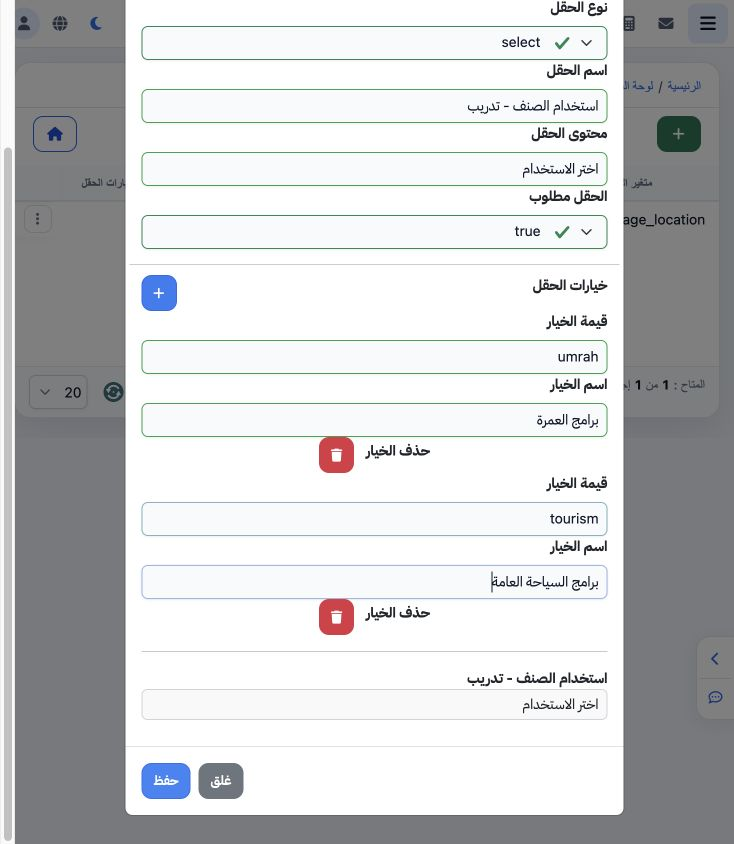
3 Select type select and enter demo_usage with the name Item Use – Training. Use + to add each option, supplying its stored value and displaye...
Select type select and enter demo_usage with the name Item Use – Training. Use + to add each option, supplying its stored value and displayed label. The example saves umrah for Umrah Programs and tourism for General Tourism, with Required set to true.

4 Define a number field

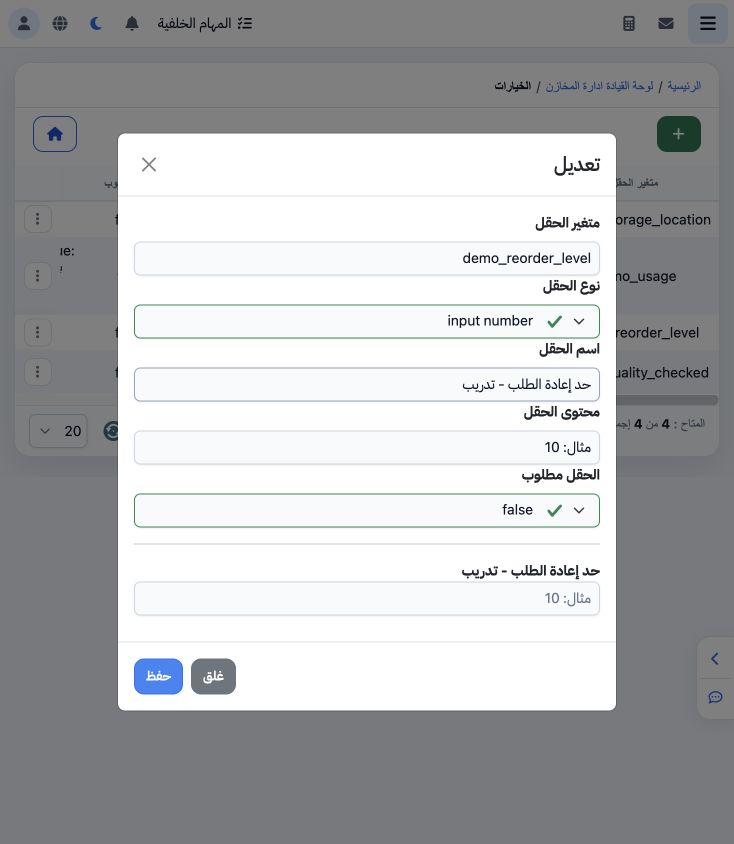
4 Choose input number, enter demo_reorder_level, the label Reorder Level – Training and a placeholder. Explicitly select false if optional, th...
Choose input number, enter demo_reorder_level, the label Reorder Level – Training and a placeholder. Explicitly select false if optional, then Save. This action saves the numeric field definition.

5 Add a checkbox field

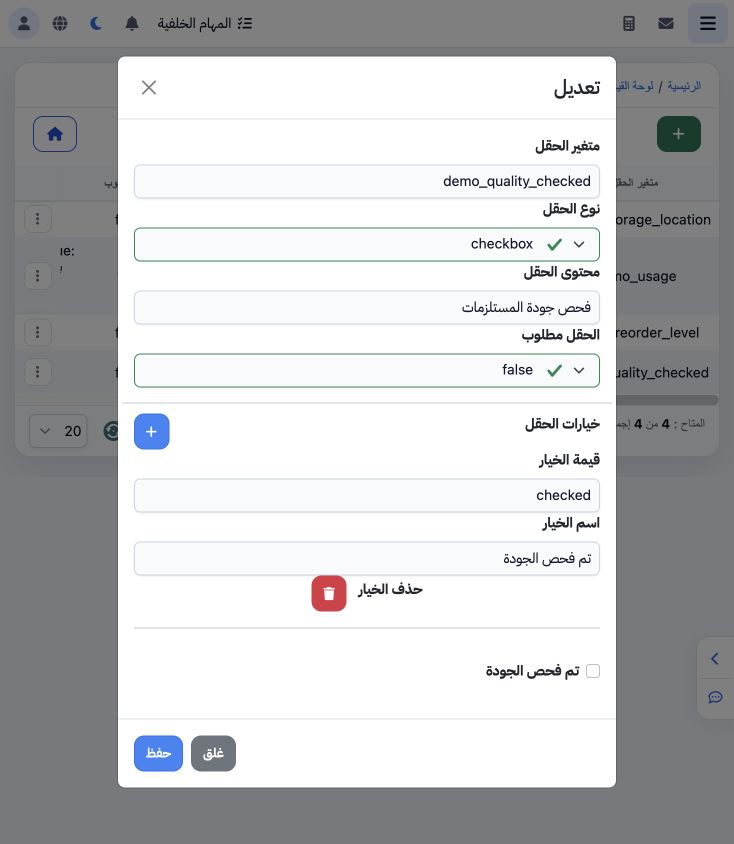
5 Choose checkbox and enter demo_quality_checked. Add an option with value checked and label Quality Checked, review its preview and save. The...
Choose checkbox and enter demo_quality_checked. Add an option with value checked and label Quality Checked, review its preview and save. The option label appears next to the preview checkbox.

6 Edit the placeholder

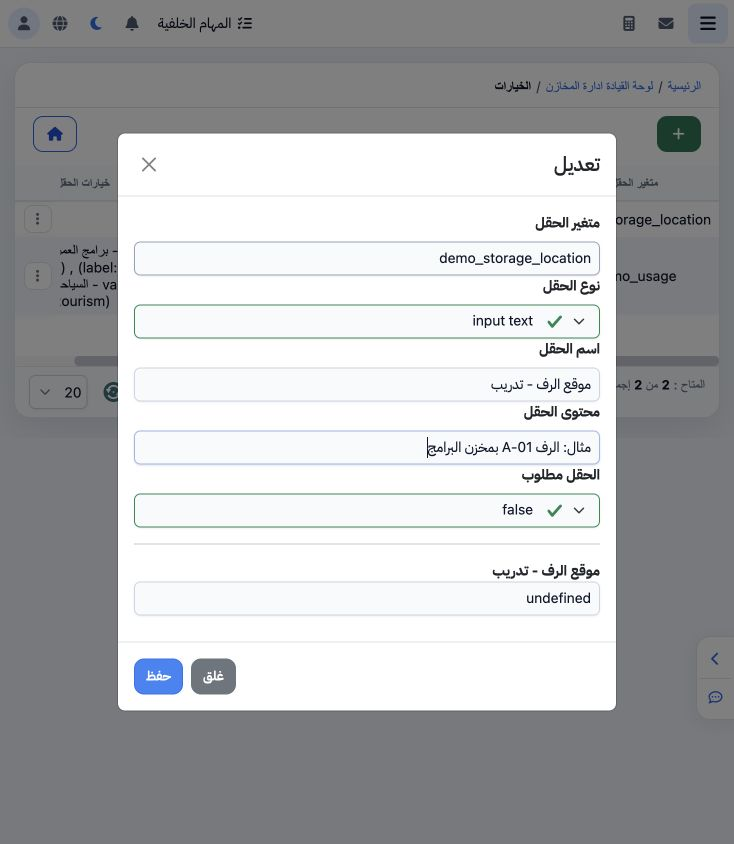
6 Choose Edit from the field menu and review the key, type, name and required setting. The Shelf placeholder was changed to an example identif...
Choose Edit from the field menu and review the key, type, name and required setting. The Shelf placeholder was changed to an example identifying shelf A-01 in the programs warehouse, saved and verified in the list.

7 Review field deletion

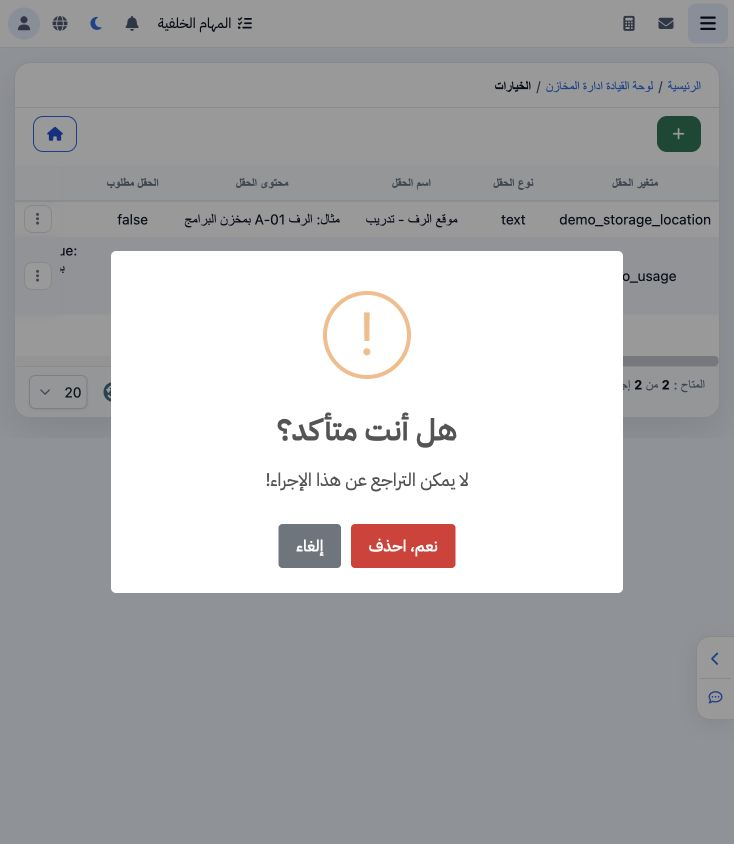
7 Choose Delete from the field menu to display confirmation. The message warns that the action cannot be undone; choose Cancel to retain the f...
Choose Delete from the field menu to display confirmation. The message warns that the action cannot be undone; choose Cancel to retain the field. Deletion was cancelled in this example.

Sign in to record the lessons you have read. Sign in