Skip to content
Trio Travel guide

Trio Travel Tag2 Guide

On this page
  1. View the tag hierarchy
  2. Add a child tag
  3. Find a tag in settings
  4. Look up a tag in a tourism file
  5. Check the tag before saving the file
  6. Open the general tourism booking reports
  7. Find a Tag2 value in the general flight report
  8. Apply the filter to the general flight report
  9. Filter the Tag2 profitability report
  10. Set the agent and service
  11. Read revenue, expenses, and profit
  12. Select the tag in the income statement
  13. Run the income statement with the filter
  14. Select the tag in the balance sheet
  15. Run the balance sheet with the filter
  16. Select the tag in the trial balance
  17. Run the trial balance with the filter
  18. Find the tag in a receipt voucher
  19. Check the selected tag in the receipt voucher
  20. Find the tag in a payment voucher
  21. Check the selected tag in the payment voucher

An accountant or finance manager can use Tag2 to classify transactions by office, project, or activity, then use the same tags to filter financial statements and reports.

View the tag hierarchy
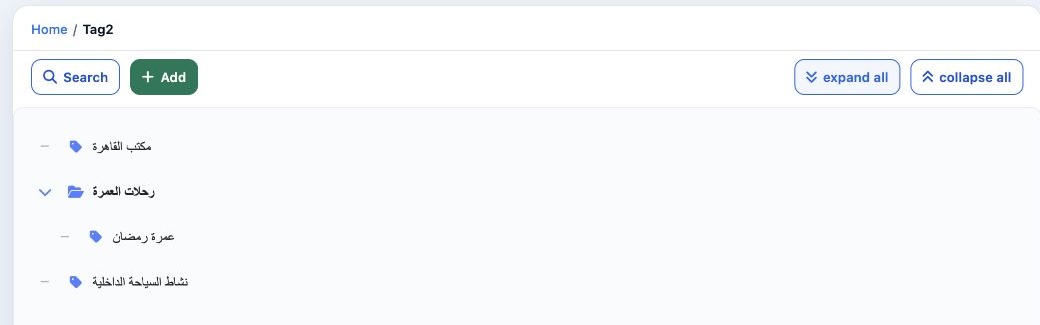
1 In Settings, open Tag2. The tree shows three top-level tags named مكتب القاهرة (Cairo Office), رحلات العمرة (Umrah Trips), and نشاط السياحة...
In Settings, open Tag2. The tree shows three top-level tags named مكتب القاهرة (Cairo Office), رحلات العمرة (Umrah Trips), and نشاط السياحة الداخلية (Domestic Tourism Activity). Select the arrow beside رحلات العمرة to reveal its child tag, عمرة رمضان (Ramadan Umrah).

Add a child tag

2 Select Add, enter عمرة رمضان in Tag2 name, select رحلات العمرة in Parent Tag2, then select Save. Leave the parent field blank to create a to...
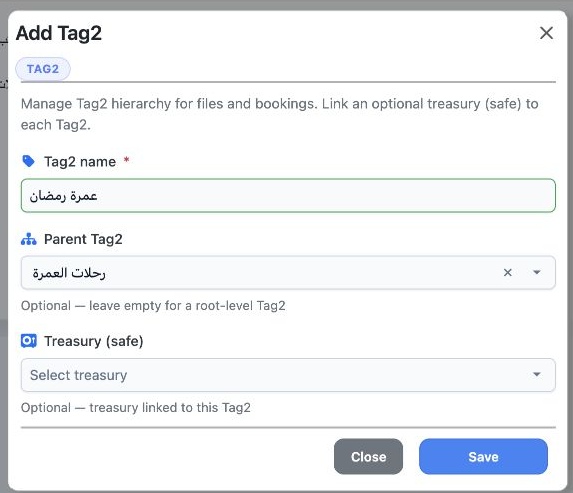
Select Add, enter عمرة رمضان in Tag2 name, select رحلات العمرة in Parent Tag2, then select Save. Leave the parent field blank to create a top-level tag. You can link a treasury to the tag if needed.

Find a tag in settings

3 Select Search, enter the tag name, then select the blue magnifying glass.
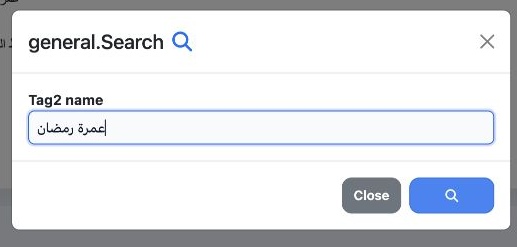
Select Search, enter the tag name, then select the blue magnifying glass.

Look up a tag in a tourism file

4 In the Tourism Files form, select the Tag2 field and type عمرة. Select عمرة رمضان from the results.
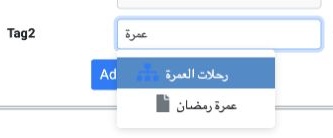
In the Tourism Files form, select the Tag2 field and type عمرة. Select عمرة رمضان from the results.

Check the tag before saving the file

5 Confirm that عمرة رمضان appears in Tag2. After completing the required file details, select Add tag to save the file.
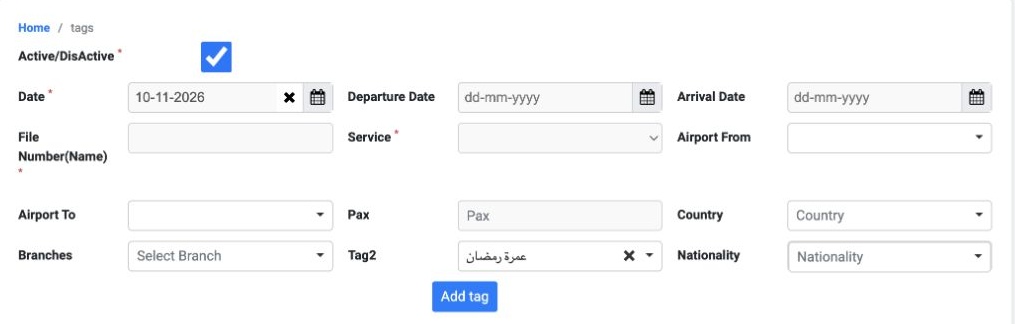
Confirm that عمرة رمضان appears in Tag2. After completing the required file details, select Add tag to save the file.

Open the general tourism booking reports
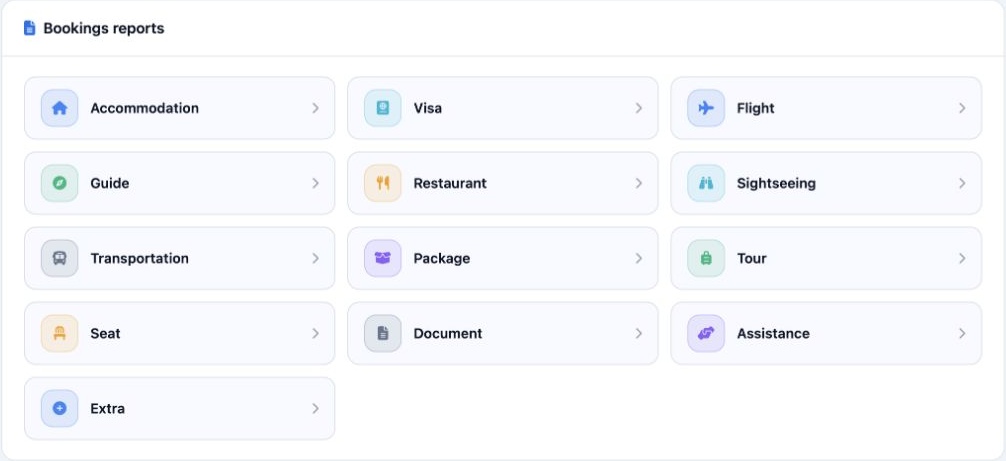
6 On the Portal home page, scroll to Bookings reports. Choose a report by service, such as Accommodation, Visa, Flight, or Guide.
On the Portal home page, scroll to Bookings reports. Choose a report by service, such as Accommodation, Visa, Flight, or Guide.

Find a Tag2 value in the general flight report
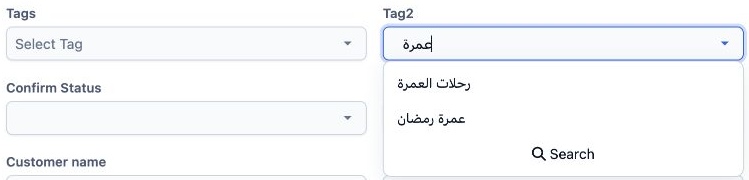
7 From Accounting, select Portal. Open Reservations, then Reservation Report. Select General Flight Report and choose Search. In Tag2, type عم...
From Accounting, select Portal. Open Reservations, then Reservation Report. Select General Flight Report and choose Search. In Tag2, type عمرة, then select عمرة رمضان.

Apply the filter to the general flight report
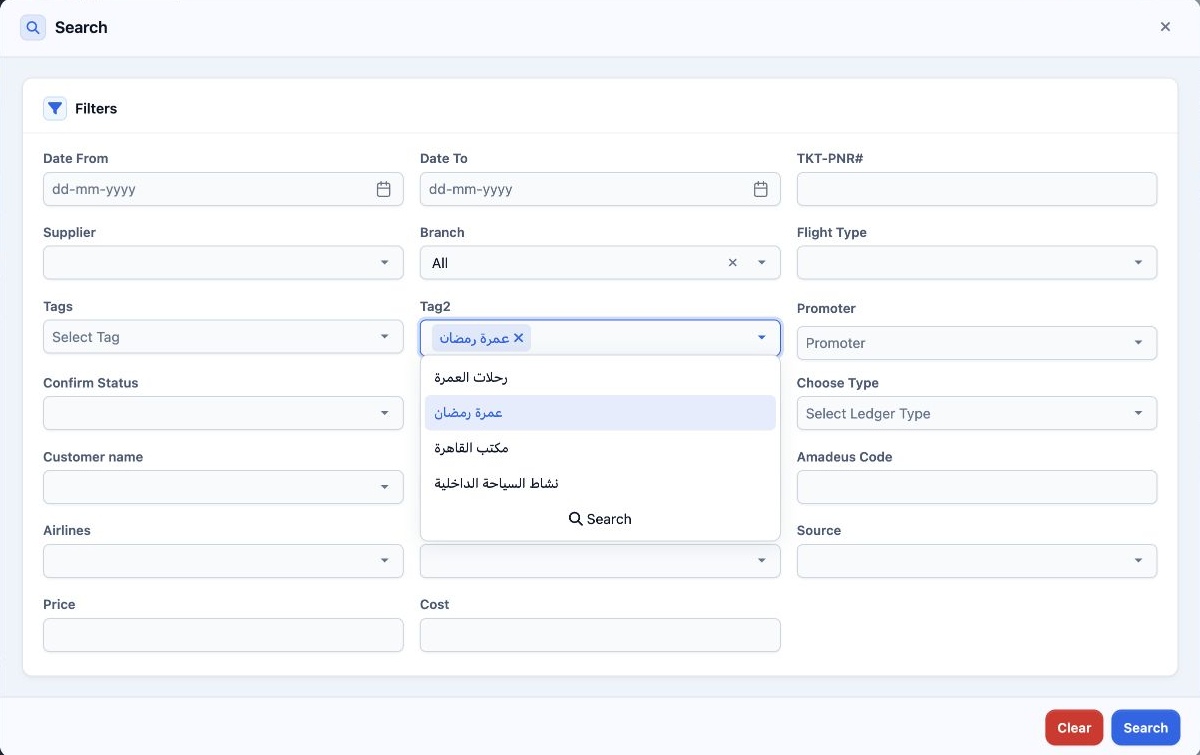
8 Confirm that the value appears in Tag2, then select the blue Search button at the bottom of the dialog. The adjacent Tags field is for touri...
Confirm that the value appears in Tag2, then select the blue Search button at the bottom of the dialog. The adjacent Tags field is for tourism file tags, including both Umrah and general tourism files.

Filter the Tag2 profitability report

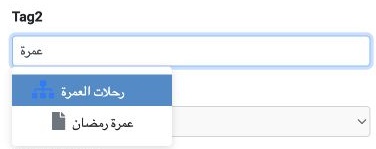
9 In Accounting, under General Reports, open Tag2 Report and select Search. In Tag2, type عمرة, then select عمرة رمضان from the results.
In Accounting, under General Reports, open Tag2 Report and select Search. In Tag2, type عمرة, then select عمرة رمضان from the results.

Set the agent and service

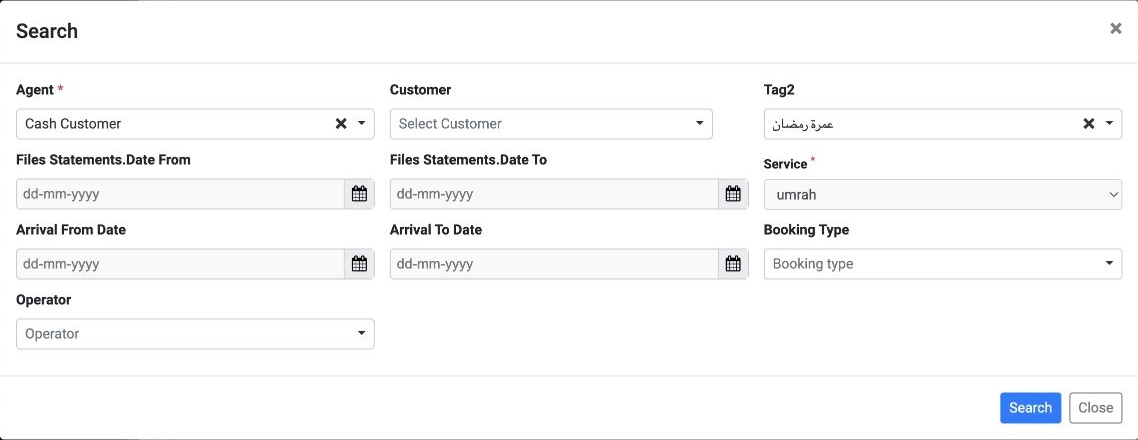
10 Select the applicable Agent and choose umrah in Service. To narrow the search, you can set a file date range or an arrival date range. Selec...
Select the applicable Agent and choose umrah in Service. To narrow the search, you can set a file date range or an arrival date range. Select Search in the dialog.

Read revenue, expenses, and profit

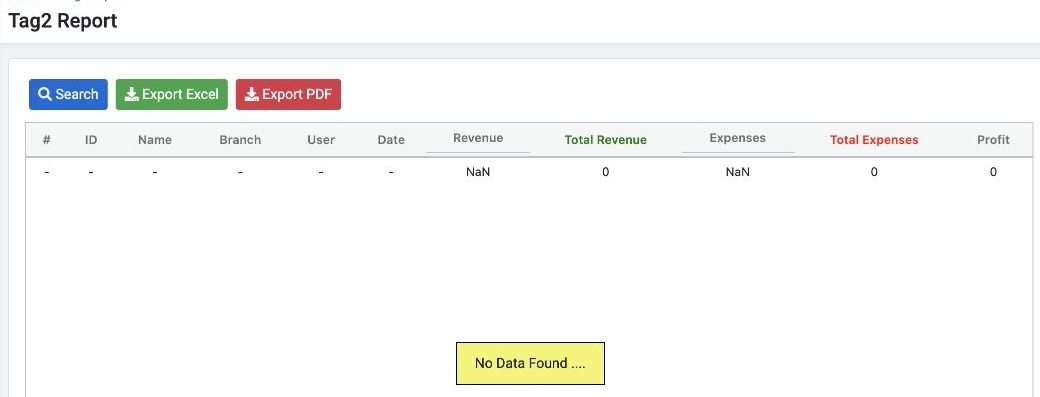
11 The report shows the selected tag’s revenue, expenses, and profit. Review the Total Revenue, Total Expenses, and Profit columns in the resul...
The report shows the selected tag’s revenue, expenses, and profit. Review the Total Revenue, Total Expenses, and Profit columns in the results. No Data Found appears when no records match the search criteria, as in this example.

Select the tag in the income statement
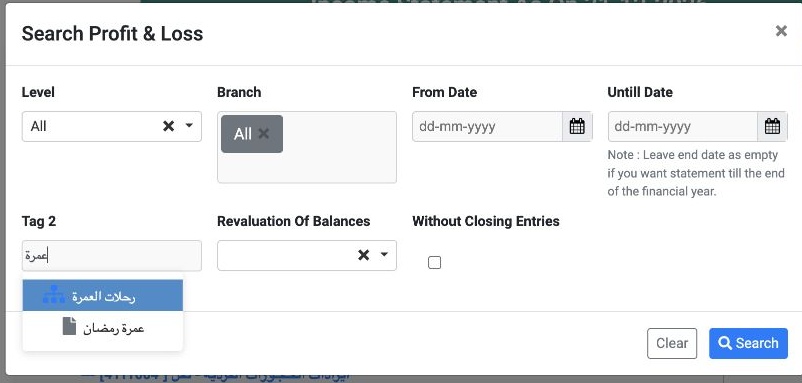
12 Under Financial Reports, open Income Statement and select Search. In Tag 2, type عمرة and select عمرة رمضان.
Under Financial Reports, open Income Statement and select Search. In Tag 2, type عمرة and select عمرة رمضان.

Run the income statement with the filter
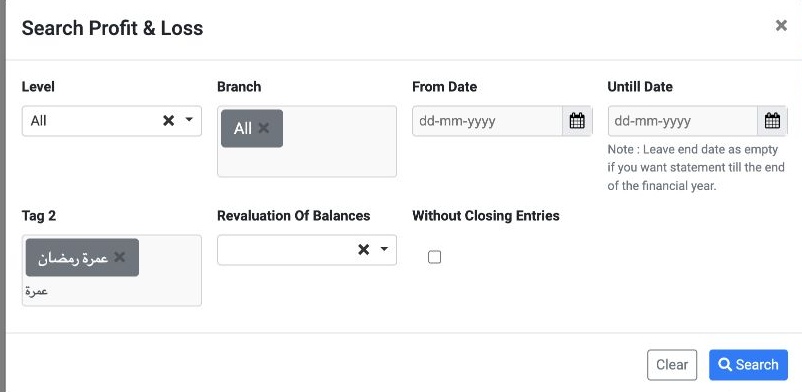
13 Confirm that the selected tag appears in the field. Set the reporting period if needed, then select Search in the dialog to run the report w...
Confirm that the selected tag appears in the field. Set the reporting period if needed, then select Search in the dialog to run the report with the filter. Tags can also be used in receipt and payment vouchers and to filter the balance sheet and trial balance.

Select the tag in the balance sheet

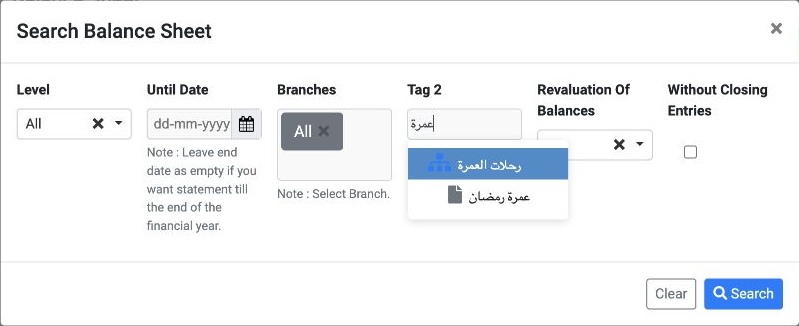
14 Under Financial Reports, open Balance Sheet and select Search. In Tag 2, type عمرة, then select عمرة رمضان from the results.
Under Financial Reports, open Balance Sheet and select Search. In Tag 2, type عمرة, then select عمرة رمضان from the results.

Run the balance sheet with the filter
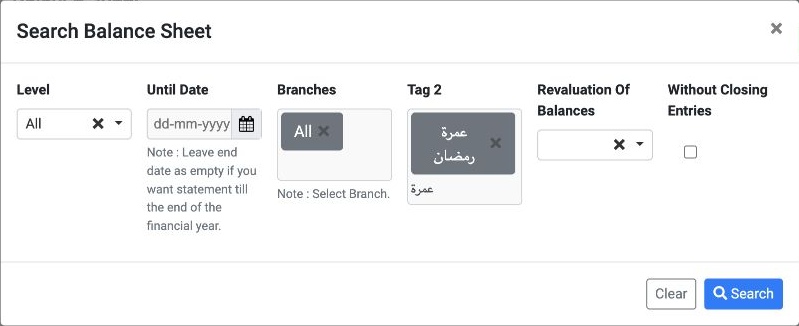
15 Confirm that the selected tag appears. Use Until Date to run the balance sheet as of a specific date. Leave it blank to run through the end...
Confirm that the selected tag appears. Use Until Date to run the balance sheet as of a specific date. Leave it blank to run through the end of the financial year. Then select Search in the dialog.

Select the tag in the trial balance

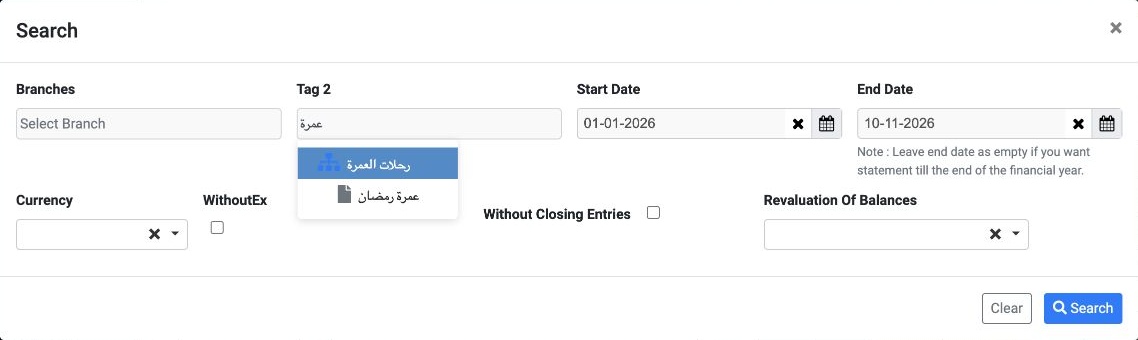
16 Under Financial Reports, open Trial Balance (Tree) and select Search. In Tag 2, type عمرة, then select عمرة رمضان from the results.
Under Financial Reports, open Trial Balance (Tree) and select Search. In Tag 2, type عمرة, then select عمرة رمضان from the results.

Run the trial balance with the filter
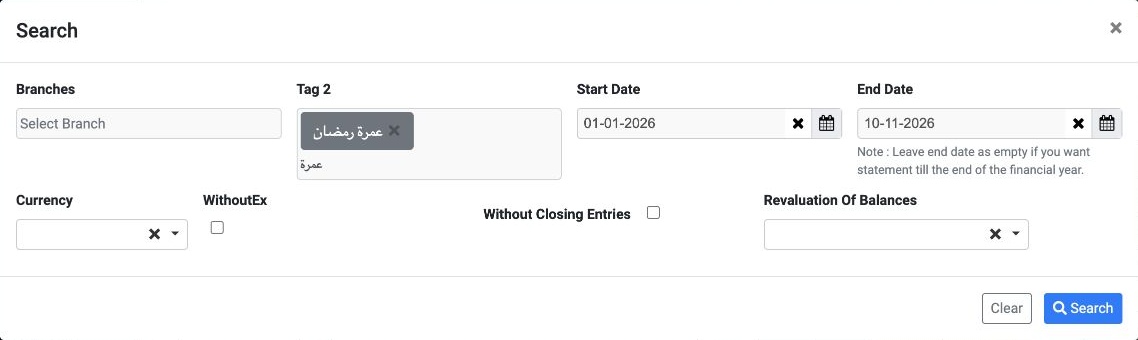
17 Confirm that the selected tag appears. Check Start Date and End Date, and adjust them for the reporting period. Then select Search in the di...
Confirm that the selected tag appears. Check Start Date and End Date, and adjust them for the reporting period. Then select Search in the dialog.

Find the tag in a receipt voucher

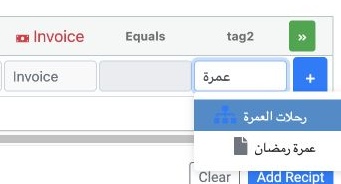
18 In Safe, open Receipt. Select tag2 on the voucher line and type عمرة. Select عمرة رمضان from the results.
In Safe, open Receipt. Select tag2 on the voucher line and type عمرة. Select عمرة رمضان from the results.

Check the selected tag in the receipt voucher
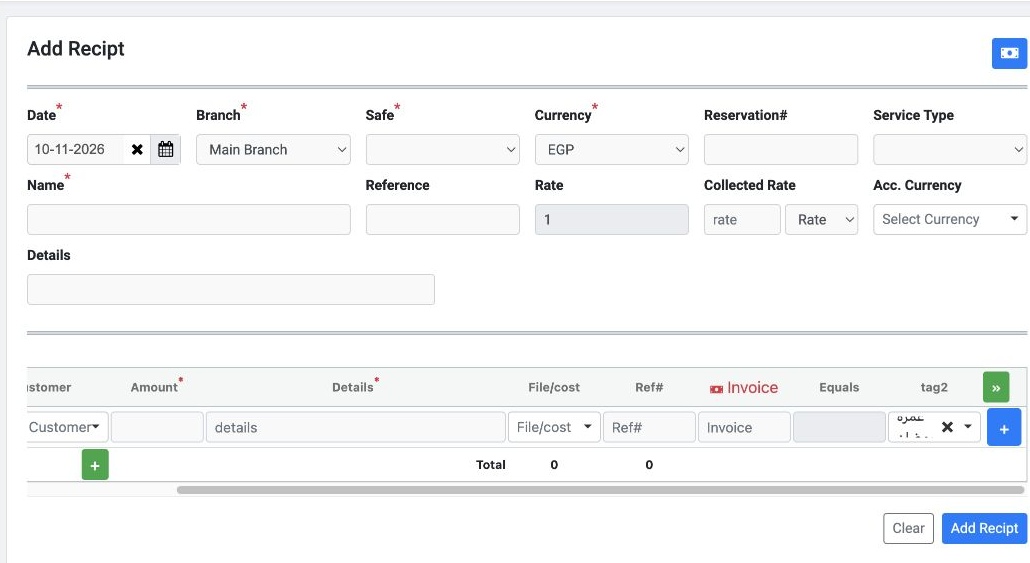
19 Confirm that the tag appears in the tag2 column on the line you selected.
Confirm that the tag appears in the tag2 column on the line you selected.

Find the tag in a payment voucher

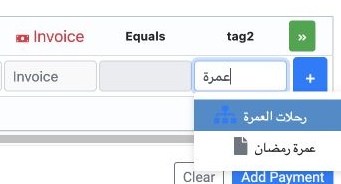
20 In Safe, open Payment. Select tag2 on the voucher line and type عمرة. Select عمرة رمضان from the results.
In Safe, open Payment. Select tag2 on the voucher line and type عمرة. Select عمرة رمضان from the results.

Check the selected tag in the payment voucher
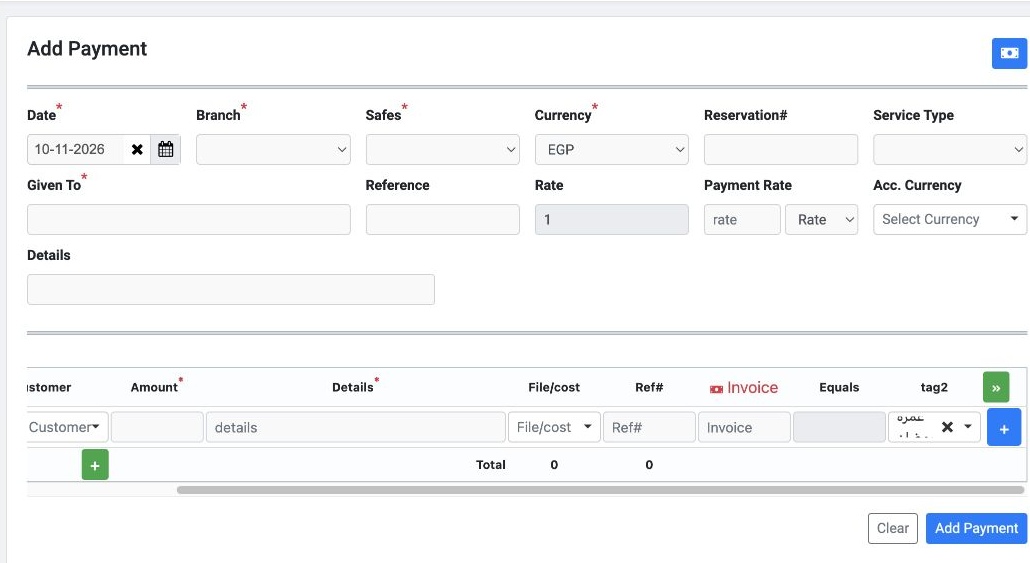
21 Confirm that the tag appears in the tag2 column on the line you selected.
Confirm that the tag appears in the tag2 column on the line you selected.

Sign in to record the lessons you have read. Sign in