Skip to content
Trio Travel guide

Trio Travel File Types Guide

On this page
  1. View file types
  2. Search by name
  3. Review or clear search results
  4. Add a file type
  5. Open the row actions
  6. Edit a file type

View file types

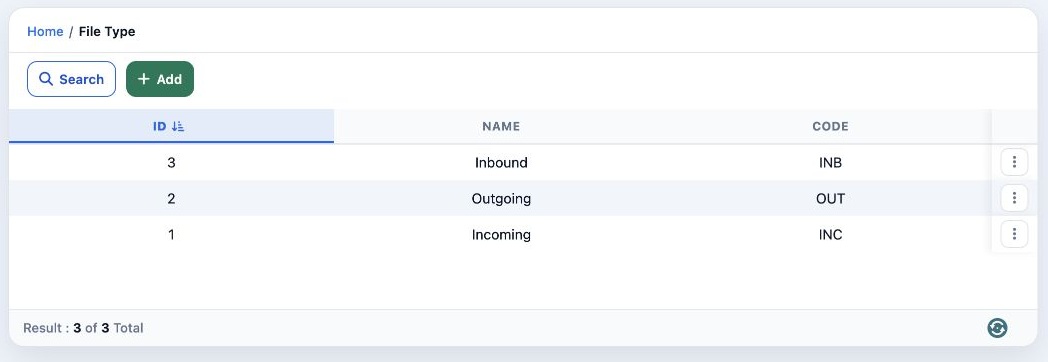
1 In Settings, open File Type. The table shows the record ID, the file type name, and the code entered by the user.
In Settings, open File Type. The table shows the record ID, the file type name, and the code entered by the user.

Search by name

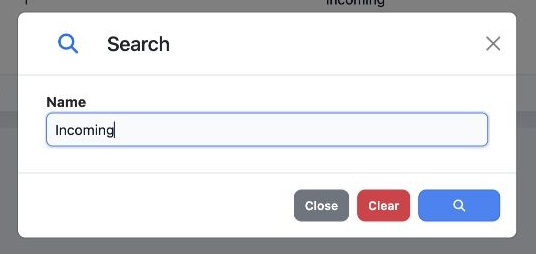
2 Select Search and enter the type name, such as Incoming. Select the blue magnifying glass in the dialog.
Select Search and enter the type name, such as Incoming. Select the blue magnifying glass in the dialog.

Review or clear search results

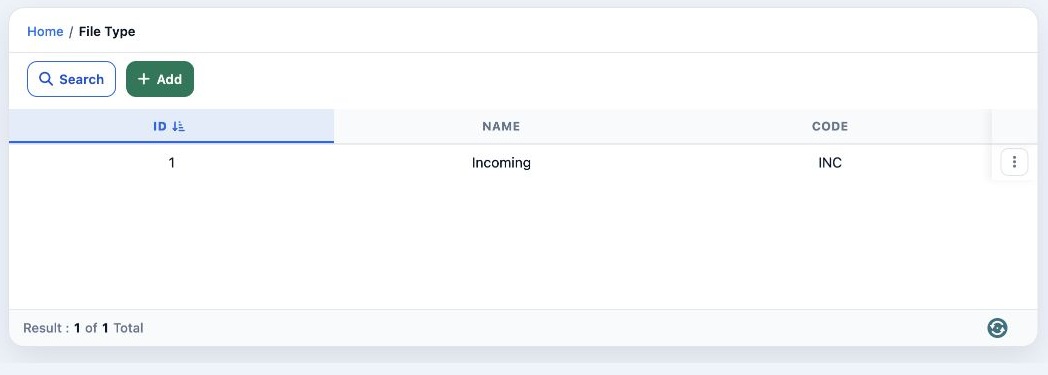
3 The table shows the matching type and its code. To restore the full list, reopen Search, select Clear, then select the magnifying glass.
The table shows the matching type and its code. To restore the full list, reopen Search, select Clear, then select the magnifying glass.

Add a file type

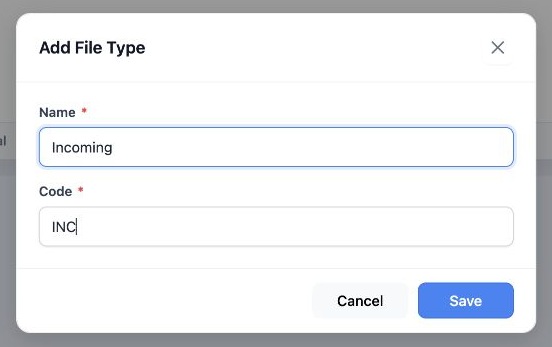
4 Select Add and enter the Name and Code. The code is a reference you choose for the type, such as an abbreviation like INC or a serial number...
Select Add and enter the Name and Code. The code is a reference you choose for the type, such as an abbreviation like INC or a serial number. Select Save.

Open the row actions

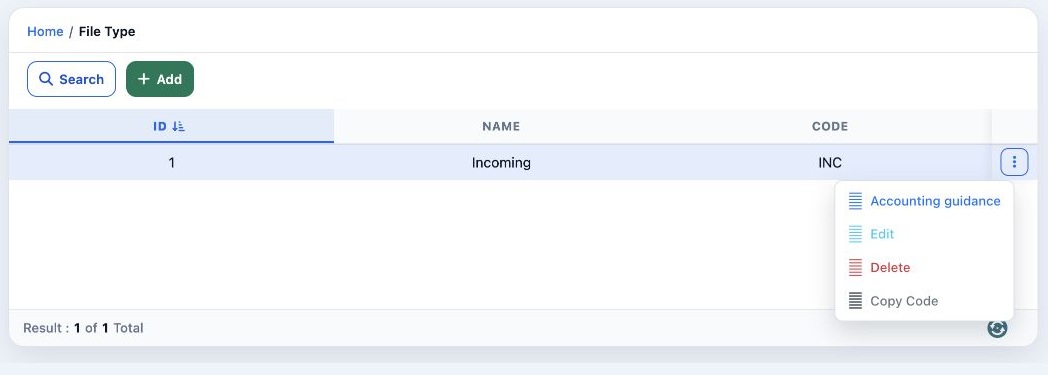
5 Open the three-dot menu beside the file type. The menu lists Accounting guidance, Edit, Delete, and Copy Code. To change the name or code, s...
Open the three-dot menu beside the file type. The menu lists Accounting guidance, Edit, Delete, and Copy Code. To change the name or code, select Edit.

Edit a file type

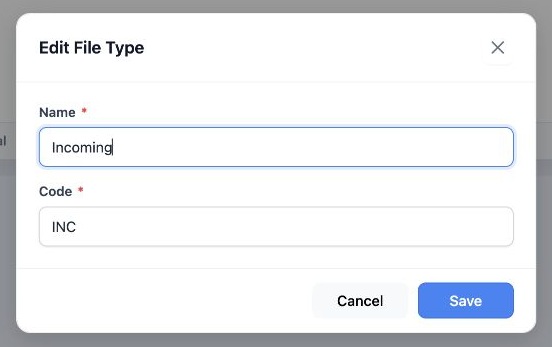
6 Change the name or code, then select Save. To close the dialog without saving, select Cancel.
Change the name or code, then select Save. To close the dialog without saving, select Cancel.

Sign in to record the lessons you have read. Sign in