Skip to content
Trio Travel guide

Trio Travel Sightseeing Guide

On this page
  1. View the sightseeing list
  2. Search for an attraction
  3. Add an attraction
  4. Import an Excel list

View the sightseeing list

1 In Settings, open Sight Seeing. The table shows attraction names, locations, costs and prices. Scroll horizontally to view more columns, or...
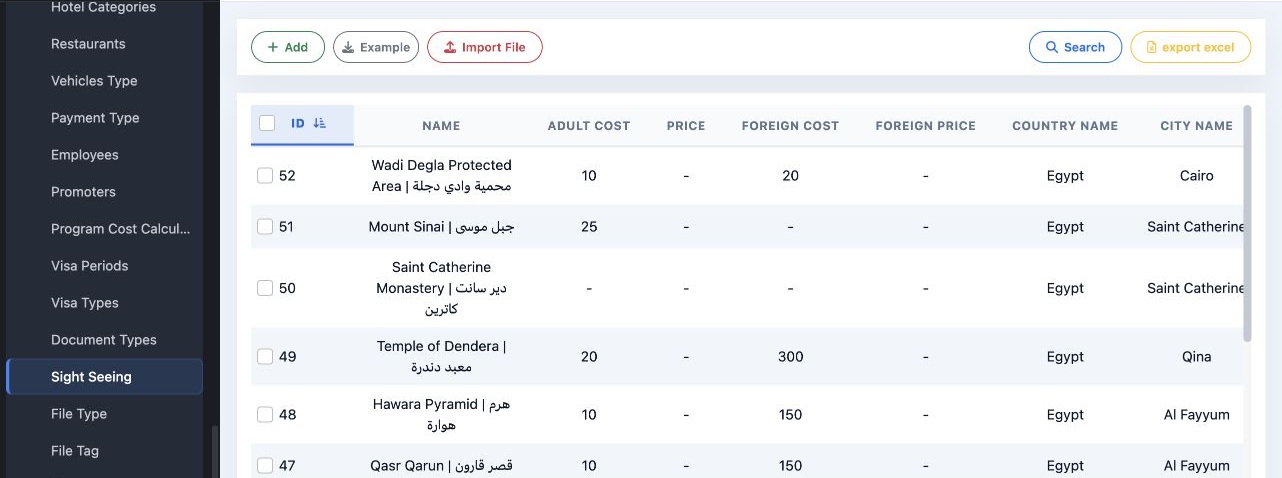
In Settings, open Sight Seeing. The table shows attraction names, locations, costs and prices. Scroll horizontally to view more columns, or select export excel to download the table.

Search for an attraction

2 Select Search. Enter the attraction name, or select a country and then a city, and select Search in the dialog. To clear the search criteria...
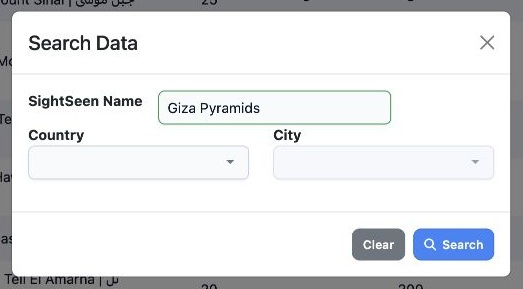
Select Search. Enter the attraction name, or select a country and then a city, and select Search in the dialog. To clear the search criteria, reopen the dialog and select Clear.

Add an attraction

3 Select Add, choose the country and city, then enter the attraction name and select the cost currency. Enter the adult and child costs and th...
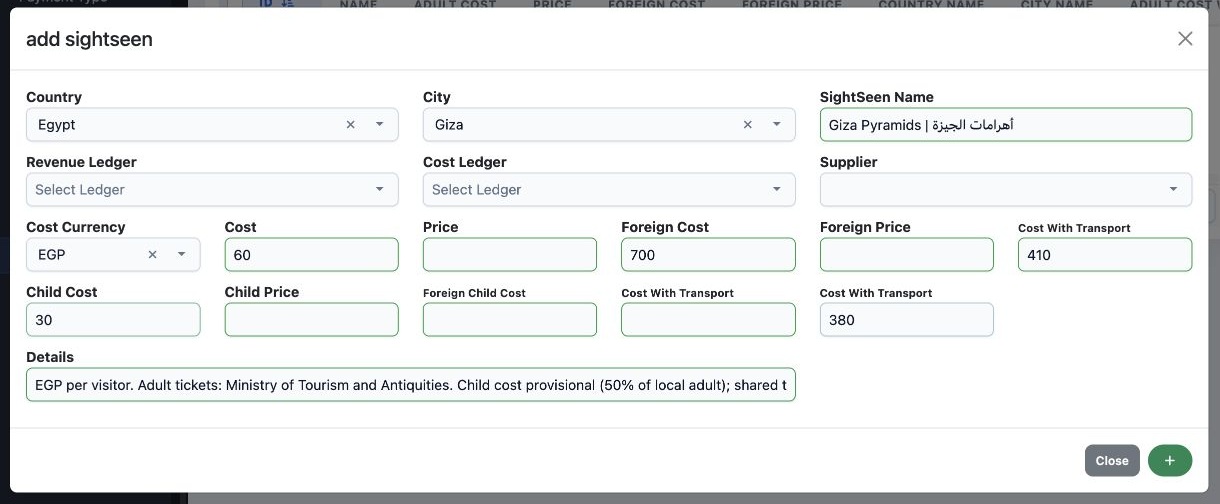
Select Add, choose the country and city, then enter the attraction name and select the cost currency. Enter the adult and child costs and their respective costs with transportation. Select the plus button at the bottom of the dialog to save.

Import an Excel list

4 Select Example to download the template. Enter the attractions in its existing columns, then use Import File to select the workbook. Review...
Select Example to download the template. Enter the attractions in its existing columns, then use Import File to select the workbook. Review the records and transportation costs in the system after importing.

Sign in to record the lessons you have read. Sign in