Skip to content
Trio Travel guide

Trio Travel Hotel Categories Guide

On this page
  1. View hotel categories
  2. Search for a category
  3. Review or clear search results
  4. Add a category
  5. Open a category’s actions
  6. Rename a category

View hotel categories

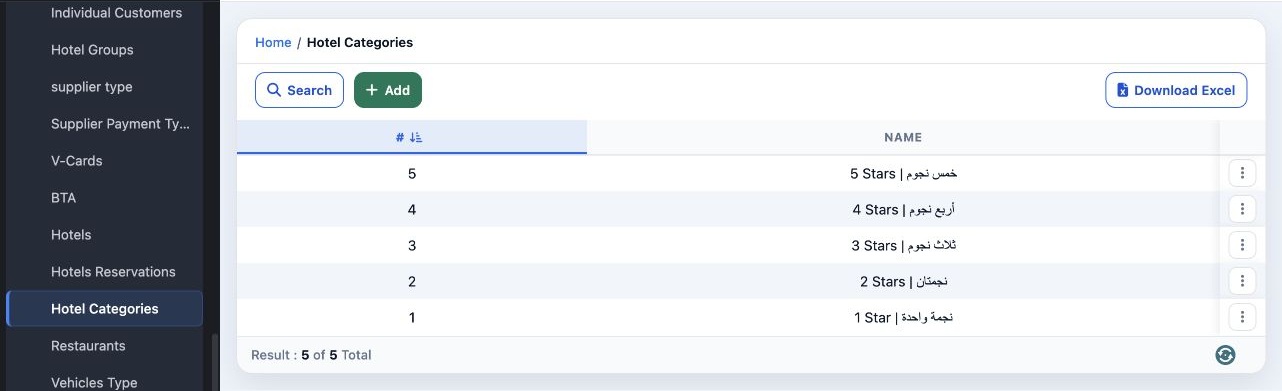
1 In Settings, open Hotel Categories. The table shows the five categories, from one star to five stars. To download the table, select Download...
In Settings, open Hotel Categories. The table shows the five categories, from one star to five stars. To download the table, select Download Excel.

Search for a category

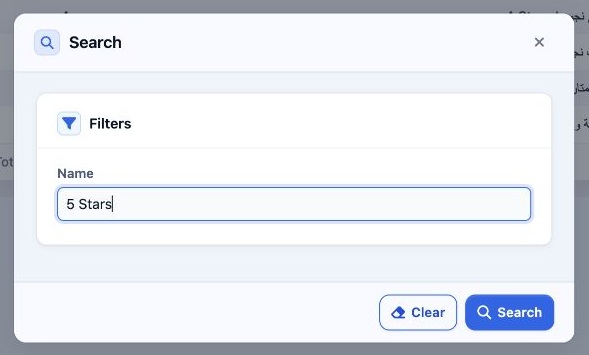
2 Select Search, then enter the category name in Name, such as 5 Stars. Select Search in the dialog.
Select Search, then enter the category name in Name, such as 5 Stars. Select Search in the dialog.

Review or clear search results

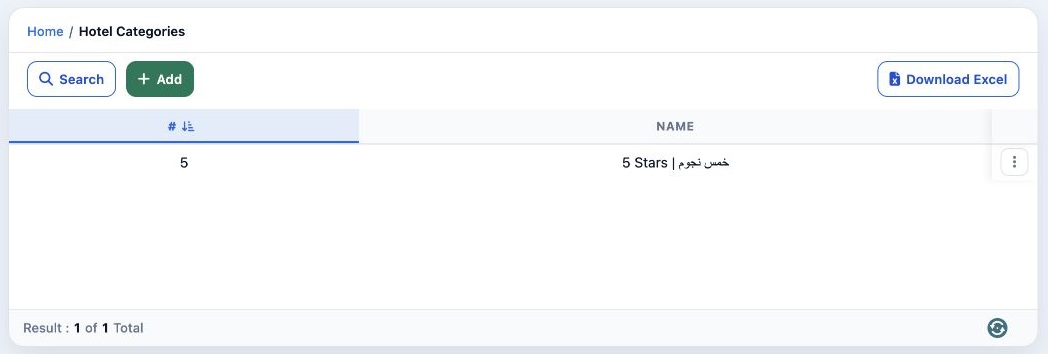
3 The table shows matching categories. To show all categories, reopen the search dialog, select Clear, then close the dialog.
The table shows matching categories. To show all categories, reopen the search dialog, select Clear, then close the dialog.

Add a category

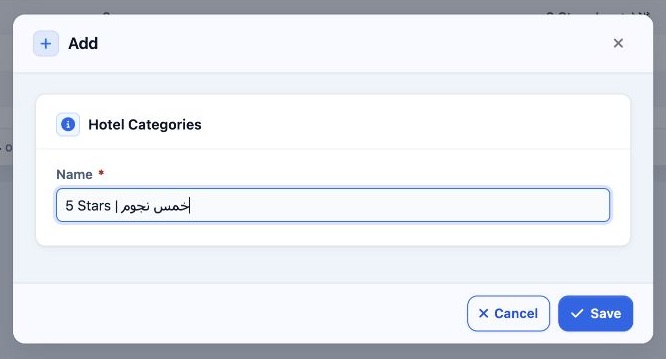
4 Select Add, enter the category name in Name, then select Save. The image shows the name format used to add the five-star category.
Select Add, enter the category name in Name, then select Save. The image shows the name format used to add the five-star category.

Open a category’s actions

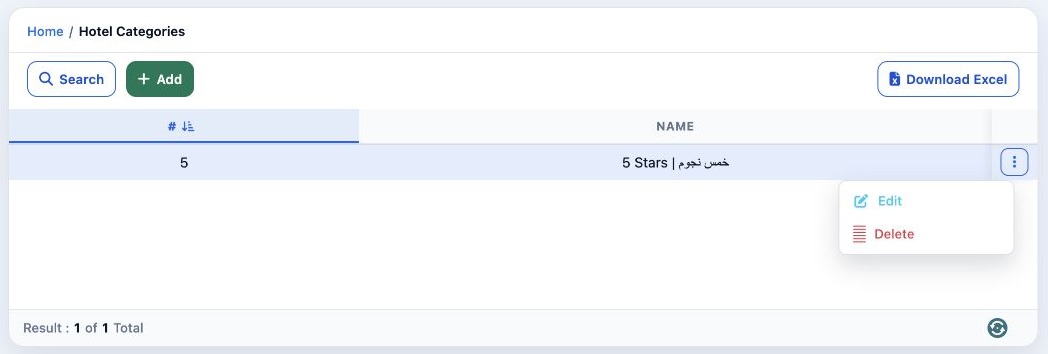
5 Open the three-dot menu in the category’s row. It contains Edit and Delete. To rename the category, select Edit.
Open the three-dot menu in the category’s row. It contains Edit and Delete. To rename the category, select Edit.

Rename a category

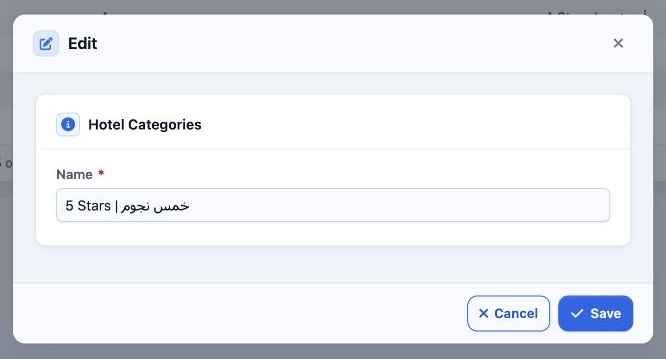
6 Change the category name in Name, then select Save. To leave without saving, select Cancel.
Change the category name in Name, then select Save. To leave without saving, select Cancel.

Sign in to record the lessons you have read. Sign in