Skip to content
Trio Travel guide

Add a lead note

On this page
  1. Edit and save a note
  2. Search notes
  3. Deletion confirmation and retaining the note
  4. Review the activity history

Open the lead from CRM, then Contacts, and select Notes inside its record. Enter follow-up information in Write a note, then select +. The add button is unavailable while the input is blank.
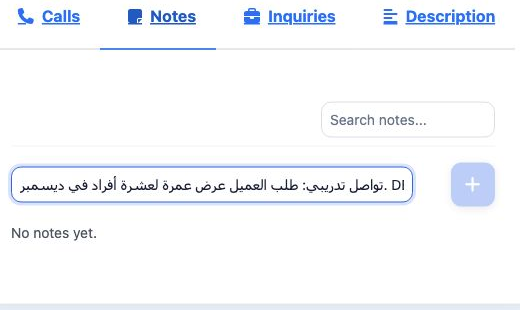
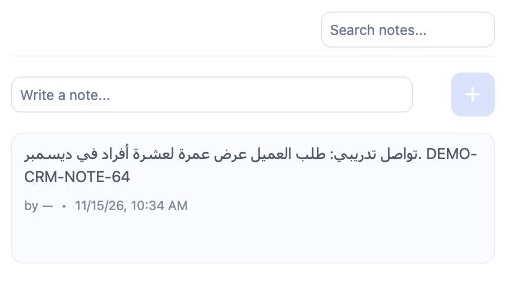
1 The example enters a request for an Umrah quotation for ten people in December, with reference DEMO-CRM-NOTE-64.
The example enters a request for an Umrah quotation for ten people in December, with reference DEMO-CRM-NOTE-64.
2 The saved note appears with its creation time.
The saved note appears with its creation time.

Edit and save a note

Move the pointer over the note or click its text to reveal the actions, then select the edit icon.
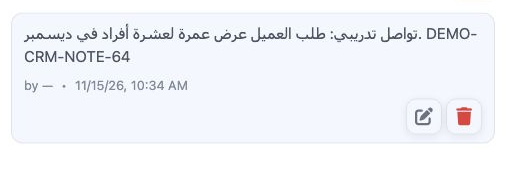
3 The edit and delete icons appear below the note.
The edit and delete icons appear below the note.
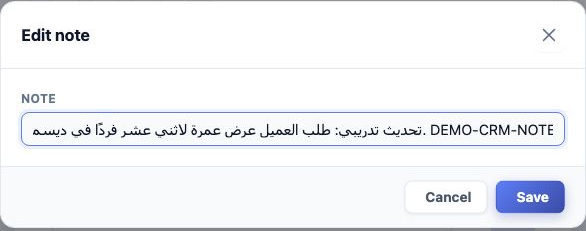
4 Change the text in Edit note, then select Save. The example changes the request to twelve people and reference DEMO-CRM-NOTE-64-EDITED. Canc...
Change the text in Edit note, then select Save. The example changes the request to twelve people and reference DEMO-CRM-NOTE-64-EDITED. Cancel or × leaves without saving the edit.
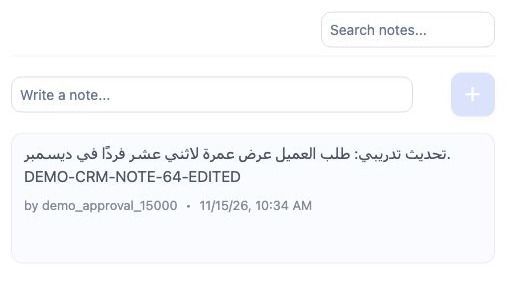
5 After reloading the lead and reopening Notes, the edited text and author demo_approval_15000 appear.
After reloading the lead and reopening Notes, the edited text and author demo_approval_15000 appear.

Search notes

Enter part of the wording in Search notes to filter the notes. Clear the search text to show all notes.
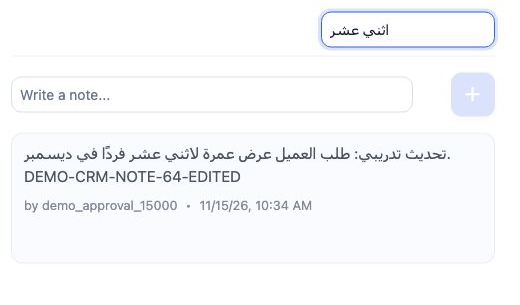
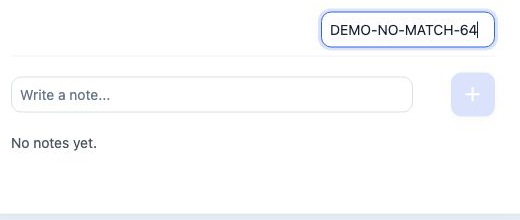
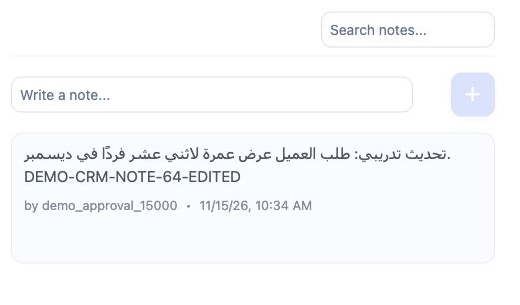
6 Searching for اثني عشر returns the edited note.
Searching for اثني عشر returns the edited note.
7 Searching for DEMO-NO-MATCH-64 shows No notes yet. Clear the text to return to the saved note.
Searching for DEMO-NO-MATCH-64 shows No notes yet. Clear the text to return to the saved note.

Deletion confirmation and retaining the note

Reveal the note actions and select the delete icon to open Delete Note.
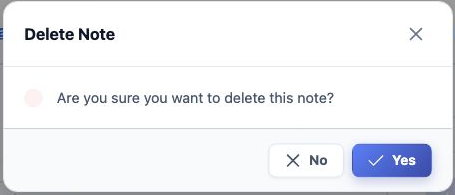
8 The dialog asks whether to delete the note and offers No and Yes. Select No to cancel deletion; this is the option used in the example.
The dialog asks whether to delete the note and offers No and Yes. Select No to cancel deletion; this is the option used in the example.
9 After closing the confirmation with No, the note retains its edited text.
After closing the confirmation with No, the note retains its edited text.

Review the activity history

Select the history icon at the top of the lead card. Reading the history requires View Activity.
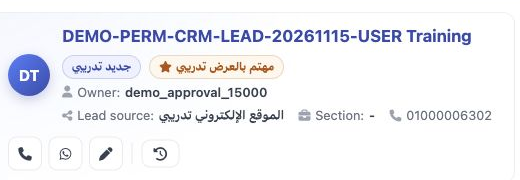
10 The history icon is beside the edit icon on the lead card.
The history icon is beside the edit icon on the lead card.
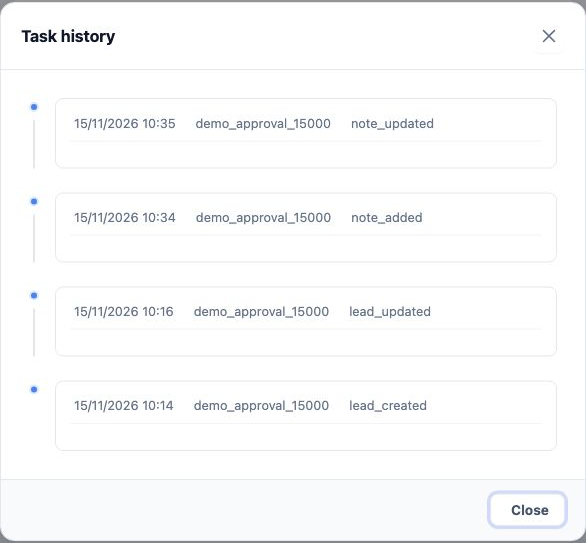
11 Task history displays events with their time and acting user. note_added means a note was added; note_updated means it was edited. Lead crea...
Task history displays events with their time and acting user. note_added means a note was added; note_updated means it was edited. Lead creation and update events also appear. Select Close or × to close.

Sign in to record the lessons you have read. Sign in