Skip to content
Trio Travel guide

Add an inquiry status

On this page
  1. Choose the type and save
  2. Edit the status description
  3. Review the deletion confirmation
  4. Use the status on an inquiry

Inquiry statuses classify the stage of a customer request. Open CRM Management, then Inquiry Status, and select +.
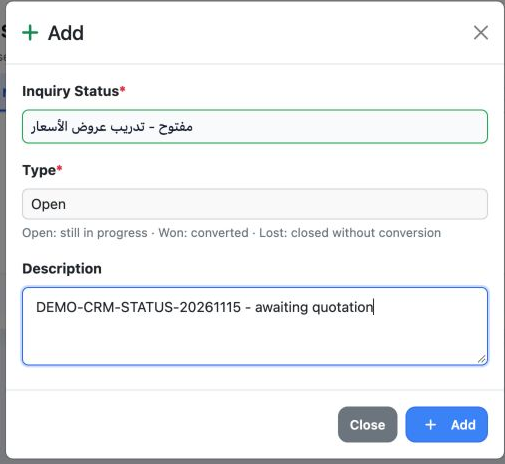
1 Add displays the status name, type and description. This example enters مفتوح - تدريب عروض الأسعار and selects Open.
Add displays the status name, type and description. This example enters مفتوح - تدريب عروض الأسعار and selects Open.

Inquiry Status is the name users will select later. The name and Type are required, as indicated by the stars.

Choose the type and save

The help beneath Type describes Open as still in progress, Won as converted, and Lost as closed without conversion. The example uses Open while preparing a quotation.

Use Description to explain when the status should be used. The example enters DEMO-CRM-STATUS-20261115 - awaiting quotation. Select Add to save, or Close to leave the form.
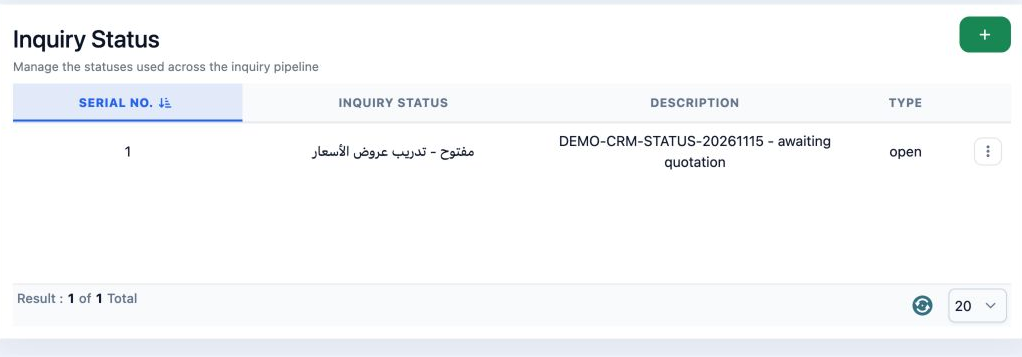
2 The saved status appears as serial 1. Check its name, description and Type column, which shows open for this example.
The saved status appears as serial 1. Check its name, description and Type column, which shows open for this example.

The list displays the serial number, status name, description and type. Choose a name that makes the workflow stage clear.

Edit the status description

Open the menu for serial 1 and choose Edit. Check the name and type, then update Description. The example keeps the type as Open.
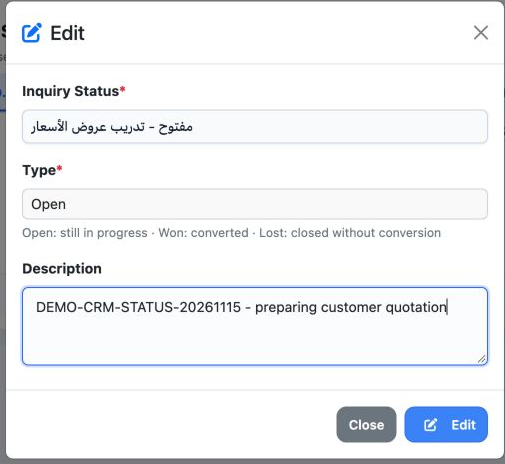
3 The description is changed to DEMO-CRM-STATUS-20261115 - preparing customer quotation. Select Edit to save, or Close to leave the form.
The description is changed to DEMO-CRM-STATUS-20261115 - preparing customer quotation. Select Edit to save, or Close to leave the form.
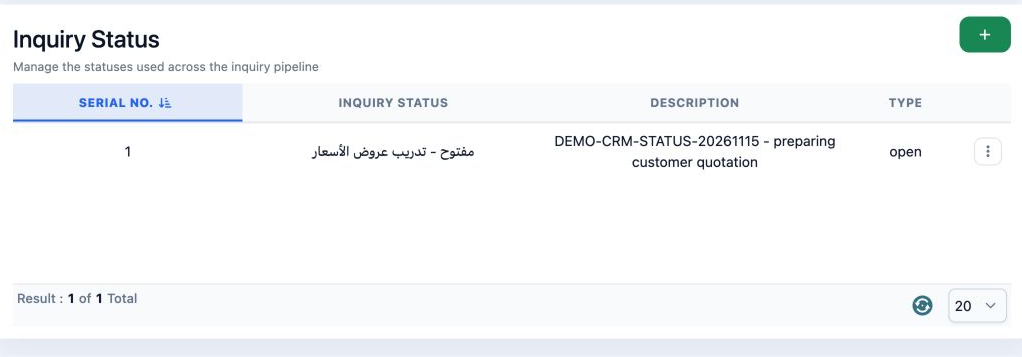
4 After saving and reloading the list, the new description appears. The record remains serial 1 with type open.
After saving and reloading the list, the new description appears. The record remains serial 1 with type open.

Review the deletion confirmation

Open the record menu and choose Delete to display the confirmation. Check the intended record before making a decision.
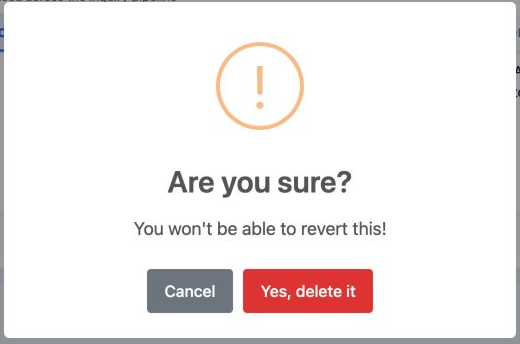
5 The dialog asks Are you sure? and warns that the action cannot be undone. Select Cancel to leave without deleting; this is the choice used i...
The dialog asks Are you sure? and warns that the action cannot be undone. Select Cancel to leave without deleting; this is the choice used in the example.
6 After Cancel, serial 1 remains with its edited description. This example demonstrates canceling deletion and retaining the record.
After Cancel, serial 1 remains with its edited description. This example demonstrates canceling deletion and retaining the record.

Use the status on an inquiry

Return to CRM, then Inquiry, and open Add inquiry. Select the lead in Contacts, then choose the status you defined in Inquiry Status.

The saved example uses مفتوح - تدريب عروض الأسعار, priority Medium, one adult and a budget of 100 Egyptian pounds. These are training values for this inquiry.
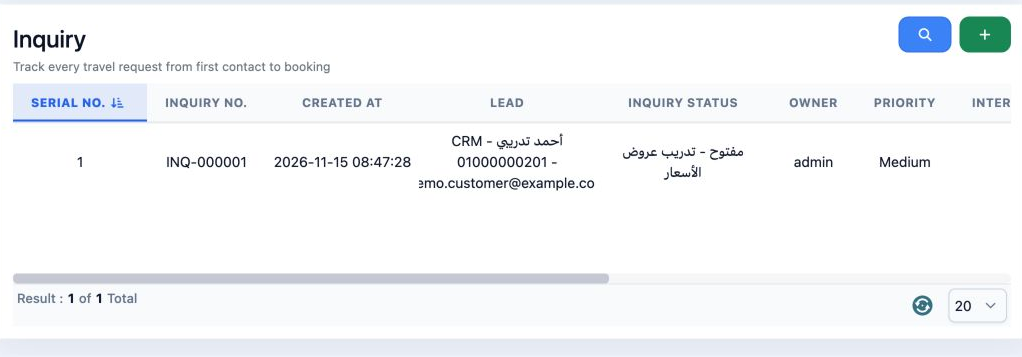
7 Inquiry INQ-000001 shows the defined status in its Inquiry Status column. This is where the setting is used after creation.
Inquiry INQ-000001 shows the defined status in its Inquiry Status column. This is where the setting is used after creation.

Sign in to record the lessons you have read. Sign in