Skip to content
Trio Travel guide

Lead Follow Up Tasks

On this page
  1. 1 Add the task
  2. 2 Change the status
  3. 3 Filter and verify the result

Create a follow-up task, find it in Activities and update its status with a reason.

1 Add the task
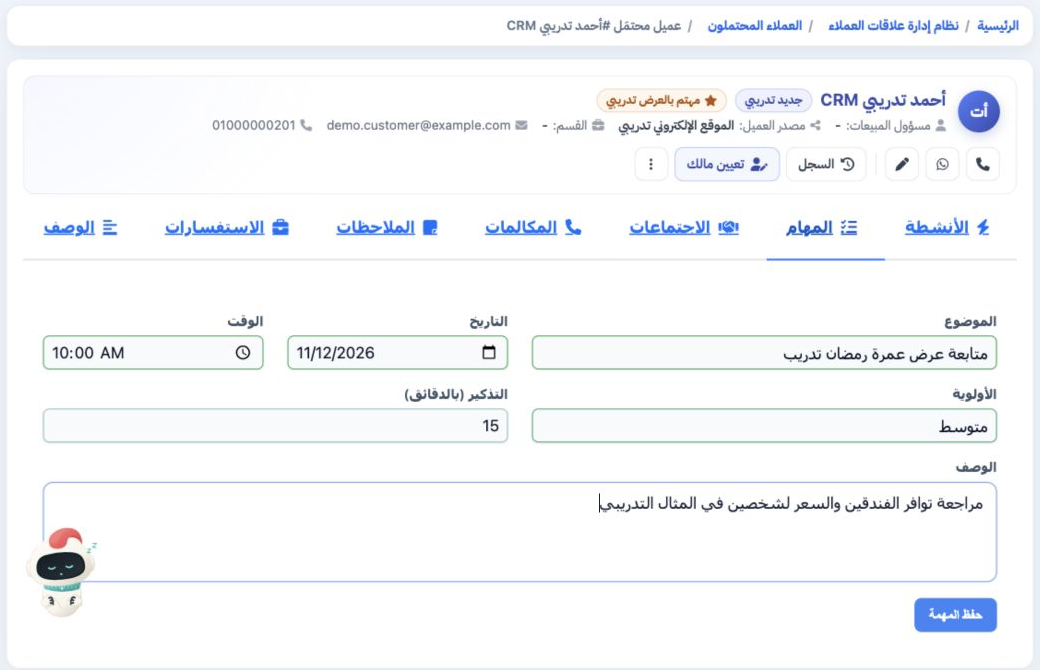
1 Open the lead record, then Tasks (المهام). Enter a subject, date, time, priority and description. Enter the reminder in minutes; this exampl...
Open the lead record, then Tasks (المهام). Enter a subject, date, time, priority and description. Enter the reminder in minutes; this example uses 15. Select Save Task, then open Activities to review it. The saved training task is scheduled for 12 November 2026 at 10 AM.

2 Change the status

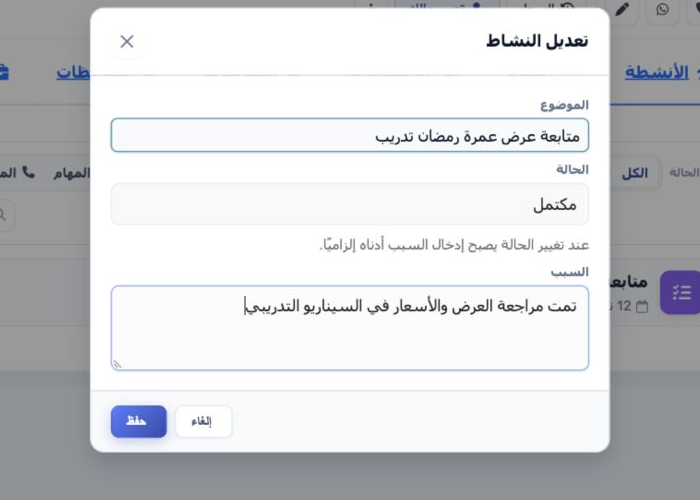
2 In Activities, select the task to reveal its actions, then select Edit. Choose Completed (مكتمل), enter a reason and select Save. A reason i...
In Activities, select the task to reveal its actions, then select Edit. Choose Completed (مكتمل), enter a reason and select Save. A reason is required when changing the status. This dialog also allows subject changes and the Open or Cancelled statuses.

3 Filter and verify the result

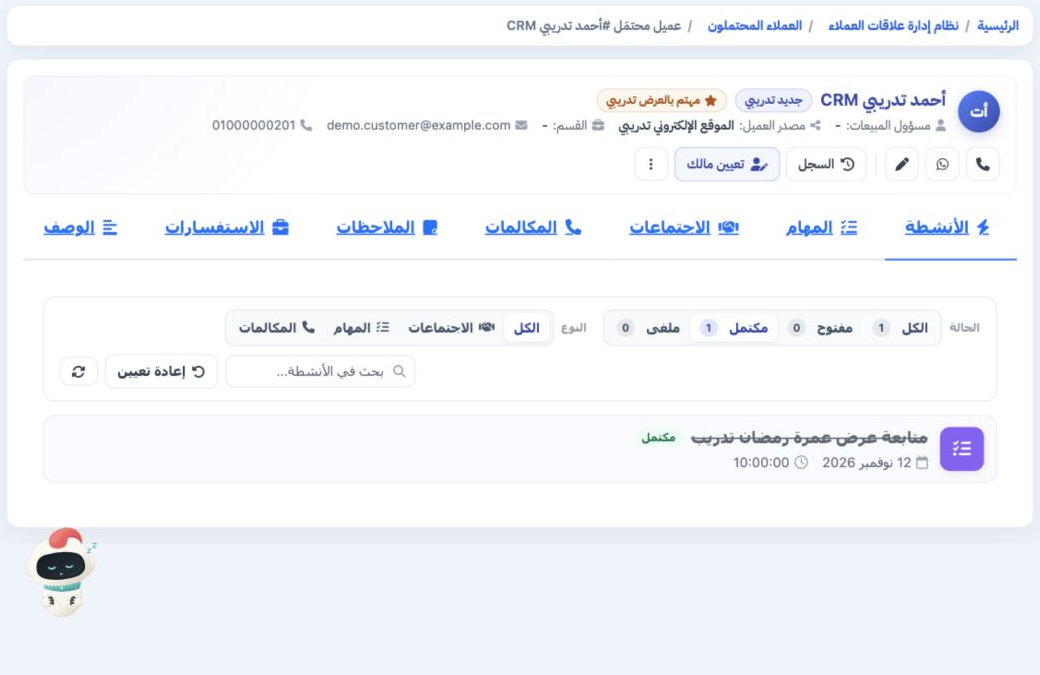
3 Select Completed to display completed tasks. The example shows one completed task and zero open tasks. Filter activities by type and status,...
Select Completed to display completed tasks. The example shows one completed task and zero open tasks. Filter activities by type and status, or use Search Activities. Reset clears the filters. A Delete action is exposed when the activity is selected.

Sign in to record the lessons you have read. Sign in