Skip to content
Trio Travel guide

Record a cash payment for the reservation

On this page
  1. Review the payment and customer order
  2. Select the receiving treasury
  3. Open the generated cash receipt
  4. Confirm the receipt and check its status
  5. Review the receipt journal entry
  6. Reconcile the treasury balance
  7. Reconcile the customer balance
  8. Review paid and remaining amounts

Open the intended reservation, then Payments. Check the customer, currency and existing payments before adding a new payment.

Set the date, amount and currency, and choose Cash in Method. Enter Reference and Details to help identify the payment later. Fees On Customer remains off in this example. Check the customer name, then select Add once.
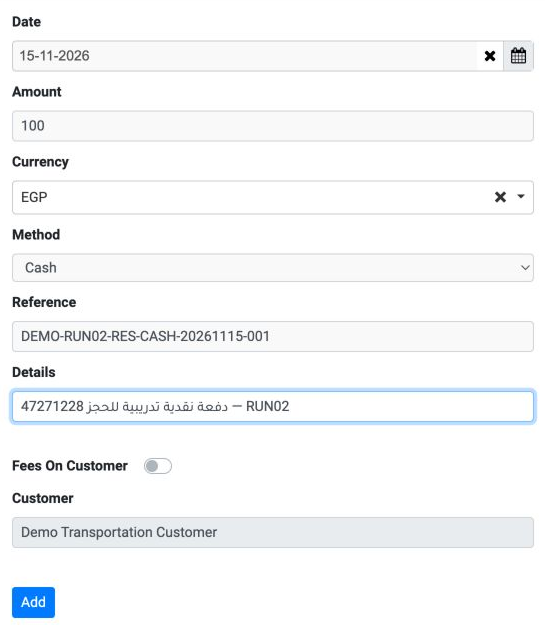
1 The Cash payment is EGP 100 dated 15 November 2026, reference DEMO-RUN02-RES-CASH-20261115-001, for Demo Transportation Customer.
The Cash payment is EGP 100 dated 15 November 2026, reference DEMO-RUN02-RES-CASH-20261115-001, for Demo Transportation Customer.

Review the payment and customer order

After a successful save, reopen the payment list and check the payment. Do not add it again if the saved row already exists.
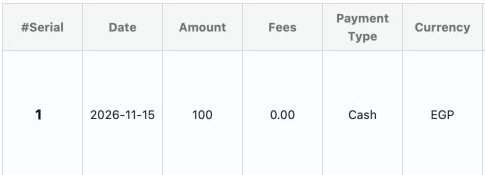
2 Payment number 1 shows amount 100, fees 0.00, methodCash and currencyEGP.
Payment number 1 shows amount 100, fees 0.00, methodCash and currencyEGP.

In Accounting, open Safe, then Payment Orders. Identify the order by its reference, customer and amount. Check its number before taking an action.

3 Payment order 9 belongs to the same customer, amountEGP 100, statusUnConfirmed.
Payment order 9 belongs to the same customer, amountEGP 100, statusUnConfirmed.

Select the receiving treasury

Open Edit for the intended order and explicitly select the receiving Safe. Check the amount, currency, reference and customer. After reviewing them, Edit & Posting saves the selection and starts posting.
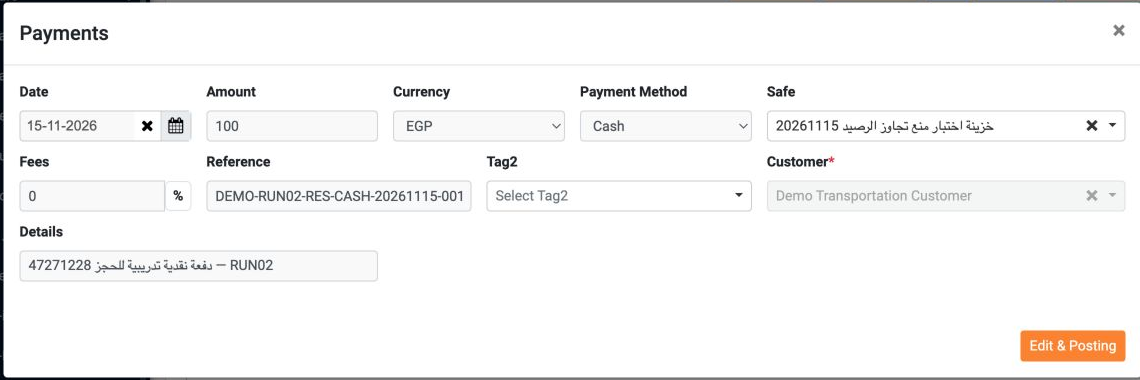
4 The treasury خزينة اختبار منع تجاوز الرصيد20261115 is explicitly selected, with Cash and EGP 100 unchanged.
The treasury خزينة اختبار منع تجاوز الرصيد20261115 is explicitly selected, with Cash and EGP 100 unchanged.

Open the generated cash receipt

After Edit & Posting completes, open the voucher link in the success message. Check the voucher number, reservation reference and receiving treasury before confirming it.
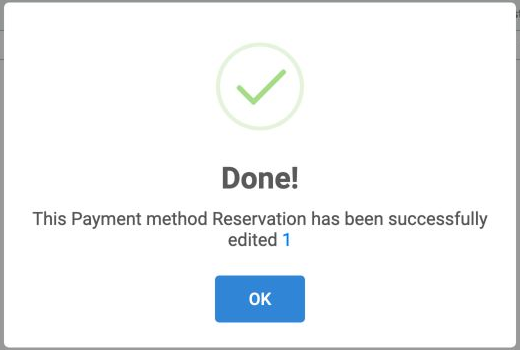
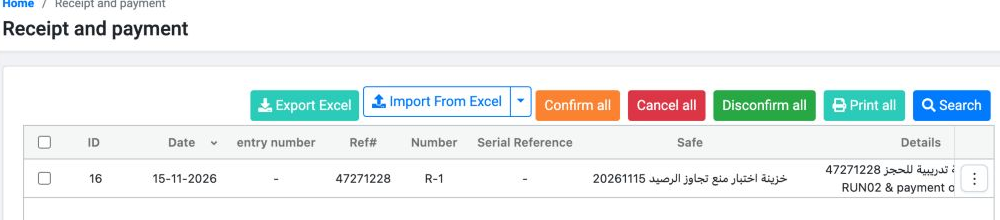
5 The Done message includes a link to the generated voucher. The number displayed in the link is not a journal entry number.
The Done message includes a link to the generated voucher. The number displayed in the link is not a journal entry number.
6 The new voucher has ID 16, numberR-1 and reference 47271228, with the selected treasury shown. The entry number column is empty at this stag...
The new voucher has ID 16, numberR-1 and reference 47271228, with the selected treasury shown. The entry number column is empty at this stage.

Confirm the receipt and check its status

After reviewing the voucher, confirm only this voucher. In the dialog, choose Yes, post it to proceed, or Cancel to stop. Wait for the posting result before repeating any action.
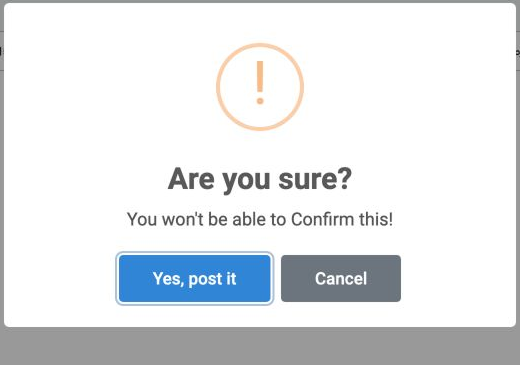
7 The confirmation dialog offers Yes, post it and Cancel. Check the posting result after proceeding.
The confirmation dialog offers Yes, post it and Cancel. Check the posting result after proceeding.

After confirming, check the voucher and queue statuses. When needed, search with statusAll to include confirmed vouchers, then match the reference and voucher number.

8 Horizontal scrolling reveals voucher statusConfirmed and queue statusComplete.
Horizontal scrolling reveals voucher statusConfirmed and queue statusComplete.

Review the receipt journal entry

Open entry number from the voucher row and review the accounts, amount, currency and rate. VoucherR-1 and journal entryR-7 have different numbers.
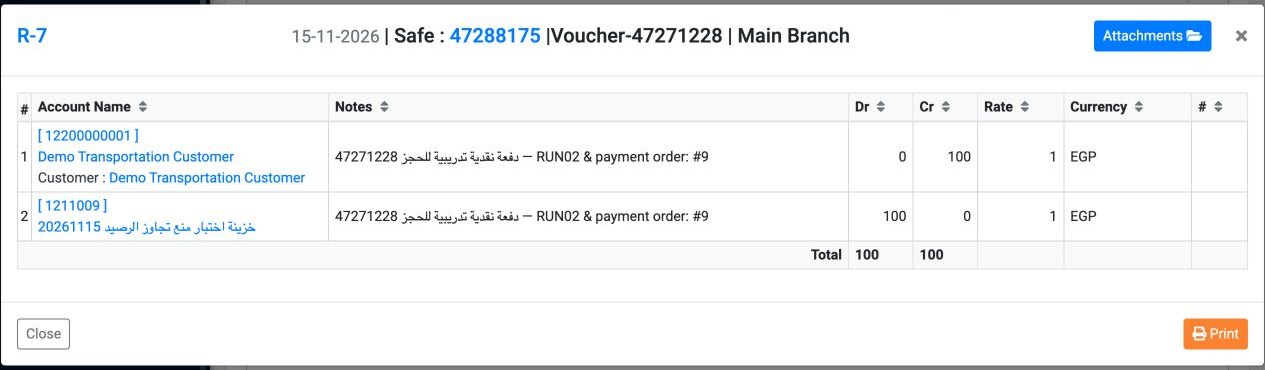
9 EntryR-7 debits treasury 1211009 by 100 and credits customer 12200000001 by 100. CurrencyEGP, rate 1, with total debits and total credits bo...
EntryR-7 debits treasury 1211009 by 100 and credits customer 12200000001 by 100. CurrencyEGP, rate 1, with total debits and total credits both 100.

Reconcile the treasury balance

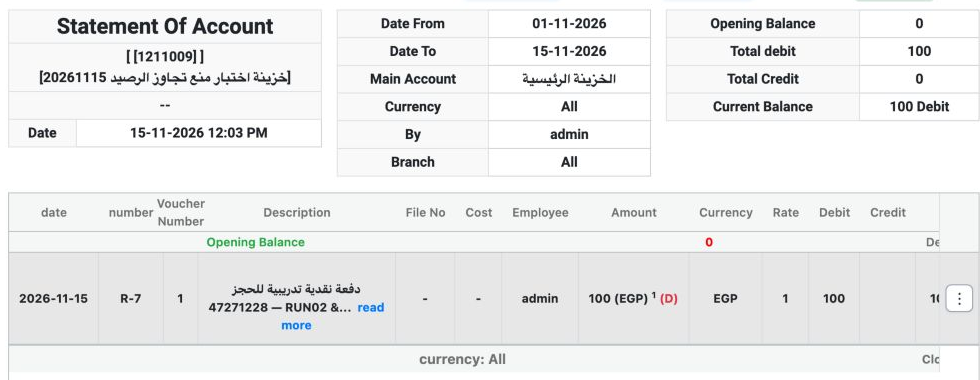
Open the statement for treasury 1211009 for 1–15 November 2026. Compare its account summary before and after posting the cash receipt.

10 Before posting, opening, debit, credit and current balance are all 0.
Before posting, opening, debit, credit and current balance are all 0.
11 After posting, total debit 100, credit 0 and balance 100 Debit. MovementR-7 is EGP 100 at rate 1.
After posting, total debit 100, credit 0 and balance 100 Debit. MovementR-7 is EGP 100 at rate 1.

Reconcile the customer balance

Open Demo Transportation Customer’s statement, account 12200000001, using the same date period and All currencies/branches. Read the account summary table.


12 Before the payment: total debit 732163, total credit 2500, balance 729663 Debit.
Before the payment: total debit 732163, total credit 2500, balance 729663 Debit.
13 After the payment: total debit 732163, total credit 2600, balance 729563 Debit. The customer’s debit balance decreases by 100.
After the payment: total debit 732163, total credit 2600, balance 729563 Debit. The customer’s debit balance decreases by 100.

Review paid and remaining amounts

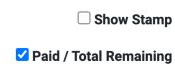
Return to the same reservation. Open Proforma Invoice, then Template 1. The preview is titled Tentative Confirmation. Enable Paid / Total Remaining to show those values in the preview.
14 Paid / Total Remaining is checked in the preview.
Paid / Total Remaining is checked in the preview.
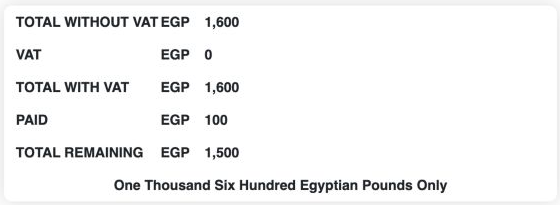
15 The reservation total is EGP 1600, Paid 100 and TotalRemaining 1500. These are the same reservation’s preview values.
The reservation total is EGP 1600, Paid 100 and TotalRemaining 1500. These are the same reservation’s preview values.

Close the preview after reviewing it. Match the amount across the payment, customer order, cash receipt, journal entry and both account statements.

Sign in to record the lessons you have read. Sign in