Skip to content
Trio Travel guide

Airport Delivery Requests

On this page
  1. 1 Airport delivery list
  2. 2 Vehicle driver and distance
  3. 3 Transfer date and route
  4. 4 Currency price and customer
  5. 5 Recipient and references
  6. 6 Edit the request
  7. 7 Review and cancel deletion
  8. 8 Copy confirmation
  9. 9 Search requests
  10. 10 Add a request payment
  11. 11 Export the list to Excel
  12. 12 Configure airport delivery revenue
  13. 13 Post the request
  14. 14 Review journal J-67

1 Airport delivery list
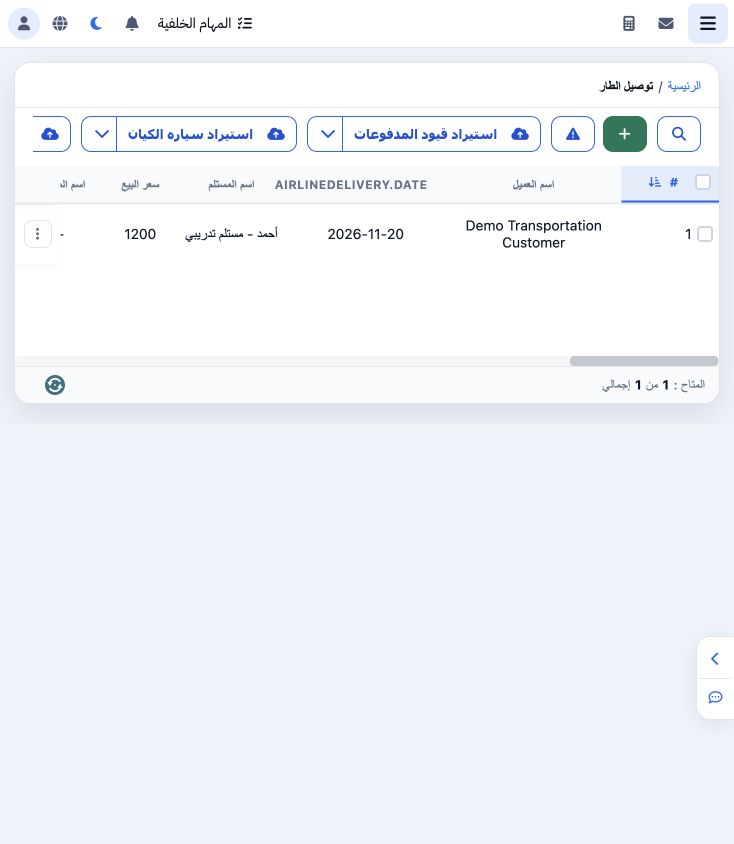
1 Open Airport Delivery from the main menu. Training request 1 is for Demo Transportation Customer on 20 November 2026. Choose + to add a requ...
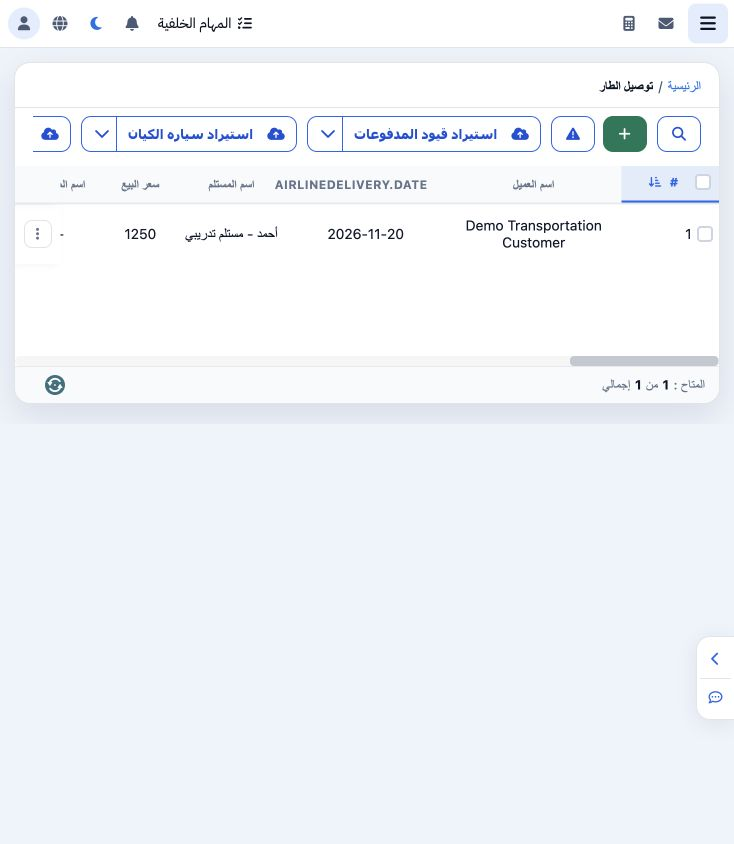
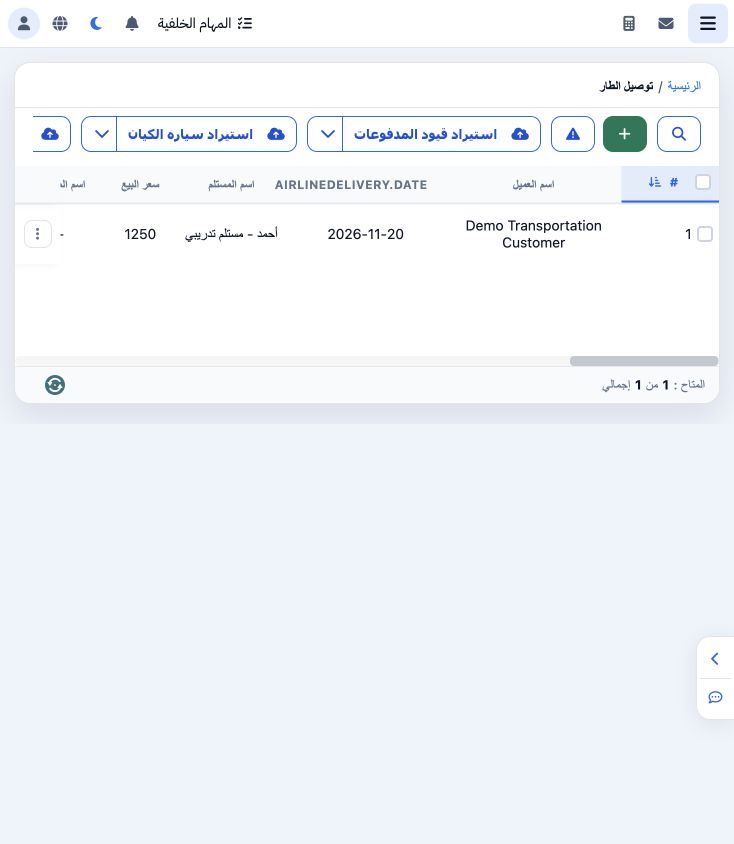
Open Airport Delivery from the main menu. Training request 1 is for Demo Transportation Customer on 20 November 2026. Choose + to add a request, or the row menu for its actions.

2 Vehicle driver and distance

2 Choose vehicle code, vehicle type and driver. Enter the guest name and a delegator when used, then select Tag2. This example uses DEMO-TR-10...
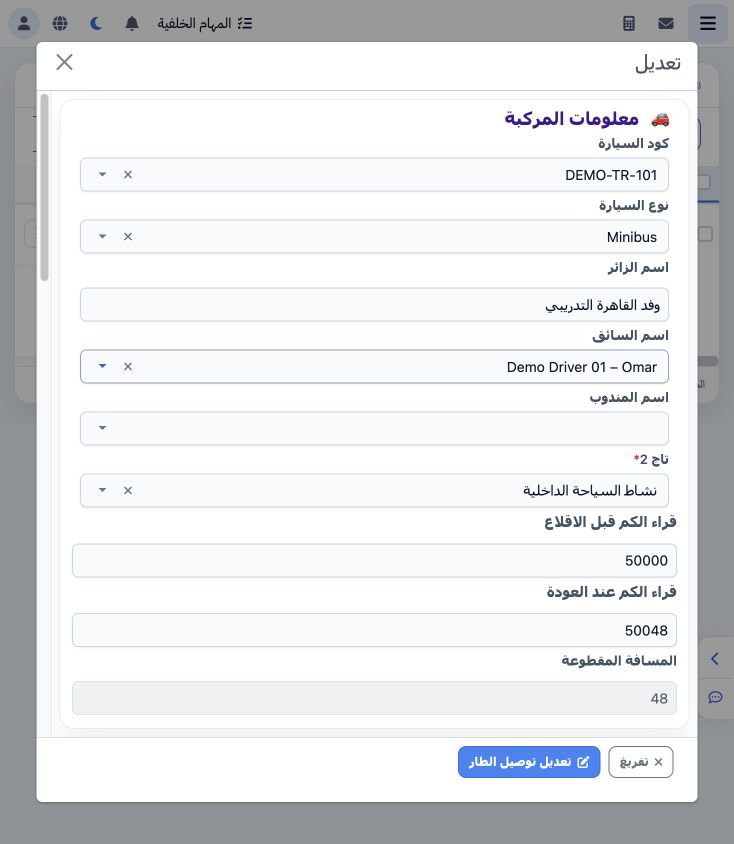
Choose vehicle code, vehicle type and driver. Enter the guest name and a delegator when used, then select Tag2. This example uses DEMO-TR-101, Minibus, Demo Driver 01 – Omar and Domestic Tourism Activity. Odometer readings 50,000 and 50,048 give a calculated distance of 48.

3 Transfer date and route

3 Use the calendar to select the transfer date, then enter departure time, pickup and destination. The example is 20 November at 10:30, from C...
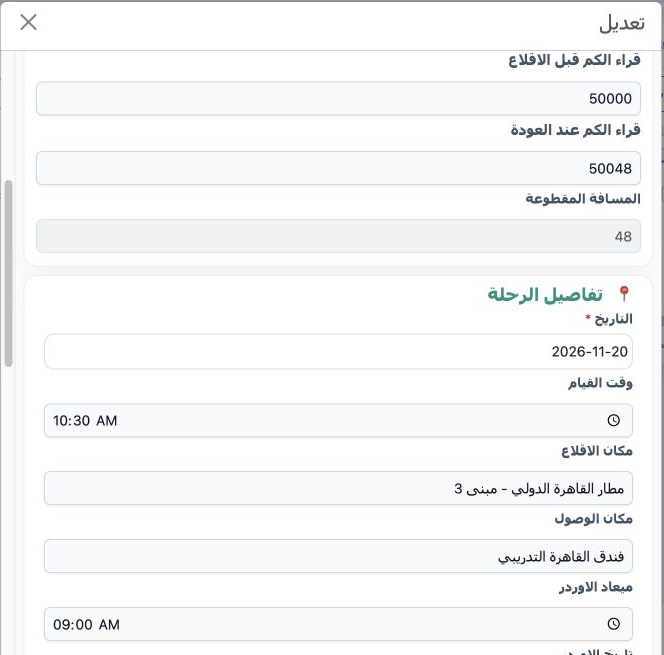
Use the calendar to select the transfer date, then enter departure time, pickup and destination. The example is 20 November at 10:30, from Cairo Airport Terminal 3 to the training Cairo hotel. Order date and time and flight number follow below; review them before saving.

4 Currency price and customer

4 Enter flight number and delegator and driver commissions; select the delegator commission mode when applicable. Select currency and customer...
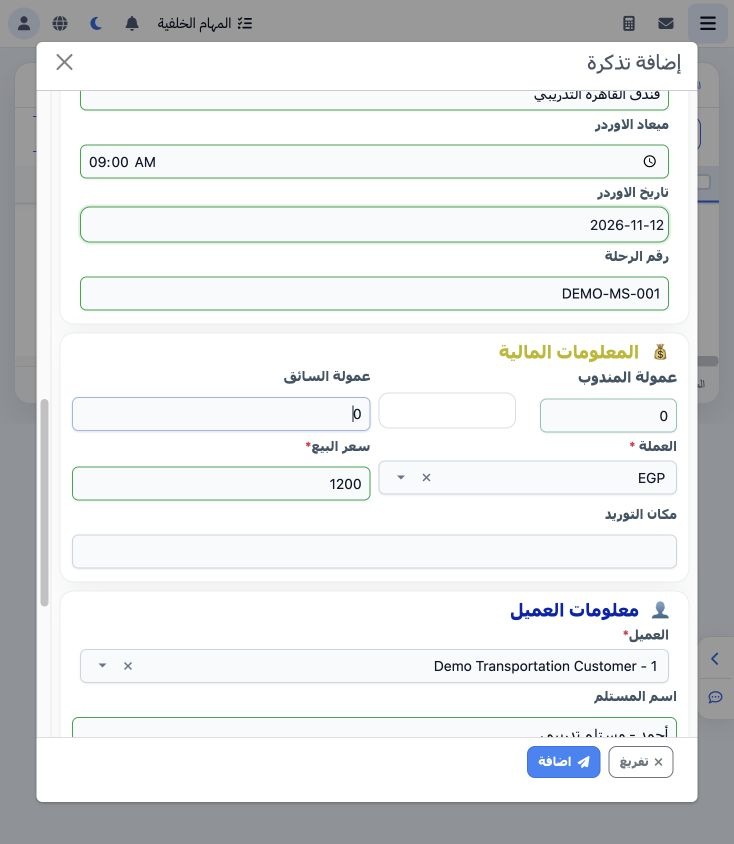
Enter flight number and delegator and driver commissions; select the delegator commission mode when applicable. Select currency and customer, and enter sale price and collection location. The example was created at EGP 1,200 with zero commissions, then edited to 1,250.

5 Recipient and references

5 Enter recipient, arrival date and time, serial number and sheet reference. This example uses 20 November at 10:00, serial 1 and DEMO-AIRPORT...
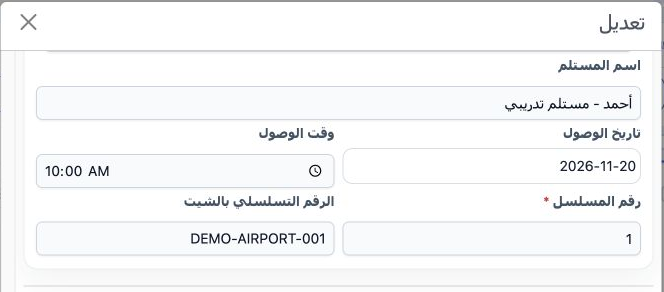
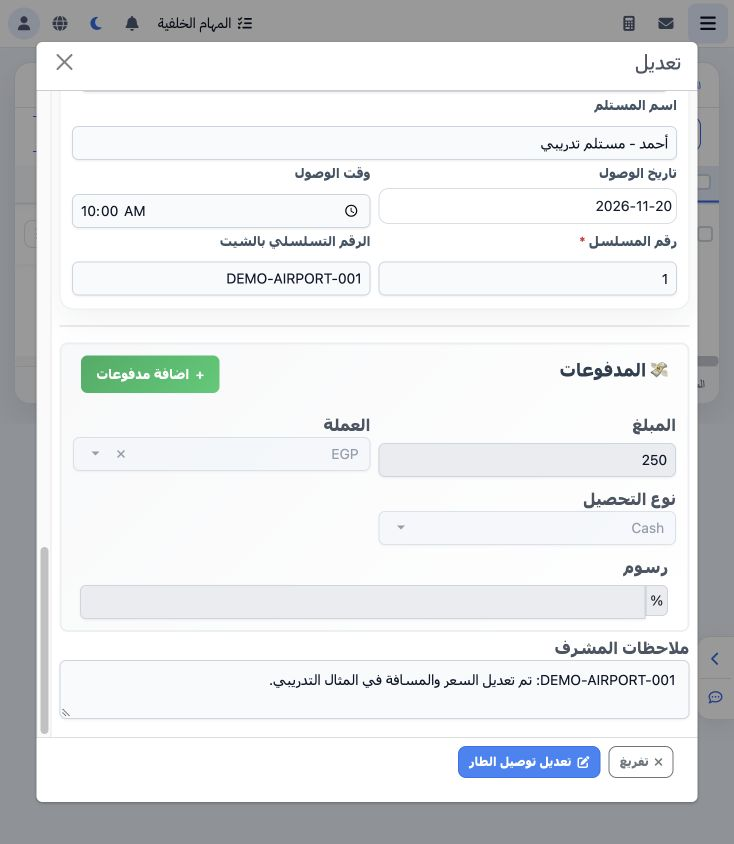
Enter recipient, arrival date and time, serial number and sheet reference. This example uses 20 November at 10:00, serial 1 and DEMO-AIRPORT-001. Add supervisor notes, save and review the row in the list.

6 Edit the request

6 Choose Edit from the row menu and wait for the saved data to load. Sale price was changed from 1,200 to 1,250, return odometer from 50,045 t...
Choose Edit from the row menu and wait for the saved data to load. Sale price was changed from 1,200 to 1,250, return odometer from 50,045 to 50,048, and supervisor notes were updated. Save the edit and verify the new price in the list.

7 Review and cancel deletion

7 Choose Delete from the request menu. A confirmation warns that the action cannot be undone. Choose Cancel to keep the request. Deletion was...
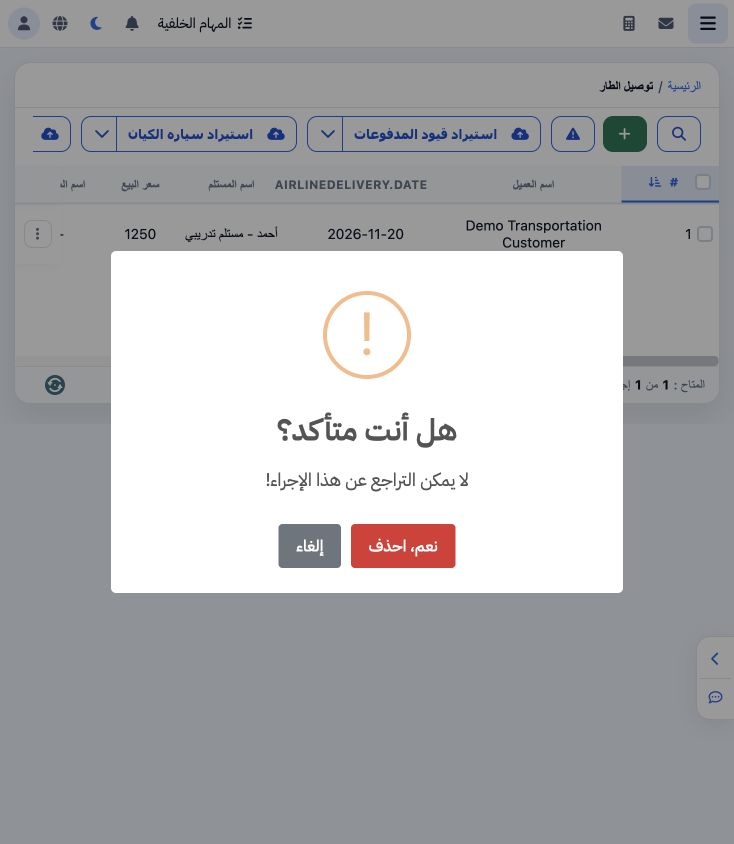
Choose Delete from the request menu. A confirmation warns that the action cannot be undone. Choose Cancel to keep the request. Deletion was cancelled in this example and the record remains saved.

8 Copy confirmation

8 Copy opens a separate confirmation with Yes Copy and Cancel. Choose Cancel when you do not want a duplicate. Copying was cancelled in this e...
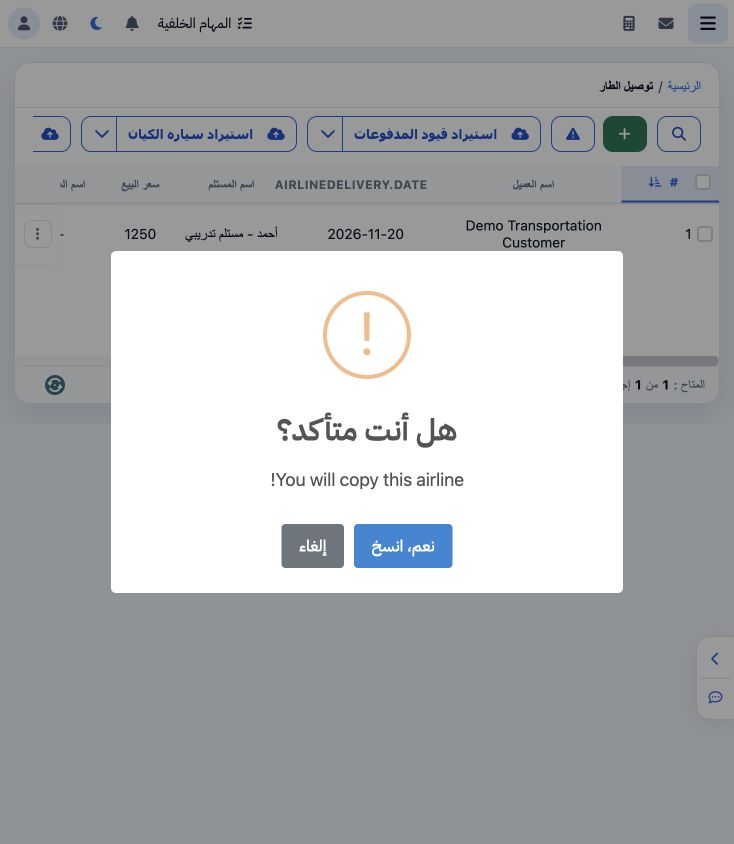
Copy opens a separate confirmation with Yes Copy and Cancel. Choose Cancel when you do not want a duplicate. Copying was cancelled in this example; one saved request remains.

9 Search requests

9 Open Search. Available criteria include dates, customer, vehicle, driver, Tag2, status, route, price, currency and references. Enter DEMO-AI...
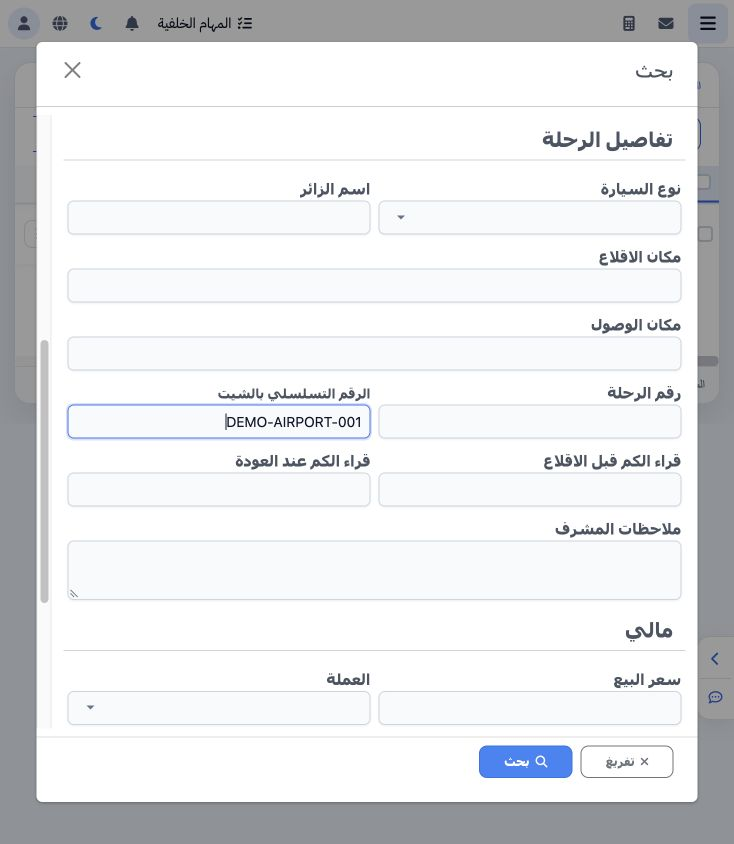
Open Search. Available criteria include dates, customer, vehicle, driver, Tag2, status, route, price, currency and references. Enter DEMO-AIRPORT-001 in Sheet Reference, then Search; the example returns one request. Clear removes the criteria.

10 Add a request payment

10 From Edit, choose Add Payments and enter amount, currency, collection type and any applicable fees. An EGP 250 Cash payment was saved and ve...
From Edit, choose Add Payments and enter amount, currency, collection type and any applicable fees. An EGP 250 Cash payment was saved and verified by reopening this request. Saving a payment row alone does not establish that a cash receipt has been confirmed; review its accounting status.

11 Export the list to Excel

11 After searching, choose the Excel icon in the list toolbar. The downloaded workbook contains a header and the example request, including pri...
After searching, choose the Excel icon in the list toolbar. The downloaded workbook contains a header and the example request, including price 1,250, reference DEMO-AIRPORT-001 and odometer readings 50,000 and 50,048. Reconcile the required fields before using the workbook.

12 Configure airport delivery revenue

12 Open Settings → Account Settings → General. Assign airline_delivery_revenue to an airport transfer revenue ledger. The example uses 4130001,...
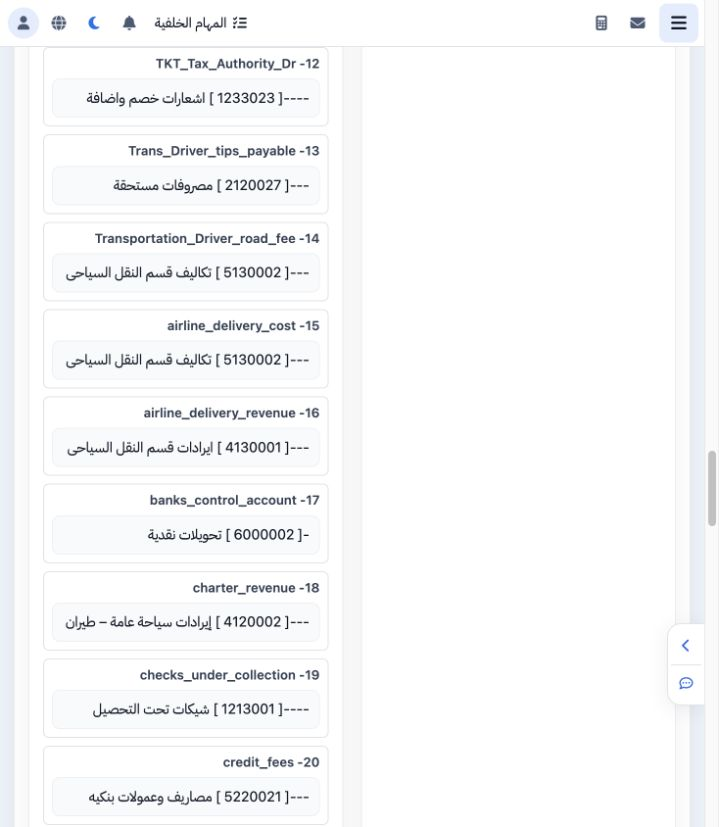
Open Settings → Account Settings → General. Assign airline_delivery_revenue to an airport transfer revenue ledger. The example uses 4130001, Tourism Transport Revenue. Review account name and type before saving, then reopen settings to verify.

13 Post the request

13 Choose Post from the request menu and review the journal status and number after processing. DEMO-AIRPORT-001 has journal 67. Posting the tr...
Choose Post from the request menu and review the journal status and number after processing. DEMO-AIRPORT-001 has journal 67. Posting the transfer revenue is separate from confirming the receipt for its payment.

14 Review journal J-67

14 The journal dated 20 November debits customer 12200000001 by 1,250 and credits Tourism Transport Revenue 4130001 by 1,250, in EGP at rate 1....
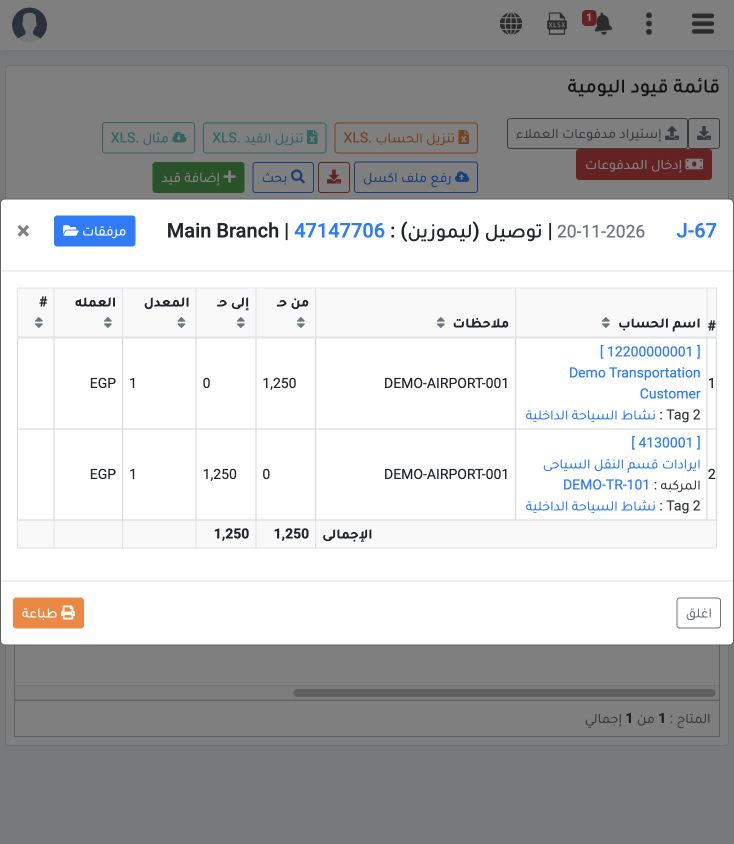
The journal dated 20 November debits customer 12200000001 by 1,250 and credits Tourism Transport Revenue 4130001 by 1,250, in EGP at rate 1. It carries Domestic Tourism Activity Tag2 and the request reference; DEMO-TR-101 appears on the revenue line.

Sign in to record the lessons you have read. Sign in